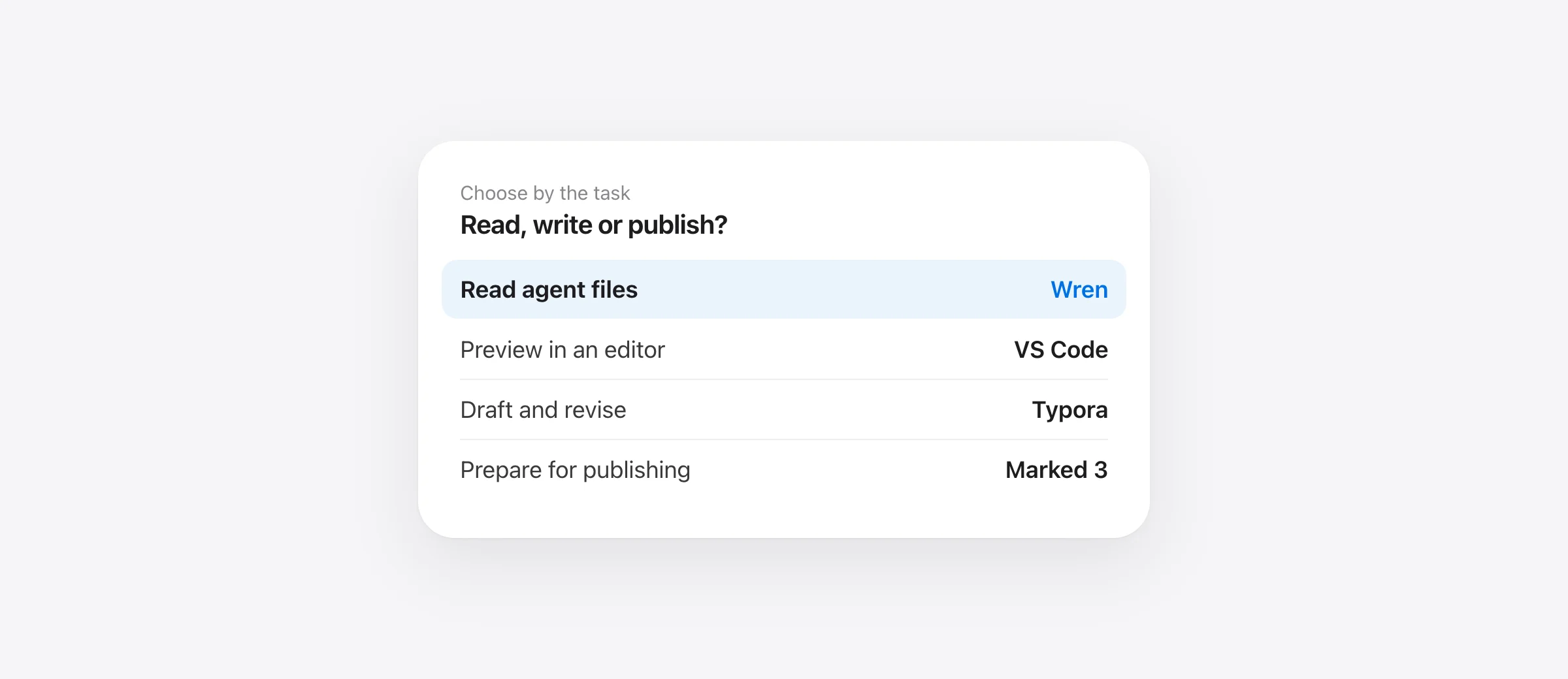
Choose by the work
- Read AI-generated plans in a separate window: try free Wren on a compatible Mac.
- Stay inside your code editor: start with VS Code’s built-in preview.
- Use a dedicated reader on an older Mac: evaluate MacMD Viewer.
- Write long Markdown documents: consider Typora.
- Prepare documents for publishing: consider Marked 3.
The best Markdown viewer for Mac depends on who is writing the file. When you write it yourself, editing comfort matters. When a coding agent keeps updating a plan, you need a readable view that follows those saves. When a colleague sends a README, a quick Finder preview may be enough.
We make Wren, a free Markdown reader for Mac, and recommend it for the second job. This guide explains that fit alongside reasons to choose other apps. Prices and documented features were checked October 12, 2026; we have not run a comparative speed or memory benchmark.
Mac Markdown viewers compared
| App | Price | Best reason to choose it | Check first |
|---|---|---|---|
| Wren | Free | Read changing project files in a dedicated window | Apple silicon; macOS 26+ |
| VS Code preview | Included with VS Code | Read beside the source you already edit | Your installed version and preferred layout |
| MacMD Viewer | $19.99 once | Dedicated, read-only viewer with wider Mac compatibility | One active Mac per license; no free trial |
| Typora | $14.99 before tax | Writing and revision in a live-preview editor | Try your document during the 15-day trial |
| Marked 3 | $2.99/month or $69.99 permanent unlock | Proofreading, processing and publishing exports | Permanent-unlock price is listed as introductory |
Price is only one filter. An app that cannot run on your Mac is not an option, and an app that renders a table beautifully may still be the wrong tool for editing a book. The useful comparison is the document you need to finish reading or writing.
Wren: a free reader for files that keep changing
Wren opens Markdown in reading mode. Keep a plan beside your terminal and the view refreshes when the file is saved. New and edited blocks receive green highlights, with a changes control for moving between them. That helps you return to the affected section instead of scanning the whole document again.

For a folder of specifications, the sidebar and Open Quickly reduce the work of finding the next file. Mermaid diagrams and KaTeX math render using bundled libraries. You can inspect a diagram in an expanded view, export documents, or use the command line to open a file or folder.
Wren also has a split editor: press ⌘E to fix a sentence and return to reading. This is useful for a small correction while reviewing. It does not make the app a shared editing service or a system for approving an agent’s next action.
The main limitation is compatibility: Wren requires Apple silicon and macOS 26 or later. It is currently free, with no account or paid tier. For the complete file-review workflow, see using Wren as a Markdown viewer for Claude Code.
VS Code: start here if you already work in it
VS Code’s Markdown documentation covers preview beside the source, preview locking, math, Mermaid and rendered diff views. That is a substantial baseline without adding a dedicated reader.
Try the preview on your actual spec before shopping. If it stays visible where you want it and the diagrams render correctly, you may already have a complete solution. A separate window becomes attractive when switching code tabs repeatedly pulls your attention away from the document you are reviewing.
Do not buy another app solely because an old comparison says VS Code needs an extension for Mermaid. Its current documentation lists built-in support. A dedicated reader should earn its place through a reading workflow you prefer.
MacMD Viewer: a read-only option for older Macs
MacMD Viewer lists macOS 14 or later on both Intel and Apple silicon. Its $19.99 one-time license covers one active Mac and can be transferred. It includes live reload, Mermaid and Finder Quick Look.
Its read-only design is a useful distinction. If you want opening a document to be separate from changing its source, evaluate that workflow. Wren supports editing and interactive task checkboxes; those conveniences are not requirements for every reader.
There is no free trial; the vendor lists a 14-day refund period. Confirm the license and compatibility before purchasing. For someone whose Mac cannot run Wren, wider hardware support can be more valuable than an extra visual feature.
Typora: buy for the writing experience
Typora combines writing with live rendering in one interface, rather than making a separate preview the center of the experience. Its site lists $14.99 before tax, up to three devices and a 15-day trial.
Choose a writing sample that requires revision, not just reading. Rearrange sections, change a table and fix a nested list. If those tasks feel easier, you have a concrete reason to pay for an editor even when a free viewer can display the finished file.
For primarily consuming plans another tool writes, editing features may get little use. For writing documentation for several hours a day, those same features can determine the purchase. Decide which task occupies more of your week.
Marked 3: evaluate it for publishing work
Marked 3 emphasizes proofreading, custom processing and exports including PDF, HTML and DOCX. Its site lists $2.99 per month or a $69.99 permanent unlock, with the unlock labeled an introductory price.
If a document has to leave your project as a polished deliverable, test the exported result. Page breaks, tables and diagrams matter more than how attractive the preview looks. A publishing tool earns its price by reducing the work between a source file and something you can send.
For reading one short plan beside a terminal, start with a simpler option. For repeated client reports or documents with particular output requirements, a more capable export workflow is a reasonable reason to pay.
Run a five-part test before choosing
Use one representative file across your shortlist. A real document exposes problems that a feature checklist cannot: a diagram too wide for the window, relative images, a deep outline or a table you need to compare across rows.
- Read: open the longest document you regularly use. Find a specific heading, then return to where you were reading.
- Refresh: keep it open while another editor saves changes twice. Confirm that the second update appears too.
- Inspect: check a table, a diagram, a code block and a local image. Use your own syntax and assets.
- Edit: if editing matters, revise a paragraph. Test what happens when another tool changes the file while you have unsaved work.
- Share: export only if that is part of your job. Open the exported file separately and check the sections that matter.
For an offline test, use a document with local assets and disconnect after installing the app. Bundled rendering can work offline while a remote image embedded in a document still needs a connection. Also check whether the folder itself is managed by a cloud-sync service.
If you only want a glance at a README, compare Finder Quick Look with a full reading window. QLMarkdown is an open-source extension for that narrower job. A preview extension and a dedicated reader solve different amounts of work.
Which one should you choose?
Try Wren first when you have a compatible Mac and want to read files an agent keeps updating. Stay with VS Code when its preview already fits your workspace. Evaluate MacMD Viewer for a read-only app on an older Mac, Typora for sustained writing, and Marked 3 for publishing requirements.
The goal is to finish a real reading or writing task with less friction. Choose after that test, rather than paying for the longest feature list.
Frequently asked questions
What is the best free Markdown viewer for Mac?
For a separate reading window on Apple silicon with macOS 26 or later, try Wren. It includes live reload, changed-block highlights, Mermaid and math. If you already use VS Code, start with its built-in preview before installing another app.
Is Wren really free?
Yes. Wren currently has no paid tier, account requirement or subscription. It is a Markdown reader with a split editor, available from the maker of Murmur.
Can Wren replace Typora?
It can cover reading and small edits. Typora is worth evaluating if your main task is drafting and revising Markdown in an integrated writing interface. Try a representative document before deciding.
Do I need a paid app to see Mermaid diagrams on Mac?
No. Wren renders Mermaid, and current VS Code documentation also lists built-in Mermaid preview support. Check your installed editor version before buying a separate viewer for that feature alone.
Does Wren work on an Intel Mac?
No. Wren requires Apple silicon and macOS 26 or later. MacMD Viewer documents Intel and Apple silicon support on macOS 14 or later; check other apps against your exact Mac and operating system.
Sources

Telman Gadimov builds Wren, a free Markdown reader, and Murmur, an on-device dictation app for Mac. We make Wren. Prices and competitor features were checked against vendor documentation on October 12, 2026. This is a workflow comparison, not a performance benchmark.

