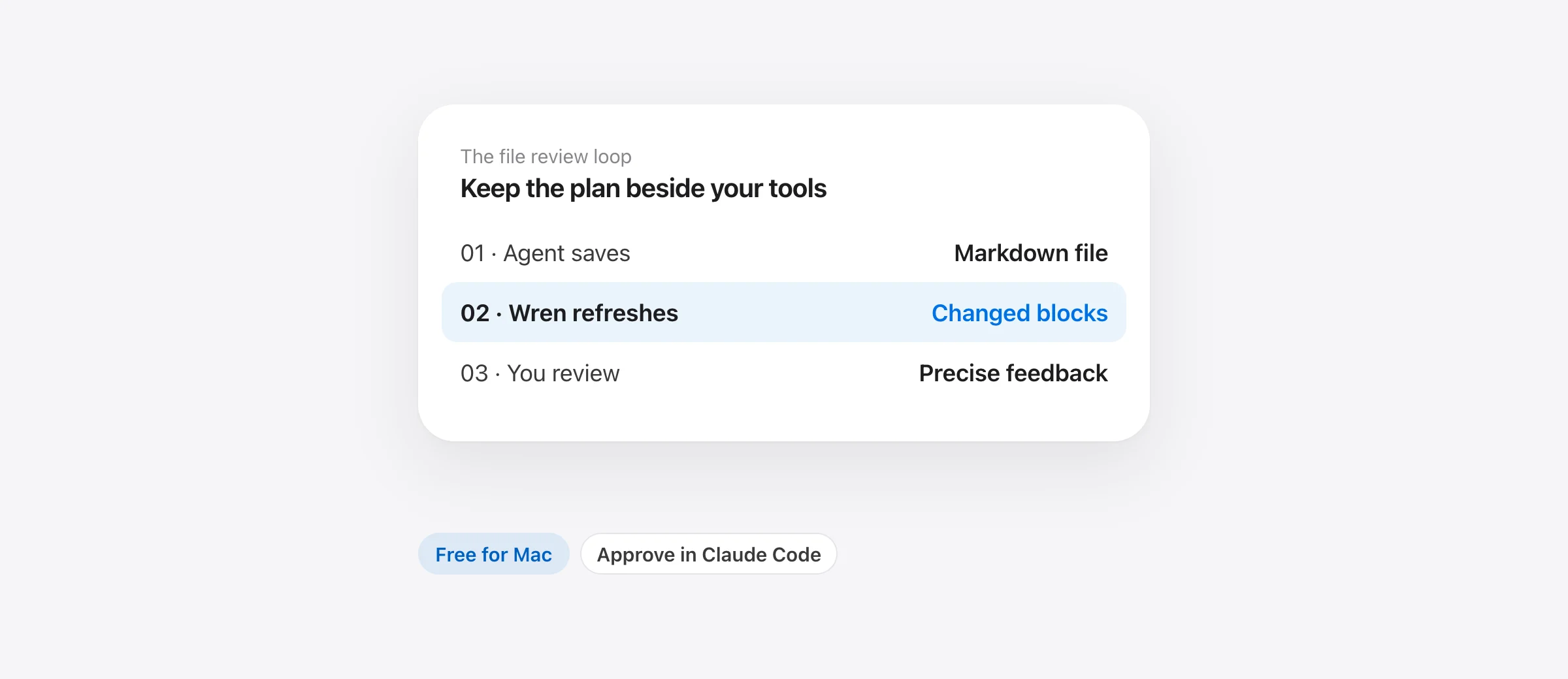
The short setup
- Save the document you want to review as a local Markdown file.
- Open it in Wren beside Claude Code.
- Read the rendered plan and follow highlights when the file changes.
- Send corrections and approve execution in Claude Code.
A Markdown viewer for Claude Code is useful when the document outgrows the conversation: a long implementation plan, a migration checklist or a specification with tables and diagrams. You need to read the current file carefully while the terminal remains available for questions.
Wren is a free Mac app for that reading step. We make it, and this guide shows the file-based workflow it supports. It does not require a Claude-specific plugin, and it does not act as an approval system. You remain responsible for telling the agent what to change and when to proceed.
Decide whether you need another app
If the plan is a short paragraph, reading it in the conversation may be enough. If you already keep Markdown preview open in an editor, try that first. A separate reader is most useful when you want the plan to remain visible while moving among terminal sessions, source files and diffs.
| Your situation | A sensible starting point |
|---|---|
| A short explanation with no saved document | Read it in the conversation |
| You already work in VS Code | Try its Markdown preview and preview locking |
| A saved plan should stay visible beside your tools | Open the file in Wren |
| You need an exact record of every change | Read the document alongside a version-control diff |
Wren requires Apple silicon and macOS 26 or later. For an older Mac or a different editing preference, our Mac Markdown viewer comparison covers alternatives. There is no Wren account or paid tier to unlock for this workflow.
Start with a real file and a clear path
Wren reads files, not the text streaming through your agent conversation. Open the saved document you intend to review. If you are creating a review copy, choose a path that both you and the agent can identify unambiguously.
Here is an example request for a session where writing that document is permitted:
Save a review copy of the proposed implementation plan as docs/review-plan.md. Include the affected files, assumptions, test strategy and unresolved questions. Do not start the implementation.
This is an example of organizing your work, not a special command or guaranteed default location. Claude Code’s official workflow documentation describes plan mode as a way to review proposed work before edits, with execution approval handled in Claude Code. Use the actual plan path available in your session; do not assume every plan is called PLAN.md.
A good review copy answers four questions before it becomes long: what changes, which files are involved, how you will verify the result, and what remains undecided. A clean viewer cannot compensate for a plan that leaves those questions unanswered.
Open the file in Wren
Download Wren, move it to Applications, and open it. Use ⌘O to select the Markdown file. You can also open a folder when the work spans a plan, research notes and a specification.
For terminal use, choose Wren → Install Command Line Tool…. From the project directory, open the file you saved:
wren docs/review-plan.mdCheck the path before running it: the command can create a new file if the named file does not exist. If you get a blank document, first confirm you opened the intended file in the intended project directory.
To browse a folder instead, use wren docs/. If the shell cannot find wren after installation, check that the installation directory shown by the app is in your shell’s PATH. The file picker remains available without the command line.
Follow saves without losing the review
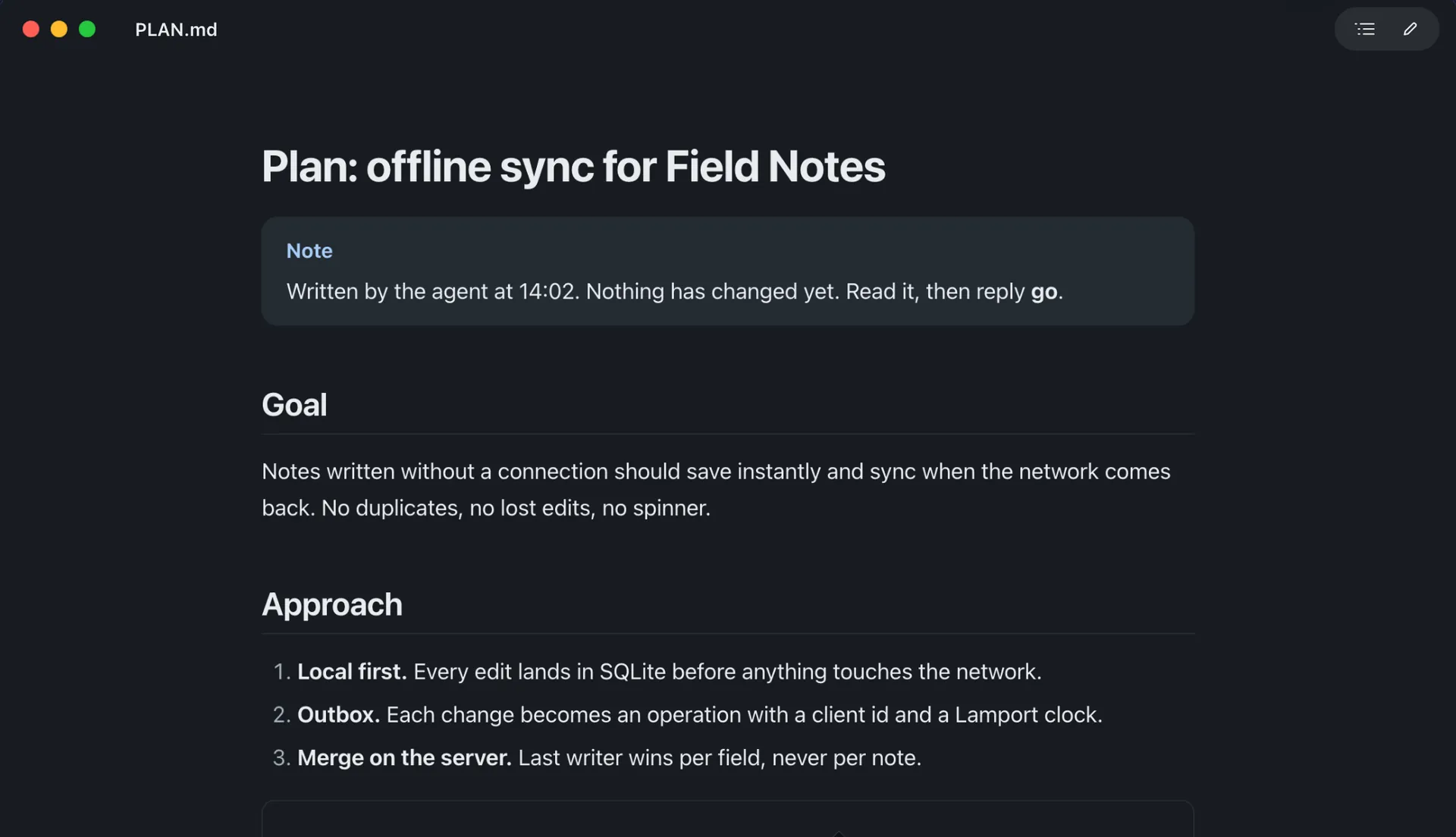
Leave the document open and ask for a specific revision in Claude Code. Wren refreshes when the file changes on disk and marks new or edited blocks. The changes control moves between those blocks, so you can inspect the revision before rereading its surrounding section.
The file watcher also handles replacement saves, where a tool writes a temporary file and renames it over the original. This matters because following only the original file can otherwise leave a preview stale. Wren’s implementation reattaches its watcher after rename or delete events.
Read the highlights as navigation aids. A highlighted paragraph tells you where to look; it does not tell you whether the change is correct. If a requirement disappears entirely, use your Git diff or other version history to inspect the removal. The rendered view and the patch answer different questions.
For several documents, press ⌘B in reading mode for the folder sidebar. Its green dots identify files changed since you last read them. ⌘P opens a project file picker, including Markdown under hidden folders such as .claude/. That searches the active project scope; it is not a global browser of every agent session on your Mac.
Review the plan, not just its appearance
Formatting makes structure easier to see. Use that advantage to inspect the reasoning. A table should expose missing decisions; a diagram should make the data flow easier to question.
| Look at | Ask | Useful feedback |
|---|---|---|
| Scope | Does each proposed change serve the request? | “Remove the unrelated settings redesign from this plan.” |
| Assumptions | Is an unknown being treated as a fact? | “Verify the current retry behavior before choosing the new one.” |
| Sequence | Do later steps depend on unfinished earlier work? | “Explain how older clients behave during the migration.” |
| Verification | Does the test check the behavior that matters? | “Add a case for a request that succeeds after the connection drops.” |
For Mermaid diagrams, click the diagram to inspect it in an expanded view. Follow an error path as well as the successful path. If a transition is missing, ask for that transition explicitly instead of requesting a vaguely “better diagram.”
Mermaid, math and code-highlighting libraries are bundled with Wren. Local documents can render without a connection, but a document that embeds a remote image still depends on that resource. Your coding agent’s network requirements are separate from the reader’s.
Make small edits without confusing the agent
Press ⌘E for a split editor when you need to fix a line. If the file changes externally while you have unsaved edits, Wren asks how to handle the incoming version. Resolve that deliberately; do not assume two tools editing the same paragraph will merge their work.
Task checkboxes are also edits: clicking one changes the Markdown task state. A checked box can be useful for your review checklist, but it is not a message to Claude Code and it does not approve execution.
After saving a correction, tell the agent which file changed and ask it to reread that file before continuing. For example: “I updated the acceptance criteria in docs/review-plan.md. Read that section again and revise the implementation steps to match.” This makes the feedback explicit instead of relying on the agent to infer your intention.
Keep the review loop short
Use one saved plan as the reference for the next decision. Read it, send a bounded correction, and inspect the resulting change. When the document is ready, approve the work through Claude Code’s own controls.
For a handoff, Wren can export PDF or HTML. Treat an export as a snapshot; it will not keep updating when the underlying Markdown changes. Include the source path or revision in the handoff if the recipient needs to connect it to later work.
The same file-based approach works with other tools that save Markdown locally. You are choosing a place to read and inspect the document, not replacing the agent or your source-control review.
Frequently asked questions
Does Wren integrate directly with Claude Code?
This workflow connects them through a Markdown file on disk. Wren watches the file you open. It does not read your Claude conversation or send approvals, comments or commands back to the agent.
Where should I save a Claude Code plan to read it in Wren?
Use the file path for the plan you actually want to review. You can ask Claude to save a review copy at a chosen project path when file writing is permitted. PLAN.md in this guide is an example filename, not a universal Claude Code default.
Can Wren highlight what Claude changed?
Wren highlights new and edited rendered blocks when the open file changes on disk. For deleted text, historical versions or a complete patch, also use a version-control diff.
Does opening a plan in Wren approve it?
No. Reading, editing or checking a box in Wren does not approve Claude Code actions. Submit feedback and handle execution approval in Claude Code.
Can I use Wren with other coding agents?
Yes, when the tool writes a Markdown file accessible on your Mac. Open that file in Wren. The file-based workflow does not depend on a Claude-specific plugin; remote-only files need to become available locally first.
Sources

Telman Gadimov builds Wren, a free Markdown reader, and Murmur, an on-device dictation app for Mac. We make Wren. The workflow uses Wren’s documented features and local source inspection, plus Claude Code’s official documentation checked October 12, 2026. Wren is an independent app, not an Anthropic product.

