Shortlist by what needs to work offline
- Live dictation with local AI writing: Murmur, on a compatible Mac with Apple Intelligence ready.
- Configurable local cleanup: VoiceInk or Superwhisper, within each local model’s requirements.
- Free local dictation: Spokenly; also check Apple Dictation’s on-device status.
- Existing audio files: MacWhisper with local models.
For an offline dictation app for Mac, the buying question is simple: will the exact writing task you need still finish when the connection disappears? A local speech model is a start. It does not establish that formatting, rewriting, vocabulary learning or insertion work under the same conditions.
Our recommendation for live writing with on-device AI is Murmur, which we make, if you meet its hardware and software requirements. The alternatives below serve different needs. This is a documentation-based buying guide, checked October 12, 2026, with a repeatable test you can run before purchasing. It is not an accuracy leaderboard.
What “offline dictation” needs to include
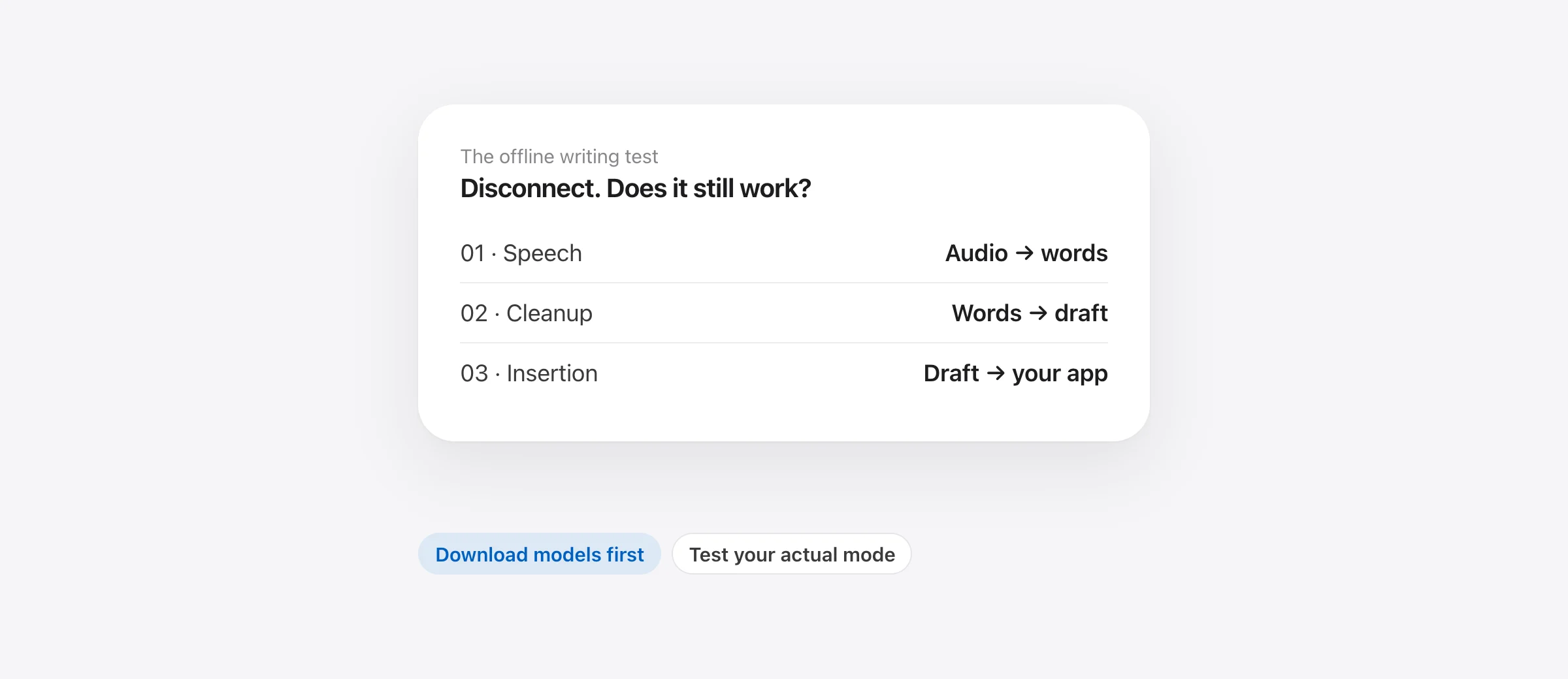
Consider a spoken draft: “Um, send the revised outline on Tuesday, no, Wednesday, and ask Maya to check it.” Turning that into usable text involves more than recognizing the sound.
| Stage | What it does | What to verify |
|---|---|---|
| Speech recognition | Converts the recording into words | The selected speech model runs on your Mac |
| Cleanup or rewriting | Removes filler, handles corrections or changes the wording | The language model is local, or this step is disabled |
| Text insertion | Places the result in the destination field | The shortcut, permissions and destination app work offline |
| Optional background features | Save history, learn words or sync settings | Their settings match your data requirements |
You do not necessarily need AI cleanup. For verbatim notes, a reliable transcript can be enough. But if the reason you are paying is to resolve that Tuesday-to-Wednesday correction, test that feature while disconnected as well.
Offline Mac dictation apps compared
| App | Local speech | Local cleanup route | Buying consideration |
|---|---|---|---|
| Murmur | Apple’s on-device speech | Apple Intelligence on the Mac | $19 once; Apple silicon and macOS 26+ |
| Superwhisper | Select a local voice model | S1-mini: English Message and Mail modes | Local AI cleanup requires Pro |
| VoiceInk | Select a local model | Refine or a compatible local provider | Refine requires Apple silicon and 16 GB RAM |
| Spokenly | Local models with a free tier | Local endpoints can be used | More setup for your own local text model |
| MacWhisper | Local transcription models | Local AI integrations, including Ollama | Evaluate the dictation or file workflow you need |
| Apple Dictation | Check the notice in Keyboard settings | Features vary by configuration | Built in; test your language and Mac |
For a detailed cost comparison, see Mac dictation software without a subscription. Here the deciding factor is which features remain available without a network.
Choose the local setup that fits your work
Murmur: speech and AI writing on-device
Murmur uses Apple’s on-device speech recognition and on-device Apple Intelligence for cleanup and voice editing. You do not connect a cloud AI provider. That makes it a focused option for writing into a text field, switching tone by app, or selecting a draft and asking for a shorter version.
It requires Apple silicon and macOS 26 or later. AI features depend on Apple Intelligence being enabled and available for your configuration. Install the needed assets while connected, then test your language and preferred writing style during the free trial.
Offline does not mean no network requests ever. Murmur needs the network for initial model downloads and license activation, and checks the license when connected. Those requests do not contain dictation content. An activated license remains usable when a check cannot reach the network. The privacy policy explains the other optional and trial-related requests.
Superwhisper: check the mode as well as the model
Superwhisper documents a fully local configuration using local speech and language models. Its S1-mini cleanup model is English-only and limited to Message and Mail modes. Do not assume a working offline email test establishes that a custom rewriting mode will also work.
If you already use Superwhisper, checking the current mode is a sensible first step before buying another app. Test each mode you rely on separately.
VoiceInk: include enhancement and dictionary learning
VoiceInk Refine supplies a local cleanup task on Apple silicon with at least 16 GB of RAM. It does not support custom prompts or context. Use a compatible local provider if you need a more configurable text-processing step.
Also review Dictionary Auto Learn: its provider is selected separately. For a local workflow, that feature must be disabled or use a local provider. Choosing local transcription alone does not settle the other settings.
Spokenly: free local models with an explicit network setting
Spokenly’s Local Only Mode blocks external network activity apart from local-model downloads and allows localhost connections. That leaves a route for self-hosted speech and text models on your machine. A local text endpoint takes more setup than simply choosing a downloaded speech model.
For a basic trial, start with local transcription and keep the workflow simple. Add text processing only if the raw result leaves a problem you need to solve.
MacWhisper and Apple Dictation: two different starting points
MacWhisper is worth evaluating for existing recordings and file exports, with local AI integrations available for text processing. Start with a recording representative of your work rather than judging it only on a short live sentence.
For built-in live dictation, Apple directs users to Keyboard settings to check the processing notice. Read it for your actual language and configuration. Avoid treating every Mac and every language as equivalent.
Run this five-step offline test before buying
Allow about 10 minutes after installation, activation and model downloads. Use sample text without private information. This checks offline functionality; it does not prove what an app sends when you reconnect.
- Prepare the exact mode. Download both speech and cleanup models where needed. Select the microphone, language and writing style you intend to use.
- Remove the internet connection. Turn off Wi-Fi and disconnect Ethernet or tethering. Open a local TextEdit document that does not depend on a website loading.
- Dictate varied material. Try a brief reply, a paragraph with an unusual name, and a self-correction. Check numbers and negations as well as spelling.
- Exercise the paid feature. Ask for cleanup, a list or a rewrite if that is part of the purchase decision. Raw text appearing is not enough if formatting is what you need.
- Relaunch while still offline. Repeat a short dictation, then try another local destination app. Record any feature that silently disappears or waits for a server.
A failed result tells you where to investigate. If speech works but cleanup does not, inspect the enhancement model. If a transcript appears in history but not in TextEdit, check Accessibility permission and insertion behavior. If one language works and another fails, verify that the second model finished downloading.
Check privacy beyond the speech model
There are two separate questions: “Does this work without internet?” and “What leaves the computer when internet is available?” A disconnected test answers only the first. For the second, inspect the privacy documentation and optional cloud settings.
Also choose where the text goes. Local dictation into a cloud document does not make that document local. Its host app may sync or transmit the words after they are inserted. The same applies to saved recordings and transcripts if their storage location is backed up or synced elsewhere.
A useful purchase check is to follow one sentence from microphone to destination: where is the sound recognized, where are the words rewritten, where is history retained, and which app receives the final text? If the answer is unclear at one stage, resolve it before using the workflow for private material.
Buy for the result you can use
The right offline app is the one that handles your language, microphone and destination reliably under the conditions you need. Compare how much correction remains after insertion, not just how quickly a transcript appears.
Our Apple SpeechAnalyzer vs Whisper benchmark measures specific engine timing on a specific Mac. It is useful background, but it does not establish end-to-end speed or accuracy for every app in this guide. Your cleanup mode and hardware still matter.
Frequently asked questions
Can I dictate on a Mac without internet?
Yes, with a supported local speech model already downloaded. If your workflow uses AI cleanup, that stage must also run locally or be disabled. Check the exact language, mode and app you intend to use.
Does offline dictation also mean offline AI cleanup?
No. Speech recognition turns audio into text; cleanup processes that text afterward. An app may run the first step locally and the second on a server. Check both model selections.
Can Murmur work offline after activation?
Yes. Its speech recognition and AI writing run on-device once the required models are ready. Initial model downloads and paid-license activation need a connection. Murmur makes license checks when connected, but a network failure does not invalidate an activated license.
Is an offline dictation app guaranteed never to send text online?
No. Optional cloud features, history sync, or the app receiving the text can send it online. A disconnected test checks whether the workflow functions offline; it is not a full audit of behavior when connected.
Sources
- Apple: check where Dictation is processed
- Superwhisper: local language models and supported modes
- Superwhisper: sensitive-data configuration
- VoiceInk: Refine requirements
- VoiceInk: privacy and data settings
- Spokenly: Local Only Mode
- MacWhisper: local models and AI integrations
- Murmur: privacy and network requests

Telman Gadimov builds Murmur, a dictation app for Mac that runs entirely on-device. We make Murmur. Features and configuration requirements were checked against primary sources on October 12, 2026. The offline checklist is a test for readers to run, not a reported test of every app listed.


