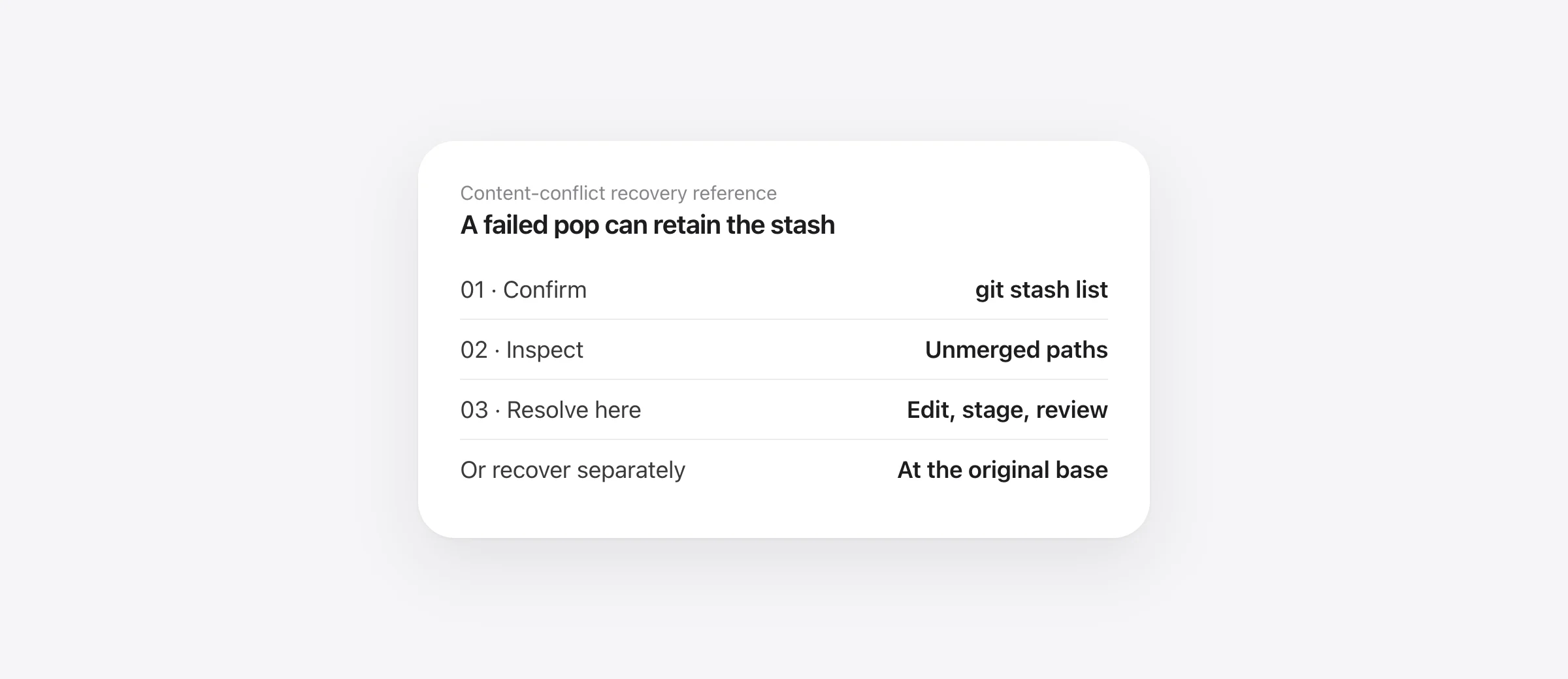
After a git stash pop conflict, inspect before retrying
git status --short
git stash list
git diff --name-only --diff-filter=U
Do not pop the same stash again or run a hard reset as a default fix. A failed pop can leave successfully applied changes alongside conflicts. Confirm the retained entry, then resolve or recover it separately.
A git stash pop conflict means Git could not combine some saved work with the current state automatically. It does not mean that every file was left untouched, and it does not establish that either side is the version you want.
Pause agents, formatters and other writers while you inspect. If there were local edits before the pop, preserve a copy of the current project outside the working folder before attempting to discard anything. A stash of yesterday's work is not necessarily a copy of what you had five seconds before applying it.
Identify which stash failure happened
| Output | What to inspect | Next move |
|---|---|---|
| CONFLICT / both modified | Unmerged paths and file contents | Resolve those paths or recover elsewhere |
| Local changes would be overwritten | Existing edits and the command's full output | Preserve current work before retrying |
| Could not restore untracked files | Paths already occupied on disk | Compare the current file with the saved copy |
| No stash entries found | Repository identity and stash list | Confirm this is the right clone |
Check the current clone with git rev-parse --show-toplevel. Linked worktrees share the stash list; a completely separate clone does not inherit it. If the issue is what got captured before the incident, our stash coverage guide explains tracked, untracked and ignored files.
The stash reference documents that an application conflict retains the entry. Our Git 2.33.0 fixture confirmed this for a content conflict. Still inspect the list and original output; a successful earlier pop or a later drop can change what exists now.
Record a stable identity for the saved work
Read the message and date in git stash list. Replace the reference below if the intended entry is not the newest one. Then capture its object ID in the current terminal:
stash_oid=$(git rev-parse 'stash@{0}')
git stash show --stat "$stash_oid"
git stash show --include-untracked --stat "$stash_oid"
This variable is a stable identity for the entry while you work in this shell. Numeric stash positions can change when another entry is created or removed. Keep the printed ID in your own incident notes if you will switch terminals.
Recording an ID does not create a new backup or protect an unreachable object forever. Keep the existing entry while reviewing recovery. Do not clear or drop stashes as a troubleshooting step.
Resolve a small content conflict in place
Our example started with state.txt containing A. The stash changed it to stashed; a later branch commit changed it to branch. Popping produced this ordinary two-sided conflict:
<<<<<<< Updated upstream
branch
=======
stashed
>>>>>>> Stashed changes
The labels describe where the text came from. They do not tell you which behavior is correct. An intended resolution might retain either side or combine their meaning. In our fixture we wrote branch plus stashed, an explicit test value rather than an automatic merge rule.
- Open each unmerged file. Use the list from the first command block, not a guess based on which editor tab is visible.
- Write the intended final content. Remove conflict markers after choosing or combining the relevant changes. Deletion and binary conflicts need a deliberate file-level choice.
- Stage only the resolved paths. For the example, run
git add -- state.txt. - Inspect the result. Run the checks below and your project's relevant tests.
git diff --name-only --diff-filter=U
git diff --cached --check
git diff --cached
git diff
The unmerged-path listing should be empty when resolution is complete. Review both diffs because other files may have been applied cleanly. A whitespace check is useful but does not prove that the recovered code behaves correctly.
In this ordinary stash-conflict case there is no stash “continue” step. After resolving, you have local changes to review and commit in your usual workflow. Do not run git merge --continue merely because conflict markers looked like a branch merge.
Inspect the three versions when markers are unclear
Before staging a conflicted path, the index can expose its base and both sides. For our fixture, these commands returned A, branch and stashed respectively:
git show ':1:state.txt'
git show ':2:state.txt'
git show ':3:state.txt'
This is useful when a merge editor labels the panes differently. These stages exist for unmerged entries; a side can be missing for a deletion conflict, and staging the resolution removes the unmerged stages. Do not assume every conflict has three readable text files.
The diff documentation explains unmerged stages. Use the contents to understand the change, then edit the real working file. Avoid choosing an entire side with a broad command when you only intended to keep one small section.
Recover the stash in a separate worktree
If the current conflict is complicated, recover a second copy at the stash's original base. This leaves the original conflicted folder available for inspection. Start from the repository root, with the selected stash_oid still set.
Choose an unused branch name and an unused sibling folder. The following creates both; change the example names if they already exist:
git worktree add -b recover-stash ../stash-recovered "$stash_oid^1"
git -C ../stash-recovered stash apply "$stash_oid"
We reproduced this while the original worktree still had its staged conflict resolution. The recovered folder contained the saved stashed text, and the stash entry remained. A second check also confirmed that linked-worktree creation works while the original content conflict is unresolved.
The first parent identifies the commit on which the stash was based. Applying there avoids the later branch change that caused our content conflict. Read the command output and check the files anyway: this is not a guarantee about every submodule, filter, filesystem or external dependency in a real project.
Use this folder to compare and recover deliberately, not to run untrusted project scripts automatically. The worktree guide explains which local files a new worktree does and does not inherit.
Handle an untracked-file collision without deleting the current copy
Our second fixture saved a new new.txt with git stash push -u, then created a different new.txt before popping. The pop failed, the current file remained on disk, and the saved file remained inspectable:
git show "$stash_oid^3:new.txt"For that command, set stash_oid to the entry that captured the untracked file, not an unrelated stash from the earlier example. The third-parent reference applies to stashes with an untracked capture; it is not present in every stash.
Read or extract the saved file into a distinct location before deciding which version belongs in the project. Do not remove the current file merely to make the error disappear. If tracked changes applied before the untracked collision, inspect those too; failure is not proof of an all-or-nothing rollback.
Why “undo stash pop” has no universal one-line answer
There is no git stash pop --abort. Returning to the exact pre-pop state depends on what was already there and which parts the application changed. A blanket reset can erase unrelated edits that existed before the incident.
If you need the earlier local state, look for a copy captured before the pop: a project snapshot, editor history or another backup. A branch pointing at the current commit protects that commit, not every unstaged file. The uncommitted-change recovery guide helps identify possible sources.
Sandpiper can complement Git by retaining eligible local files captured before agent prompts or risky shell commands. An earlier snapshot must exist and contain the file. It excludes some paths and does not retain content for files above its size limit; local storage also does not replace a separate backup.
Keep the retained stash until you have inspected the recovered files, run the relevant checks and saved the intended result. Cleaning up the stash list is a later decision, not part of making a conflict disappear.
Frequently asked questions
Did git stash pop delete my stash when it conflicted?
In our content-conflict test, pop failed and the entry remained unchanged in the stash list, matching Git's documented behavior. Confirm with git stash list. A successful pop has different behavior and can remove the entry.
Is there a git stash pop --abort command?
No. Do not assume git merge --abort will reverse a stash application. Recover the stash separately or resolve the current files. Returning to the exact pre-pop working state requires knowing or having saved that earlier state.
Should I run git stash pop again after fixing the conflict?
No. The changes have already been applied as far as Git could apply them. Resolve the remaining paths, stage the intended result and inspect it. Reapplying the same stash can create more confusion.
What do Updated upstream and Stashed changes mean?
For the ordinary pop scenario tested here, Updated upstream is the current branch side and Stashed changes is the saved-work side. They do not indicate which content is correct. Inspect the values and combine them deliberately.
Why could Git not restore untracked files from the stash?
An existing file can occupy a path Git is trying to restore. Our test retained both the current untracked file on disk and the saved file in the stash's untracked parent. Inspect both before moving, replacing or deleting anything.
Sources

Telman Gadimov builds Sandpiper, a free local undo app for AI coding agents, and Murmur. We make Sandpiper. The conflict, index-stage inspection, separate-worktree recovery and untracked-file collision were reproduced with Git 2.33.0 in disposable repositories on October 23, 2026. No real project was reset or restored for those tests.


