Save untracked files with a named stash
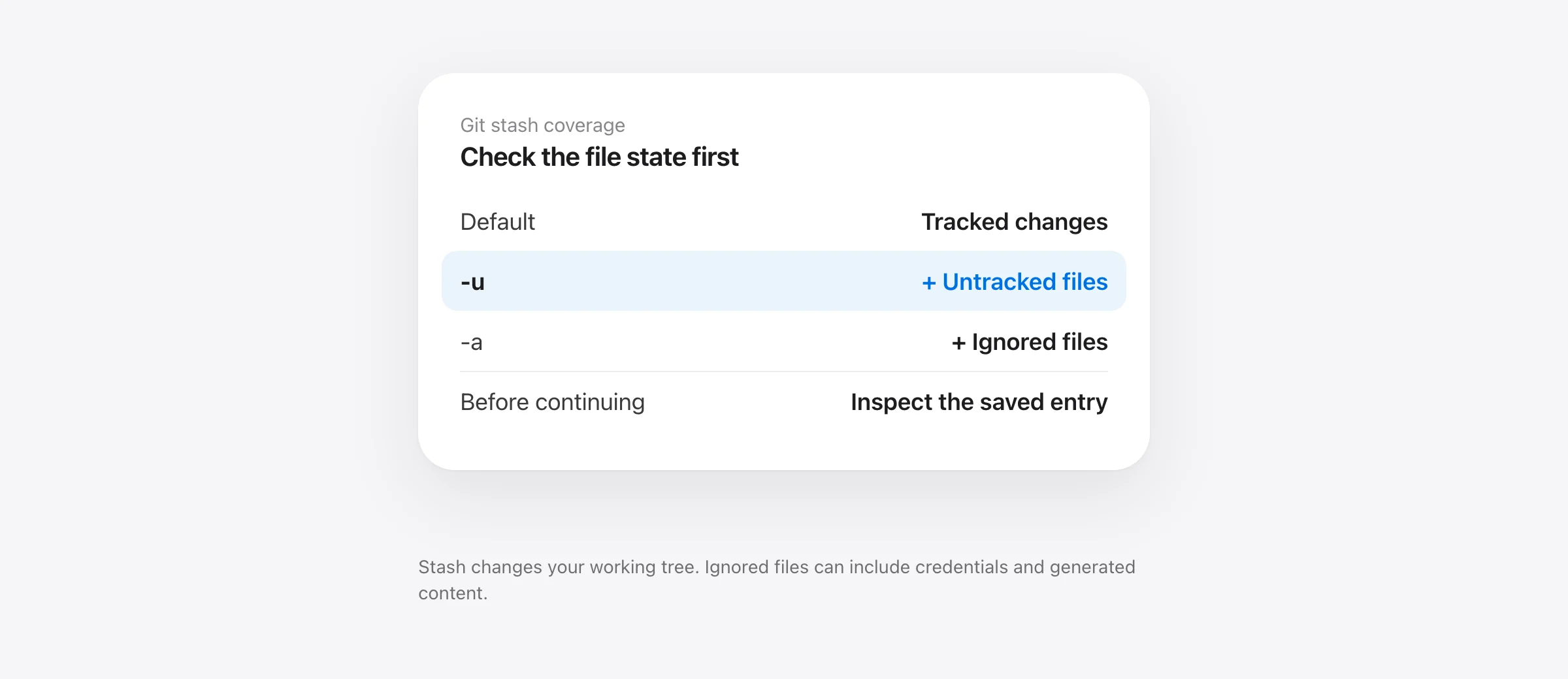
git stash push -u -m "Before task switch"This changes the working tree. It shelves tracked changes and untracked files. Ignored files remain outside its coverage. Inspect the current state first and verify the saved entry afterward.
To git stash untracked files, add -u or --include-untracked. The common surprise is that plain git stash can save edits to an existing source file while leaving a newly created file in place.
Another surprise is that -u does not mean “everything.” An ignored .env is a separate case. Before switching branches, cleaning a folder or letting an agent refactor, identify the files you need and inspect the copy that actually got saved.
Default stash, -u and -a cover different files
| File state | Default | -u | -a |
|---|---|---|---|
| Tracked edits | Included | Included | Included |
| New untracked file | Left in place | Included | Included |
| Ignored file | Left in place | Left in place | Included |
We checked the table using Git 2.33.0 with a tracked config.txt, new notes.md and ignored .env. Each mode ran in its own disposable repository. The ignored fixture contained an explicitly fake token. After each capture, we checked which paths remained on disk and applied the entry with --index.
The results matched the distinctions in the stash reference. This is a file-coverage check, not a claim about repository performance or the recoverability of a dropped stash.
Inventory the work before stashing it
Start with a read-only inspection:
git status --short
git ls-files --others --exclude-standard
git status --short --ignored
The untracked listing excludes standard ignore patterns. The ignored status view can reveal ignored directories rather than every file beneath them, so inspect any relevant directory separately. Avoid pasting confidential filenames or contents into a public support thread.
Read the status reference and file-listing reference if you use custom ignore rules. A name's location does not determine its state: a tracked configuration file remains tracked even if a later ignore pattern matches it.
Save work open in editors before the inventory if you want those edits represented on disk. Stash does not read an unsaved editor buffer. Check that you are at the intended repository root and that no agent is continuing to change files during the capture.
Create a named stash that includes untracked work
After inspection, run the command at the start of this guide with a useful message. A label such as “Before import refactor” is easier to identify later than several indistinguishable work-in-progress entries.
Remember what success does: the included work is shelved and rolled out of the active working state. A source file can return to its baseline and an included new file can disappear from the directory. That is expected stash behavior, not evidence that a backup service is deleting your work.
Check status again and inspect the entry:
git stash list
git stash show --include-untracked --stat 'stash@{0}'
The quoted reference identifies the newest entry at that moment. If you create another stash, its numeric position changes. Read the message and inspection output before applying a numbered entry later.
What if you want only one untracked file?
-u expands the set of included files; it does not exclude tracked edits by itself. For a selected new file, use a path-limited capture after preserving anything important:
git stash push -u -m "Draft notes only" -- notes.mdIn our fixture, notes.md was saved and removed from the working directory while the unrelated tracked edit remained in place. Verify that pattern in your own status output. A path that is actually tracked will have tracked-file behavior rather than becoming “untracked only” because of the label.
Use exact paths rather than a broad folder if your goal is narrow. For unusual filenames, account for Git pathspec matching. If the task is to bring back one known stored file rather than shelve work, the single-file restore guide is the more direct route.
Use -a only when ignored content belongs in Git's object storage
The Pro Git guide distinguishes adding untracked content from adding ignored content. With -a, ignored directories and files can enter the stash too. That may include caches or large build output you did not intend to archive.
More seriously, an ignored environment file can contain credentials. An all-files stash stores that content in the local Git repository; it is no longer merely sitting outside Git's stored objects. A normal push does not automatically publish a stash, but local repository copies and other handling still matter.
Do not make -a the default answer to a missing-file concern. Decide whether the ignored content belongs in a stash, a secret manager, a separate protected copy or another backup system. Review the source of each important file instead of treating ignored state as a security boundary.
Apply first, then inspect the returned state
To restore the selected entry while retaining it for review, use:
git stash apply --index 'stash@{0}'The index option asks Git to restore staging as well. In our clean fixtures, the tracked file returned to its staged state and the new and ignored paths returned according to the saved coverage. The stash entry remained listed. That is a controlled example, not a guarantee that applying onto a changed branch will be conflict-free.
Inspect git status --short, both diffs and the actual files. If a path already exists or the destination changed, resolve the conflict deliberately. Do not respond with a broad cleanup or hard reset that discards the state you are trying to understand.
A successful pop removes the entry from the list; apply retains it. Keep the retained entry until you have verified the files and staged state. Dropping or clearing entries is a separate deletion decision, not a routine validation step.
A stash is useful task storage, with backup limits
Stash is useful when you intentionally want a cleaner working tree for another task. It is less convenient as an automatic before-every-agent-turn capture because it changes the active project state each time you create it.
It also lives with the repository's Git data. Losing that local repository can lose the stash with it. Keep meaningful commits and a separate backup when the work matters. If files are already missing, use the file-state recovery guide; if cleanup already removed untracked or ignored work, use the git clean recovery guide.
Use automatic snapshots for the work between stash and commit
Sandpiper captures supported local files before agent prompts and risky shell commands without using a stash as its capture routine. A prior snapshot can give you a source for an eligible uncommitted file that was never in a commit. Verify the captured path and timestamp before relying on it.
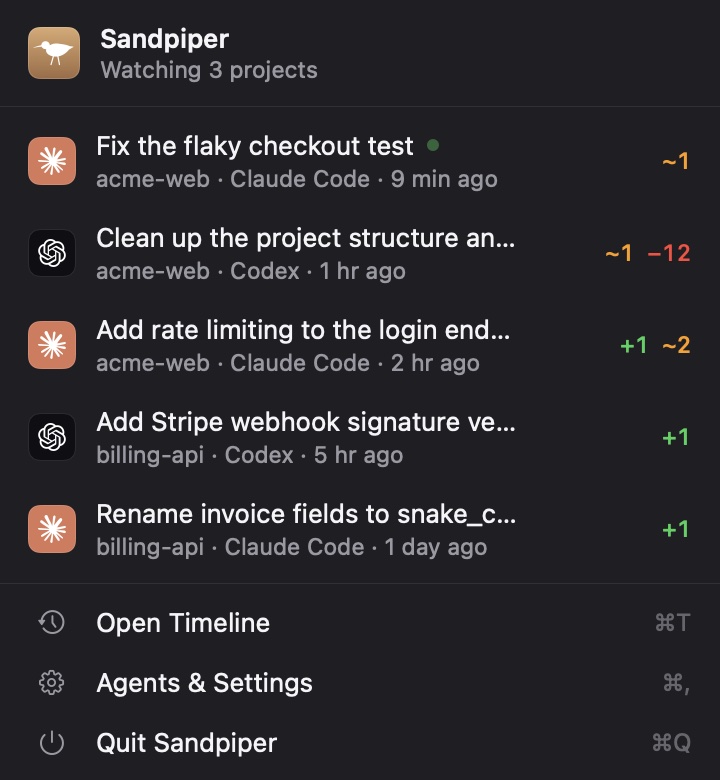
Sandpiper is free on Apple silicon Macs with macOS 26 or later. It excludes rebuildable directories and Git internals, lists files above its size limit without keeping their content, and cannot bring back a version never captured. Its local snapshots do not replace a separate-disk backup.
The agent backup guide combines commits, local turn snapshots and machine backups. To check that capture is actually happening for Claude, use the Claude Code backup-hooks verification guide.
Frequently asked questions
How do I stash untracked files?
Use git stash push -u -m "Before task switch" after reviewing the repository state. It saves tracked changes plus untracked files, then removes the included work from the active working tree. Inspect the resulting entry before continuing.
Does git stash -u include ignored files?
No. The -u option adds untracked files but does not include ignored files. The -a option includes ignored files too. Inspect ignored paths before using it; it can include local secrets, caches and large generated directories.
Does -u stash only untracked files?
No. It includes untracked files in addition to the tracked changes normally saved. To shelve a selected new file without the unrelated tracked edits, use an explicit path-limited stash and verify the result.
Should I use apply or pop?
Apply leaves the stash entry available after applying it, while a successful pop removes it from the list. Applying first gives you a retained reference while you inspect the restored state. Conflicts and restored staging still need review.
Is a stash a backup before an AI agent runs?
It can preserve a deliberately saved Git state, but it changes your working tree and lives in the same repository. It is not automatic per-turn history or a separate-disk backup. A pre-existing Sandpiper snapshot can complement Git for supported local files without using stash as the capture routine.
Sources

Telman Gadimov builds Sandpiper, a free local undo app for AI coding agents, and Murmur. We make Sandpiper. The coverage and apply examples were reproduced in disposable repositories with Git 2.33.0 on October 18, 2026 and checked against official Git documentation. Example .env files contained fake values, not credentials.


