The quick answer
- Open System Settings › Accessibility › Read & Speak (Spoken Content on macOS 15 and earlier) and turn on Speak selection.
- In your Google Doc, select the text and press Option-Esc. Press it again to stop.
- If you only hear a beep, turn on Tools › Accessibility settings › Turn on screen reader support in Docs (⌘-Option-Z) and try again, in Chrome if possible.
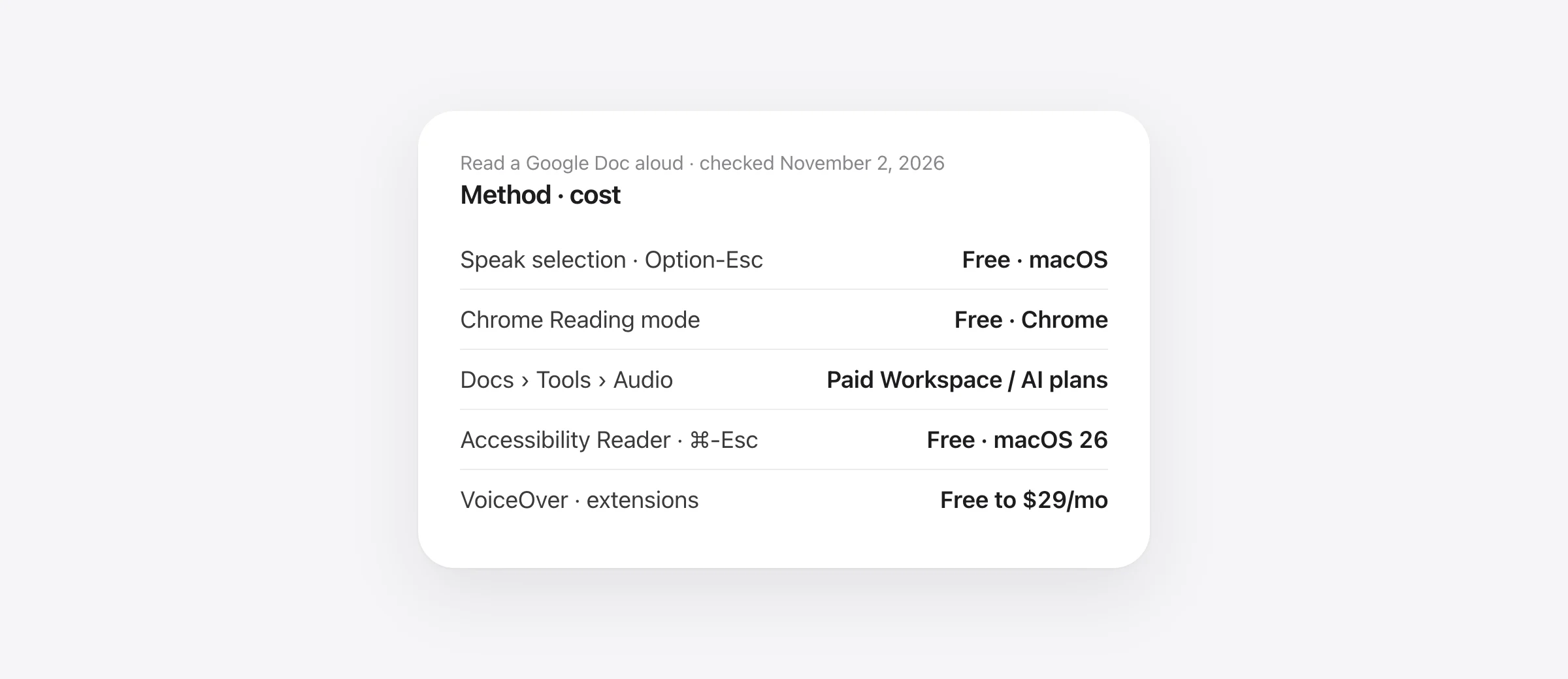
No extension, no account upgrade. If you want Gemini voices instead, Docs has Tools › Audio › Listen to this tab on paid Workspace and Google AI plans.
Text to speech in Google Docs means having the document read to you: to proofread by ear, to rest your eyes, or because listening is how you read best. Google Docs runs in a browser, so on a Mac you have more options than people expect, and most of them are free. This guide covers five, in the order we’d try them. If you came here for the opposite, talking and having Docs type it, that is voice typing, and our Google Docs voice typing guide covers it.
The five ways at a glance
| Method | Cost | Works in | Best for |
|---|---|---|---|
| 1. Speak selection (Option-Esc) | Free, built into macOS | Chrome, Firefox and often Safari | Reading a paragraph or page back while you edit |
| 2. Chrome Reading mode | Free | Chrome only | Listening to a whole doc with natural voices and word highlighting |
| 3. Docs’ Listen to this tab | Included in paid Workspace and Google AI plans | Any desktop browser, English | Gemini voices inside Docs, audio buttons for readers |
| 4. Accessibility Reader (macOS 26) | Free, built into macOS Tahoe | Any app | A clean, distraction-free listening view with Apple Intelligence summaries |
| 5. VoiceOver or an extension | Free; extensions free to $29 a month | Any browser | Full screen-reader navigation, or premium voices |
1. Speak selection: the two-key shortcut
Every Mac can read selected text aloud. Apple moved the setting and renamed it in macOS 26 Tahoe, so here are both paths.
- Open the Apple menu › System Settings › Accessibility.
- Click Read & Speak (macOS 26 and later) or Spoken Content (macOS 15 Sequoia and earlier).
- Turn on Speak selection.
- Open your Google Doc, select some text and press Option-Esc. Your Mac reads it. Press Option-Esc again to stop.
Apple’s documentation says that if no text is selected, the Mac reads “available text” in the window, and plays a sound if it finds none. That sound is the clue when it fails in Docs; see the fix below. In many apps you can also use Edit › Speech › Start Speaking instead of the shortcut.
Change the shortcut, speed and highlighting
Click the Info button next to Speak selection. There you can change the keyboard shortcut, turn on Highlight content (words, sentences or both, with your own colors) and choose when the on-screen controller appears. The controller has play/pause, skip back and forward by sentence, stop, and a speaking-rate control; on Tahoe it also has a button that opens the Accessibility Reader.
Pick a better voice
Still in Read & Speak, open the System voice menu. Voices with a Download button are higher-quality versions that Apple fetches over the internet; they are not available until the download finishes. The Info button beside System voice sets speaking rate and volume and has a Play Sample button, so you can compare voices without going back to your document.
If Option-Esc only beeps in Google Docs
Google Docs stopped drawing documents as ordinary web text in 2021 and switched to a canvas, which is why some tools that “read the page” see nothing. Google said at the time that screen readers would not be affected, and gave Docs a setting that exposes the text to assistive software. Turn it on:
- In Docs, open Tools › Accessibility settings.
- Check Turn on screen reader support and press Enter. The shortcut is ⌘-Option-Z.
- Select text and press Option-Esc again.
Browser matters too. A 2023 writer’s guide reports Speak selection working in Docs in Chrome but not Safari; a Microsoft forum thread reports Chrome, Firefox and Safari working and Edge failing. Reports conflict, so if one browser stays silent, try Chrome before you give up. Also note that Docs’ own Accessibility menu commands are labeled Verbalize (for example, Verbalize selection is Ctrl-⌘-A then X). Those hand text to a screen reader; with no screen reader running they produce no sound, which is why they are not on this list as a method on their own.
2. Chrome Reading mode: natural voices, no extension
Chrome on the Mac has a built-in read-aloud inside Reading mode. Right-click the page and choose Open in reading mode, or press ⌘-Option-R. In the panel you get play/pause, previous and next sentence, a playback speed menu and, under Settings, Voice and Voice highlight (adaptive, word, sentence or off). Chrome downloads Google’s natural voices automatically and falls back to a system voice if it can’t. Google’s help page notes Reading mode is “not available to all websites”, and we have not confirmed how well it extracts text from a canvas-rendered Doc, so if the panel comes up empty, turn on Docs’ screen reader support first or paste the text into a plain page.
3. Listen to this tab: Google’s own text to speech in Docs
Since August 2025 Google Docs has had native read-aloud powered by Gemini. Open Tools › Audio › Listen to this tab. A player appears with a choice of voices and an adjustable speed. Document owners can also use Insert › Audio to place a button that reads the whole document or a selection, so anyone opening the doc can listen with one click.
The catch is who gets it. Google’s announcement lists Workspace Business Standard and Plus, Enterprise Standard and Plus, the Gemini Education add-ons, and Google AI Pro and Ultra subscribers. It is desktop only and English only, and smart features and personalization have to be on. Free personal Google accounts were not on the list, and we found no 2026 announcement widening it. If there is no Audio item under Tools, that is why.
4. Accessibility Reader on macOS Tahoe
macOS 26 added a system-wide Accessibility Reader: a clean view of any text with its own listening controls. Turn it on in Read & Speak, then in your Doc select the text and press ⌘-Esc, or use Edit › Speech › Open in Accessibility Reader. You get play/pause, rewind and forward, a speaking-rate button, an Autoplay option, and on Macs with Apple Intelligence, Summarize and translate. Because it reads from the selection, the same Docs screen-reader setting applies if it comes up empty.
5. VoiceOver, or a read-aloud extension
VoiceOver is Apple’s full screen reader. Press ⌘-F5 (or hold ⌘ and press Touch ID three times) to turn it on. Google recommends pairing it with Docs’ screen reader support, switching the VoiceOver modifier to Caps Lock because Control-Option collides with Docs shortcuts, and turning Quick Nav off. Once inside the document, VO-A reads everything from the cursor on; VO-S, VO-L and VO-P read a sentence, line or paragraph. It is more to learn than the other routes, but it is also the only one built for navigating a long document by ear.
Extensions are the last resort now that Chrome and macOS do this natively. Read Aloud is free and open source and uses the browser’s voices, with some cloud voices as an in-app purchase. Speechify’s free tier gives ten voices at up to 1.5× speed; Premium is $29 a month or $139 a year for its full voice library and 5× speed. NaturalReader is also freemium, but its pricing page was unreachable when we checked, so confirm prices on its site.
Which one should you use?
- Proofreading your own writing: Speak selection. Select a paragraph, Option-Esc, listen for the clunky sentence.
- Listening to a long document start to finish: Chrome Reading mode, or Listen to this tab if your account has it.
- You already use a screen reader: VoiceOver with Docs’ screen reader support on.
- You want the nicest voices and don’t mind paying: Listen to this tab on a Google AI plan, or Speechify.
Going the other way: talking to Google Docs
Many people who have a Doc read back to them also draft by voice. Docs has built-in voice typing (Tools › Voice typing, ⌘-Shift-S in Chrome), covered in our voice typing guide. If you want one dictation shortcut that works in Docs, Gmail, Slack and every other Mac app, with speech recognition that stays on your Mac, that is what Murmur does: hold right ⌘, talk, let go, and clean text lands where your cursor is. Read it back with Option-Esc and you have a full voice loop without leaving the keyboard.
Frequently asked questions
What is the shortcut to make a Mac read text aloud?
Option-Esc, once Speak selection is turned on under System Settings › Accessibility › Read & Speak (called Spoken Content on macOS 15 and earlier). Select text and press it; press it again to stop. Many apps also offer Edit › Speech › Start Speaking.
Why does Option-Esc only beep in Google Docs?
The beep means macOS found no text to read. Google Docs draws the page on a canvas rather than as ordinary web text, so selection-based speech can fail in some browsers. Turn on screen reader support in Docs (Tools › Accessibility settings, or ⌘-Option-Z); Docs then exposes the text, and Speak selection has something to read. Chrome has the most consistent reports.
Does Google Docs have its own text to speech?
Yes, but not on every account. Listen to this tab, under Tools › Audio, uses Gemini voices and was rolled out in August 2025 to Workspace Business and Enterprise plans, education add-ons and Google AI Pro and Ultra subscribers, in English, on desktop. If you don’t see Tools › Audio, your account doesn’t include it.
Can Safari read a Google Doc aloud?
Safari on the Mac has no Listen to Page button like Safari on iPhone. Use the system-wide routes instead: Speak selection (Option-Esc), Edit › Speech › Start Speaking, or the Accessibility Reader on macOS Tahoe. Some writers report Speak selection working in Docs only in Chrome, so try Chrome if Safari stays silent.
How do I change the voice or speed?
Open System Settings › Accessibility › Read & Speak, click the System voice menu to pick a voice, and download higher-quality voices from the same list. The Info button next to System voice sets speed and volume. Chrome’s Reading mode and Docs’ Listen to this tab have their own voice and speed controls.
Is there a free way to hear a Google Doc on a Mac?
Yes, three: Speak selection built into macOS, Chrome’s Reading mode read-aloud, and VoiceOver. None needs an extension or a subscription.
Sources
- Apple: Have your Mac speak text that’s on the screen (macOS 26)
- Apple: Have your Mac speak text that’s on the screen (macOS 15)
- Apple: Change Read & Speak settings for accessibility
- Apple: Change the voice your Mac uses to speak text
- Apple: Read or listen to text in apps with Accessibility Reader
- Apple VoiceOver: Read text
- Google: Use a screen reader with Google Docs
- Google: Keyboard shortcuts for Google Docs
- Google Chrome Help: Listen to a web page in Reading mode (desktop)
- Google Workspace Updates: Listen to documents using Gemini in Google Docs (Aug 2025)
- Google Workspace Updates: Google Docs canvas-based rendering (May 2021)
- Revert to Saved: writers, use the Spoken Content feature to proof text
- Read Aloud extension (open source)
- Speechify pricing

Telman Gadimov builds Murmur, a dictation app for Mac that runs entirely on-device. We make Murmur, a speech-to-text app, which is the opposite direction from this guide. Apple and Google steps were checked against their current documentation on November 2, 2026. Where behavior inside Google Docs depends on the browser, we say so and link to the reports instead of claiming a test we did not run.


