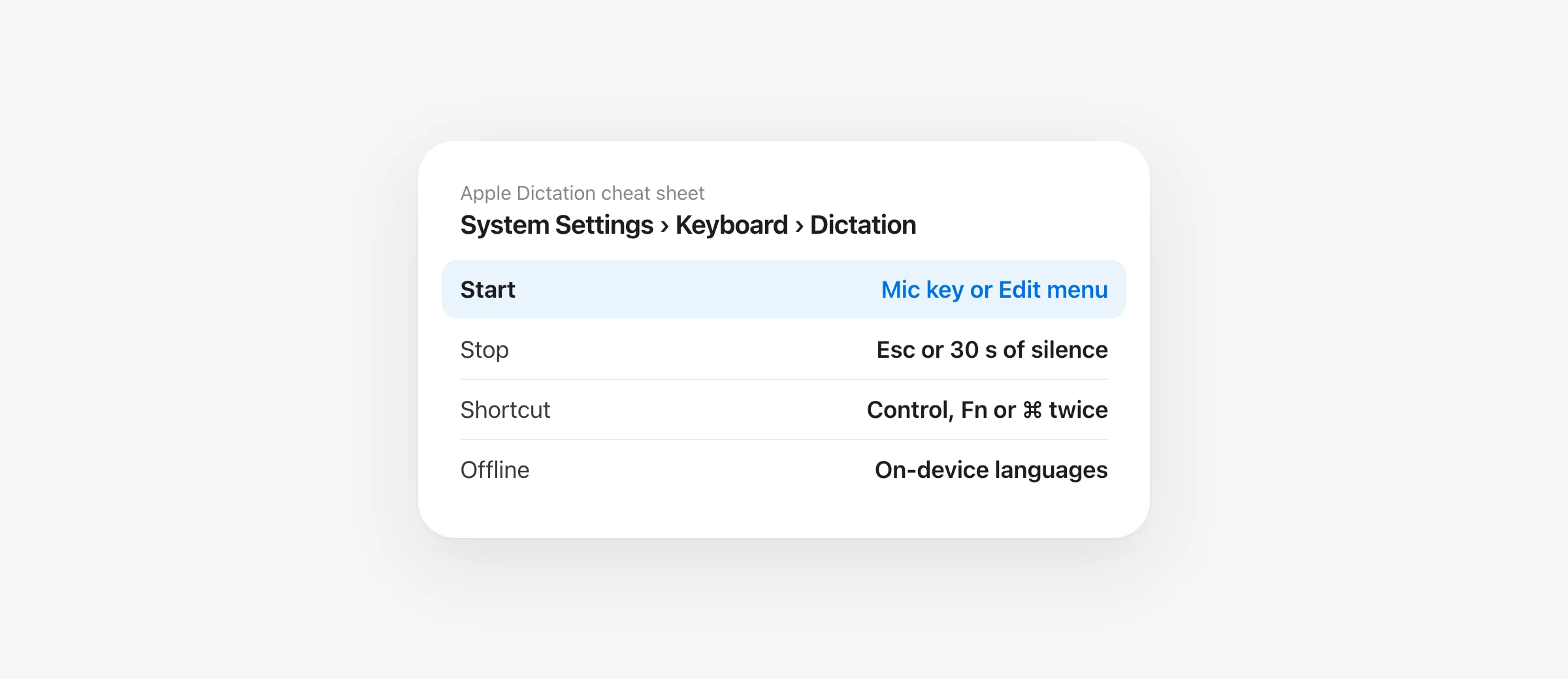
To use dictation on Mac, open System Settings › Keyboard, turn on Dictation, then click where you want text and press the Microphone key (F5), your Dictation shortcut, or choose Edit › Start Dictation. Speak, and your words appear at the cursor; press Esc or the shortcut again to stop. It’s built in, free, and on Apple silicon Macs many languages work offline.
Mac dictation in 30 seconds
- Turn on: System Settings › Keyboard › Dictation › switch on › Enable.
- Start: press the Microphone key once, your shortcut (Control twice, Fn/Globe twice, a Command key twice, or custom), or Edit › Start Dictation.
- Talk: wait for the cursor to pulse or the tone, then speak. Say “comma”, “new paragraph” or “heart emoji” as needed.
- Stop: press Esc, the Microphone key or your shortcut. It also stops after 30 seconds of silence.
- Problems? See the Mac dictation troubleshooting guide.
This guide is written for macOS 26 Tahoe and checked against Apple’s macOS 27 user guide, released in September 2026. The setup steps are the same on both. What macOS 27 changes is covered in its own section.
What is dictation on Mac?
Dictation is Apple’s built-in speech to text for the Mac. It types what you say anywhere you can type: Mail, Messages, Pages, Word, Google Docs in a browser, Slack, Notes. You start it, speak, and stop it. It doesn’t control your Mac or run commands beyond punctuation and formatting; that’s a separate accessibility feature called Voice Control. And it’s the opposite of text to speech (having your Mac read aloud), which lives under Accessibility › Spoken Content.
How to turn on dictation on Mac
- Choose Apple menu › System Settings.
- Click Keyboard in the sidebar (scroll down if you don’t see it).
- Scroll to Dictation and turn the switch on.
- In the dialog that appears, click Enable.
- Check the Shortcut, Languages and Microphone source menus in the same section. You’ll set them once.

When you turn Dictation on for the first time, macOS may also ask whether to share audio recordings to help improve Siri and Dictation. That’s optional; see privacy below. If the Dictation switch is dimmed, Screen Time or a work or school profile is blocking it, which the troubleshooting guide covers.
The “Do you want to enable Dictation?” pop-up
This dialog appears when you press a key that’s set to start Dictation, such as the Microphone key or Fn/Globe twice, while Dictation is off. It explains that information like your voice input and contact names may be sent to Apple to help recognize what you say, then lets you enable it. Click Enable (or OK) to turn Dictation on right there, which is the fastest way to set it up.
If the pop-up keeps appearing because you press Fn or Globe for other reasons, click Don’t Ask Again or Not Now where the dialog offers them, then go to System Settings › Keyboard and set Press 🌐 key to (or Press fn key to) to something other than Start Dictation.
How to start and stop dictation on Mac
- Click where you want the text to go, so the insertion point is blinking there.
- Start Dictation with the Microphone key (press and release; pressing and holding it starts Siri instead), your Dictation shortcut, or Edit › Start Dictation in the menu bar.
- Wait for the cursor to highlight and pulse, or for the ready tone. A small microphone icon appears at the insertion point.
- Speak normally. Text appears as you talk.
- Stop with Esc, the Microphone key, or your shortcut.
Apple says there’s no time limit on how long you can dictate, but Dictation stops automatically after 30 seconds without detected speech. If you pause to think a lot, you’ll need to restart it. Edit › Start Dictation is also a useful test: if it works from the menu but not from the keyboard, the problem is your shortcut, not Dictation.
Mac dictation shortcut: every option and how to change it
To change it, open System Settings › Keyboard › Dictation and click the Shortcut menu. In macOS 26 the choices are:
- Press Microphone Key (only on keyboards that have one, usually F5 on recent MacBooks and Magic Keyboards)
- Press Control Key Twice
- Press Fn (Function) Key Twice, shown as Press 🌐 Twice on keyboards with a Globe key
- Press Right Command Key Twice, Press Left Command Key Twice or Press Either Command Key Twice
- Customize…: press any key combination you want, such as Option-Z
- Off: no shortcut, so you start Dictation from the Edit menu only
Some guides list Option-key presets too; we didn’t find those in macOS 26’s Keyboard settings, so use Customize if you want an Option combination. Three details catch people out:
- Choosing the Fn or Globe preset also changes Press 🌐 key to to “Start Dictation”. The two settings are linked, so changing one can change the other.
- If a custom shortcut is already used elsewhere, macOS shows “Shortcut used by another action”. Pick a different one.
- With Sticky Keys turned on, double-press presets don’t work, and macOS asks for a custom shortcut.
Keyboard shortcut cheat sheet
| To do this | Press or say |
|---|---|
| Start or stop Dictation | Microphone key (F5), your shortcut, or Edit › Start Dictation |
| Stop Dictation | Esc (or 30 seconds of silence) |
| Open Siri instead | Press and hold the Microphone key |
| Switch dictation language | Click the language next to the cursor, or press 🌐 |
| New line / new paragraph | Say “new line” / “new paragraph” |
| Insert an emoji | Say the name plus “emoji”, e.g. “heart emoji” |
| Fix a misheard word | Click the word underlined in blue and pick an alternative |
| Have the Mac read text aloud | Option-Esc, once Speak selection is on (Accessibility › Spoken Content) |
How to dictate in another language, or in several
In System Settings › Keyboard › Dictation, click Edit next to Languages and select each language and region you speak. Deselect one to remove it.
With more than one language selected, the microphone icon at the cursor shows the current language. Click it to switch, or press the Globe key and choose a language. Mac Dictation listens in one language at a time, so switch before you start a passage in the other language. Mixing two languages in one sentence usually goes wrong.
Does Mac dictation work offline?
On Apple silicon Macs, yes, for many languages. Apple processes general text dictation (messages, notes, documents) on the device for the languages on its “On-Device and Modeless Dictation” list, after a one-time speech model download. Look at the text under the Dictation switch: it says something like “Dictation processes many English voice inputs on your Mac. Information will be sent to Apple in some cases, including for search.” If the model is still downloading, it says so.
Two exceptions: dictation into search boxes can still go to Apple’s servers, and languages that aren’t on the on-device list always use the server. Intel Macs rely more on server processing, and macOS 26 is the last version that runs on them. To test it, turn off Wi-Fi and dictate a sentence into Notes.
Punctuation, formatting and voice commands
Auto-punctuation adds commas, periods and question marks for you in supported languages. It’s usually on; turn it off at Keyboard › Dictation › Auto-punctuation if you’d rather say every mark. You can always say punctuation while it’s on. The commands worth memorizing:
| Say | You get |
|---|---|
| “comma”, “period”, “question mark” | , . ? |
| “new line” | One line break (like pressing Return) |
| “new paragraph” | Two line breaks, added when you finish |
| “caps on” … “caps off” | Title Case for the words in between |
| “all caps” + word | THE NEXT WORD IN CAPITALS |
| “no space on” … “no space off” | Words run together, e.g. for a username |
| “numeral” + number | Digits instead of words |
That’s the short list. For the full set, how Auto-punctuation and spoken marks interact, and why a command sometimes types the word instead of the symbol, see our Mac dictation punctuation commands guide.
Emoji dictation
Say the emoji’s name followed by “emoji”: “thumbs up emoji”, “heart emoji”, “car emoji”. It works in the languages on Apple’s “Dictate Emoji” list, which includes English. If you get the words instead of the picture, try the emoji’s official name.
How to edit while you dictate
- Type while dictating. On Apple silicon you can keep typing without stopping Dictation. The cursor stops pulsing while you type and resumes afterward.
- Fix blue-underlined words. Words Dictation wasn’t sure about are underlined in blue. Click one and choose an alternative from the list.
- Select and replace. Select a word or phrase and dictate (or type) the replacement over it.
- No spoken editing commands. Standard Mac Dictation can’t “delete that”, “select the last sentence” or “replace X with Y”. iOS 27 added some of those on the iPhone, but TidBITS reports macOS 27 did not. For voice editing on a Mac, you need Voice Control or an app with a voice edit mode.
What changes in macOS 27?
macOS 27 (Golden Gate) shipped on September 14, 2026, for Apple silicon Macs only. Apple’s macOS 27 user guide uses the same steps and menu paths as above: System Settings › Keyboard › Dictation, the same shortcuts, the same 30-second silence stop. The differences:
- More advanced Dictation. With Apple Intelligence on, dictation uses a new on-device model with better recognition, punctuation, capitalization and formatting. Apple lists it for English only (nine regions, including the US and UK), and Macworld reports Apple requires an M3 or later with at least 12 GB of memory.
- No new switch. MacStories found it works automatically on supported Macs, with nothing new in System Settings. M1 and M2 Macs keep standard dictation.
- Still no editing commands on the Mac, as noted above.
If the new dictation doesn’t seem to be active, the troubleshooting guide has a checklist for it.
Dictation vs Voice Control: which should you use?
Voice Control (System Settings › Accessibility › Voice Control) is built for people who need to use the Mac without a keyboard or mouse. It’s always listening once on, clicks buttons (say “show numbers”, then a number), opens apps, edits text by voice, and has its own dictation, spelling and command modes. Say “stop listening” and “start listening” to pause it.
The catch: while Voice Control is on, standard Dictation isn’t available. Your Dictation shortcut stops working and Keyboard settings say so. Use Dictation if you type most of the time and want to talk sometimes. Use Voice Control if you can’t use your hands, or want to edit by voice and don’t mind a microphone that listens until you tell it to stop. It’s also where Apple keeps the custom vocabulary list; our custom vocabulary guide explains how to add names and jargon.
Which Mac speech-to-text option should you use?
| Option | Best for | How it listens | Cleans up “um”, rewrites | Cost |
|---|---|---|---|---|
| Apple Dictation | Quick messages, emails and notes | Starts with a shortcut, stops after 30 s of silence | No (macOS 27 polishes punctuation on M3+) | Free |
| Voice Control | Hands-free use, editing and navigating by voice | Always on until you say “stop listening” | No | Free |
| Hold-to-talk apps (Murmur and others) | Long drafts, prompts, thinking out loud | Only while you hold a key; pauses are fine | Usually, depending on the app | Paid, one-time or subscription |
| Notes audio recording | Lectures, meetings, keeping the audio | Records first; transcript appears in the note | No | Free (M1 or later) |
The Notes route is explained in our Apple Notes voice to text guide. If you’re weighing Apple’s option against a paid AI dictation app, our Apple Dictation vs Wispr Flow comparison goes through price, privacy and cleanup in detail, and the best dictation apps for Mac roundup covers the rest.
The hold-to-talk row is the one we build. Murmur listens while you hold the right ⌘ key, however long you pause, and types the cleaned-up text where your cursor is when you let go. It uses Apple’s on-device speech and Apple Intelligence, so nothing leaves your Mac.

What does Apple see when you dictate?
- On-device languages: general text dictation stays on your Mac. The note under the Dictation switch is the authority for your setup.
- Server dictation: Apple says audio sent to its servers isn’t stored unless you opt in to Improve Siri & Dictation. Transcripts and request data (such as device type and performance stats) are tied to a random identifier that rotates several times an hour, not your Apple Account, and may be kept up to two years. Your Mac can also send contact names to help recognition.
- Improve Siri & Dictation is opt-in. Change it at System Settings › Privacy & Security › Analytics & Improvements.
- Delete your history at System Settings › Apple Intelligence & Siri › Delete Siri & Dictation History. It removes requests from the last six months tied to that random identifier, and needs an internet connection.
Tips for more accurate dictation
- Use the built-in microphone over AirPods. Bluetooth headsets drop to a low-quality mode when their microphone is in use. Set Microphone source explicitly instead of Automatic if it keeps choosing the wrong one.
- Lid closed? Use an external microphone. macOS itself warns that a closed display hurts recognition.
- Wait for the pulse before your first word, or it gets cut off.
- Speak in whole phrases at a steady pace. Dictation uses context, so full sentences beat word-by-word speech.
- Pick the right region. English (United Kingdom) and English (United States) are separate languages for Dictation, with different spellings.
- Proofread names, numbers and negations. Those are the errors that change meaning.
How to turn off dictation on Mac
- Open System Settings › Keyboard.
- Turn off the Dictation switch. If macOS shows a “Turn Off Dictation” confirmation, confirm it. It notes that server data used for Dictation is shared with Siri and stays on Apple’s servers unless Siri is also turned off; delete it with the history button above.
- If you only want to stop accidental starts, keep Dictation on and set Shortcut to Off, or change Press 🌐 key to.
To stop a single session, just press Esc.
If dictation doesn’t work
Check three things first: Dictation is on, the shortcut is the one you’re pressing, and Voice Control is off. If text still doesn’t appear, the microphone icon shows but nothing types, or it works everywhere except one app, our 12 fixes for Mac dictation not working are sorted by symptom.
Frequently asked questions
Does Mac have built-in dictation?
Yes. Every current Mac includes Dictation for free. Turn it on in System Settings › Keyboard › Dictation, then press the Microphone key, your Dictation shortcut, or choose Edit › Start Dictation in any app where you can type.
What is the keyboard shortcut for voice typing on a Mac?
It depends on your keyboard and settings. Recent MacBooks and Magic Keyboards have a Microphone key (F5) that starts Dictation with one press. Other options are pressing Control, Fn/Globe, or a Command key twice, or a custom shortcut. Check or change it in System Settings › Keyboard › Dictation › Shortcut.
Why does my Mac say “Do you want to enable Dictation?”
You pressed a key or key combination that’s set to start Dictation (often Fn/Globe twice or the Microphone key) while Dictation is turned off. Click Enable or OK to turn it on. If you don’t want it, choose Don’t Ask Again or Not Now where offered, and change “Press 🌐 key to” in Keyboard settings so the key does something else.
How long can you dictate on a Mac?
Apple says there’s no time limit on how long you can dictate. Dictation does stop by itself after 30 seconds without detected speech, so long thinking pauses end the session. Press the shortcut again to continue.
Does Mac dictation work offline?
On Apple silicon Macs, many languages are processed on the device and work without internet once their speech model has downloaded. The text under the Dictation switch in Keyboard settings tells you whether your languages are processed on your Mac. Dictating into search fields can still use Apple’s servers.
Why isn’t Dictation working on my Mac?
The usual causes are Dictation being off, a different shortcut than you expect, the wrong microphone source, or Voice Control being on (it replaces Dictation). Our Mac dictation troubleshooting guide walks through each fix by symptom.
Can my Mac read text aloud instead?
Yes, that’s a different feature called Spoken Content. Turn on Speak selection in System Settings › Accessibility › Spoken Content, select text, and press the shortcut shown there (Option-Esc by default).
Sources
- Apple: Dictate messages and documents on Mac (macOS 26)
- Apple: Dictate messages and documents on Mac (macOS 27)
- Apple: Commands for dictating text on Mac (macOS 26)
- Apple: Use Voice Control on your Mac (macOS 26)
- Apple: Delete Siri and Dictation history on Mac (macOS 26)
- Apple: Ask Siri, Dictation & Privacy
- Apple: macOS feature availability (Dictation, Apple Intelligence)
- Macworld: macOS 27 release date, compatibility and features
- MacStories: macOS 27 review, Siri and dictation
- TidBITS: iOS 27 dictation and macOS Voice Control

Telman Gadimov builds Murmur, a dictation app for Mac that runs entirely on-device. We make Murmur, a dictation app for Mac that appears in one row of the comparison table. Apple’s steps, setting names and shortcut options were checked on October 15, 2026 against Apple’s macOS 26 and macOS 27 user guides and the System Settings text in macOS 26.6. Everything in this guide works without buying anything.


