The short answer
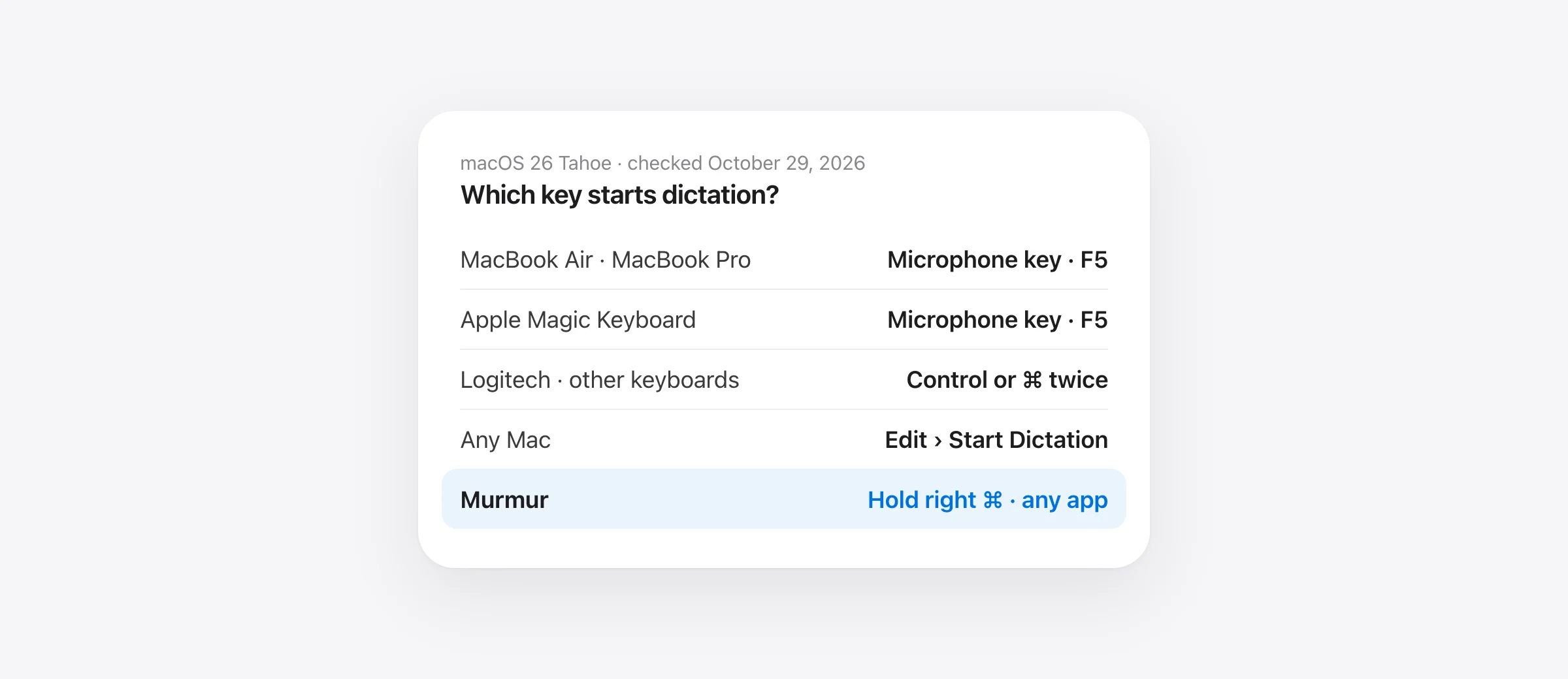
Press the Microphone key (F5) once. It’s on every Apple silicon MacBook Air and MacBook Pro and on Apple’s current Magic Keyboard. No Microphone key? Open System Settings › Keyboard › Dictation › Shortcut and pick Press Control Key Twice, a Command key twice, Fn/Globe twice, or Customize. Press Esc to stop. Checked against Apple’s macOS 26 Tahoe guide on October 29, 2026.
The Mac dictation shortcut isn’t one key. It depends on your keyboard and on one menu in Keyboard settings. That’s why “press F5” works for one person and does nothing for the next. This page covers only the shortcut: which key you have, how to change it, how to turn it off, and what to check when it stops responding. For first-time setup, languages and privacy, see how to use dictation on Mac. For microphone and recognition problems, see Mac dictation not working.
The dictation shortcut on your Mac, by keyboard
| Keyboard | Shortcut out of the box | Notes |
|---|---|---|
| MacBook Air with Apple silicon (2020 and later) | Microphone key, F5 | Press and release. Holding it opens Siri. |
| 14-inch and 16-inch MacBook Pro (2021 and later) | Microphone key, F5 | Same Dictation/Siri key as the Air. |
| Apple Magic Keyboard (iMac, Mac mini, Mac Studio, Mac Pro) | Microphone key, F5 | Current models put Spotlight on F4, Dictation on F5 and Do Not Disturb on F6. |
| Older Intel MacBooks, Touch Bar models, older Apple keyboards | No Microphone key | Choose a double-press preset or Customize. |
| Logitech and other non-Apple keyboards | Varies | Fn double-press often fails; use a Command or Control double-press. |
| Any Mac | Edit › Start Dictation | Works in any app with a text field, whatever the shortcut. |
Apple’s keyboard guides confirm the layout: on the MacBook Air, you press the Dictation key “to activate dictation—you can dictate text wherever you can type,” and you press and hold it to talk to Siri. The 14-inch and 16-inch MacBook Pro guide lists the same Dictation/Siri key on F5. Apple’s iMac Magic Keyboard guide uses F4 for Spotlight, F5 for dictation and F6 for Do Not Disturb.
How to change the dictation shortcut on Mac
- Open Apple menu › System Settings and click Keyboard in the sidebar.
- Scroll to Dictation. Turn it on if it’s off.
- Click the Shortcut pop-up menu.
- Pick a preset: Press Microphone Key (only listed on keyboards that have one), Press Control Key Twice, Press Fn (Function) Key Twice (shown as Press 🌐 Twice on Globe keyboards), or Press Right, Left or Either Command Key Twice.
- For anything else, choose Customize and press the keys you want. Apple’s example is Option-Z.
Which one to pick? Control twice is the safest on any keyboard, because almost nothing else uses a double Control. Right Command twice suits people who never use the right Command key. Avoid Fn/Globe twice on non-Apple keyboards (more on that below). A custom combination is the only option if you use Sticky Keys, since double-press presets need two separate quick presses.
One linked setting catches people out. Apple’s guide says that when you choose a Dictation shortcut, “depending on your Mac model, the ‘Press fn key to’ or ‘Press Globe key to’ option in Keyboard settings may change automatically.” Choose Fn twice and that option switches to Start Dictation. Switch it back later and your Dictation shortcut can change too. If the shortcut seems to have changed by itself, check both settings.
How to turn off the dictation shortcut
There are three levels, depending on how much you want gone:
- Keep Dictation, drop the shortcut: set Keyboard › Dictation › Shortcut to Off. You can still start Dictation from Edit › Start Dictation.
- Stop the Globe key from starting it: in Keyboard, set Press 🌐 key to (or Press fn key to) to Change Input Source, Show Emoji & Symbols or Do Nothing. Use this if a double tap of Globe while switching languages keeps opening Dictation.
- Turn Dictation off completely: switch off Keyboard › Dictation. The Microphone key then asks “Do you want to enable Dictation?” each time you press it. Remap the key or click the option not to ask again if the pop-up offers one.
When F5 types nothing: the function-key setting
By default the top row runs the features printed on the keys, and Apple’s function-key guide says that to send a real F1–F12 you “must also press and hold the Fn key or the Globe key.” Developers and spreadsheet users often flip this in System Settings › Keyboard › Keyboard Shortcuts › Function Keys › Use F1, F2, etc. keys as standard function keys.
With that setting on, it works the other way round: F5 sends a plain F5, and the Microphone key needs Fn or Globe held down. If dictation stopped working the day you changed your function keys, that’s why. Either hold Fn/Globe with F5, or switch the Dictation shortcut to Control twice so it doesn’t depend on the top row at all.
Logitech and other external keyboards
Non-Apple keyboards are the most common reason a Mac dictation shortcut “does nothing.” Many don’t send the Fn key to macOS the way an Apple keyboard does, so Press Fn Key Twice never fires. Logitech’s own support article for this problem says to change the shortcut in macOS and recommends Press Right Command Key Twice.
- Logitech MX Keys and similar: the keyboard may have its own dictation key. What it does depends on Logi Options+, so check its key assignment there, or ignore it and use a Command or Control double-press.
- Mechanical and Windows-layout keyboards: the Windows key usually acts as Command. Pick Either Command Key Twice or Control twice.
- Remappers (Karabiner-Elements, BetterTouchTool, keyboard firmware): they can swallow or rename modifier keys. If the shortcut works with the remapper quit, add an exception or choose a key it leaves alone.
Shortcut not working? Check these in order
Start with one test: click in a text field and choose Edit › Start Dictation. If dictation starts, Dictation is fine and the problem is the shortcut. If it doesn’t, go to the full Mac dictation troubleshooting guide.
- Read the Shortcut menu. Updates and the Globe setting can change it. Press exactly what it says.
- Check the function-key setting described above. With standard F-keys on, hold Fn or Globe with F5.
- Press faster. Double-press presets need two quick presses. A slow second press doesn’t count.
- Look for a conflict. A custom shortcut that something else already uses shows “Shortcut used by another action.” Pick another one.
- Turn off Voice Control in Accessibility. Apple says that when Voice Control is on, standard Dictation isn’t available.
- Turn off Sticky Keys or switch to a Customize shortcut. Double-press presets don’t work with Sticky Keys.
- Click out of password fields and Terminal. Secure input blocks typed text, so the shortcut seems dead there and fine everywhere else.
- Swap the keyboard. If the built-in keyboard works and the external one doesn’t, use a Command or Control double-press.
Once it starts, Mac dictation punctuation commands covers what to say for commas, new lines and symbols.
A shortcut you hold instead of tap
Every Apple Dictation shortcut is a toggle: tap to start, then tap or press Esc to stop. In between, it stops by itself after 30 seconds without speech. Holding the Microphone key doesn’t dictate at all; it opens Siri. That’s fine for a sentence or two. It gets in the way when you think out loud, pause mid-thought, or switch between typing and talking all day.
Murmur, the dictation app we make, is built around a key you hold, like a walkie-talkie:
- Hold right ⌘, talk, let go. The text is polished on your Mac and typed into whatever app has the cursor: Mail, Slack, Notes, Google Docs, Claude, your code editor.
- No silence cutoff. It listens for as long as you hold the key, so a long pause doesn’t end the dictation.
- Double-tap for hands-free when you want to talk at length without holding anything. Tap again to finish, or press Esc to cancel.
- Your ⌘ shortcuts still work. Press another key while holding right ⌘, as in ⌘C, and Murmur steps aside and the shortcut goes through.
- Hold right ⌥ to edit by voice. Select text, hold right ⌥ and say “make this shorter” or “translate to Spanish.”
- Pick your own key. In Settings, the dictation and voice-edit keys can each be right ⌘, right ⌥, right ⌃, right ⇧ or fn/🌐. Nothing to customize, no double-press timing, and it works with external keyboards that pass those keys through.
| Apple Dictation | Murmur | |
|---|---|---|
| How you start | Tap F5 or a double-press | Hold one key |
| Stops after 30 s of silence | Yes | No, it listens while you hold |
| Hands-free mode | Toggle on, toggle off | Double-tap, tap to finish |
| Edit selected text by voice | No | Hold right ⌥ |
| Clean-up of “um”s and punctuation | Auto-punctuation | Polished on your Mac |
| Where speech is processed | On device for many languages | On your Mac, works offline |
| Price | Free | $19 once; first 2,000 words free |
Speech recognition and the AI clean-up run on your Mac, so it works in Airplane Mode and audio never leaves the machine. You can choose Apple’s built-in speech model, Parakeet or Whisper (99 languages, detected for you). AI polish and voice editing need macOS 26 with Apple Intelligence; plain dictation runs on macOS 14 and later on Apple silicon.
Which shortcut should you use?
- Apple keyboard, occasional dictation: the Microphone key. One press, nothing to set up.
- External or Logitech keyboard: Control twice or Right Command twice.
- Standard F-keys turned on: Control twice, so you don’t need Fn.
- Sticky Keys: a Customize shortcut such as Option-Z.
- You dictate all day, or pause while you think: a hold-to-talk key in Murmur.
Frequently asked questions
What is the shortcut for dictation on a Mac?
On a MacBook Air or MacBook Pro with Apple silicon, and on Apple’s current Magic Keyboard, press the Microphone key (F5) once. On other keyboards, use the shortcut set in System Settings › Keyboard › Dictation › Shortcut, such as pressing Control twice. Edit › Start Dictation works in any app on any Mac.
How do I change the dictation shortcut on my Mac?
Open System Settings › Keyboard, scroll to Dictation, click the Shortcut menu and pick a preset: the Microphone key, Control twice, Fn/Globe twice, or a Command key twice. Choose Customize to press your own combination, such as Option-Z.
How do I turn off the dictation shortcut on a Mac?
Set System Settings › Keyboard › Dictation › Shortcut to Off. Dictation stays available from Edit › Start Dictation. If the “Enable Dictation?” pop-up appears when you press Fn or Globe, also change “Press 🌐 key to” in Keyboard settings to something other than Start Dictation.
Why is my Mac dictation shortcut not working?
Most often the shortcut in Keyboard settings is not the one you are pressing, the top row is set to standard F1–F12 keys so the Microphone key needs Fn, or an external keyboard doesn’t send the Fn key to macOS. Test with Edit › Start Dictation: if that works, the problem is the shortcut, not Dictation.
Can I hold a key to dictate on a Mac?
Not with Apple Dictation. Its shortcuts are taps, and holding the Microphone key opens Siri instead. Hold-to-talk needs a dictation app: Murmur listens while you hold right ⌘ and types when you let go, with no 30-second silence cutoff.
Sources
- Apple: Dictate messages and documents on Mac (macOS 26)
- Apple: Use the function keys on Mac (macOS 26)
- Apple: How to use the function keys on your Mac
- Apple: MacBook Air Magic Keyboard with Touch ID (function row)
- Apple: Magic Keyboard for 14-inch and 16-inch MacBook Pro
- Apple: iMac Magic Keyboard (function row)
- Apple: Use Voice Control on your Mac
- Logitech: Dictation function not launching with my keyboard on a Mac

Telman Gadimov builds Murmur, a dictation app for Mac that runs entirely on-device. We make Murmur, the hold-to-talk dictation app in the last section. Apple’s settings, key positions and shortcut options were checked against Apple’s macOS 26 Mac User Guide and Mac keyboard guides on October 29, 2026; Logitech’s advice against its support site the same day. Murmur’s key options come from the app’s source.


