Start here
In an editable Google document, choose Tools → Voice typing. Click the microphone, allow access when prompted, speak, and click again to stop. Google lists the latest Chrome, Edge and Safari as supported browsers. Source: Google Docs Help.
Google Docs voice typing on Mac is a useful place to start if you want to draft by speaking. You do not need to choose a paid app before finding out whether the built-in workflow suits your writing.
The setup is only the first part. A useful spoken draft also needs a clear destination, manageable sections and a review pass. This guide covers that routine, the permission checks to make when nothing appears, and the point at which a separate Mac dictation app becomes worth evaluating.
Instructions were checked against official documentation on October 13, 2026. We make Murmur, so its section explains both what it adds and what you should test before relying on it.
Set up voice typing in Google Docs on your Mac
Allow about three minutes for the first attempt if your microphone already works. Use a scratch document so the test cannot disturb a paragraph someone else is editing.
- Open an editable document. Click in the body and type a short word. Delete it once you have confirmed that the document accepts input.
- Open the voice-typing control. Use the Tools menu and choose the language in the microphone panel.
- Start a short recording. Activate the microphone and speak one ordinary sentence at a comfortable volume.
- Stop and inspect the result. Check where the sentence appeared and whether the final words arrived.
- Try your own material. Dictate a short paragraph with a name or phrase you use at work.
The menu, microphone and language controls are documented in Google’s voice-typing instructions. The scratch-document test is our suggested way to check setup before starting real work.
The Google Docs dictation shortcut on Mac
Google’s keyboard reference lists ⌘ Shift S for starting voice typing on Mac and labels it as available in Chrome. The menu path is a better first diagnostic if that key combination does something else.
There are two shortcuts you may encounter: one belongs to Google Docs, and one belongs to macOS Dictation. They activate different input systems. Test with only one system active so you can tell which microphone indicator and output you are observing.
Choose one activation method while learning the workflow. Reaching for a browser command, a system shortcut and a third-party hotkey in the same attempt makes a simple permission issue harder to diagnose. Once the basic route works, use whichever method is easiest to repeat.
Microphone permissions: check both layers
A browser needs permission from macOS to capture audio. A website also needs permission from the browser. A working microphone in another app proves that the hardware can capture sound; it does not prove either permission is enabled for your document.
Allow your browser in macOS
Open System Settings → Privacy & Security → Microphone and check the browser you are using. Apple documents this app-level control in its microphone permissions guide. If macOS requests a browser restart after a change, save your work before restarting.
Allow the document site in your browser
In Chrome, review microphone access under Settings → Privacy and security → Site settings → Microphone. Check the selected microphone and the blocked-site list. Google’s Chrome microphone guide explains the site and system checks.
In Safari, open Safari → Settings → Websites → Microphone and inspect the setting for the document site. Apple’s website settings guide describes these controls. Allow the site you need; there is no reason to change permissions for unrelated sites just to test this workflow.
After changing a permission, return to the same scratch document and repeat the same sentence. That gives you a clear before-and-after check. Opening a different browser, switching microphones and changing the sentence together makes the outcome less informative.
A dictation routine for useful first drafts
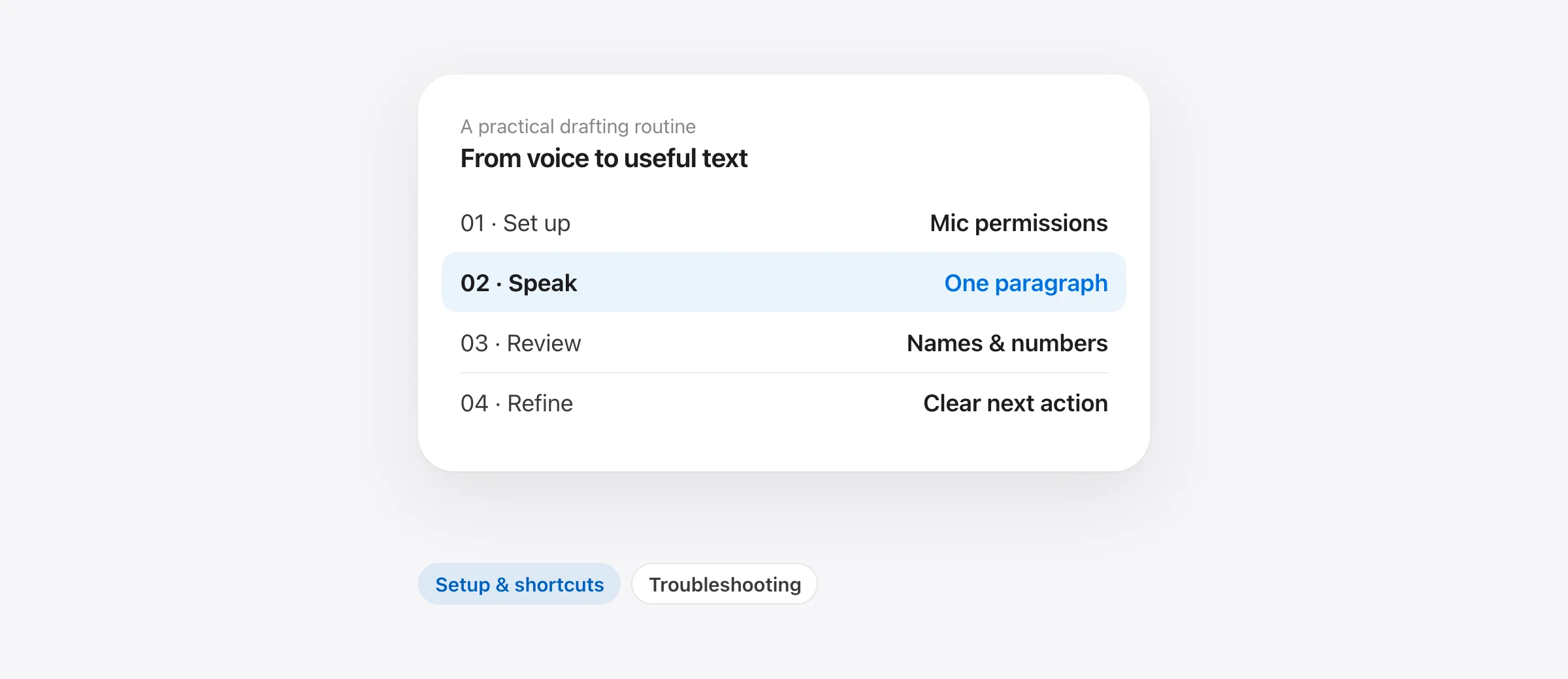
Dictation works best when you give each paragraph one job. Trying to invent the structure, phrase every sentence and correct every recognition error at once can turn a short draft into a tiring session.
Before starting, type three temporary labels: point, evidence, next action. These are writing prompts for you, not special voice commands. Under the first, explain the conclusion. Under the second, describe what supports it. Under the third, state what the reader should do.
For example, imagine you need to update a teammate about a delayed delivery. Your three notes might be: the revised date is Thursday; the final review is still open; approval is needed by tomorrow afternoon. With that outline visible, speak a short paragraph for each part.
“The delivery date is now Thursday. The draft is complete, but the final review is still open. Please send your comments by tomorrow afternoon so we can confirm the changes before delivery.”
This is an original practice paragraph, not an app-generated result. Its purpose is to make evaluation concrete. If the transcription loses “still,” changes Thursday, or replaces “comments” with “approval,” the draft needs correction even if it reads smoothly.
Pause after each paragraph, stop capture, and review it. Fix factual errors immediately, while you still know what you meant. Leave small stylistic changes for the end. Rewriting every phrase during capture makes it harder to notice whether you have actually finished the thought.
For a longer document, use a small outline rather than a continuous monologue. Draft the section you can explain most clearly first. An introduction is often easier after the body exists, because you can summarize the document you actually wrote instead of predicting it.
Punctuation, formatting and the review pass
Google documents spoken punctuation such as “comma” and “period.” Editing commands require English account and document language settings. Check the supported commands before depending on voice-only editing.
Start with plain paragraphs. Once text entry is reliable, test a formatting command in a disposable sentence. A formatting failure should not interrupt the first attempt to capture an idea.
For everyday work, review in this order:
- Meaning: verify the conclusion, qualifications and any “not” or “unless.”
- Facts: check names, dates, amounts, links and technical terms against your source.
- Structure: split unrelated ideas into separate paragraphs and apply headings where useful.
- Style: remove repetition and shorten sentences that are harder to read than to say.
A draft can pass a spelling check while failing the first two steps. “The review is complete” and “The review is not complete” are both grammatical sentences, but they tell a colleague to do different things. Review the instruction before polishing its presentation.
Google Docs voice typing not working on Mac: a diagnostic table
Use the symptom to choose your next check. The table is a suggested diagnostic sequence, not a guarantee that each symptom has only one cause. Try one change, repeat a short test, and record whether the behavior improved.
| Symptom | First check | Useful follow-up |
|---|---|---|
| Cannot edit the document | Try typing in the body | Confirm edit access before testing speech |
| Shortcut does nothing | Use the Tools menu | Check for a conflicting app or browser shortcut |
| Microphone access is denied | Check site permission | Check the browser’s macOS microphone permission |
| Microphone opens, but no words appear | Check the selected input | Try a short local recording to isolate hardware from browser behavior |
| Words appear in the wrong place | Stop capture and inspect the cursor | Retest in a new, simple document |
If the feature is unavailable in a work or school account, ask the administrator whether it is enabled. Google explicitly notes that organizations can disable it in the voice-typing help page.
If a local recording sounds wrong too, investigate the input device before changing writing tools. For example, a headset may be selected while you are speaking toward the laptop. The point of the recording test is to hear the signal the computer actually receives.
If recording works and typed input works, the remaining question is narrower: browser permission, speech service, account configuration or document behavior. That is useful information to include in a support request. Record your browser version, input device, exact error and the simplest reproduction.
For problems with the separate macOS feature, use our Mac Dictation troubleshooting guide. A fix for the system Dictation shortcut will not necessarily resolve a website permission.
Can you dictate in Google Docs offline?
Separate two requirements: opening and editing the document without internet, and converting speech to text without internet. Enabling one does not prove the other works.
Google’s offline editing instructions require setup while connected, Chrome or Edge, and the Google Docs Offline extension. Private browsing is not supported for that setup. Make the document available before you leave a connection; an open tab alone is not a reliable preparation plan.
If offline writing matters, test the exact document and a local dictation tool while disconnected. Confirm that the document opens, accepts inserted text and retains the change. Reconnect and check the result before trusting that workflow on a trip.
A simpler fallback is a local draft. Open a local text document, dictate there, and paste the reviewed writing into Google Docs when you reconnect. Keep the local copy until you have confirmed that the destination contains the complete version.
That fallback also separates failures. If local dictation works but the browser document does not accept input, you can continue writing while you investigate the document setup. Our offline dictation guide for Mac helps evaluate the speech and cleanup stages independently.
When Apple Dictation or Murmur makes sense
Also write in Microsoft Word? The Word dictation guide for Mac explains its separate Dictate button, account requirements and local input alternatives.
Start with the workflow that already covers your task. If you only draft in Google Docs and the built-in option works well, a separate dictation app may add little. A different tool becomes more relevant when you repeatedly move between documents, email, chat and other applications.
Apple Dictation for another built-in input route
Apple Dictation lives under System Settings → Keyboard. Use its configured shortcut with the document body focused. It is separate from Google’s microphone control; Apple’s guide explains activation and language settings.
Test a plain sentence and a correction in your actual browser document. A general ability to enter text across apps should still be verified in the field you use. If ordinary insertion works but a specialized editing operation does not, record those as two different results.
Murmur for repeated writing across apps
Murmur uses a hold-to-talk workflow: place the cursor, hold right Command, speak, and release. Its speech recognition and writing cleanup run on-device. It also provides a custom dictionary, saved snippets, per-app styles and voice edits for selected text.
These features are useful when the same vocabulary and reusable text appear in several destinations. For instance, save a frequently used contact line as a snippet instead of dictating its exact punctuation every time. Add recurring names to your dictionary, then check whether they appear correctly in your real draft.
Per-app styles are not per-website styles. A style assigned to a browser should not be assumed to identify each tab’s purpose. Check the active style when switching from a casual message to a formal document within the same browser.
Murmur requires Apple silicon and macOS 26 or later. AI features need Apple Intelligence enabled and ready. The first 2,000 words are free without an account, followed by a regular $19 one-time license for up to three Macs. Version 1 updates are included; future major upgrades may cost extra.
Use the trial to verify insertion, selection and corrections in your browser. This guide does not claim a special Google Docs integration or guaranteed handling of every browser field. If you are comparing several apps, the Aqua Voice alternatives guide provides a task-based shortlist.
Privacy: distinguish speech processing from document storage
Google says the browser controls the speech-to-text service used by its voice-typing feature and passes the resulting text to Docs. See its processing explanation.
A local dictation app changes the speech stage. It does not turn the receiving document into local-only storage. If your writing belongs in a shared Google document, it is still subject to that document’s account, sharing and sync configuration after insertion.
Decide where the finished text is allowed to live before choosing the input method. For writing that must stay in a local file, use a local destination as well as local recognition. For a collaborative draft, check the intended recipients and sharing settings before adding sensitive details.
Try one useful paragraph today
Open a scratch document and choose a task you already need to finish: an update, an introduction or a short explanation. Spend one minute jotting down the point, evidence and next action. Speak the draft, stop, and review the facts before changing the style.
Record one thing that slowed you down. If it was microphone access, fix the permission. If it was an unfamiliar name, test vocabulary handling. If it was figuring out what to say, improve the outline. That observation gives you a more useful next step than downloading several apps before you know what needs to change.
Frequently asked questions
What is the Google Docs voice typing shortcut on Mac?
Google lists Command–Shift–S for starting voice typing in Chrome on Mac. Use the Tools menu if the shortcut is intercepted or you are using another browser; do not confuse it with the separate macOS Dictation shortcut.
Does Google Docs voice typing work in Safari?
Google’s current voice-typing help lists the latest Safari, Chrome and Edge. Its shortcut documentation still labels the shortcut as Chrome-specific. Use the menu path when browser behavior differs.
Why does Google Docs say it cannot access my microphone?
Check both permission layers: macOS must allow the browser to use the microphone, and the browser must allow the document site. Also check the selected input device. Changing only one permission can leave the other blocking access.
Can I use offline dictation with Google Docs?
Treat offline document editing and offline speech recognition as separate requirements. Configure document access before disconnecting, then test a local dictation tool in that document. For a dependable fallback, draft in a local file and transfer the text later.
Do I need to buy a Mac dictation app for Google Docs?
Start with the built-in option. Consider a separate app if you also dictate in other applications, need reusable snippets or want a different speech-processing workflow. Test your actual document field before paying.
Sources

Telman Gadimov builds Murmur, a dictation app for Mac that runs entirely on-device. We make Murmur. Google and Apple instructions were checked against official documentation on October 13, 2026. Drafting examples are original exercises, not captured dictation output. The workflow is documentation-based; it is not a logged-in Google Docs compatibility benchmark.


