Try these first (30 seconds each)
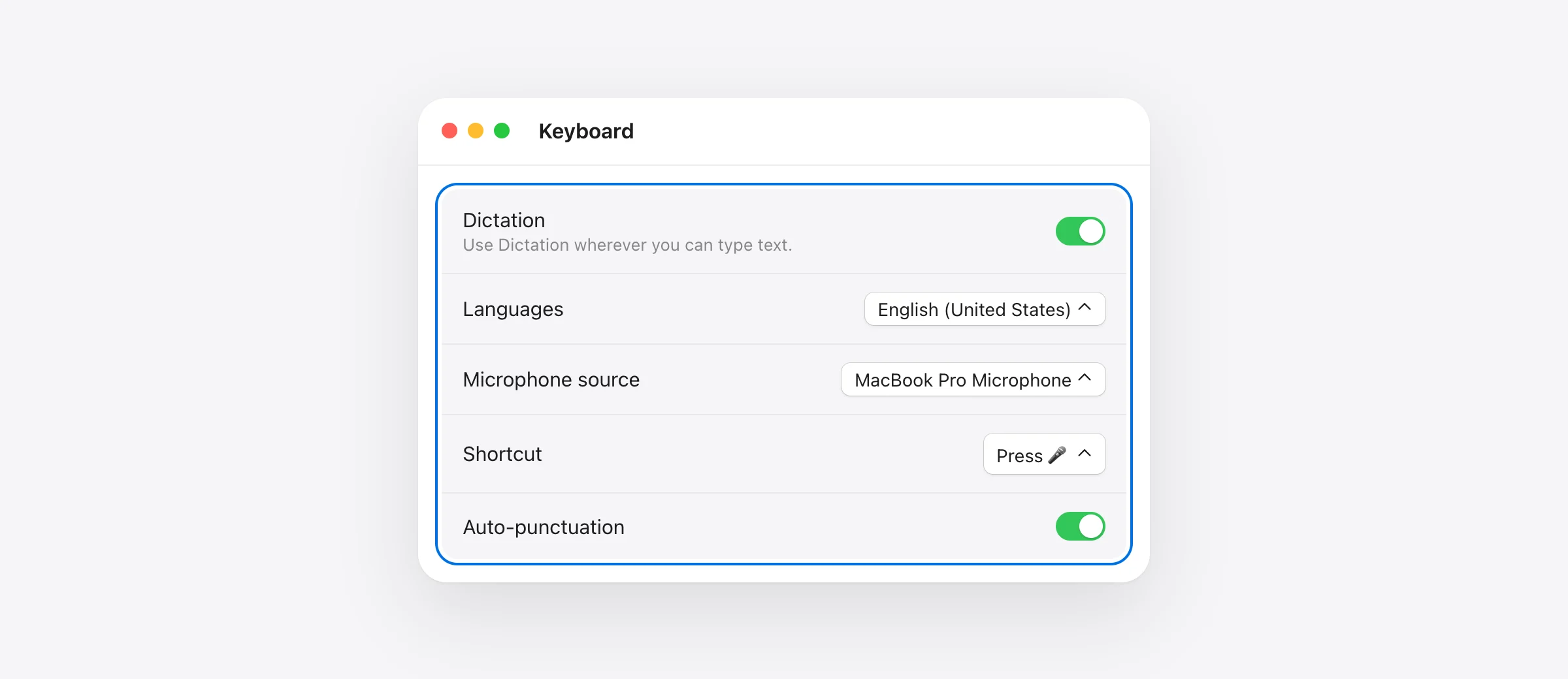
- Open System Settings › Keyboard and check that Dictation is on and the shortcut is what you think it is.
- In the same panel, set Microphone source to your Mac’s built-in microphone instead of Automatic.
- Make sure Voice Control is off (it replaces Dictation when it’s on).
- Turn Dictation off, wait 10 seconds, and turn it on again.
Find your symptom
| What happens | Most likely cause | Go to |
|---|---|---|
| Nothing happens when you press the shortcut | Dictation off, or a different shortcut | Fix 1 |
| The microphone icon appears but no words | Wrong microphone, or input level too low | Fix 2, 3 |
| Dictation stops after a pause | The 30-second silence limit | Fix 9 |
| Works everywhere except one app | Secure Input, or the app doesn’t accept typed text | Fix 7 |
| The Dictation switch is greyed out | Screen Time or a management profile | Fix 6 |
| Wrong language, or “not available offline” | Speech model not downloaded | Fix 4 |
| A dictation app copies text but doesn’t paste | Stale Accessibility permission | Fix 11 |
| No AI polish on macOS 27 | Hardware or language requirement | Fix 12 |
1. Check that Dictation is on, and which shortcut it uses
Open System Settings › Keyboard and scroll to Dictation. Turn it on if it’s off. Then look at Shortcut: it might be the Microphone key (F5 on recent MacBooks), pressing Control or Fn/Globe twice, or a custom key. A shortcut that “stopped working” after an update has often just been changed.
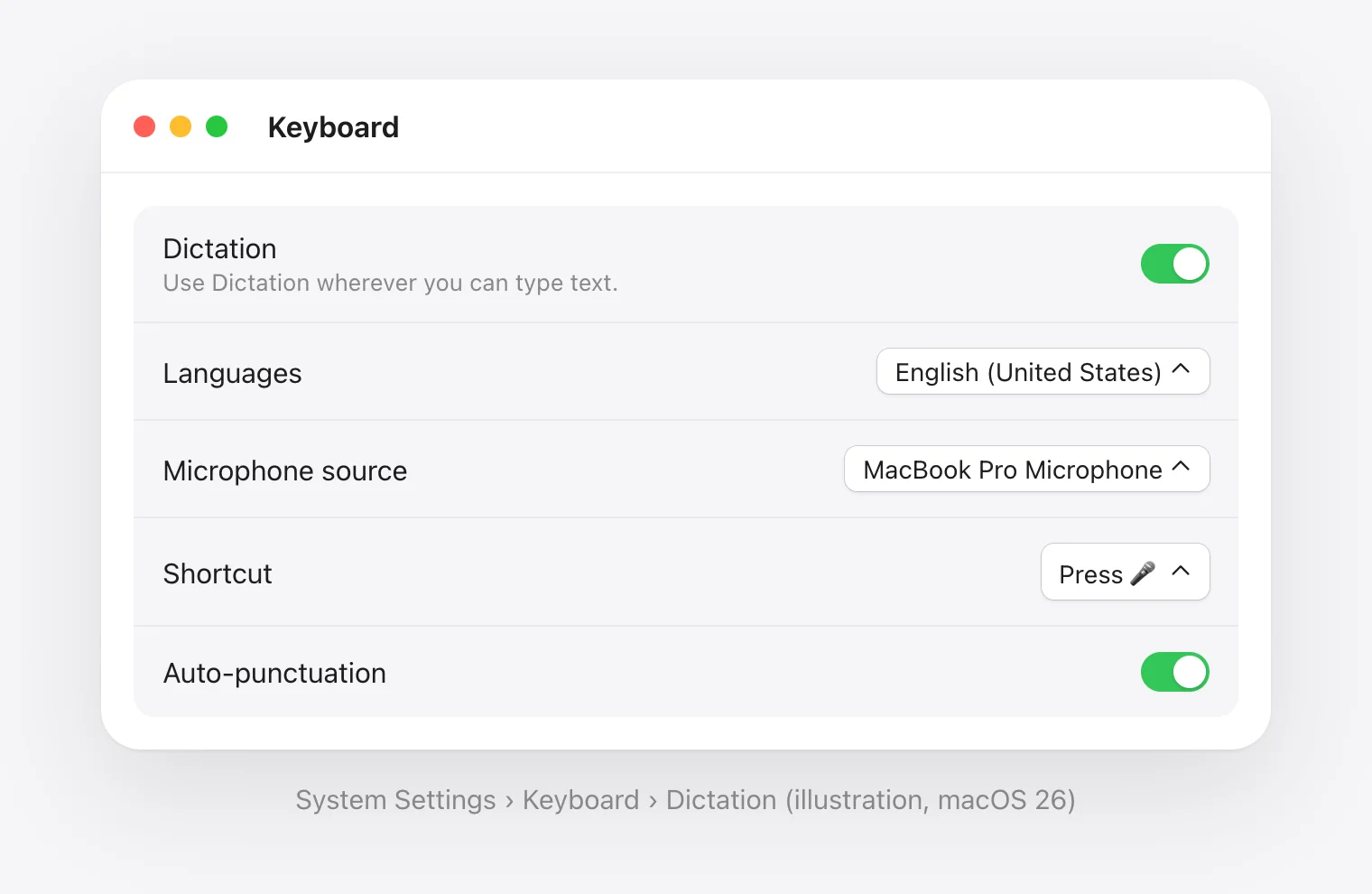
On a Mac keyboard without a Microphone key, choose a shortcut you can press reliably, such as pressing Control twice. You can also start Dictation from Edit › Start Dictation in most apps, which is a quick way to tell a shortcut problem from a dictation problem.
2. Pick the right microphone
In the same Dictation section, open Microphone source. “Automatic” sometimes picks a disconnected headset, an iPhone used as a webcam (Continuity Camera), or a display’s microphone. Choose your Mac’s built-in microphone, test, and switch back later if you want.
3. Check the input level and Bluetooth headsets
Open System Settings › Sound › Input, select the same microphone and speak. The input level bars should move. If they don’t, the problem is the microphone, not Dictation.
AirPods and other Bluetooth headsets switch to a low-quality “headset” mode when their microphone is used, which hurts recognition and can delay the start. If accuracy is poor with AirPods, select the Mac’s built-in microphone for dictation and keep the AirPods for listening.
4. Check the language and the on-device model
Under Keyboard › Dictation › Languages, make sure the language you speak is selected. On Apple silicon, many languages run on-device, but only after macOS downloads the speech model for that language. Apple’s feature page notes that on-device dictation “requires download of speech models”. Right after adding a language, or on a slow connection, give it a few minutes. The text under the Dictation setting tells you whether your requests are processed on your device.
5. Turn off Voice Control
Voice Control is Apple’s accessibility feature for operating the whole Mac by voice. Apple’s documentation is clear: “When Voice Control is on, you use Voice Control to dictate text; standard macOS Dictation isn’t available.” Check System Settings › Accessibility › Voice Control and turn it off if you don’t use it.
6. If the switch is greyed out
A dimmed Dictation switch means something is restricting it:
- Screen Time: open System Settings › Screen Time › Content & Privacy and look for restrictions on Siri and Dictation.
- Work or school Mac: open System Settings › General › Device Management. A configuration profile from your organization can disable Dictation, and only your IT team can change it.
7. Check for Secure Input (Terminal, password fields)
If dictation works everywhere except one app, the usual reason is Secure Input. Password fields turn it on, and so does Secure Keyboard Entry in Terminal and iTerm2 (in the app’s main menu). While it’s on, macOS blocks other software from typing, which also stops dictation apps from pasting.
To see whether an app is holding Secure Input, run this in Terminal:
ioreg -l -w 0 | grep SecureInputNo output means Secure Input is off. If you see kCGSSessionSecureInputPID, the number after it is the process ID of the app holding it. Look it up with ps -p <number> and quit or reconfigure that app. Password managers and some remote-desktop tools are common culprits.
8. Restart the speech services
If Dictation used to work and suddenly doesn’t, restart the background processes that handle speech. In Terminal:
killall corespeechd
killall localspeechrecognition
macOS relaunches both automatically the next time you dictate. If a process isn’t running, Terminal says “No matching processes”, which is fine. You don’t need sudo, and you should never need to disable System Integrity Protection to fix Dictation, whatever some guides suggest.
9. If it keeps stopping when you pause
This one isn’t a bug. Apple Dictation stops by itself after 30 seconds without speech. If you think while you talk, it will keep cutting you off. You have two options: start it again with the shortcut, or use a hold-to-talk app, which listens for exactly as long as you hold a key, pauses included.
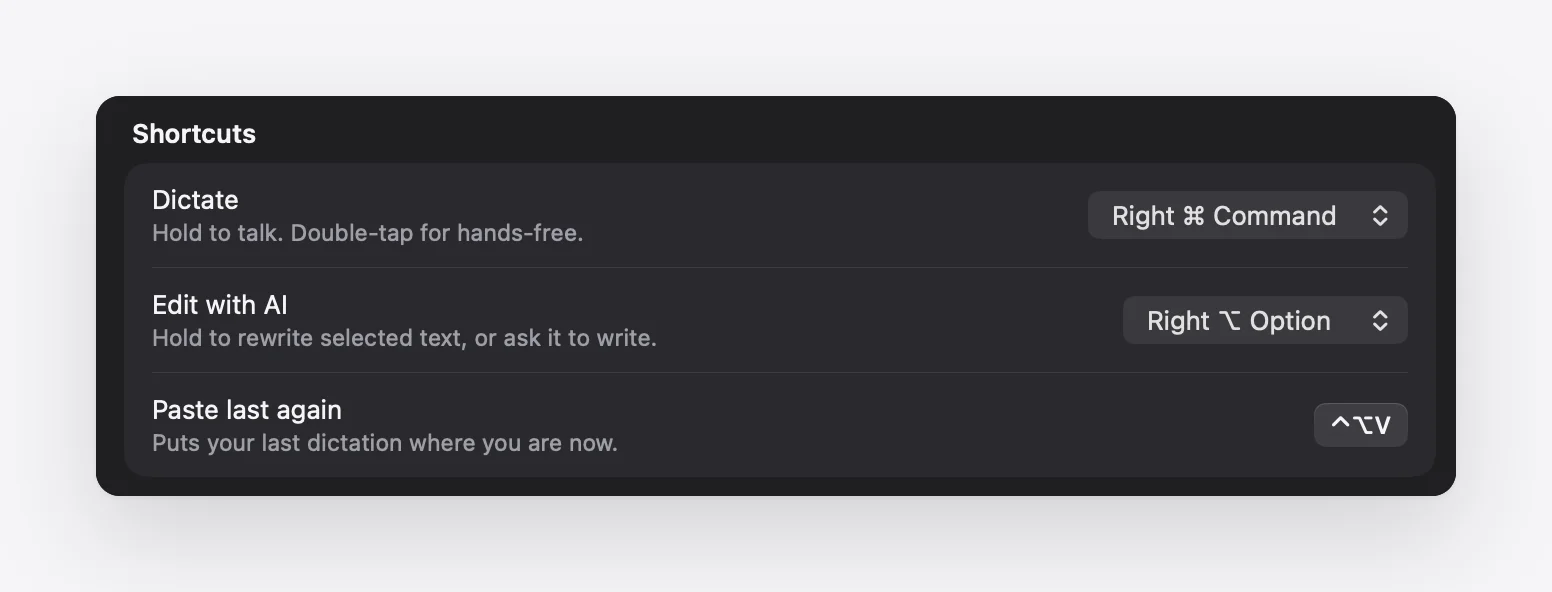
That’s how Murmur works: hold the right ⌘ key, take as long as you like, and let go when you’re done. Double-tap the key for hands-free dictation that runs until you tap again.
10. Update macOS and restart
Check System Settings › General › Software Update. Point releases regularly fix speech bugs, and after a major update the first restart finishes setting up the speech models. If nothing else has worked, restart the Mac before trying anything more drastic.
11. If a dictation app copies but doesn’t paste
Third-party dictation apps (Murmur, Wispr Flow, Superwhisper and others) type into other apps using the Accessibility permission. After an app updates, macOS can keep showing the permission as on while it no longer applies to the new version. The result: the text lands on your clipboard but never appears where your cursor is.
- Open System Settings › Privacy & Security › Accessibility.
- Select the app, remove it with the – button, then add it again with + (or reopen the app and allow it when asked).
- If it still doesn’t paste, reset that app’s permission from Terminal and grant it again. For example, for Murmur:
tccutil reset Accessibility app.murmur.mac
While you’re there, check Privacy & Security › Microphone too: the app needs that switch on to hear you.
12. If macOS 27’s AI dictation is missing
macOS 27 adds “more advanced Dictation” that turns speech into polished text using Apple Intelligence. If you don’t see it, check three things:
- Apple Intelligence is on in System Settings › Apple Intelligence & Siri, and has finished downloading.
- Your dictation language is English. Apple lists the feature for English (US, UK, Australia, Canada, India, Ireland, New Zealand, Singapore and South Africa) only.
- Your Mac qualifies. MacRumors reports it needs an M3 or later with at least 12 GB of memory. M1 and M2 Macs keep standard dictation.
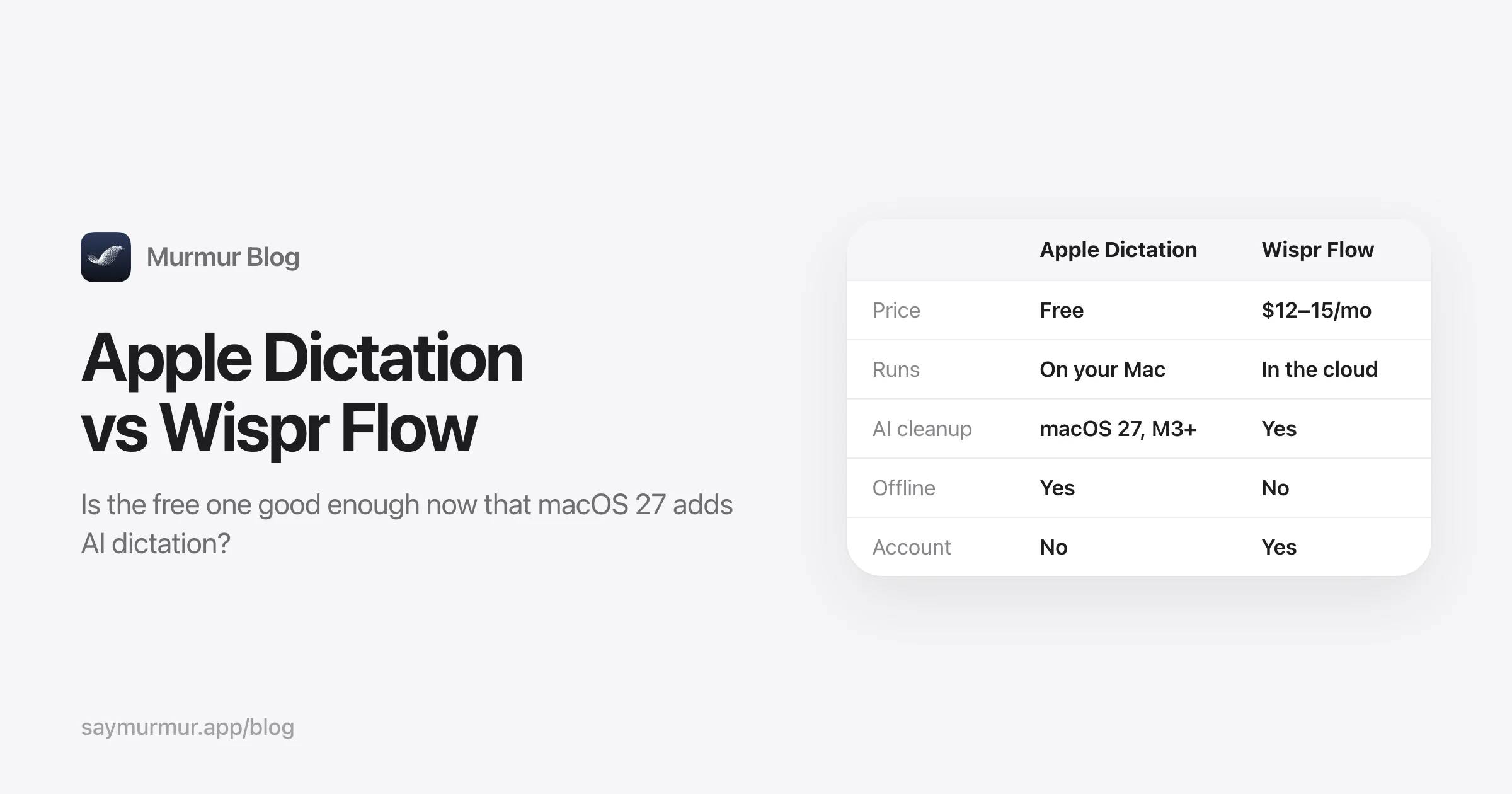
On an M1 or M2 Mac, or on macOS 26, you can still get AI cleanup from apps that use Apple Intelligence’s on-device model directly. Murmur does this on any Mac that supports Apple Intelligence. Our Apple Dictation vs Wispr Flow comparison explains the differences.
Still not working?
Create a new user account (System Settings › Users & Groups) and try Dictation there. If it works in the new account, the problem is a setting in yours; if it doesn’t, contact Apple Support, since the speech components may need a macOS reinstall.
And if Dictation works but you’re tired of its limits (no hold-to-talk, no filler removal, cut off after a pause), see our guide to the best dictation apps for Mac.
Frequently asked questions
Why does dictation on my Mac stop by itself?
Apple Dictation stops automatically after 30 seconds without speech. On older Intel Macs and older macOS versions it could also stop after a time limit. If you pause to think a lot, use a hold-to-talk dictation app, which keeps listening for as long as you hold the key.
Why is the Dictation option greyed out on my Mac?
Something is restricting it: usually Screen Time content restrictions, or a configuration profile from your employer or school. Check System Settings › Screen Time › Content & Privacy, and System Settings › General › Device Management.
Why does Mac dictation not work in Terminal or password fields?
Password fields, and apps with Secure Keyboard Entry turned on (Terminal and iTerm2 have this option), block other software from typing. Turn off Secure Keyboard Entry in the app’s menu, or click out of the password field.
How do I reset dictation on a Mac?
Turn Dictation off in System Settings › Keyboard, wait ten seconds and turn it back on. If that doesn’t help, quit the speech services in Terminal with killall corespeechd and killall localspeechrecognition; macOS restarts them automatically. A full restart of the Mac is the last step.
Does Mac dictation work offline?
On Apple silicon Macs, many languages are processed on-device and work without internet once the speech model has downloaded. Keyboard settings show whether your language is processed on your device.
Why doesn’t the new AI dictation appear in macOS 27?
Apple’s “more advanced Dictation” needs Apple Intelligence turned on, English as the dictation language, and, according to MacRumors, a Mac with an M3 or later and at least 12 GB of memory. On other Macs, standard dictation keeps working without the AI polish.
Sources

Telman Gadimov builds Murmur, a dictation app for Mac that runs entirely on-device. We make Murmur, a dictation app for Mac, and fix these problems for our own users every week. The fixes here apply to Apple Dictation and to any third-party dictation app.