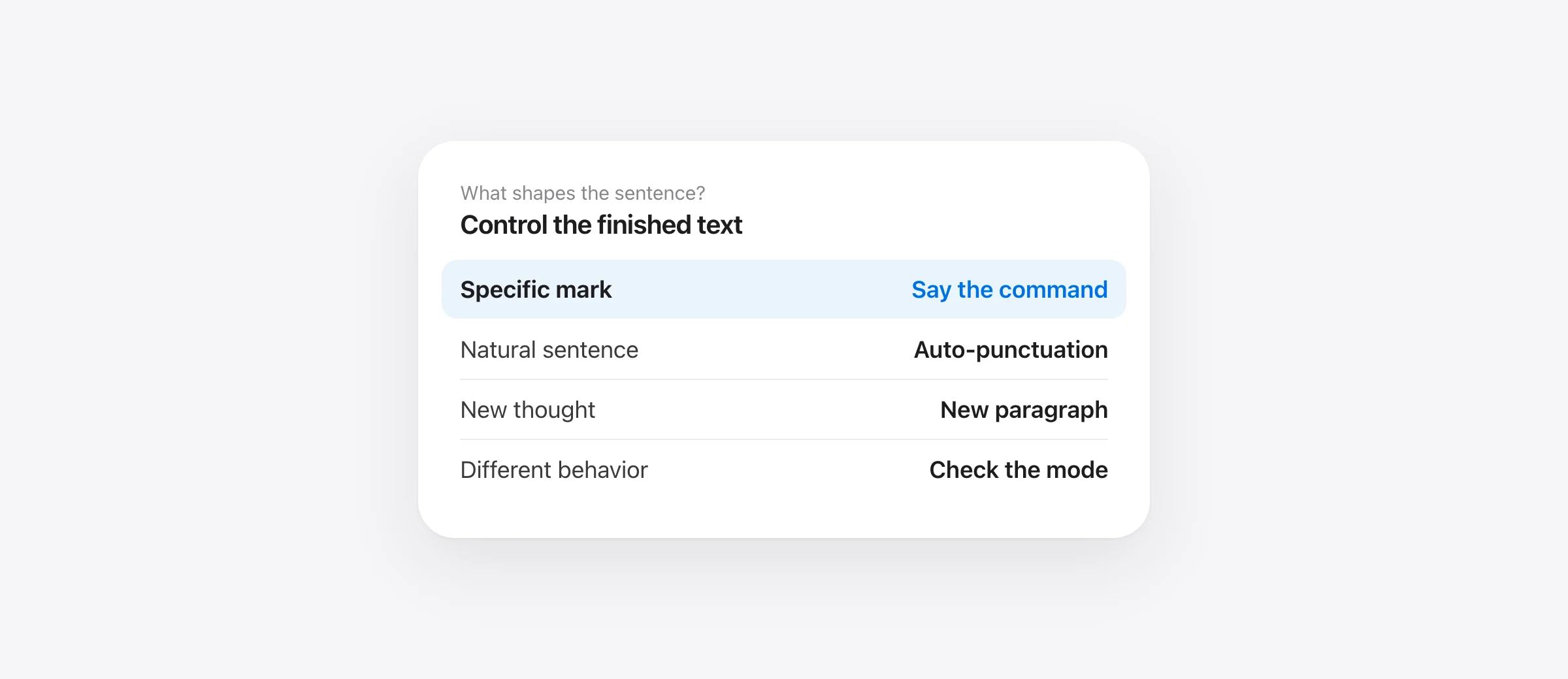
Start with these Mac Dictation commands
- Say “comma,” “period,” “question mark,” or “colon” to request that mark while dictating.
- Say “new line” for one line break or “new paragraph” for a paragraph break.
- For automatic sentence punctuation, check System Settings → Keyboard → Dictation → Auto-punctuation and your selected language.
- If commands behave differently, identify whether you are using standard Mac Dictation, Voice Control, or another dictation app.
Mac Dictation punctuation commands are useful when the automatic result is missing a mark or putting one in the wrong place. Apple documents spoken commands for punctuation, line breaks, capitalization and symbols. It also offers Auto-punctuation in supported languages, so you may not need to say every comma and full stop. Those are two different mechanisms: a command asks for a specific mark; Auto-punctuation infers some marks from your speech.
This guide covers the small set most people use daily, shows a test that separates command recognition from automatic punctuation, and explains why commands can behave differently in Voice Control, Google Docs or third-party dictation apps.
The useful punctuation commands, in one table
These are selected from Apple’s macOS 26 command list. The phrases are the words to say while standard Mac Dictation is active. The output shown is what Apple documents; test it in your selected language and destination before relying on an exact result.
| Say | Expected output or action | Example use |
|---|---|---|
| comma | , | A pause inside a sentence |
| period, point, dot or full stop | . | End a sentence |
| question mark | ? | End a direct question |
| exclamation mark | ! | Use sparingly in a message |
| colon | : | Introduce a short list |
| semicolon | ; | Join related clauses |
| hyphen | - | A compound or identifier |
| dash | – | A parenthetical break |
| new line | Start a new line | An address or short list |
| new paragraph | Start a new paragraph | A new thought |
Notice the distinction between hyphen and dash. Apple lists them as different outputs. If you need a particular character in a file name, URL or code identifier, inspect the actual character after dictation rather than trusting a visual glance. The same applies to curly quotes and other typography. For technical text, exactness matters more than a pleasant-looking sentence.
How Auto-punctuation changes the result
Apple says Dictation can insert certain commas, periods and question marks automatically in supported languages. To inspect the control, go to System Settings → Keyboard → Dictation and find Auto-punctuation. Turn it off if you want to supply those marks yourself, or leave it on and speak explicit marks only where you need to override the inferred result. Availability depends on your Dictation language and Mac configuration.
Auto-punctuation is not a proofreading guarantee. A pause can be interpreted differently from the punctuation you intended. It also cannot know that an amount, deadline or negation was transcribed incorrectly. Review the final text, especially when a punctuation mark changes meaning.
| What you observe | Likely stage to inspect | First check |
|---|---|---|
| A spoken “comma” becomes a comma | Command recognition | Try another documented command in the same field |
| A natural sentence gets a comma you did not say | Auto-punctuation | Check the Auto-punctuation toggle and language |
| A sentence is punctuated only after you stop | Finalization or processing | Judge the finished text, not a partial display |
| Text changes after it first appears | Another cleanup or app stage | Compare raw and final text if your tool exposes both |
Apple notes that a spoken “new line” or “new paragraph” may appear once you finish dictating. Wait for the completed result before deciding the command failed. Do not switch several settings at once; a single changed variable makes the next test interpretable.
Use line breaks without accidentally sending a message
“New line” and “new paragraph” are documented Mac Dictation commands, but the receiving app still decides how its text field behaves. A note, Gmail draft and Slack message can treat a real Return key differently. Test in an unsent field before using line-break instructions in a live conversation.
For example, dictate a two-sentence note in TextEdit, then repeat in an unsent Slack draft. In TextEdit, the key question is whether the paragraphs are separated. In Slack, also check that no message was sent unexpectedly. Slack has a separate Enter-key preference; if your writing tool later sends a key event, that app setting can matter. Our Slack voice-to-text guide walks through the message draft test.
For an email, put the cursor in the body, not the subject or recipient field. If you are testing punctuation in Gmail, our Gmail voice typing on Mac guide gives an unsent-draft workflow. A command that works in a document is useful evidence, but the actual destination is the final test.
Symbols and capitalization for practical writing
Apple’s list also includes spoken symbols such as at sign for @, underscore for _, forward slash for /, hashtag sign for #, and per cent sign for %. It lists all caps for the next word and all caps on/off for a phrase. These can be useful for a quick note, but do not assume that dictating an email address or URL symbol by symbol will be faster or more reliable than pasting an exact value.
In a filename, a single underscore instead of a hyphen can point to a different resource. In an email address, every character matters. Use a saved snippet for a stable address or signature, or paste the verified text. Our custom vocabulary guide explains when a snippet is safer than teaching a recognizer another word.
For ordinary prose, focus on the marks that change how a reader understands a sentence: period, comma, question mark, quotation marks and paragraph breaks. You do not need to memorize Apple’s entire symbol table to write a clear message.
A two-minute test that isolates the problem
Use a local, editable scratch document and standard Mac Dictation. The following phrases are tests to try, not measured results. Keep the output so you can compare one change at a time.
- Test an explicit command. Say “Please review this comma but do not send it period.” Check for a comma, a period and the word not.
- Test a line break. Say “First idea new paragraph Second idea.” Wait until Dictation stops, then inspect the final layout.
- Test natural speech. With Auto-punctuation on, speak a question without saying “question mark.” Record the result.
- Change one setting. Turn Auto-punctuation off and repeat the same question. Do not change the microphone, language and app at the same time.
- Repeat in the real app. If TextEdit works, test a disposable note or unsent message in your usual destination.
This separates three failure types. If an explicit “period” command fails in every app, inspect Dictation mode and language. If commands work but natural punctuation does not, check Auto-punctuation. If both work in TextEdit but not in a particular editor, focus on that editor’s text field, shortcut and formatting behavior.
Why a command may become a word
The wrong speech system is active. Apple’s command table is for standard macOS Dictation. If Voice Control is enabled, Apple says it replaces standard Dictation. A third-party dictation app may also have its own vocabulary and processing rules. Identify the active system before applying a command list to it.
The selected language differs. Command recognition and Auto-punctuation availability vary by language. Confirm the selected Dictation language under Keyboard settings and test a simple documented command first. One failed phrase does not establish that every command is unavailable.
The destination is not an ordinary text field. Start in TextEdit to verify the Mac-side behavior. Then move to the actual app and click where you want text. If it only fails in a browser editor or special field, the destination is part of the diagnosis.
The command is not in Apple’s Dictation list. Some lists online mix macOS Dictation, Voice Control, Google Docs and Microsoft Word commands. A spoken “delete that” or a navigation phrase should not be assumed to work in standard Mac Dictation just because another tool supports it. For broader voice navigation and editing, investigate Voice Control separately. Apple’s documented command table is the baseline for this guide.
When to stop speaking punctuation
If you are constantly interrupting your thought to say “comma,” try Auto-punctuation in a supported language and judge the finished text. If the result still needs heavy editing, compare another dictation route using the same passage. A tool that cleans prose may save effort, but check that it preserves names, numbers, quoted words and negations.
Murmur is a separate Mac dictation app with on-device speech and optional Apple Intelligence cleanup on supported Macs. Apple’s standard Dictation Auto-punctuation switch should not be treated as a control for a separate app’s output. Try a plain mode and a polished mode on the same 30-second passage, then count the edits required for a finished message. Murmur requires Apple silicon and macOS 26 or later; its first 2,000 words are free.
If punctuation problems are part of a broader failure to start or insert speech, use our Mac Dictation not working guide. If the words are right but names and terms are wrong, fix that separately. Punctuation commands solve sentence structure, not recognition vocabulary.
Keep the smallest set of spoken commands you actually use. For many people, comma, period, question mark, new line and new paragraph are enough. The best result is not the most commands remembered; it is text that says exactly what you intended with little correction afterward.
Frequently asked questions
How do I add punctuation with Mac Dictation?
While standard macOS Dictation is active, say the name of the punctuation mark, such as comma, period, question mark or colon. Apple also documents Auto-punctuation for supported languages. Review the result because dictated punctuation depends on language and context.
What do I say for a new paragraph on Mac?
Say ‘new paragraph’ while dictating. Apple says it starts a new paragraph; ‘new line’ starts a line break. Check the result in the destination app, especially in a message field where Return can send.
Where is the Mac Auto-punctuation setting?
Open System Settings → Keyboard → Dictation and look for Auto-punctuation. Apple says it is available in supported languages and can be turned off there.
Why does Dictation type the word comma instead of a comma?
Confirm that standard macOS Dictation is active and test a documented command in a plain editable field. If you use Voice Control or a third-party speech app, its command behavior may differ. Check the selected language before treating one result as universal.
Can Mac Dictation edit or navigate the whole computer by voice?
Standard Dictation mainly enters text and the commands Apple lists for punctuation, symbols and formatting. Voice Control is the separate Mac feature for broader spoken control. Apple says Voice Control replaces standard Dictation while it is on.
Sources

Telman Gadimov builds Murmur, a dictation app for Mac that runs entirely on-device. We make Murmur, a separate dictation app mentioned here. Apple command and setting behavior was checked against official macOS 26 documentation on October 13, 2026. The practice phrases are suggested tests, not measured recognition results or a guarantee for every language.


