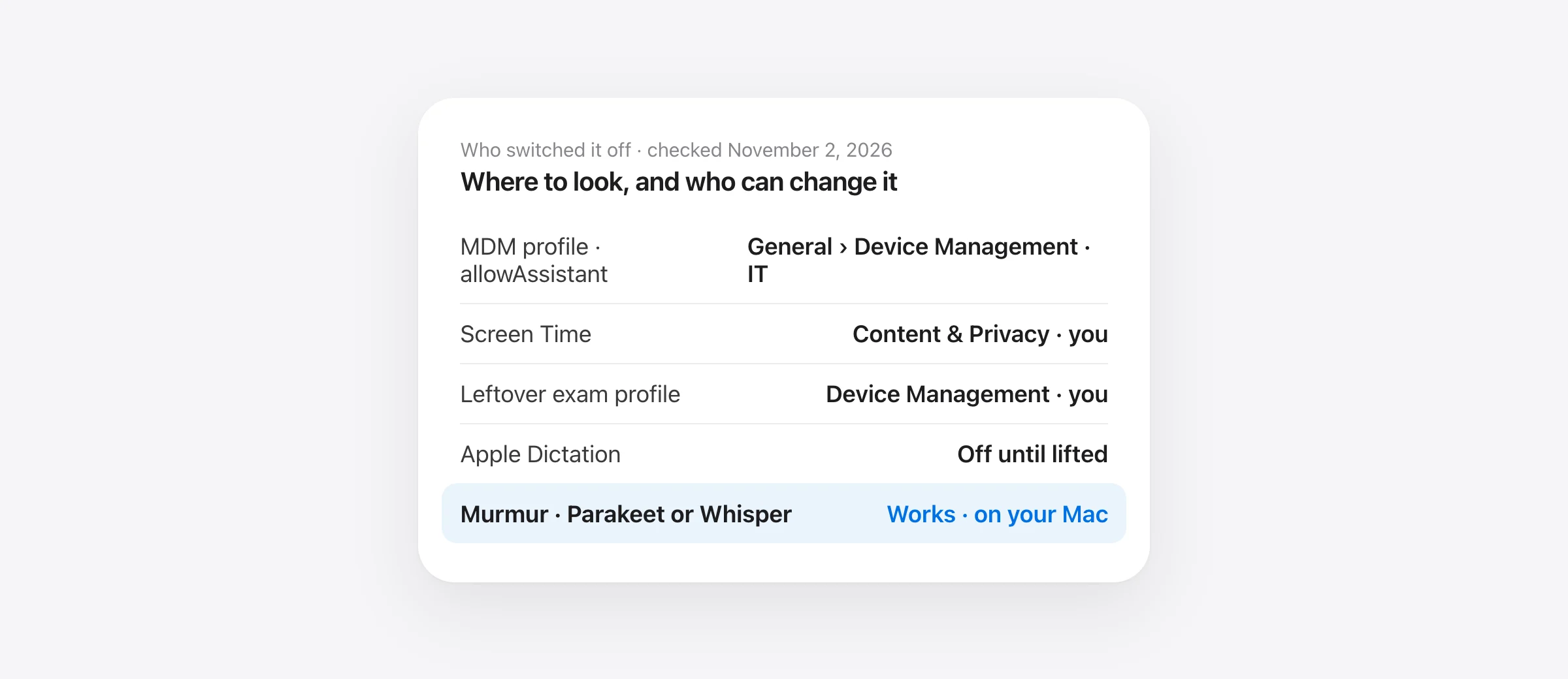
The short answer
A policy has switched Siri off, and macOS switches Dictation off with it. On a work or school Mac that policy is a device-management profile, and only your IT team can lift it; go to System Settings › General › Device Management to see who installed it. On a personal Mac, the same message usually comes from Screen Time › Content & Privacy or a profile left behind by exam software. Until it is lifted, a dictation app that brings its own speech model keeps working, because the restriction only covers Apple’s Siri services.
You open System Settings to turn on Dictation and instead of a switch you get a sentence: “The organization managing this Mac has turned off Siri & Dictation features.” People type it into Google with “and” instead of the ampersand, which is why you are here. The Keyboard pane says something slightly different for the same condition: “This setting has been configured by Screen Time or a profile.” Either way the meaning is the same. Nothing is broken. Someone, or some software, told the Mac not to allow Siri, and Dictation is bundled into that decision. This guide covers how to confirm which of the three causes you have, why organizations do it, what to ask for, and how to keep dictating in the meantime. If your Dictation problem is anything other than this message, start with our general Mac dictation fixes.
Which of the three causes do you have?
| Cause | What you see | Who can change it |
|---|---|---|
| Device-management (MDM) profile from an employer or school | “The organization managing this Mac has turned off Siri & Dictation features.” A profile is listed under General › Device Management. | Your IT team |
| Screen Time restriction | “Your parent or guardian has turned off Siri & Dictation features on this Mac”, or the organization message on a Mac nobody manages | You, or the family organizer |
| Leftover profile from exam or assessment software | The organization message, Handoff and Writing Tools also missing, often after a proctored test | You, sometimes with Apple Support’s help |
Step 1: look at Device Management
Open System Settings › General › Device Management. If a profile from your company or school is listed, you have the MDM case; double-click it to see what it restricts. Apple’s own advice for a profile you can’t remove is to “ask for help from the person who provided the profile.” If the list is empty and you still see the message, move on to Steps 2 and 3.
Step 2: confirm in Terminal
Two commands work without administrator rights. The first tells you whether the Mac is enrolled in management at all:
profiles status -type enrollment“MDM enrollment: Yes” means an organization manages the Mac. The second reads the Siri restriction directly, which is the same check security auditors use:
osascript -l JavaScript -e '$.NSUserDefaults.alloc.initWithSuiteName("com.apple.applicationaccess").objectForKey("allowAssistant").js'A result of false (or 0) means Siri is blocked by policy. Swap allowAssistant for allowDictation to check whether Dictation is blocked on its own. Note that profiles show without sudo lists only user-level profiles; device profiles need an administrator.
Step 3: on a personal Mac, check Screen Time and old profiles
Open System Settings › Screen Time › Content & Privacy and look under Intelligence & Siri. One Apple Community member with an unmanaged Mac mini found “Allow Siri & Dictation” unchecked there after a macOS 15.3 update and fixed it by checking it; another cleared the message by setting Language, Keyboard and Siri all to the same English variant. If you have taken a proctored exam on this Mac, look for an assessment profile: a macOS 26 user traced the same message, plus missing Handoff and Writing Tools, to a profile left behind by exam software. A second-hand Mac can also still be enrolled in a previous owner’s management; that one needs Apple Support and proof of purchase.
What is actually switched off, and by which key
Configuration profiles carry a Restrictions payload with named keys. Apple documents the relevant ones:
| Key | Apple’s description | Since |
|---|---|---|
allowAssistant = false | “The system disables Siri.” In practice Dictation goes off with it, and the message names both. | macOS 14 |
allowDictation = false | “The system disallows dictation input.” | macOS 10.13 |
forceOnDeviceOnlyDictation = true | “Disables connections to Siri servers for the purposes of dictation.” Dictation keeps working, on the Mac only. Apple silicon. | macOS 14 |
Apple’s documentation for allowAssistant mentions only Siri, but administrators have reported since macOS Ventura that it disables Dictation too, and the single on-screen string lumps them together. From macOS 26.4 Apple marks these keys deprecated in favor of declarative settings (com.apple.configuration.siri.settings with Enabled, and a keyboard settings configuration with AllowDictation), but the effect for you is the same. The third key matters for your conversation with IT: it is the one that lets dictation stay on without any audio leaving the Mac.
Why organizations do this
It is rarely personal. The two baselines most IT teams follow both call for it:
- The CIS benchmark for macOS recommends “Ensure Siri Is Disabled” because the “Hey Siri” listener “cannot be disabled globally” and “the mic is live and capturing everything around it”.
- The NIST macOS Security Compliance Project, which underlies the US government’s macOS STIG, says Siri “MUST be disabled to prevent organizational data from being synchronized to Apple servers”, and has a separate Disable Dictation rule aimed at Intel Macs, where dictation audio goes to Apple, with a note that on-device dictation “is only available on Apple Silicon devices”.
That last point is your opening. The reason behind the rule is audio leaving the building. On an Apple silicon Mac, Apple offers a setting that keeps dictation on-device, and third-party apps exist that never upload anything.
What to ask IT, in their language
Write a short request rather than a complaint. Something like this works:
I use dictation for [drafting documents / accessibility]. Our profile sets
allowAssistantto false, which also disables Dictation on my Mac. Could you either (a) allow Dictation while keeping Siri off, (b) allow Siri withforceOnDeviceOnlyDictationso dictation never reaches Apple’s servers, or (c) approve an on-device dictation app that processes speech locally and sends no audio anywhere? Happy to use whichever fits policy.
Option (b) is a documented Apple key and lines up with the CIS recommendation to prefer on-device dictation. Option (c) is often the easiest for a security team to say yes to, because there is nothing to configure and the app can be reviewed like any other. Don’t remove the profile yourself: it usually needs admin credentials, it can cut off your access to email and company systems, and it is the kind of thing that gets noticed.
Dictating while the restriction stands
The restriction switches off Apple’s Siri services. It does not switch off your microphone or stop other software from turning speech into text. Which apps keep working depends on whose speech engine they use:
- Apps built on Apple’s Speech framework can fail. Apple documents an error for this exact case, code 201, “Siri or Dictation is disabled”, and developers have reported it as soon as Siri and Dictation are both off.
- Apps that ship their own model, such as those built on Whisper or NVIDIA’s Parakeet, don’t depend on Siri and are unaffected by design. Whether that holds on your particular profile is something to test, because admins can also restrict which apps you may install.
Murmur offers both kinds of engine. If Apple’s engine is unavailable on your managed Mac, pick a Parakeet or Whisper model in Murmur’s settings; it downloads once and runs entirely on the Mac, so it also works offline. Hold right ⌘, talk, let go, and the text is typed where your cursor is. Nothing is sent anywhere, which is the fact to put in front of IT. Our offline dictation apps guide covers other local options, including MacWhisper and VoiceInk.
What about Voice Control, Apple’s accessibility feature? There is no MDM key for it in the Restrictions payload, and it dictates text as part of controlling the Mac. Apple notes that standard Dictation is unavailable while Voice Control is on, which is a different situation. We could not find a reliable report of whether it keeps working under allowAssistant, so try it: System Settings › Accessibility › Voice Control.
If you manage the Mac yourself
On a Mac you administer, the fix is to remove the restriction at its source: untick the Screen Time option, remove the leftover profile in Device Management (click it, then the minus button), or, for a profile that refuses to go, contact Apple Support. After removing anything, restart, then return to System Settings › Keyboard › Dictation; the switch should be live again. Our guide to using dictation on Mac picks up from there.
Frequently asked questions
What does “The organization managing this Mac has turned off Siri and Dictation features” mean?
A configuration profile installed by whoever manages the Mac, usually an employer or school through a device-management (MDM) service, has disabled Siri with the allowAssistant restriction, and macOS turns Dictation off along with it. It is a deliberate setting, not a fault, so restarting or toggling Dictation won’t clear it.
Can I turn Siri and Dictation back on myself?
Not while the profile is installed. Open System Settings › General › Device Management to see who installed it; Apple’s guidance is to ask the person who provided the profile. Removing an organization’s profile yourself usually needs admin credentials, can cut off your access to company systems and may break your employer’s rules. On a personal Mac with no organization, check Screen Time and leftover exam profiles instead.
Why would my company turn off Siri and Dictation?
Security baselines recommend it. The CIS benchmark for macOS says Siri should be disabled because the Mac listens with a live microphone, and the NIST macOS Security Compliance Project says Siri must be disabled to stop organizational data being sent to Apple’s servers. Dictation is blocked with it, mostly because on Intel Macs dictation audio went to Apple.
I don’t work for anyone. Why does my Mac say an organization manages it?
Three common causes: a Screen Time restriction under Content & Privacy that unchecks Siri and Dictation (the parental version of the message), a profile left behind by exam-proctoring or assessment software, or a Mac bought second-hand that is still enrolled in a previous owner’s management. Check System Settings › General › Device Management and Screen Time, then run profiles status -type enrollment in Terminal.
Do third-party dictation apps work when Siri and Dictation are turned off?
Apps that bring their own speech model, such as Whisper- or Parakeet-based apps, don’t depend on Apple’s Siri services, so the restriction doesn’t reach them. Apps that use Apple’s Speech framework can fail with Apple’s error 201, “Siri or Dictation is disabled”. In Murmur, choose a Parakeet or Whisper model rather than the Apple engine. Your organization may separately restrict which apps you can install, so ask before installing.
What should I ask IT for?
Ask whether they can allow Dictation while keeping Siri off, or allow Siri with forceOnDeviceOnlyDictation so dictation never reaches Apple’s servers. If neither is possible, ask whether an on-device dictation app that doesn’t send audio anywhere is acceptable. Mention that you need it for your work, and for accessibility if that applies.
Sources
- Apple Developer: Device Management, Restrictions payload (allowAssistant, allowDictation, forceOnDeviceOnlyDictation)
- Apple Platform Deployment: Device management restrictions for Mac computers
- Apple Developer: Siri settings declarative configuration (macOS 26.4+)
- Apple: Configuration profiles in System Settings › Device Management
- Apple: Screen Time Content & Privacy settings on Mac
- Apple Developer: SFSpeechRecognitionTask error, kLSRErrorDomain code 201
- Apple Developer Forums: “Siri and Dictation are disabled” speech recognition error
- NIST macOS Security Compliance Project (rules system_settings_siri_disable, os_dictation_disable, os_on_device_dictation_enforce)
- NIST mSCP issue #175: allowAssistant disables both Siri and Dictation
- CIS Apple macOS 15 Sequoia benchmark: Ensure Siri Is Disabled (Tenable mirror)
- Hexnode: configuration profile to disable Siri on macOS
- Apple Community: message on a personal Mac mini after macOS 15.3, fixed via Screen Time
- Apple Community: leftover Assessment Mode profile disabling Siri on macOS 26
- Apple: Use Voice Control on your Mac

Telman Gadimov builds Murmur, a dictation app for Mac that runs entirely on-device. We make Murmur, a dictation app for Mac that is one of the options at the end. The message text was read from the macOS 26 Siri settings strings; MDM keys come from Apple’s device management documentation and the NIST macOS Security Compliance Project, checked November 2, 2026. Where behavior is reported by administrators rather than documented by Apple, we say so.


