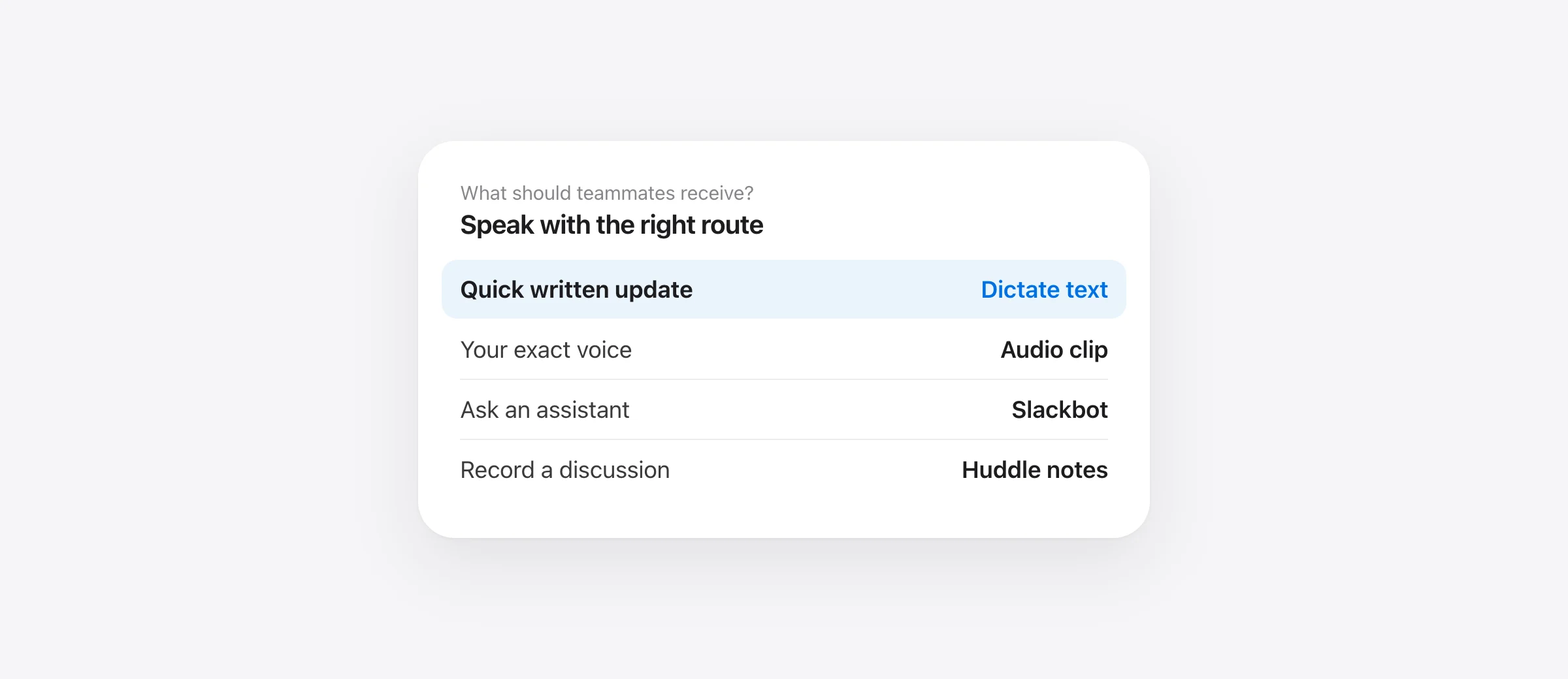
Choose the Slack result you want
- A normal written message: click the channel, DM, or thread composer and use Mac Dictation or a Mac-wide dictation app.
- A playable voice message: record a Slack audio clip; generate its transcript separately if needed.
- A spoken request to Slackbot: use the microphone in Slackbot’s own prompt field.
- Notes from a conversation: use Slack’s AI huddle notes where your plan and workspace allow them.
Slack voice to text on Mac can mean four different things. The fastest route to a readable message is usually to dictate into the normal message field, then send the text after reviewing it. Slack’s audio clip button saves a recording, and its optional transcript accompanies that clip. Slackbot’s microphone is for a prompt to Slackbot. Huddle notes document a live conversation. Treating those as interchangeable leads to the wrong message being sent.
This guide starts with ordinary channel and DM messages. It then covers the built-in Slack voice tools, the places where dictation goes wrong, and a short test you can repeat in your own workspace.
Which Slack voice feature fits the job?
| Job | Start here | Result | Best when |
|---|---|---|---|
| Write a channel, DM, or thread reply | Click its message composer; start Mac Dictation | Editable text draft before you send | People need a quick, skimmable answer |
| Send your actual voice | Use Slack’s audio clip control | Playable clip; optional generated transcript | Tone or exact phrasing matters |
| Ask Slackbot | Open Slackbot; use its prompt microphone | Transcribed request to the assistant | You want Slackbot to answer or act |
| Capture a huddle | Start AI notes in the huddle, if available | Notes canvas with takeaways and transcript | You need a record of a conversation |
Slack’s clip documentation says a channel or DM microphone records audio, up to five minutes, and offers Generate transcript. That transcript does not turn the clip into an ordinary typed message. In contrast, Slack’s Slackbot instructions describe a microphone inside Slackbot’s prompt field. It transcribes your request to the assistant; it is not a shortcut to speak into every channel.
How to voice-type a Slack message on Mac
- Choose the exact destination. Open the channel, DM, or thread. Click inside its text composer and confirm the insertion cursor is there.
- Start Mac Dictation. Press the Microphone key if your Mac has one, use your configured Dictation shortcut, or choose Edit → Start Dictation where available. You can inspect the shortcut under System Settings → Keyboard → Dictation.
- Speak one short draft. Stop Dictation with the shortcut, Microphone key, or Escape. Confirm that the words appeared in the composer, not in search or a different conversation.
- Review the message. Check names, dates, numbers, negations, links, and the channel or person at the top of the conversation.
- Send deliberately. Use Slack’s send button or your configured send key only after the draft says what you intend.
Apple’s Dictation guide says Mac Dictation enters text where the insertion point sits. The same principle applies if you use a third-party app that inserts at the active cursor. Your real test is the exact Slack composer you use: a top-level channel message, a thread reply, and a DM can be separate fields.
A short test matters more in Slack than in a document. A document can be corrected quietly; a message may notify teammates immediately when you send it. Do not assume that saying “new paragraph” is harmless if another step presses Return. Slack lets you choose whether Enter sends or starts a new line; that preference affects keyboard actions after dictation. Mac Dictation itself is text entry, not an automatic send command.
When a Mac-wide dictation app helps
If you speak several Slack replies a day and also write in email or documents, a consistent Mac-wide shortcut can reduce setup changes. Murmur inserts text in the focused field when you hold and release right Command. Its speech processing is on-device, and it requires Apple silicon with macOS 26 or later. It does not need a Slack integration to put a draft in a normal message composer. Test your own workspace and field before relying on any app-wide claim.
Use a restrained writing style for work messages where details matter. Polishing can remove filler and improve readability, but the result still needs a human check. A message that changes “do not deploy” to “deploy” is unacceptable even if it reads smoothly. The same goes for an invented deadline or a changed customer name.
| Spoken draft | Before sending, verify |
|---|---|
| “The export fix is ready for review, but do not release it today. Mina is checking the older Mac case. I will post the result by three.” | Do not release remains negative; Mina is spelled correctly; “three” has the intended time zone or context; the message is in the right thread. |
This is an original review example, not an output benchmark. It shows why a quick glance at punctuation alone is insufficient. If names or project terms are consistently wrong, our Mac dictation vocabulary guide explains how to test narrowly targeted fixes.
Use an audio clip when the recording is the message
Slack’s built-in audio clips are useful when tone is part of the communication or the recipient may prefer to hear the explanation. In a channel or DM, click the microphone icon in the message field, record, stop with the check mark, add any context, and send the clip. Slack documents an optional Generate transcript action for audio clips. Check the current interface before promising a teammate they will see written text: clip transcripts are opt-in, not automatic in every case.
A clip can be less convenient than a short typed update. A teammate scanning a busy channel may need the decision, owner and next action immediately. If you use a clip, consider adding a one-line text summary such as “Decision: wait for Mina’s older-Mac check before release.” That is an editorial recommendation, not a Slack requirement.
Slack says clips follow the same retention policy as other files in the workspace. If the content needs a lasting, searchable record, confirm your team’s policy and where decisions are documented. A generated clip transcript and a message draft are not the same artifact.
Do not confuse Slackbot voice input with channel dictation
Slackbot’s microphone lets you dictate a prompt to Slackbot. That can be useful for asking it to summarize a channel or draft a response. It does not mean that the same microphone in a normal channel composes plain text. Slack states that Slackbot’s dictated prompts are transcribed and the audio is not stored; availability and limits depend on your plan.
If Slackbot drafts a team-facing message, read the result and verify its sources and recipients before any action that posts it. A spoken prompt to an assistant and a message to a colleague have different review points. When the goal is simply to reply in your own words, dictating directly into the normal composer is shorter and easier to inspect.
Slack’s AI huddle notes are another separate feature. On paid plans where available, someone starts transcription in the huddle, and Slack puts notes in a canvas in the huddle thread. Participants are notified. That is designed for a conversation, not for drafting one message.
Format and send a dictated message safely
Speak the content first. Then make the message easy to scan: one main point in the first line, a short list if there are several actions, and a clear owner or due time if one exists. Slack’s formatting toolbar can make selected text bold, create a list, or mark code. Do not expect every spoken formatting instruction to become the desired Slack rich text automatically.
Watch new lines. With Slack’s common setting, Enter sends and Shift–Enter starts a new line. If you prefer Enter for a new line, change that in Slack’s Advanced preferences and use Command–Enter to send on Mac. Pick one setting and test it with an unsent draft. This matters if a dictation tool or an editing shortcut produces a real key event after inserting text.
Mentions and links deserve manual review. Dictating a teammate’s spoken name may produce ordinary text rather than a real Slack mention with a notification. If you need a notification, choose the person from Slack’s mention picker and verify the result. A spoken URL may also contain a wrong character; paste exact links when precision matters.
A five-minute Slack dictation test
Use an unsent draft. Slack saves unsent messages as drafts, which makes this a practical way to test without notifying anyone.
- Open a DM to yourself or another safe draft destination. Click the composer and dictate one sentence.
- Try a thread reply. Confirm the text appears in the thread field rather than the main channel composer.
- Include a constraint and name. Say “do not send today” and a real project name; verify both.
- Try a two-line message. Use your intended line-break method and make sure it does not send.
- Compare routes if needed. Try Mac Dictation and your chosen app with the same sentence; count corrections, not just the first words on screen.
For privacy-sensitive work, check two boundaries. Apple says Mac Dictation’s processing location depends on your settings, language and hardware; inspect the information under Keyboard → Dictation. Murmur’s transcription is local, but the text you send into Slack becomes Slack workspace content under that workspace’s settings. Our offline dictation guide explains how to test the speech stage separately from the destination.
Fix the common failure first
No text appears: look for a cursor in the correct message field. Try a plain text field outside Slack. If Mac Dictation also fails there, check System Settings and microphone permission. If it works elsewhere, inspect focus, the Slack surface, and shortcut conflicts.
You got a recording instead of a draft: you used Slack’s clip microphone. Keep the clip if you want audio; use Mac Dictation or a cursor-inserting app to create a normal written message.
The words went to Slackbot: you dictated in Slackbot’s prompt field. Return to the intended channel, DM or thread and click its composer before trying again.
A line break sends the message: inspect Slack’s Enter preference. Use Shift–Enter with the “Enter sends” setting, or change the preference before testing a multiline draft.
The text is correct but the action is wrong: verify mentions, links, channel, audience and send state. Recognition accuracy cannot fix a draft in the wrong conversation.
Use voice for the communication you actually intend
For most quick updates, draft a normal Slack message by voice and review it before sending. Choose a clip when the recipient benefits from hearing you. Use Slackbot’s microphone to ask Slackbot, and huddle notes to document a group conversation. The best setup is the one that consistently produces the right artifact for the teammate on the other end.
Frequently asked questions
How do I dictate a Slack message on Mac?
Click in the channel, DM, or thread message field. Start macOS Dictation with your configured shortcut or Microphone key, speak, stop, and review the text before sending. A Mac dictation app that inserts text at the cursor can serve the same drafting job.
Does Slack's microphone button type a message?
It depends on the surface. In a channel or DM, Slack documents a microphone control for recording an audio clip. Slackbot has a separate microphone for dictating a prompt to Slackbot. Neither is the same as Mac-wide dictation into a normal message composer.
Can Slack transcribe an audio clip?
Yes. Slack documents an optional Generate transcript action for audio clips. A clip and its transcript remain a different kind of message from plain dictated text; recipients can play the audio.
Can I dictate in a Slack thread or DM?
Yes, if your Mac dictation route inserts into the active text field. Click the exact thread reply or DM composer and test a short draft. Check the recipient and channel before sending.
Will a voice-typed message send automatically?
Mac Dictation enters text at the cursor; sending is a separate action. Review the draft before pressing Enter or the send button. Slack's Enter-key preference controls whether Enter sends or starts a new line.
Sources
- Slack: send and read messages
- Slack: record audio and video clips
- Slack: work with Slackbot, including voice dictation
- Slack: use AI to take huddle notes
- Slack: set your Enter-key preference
- Slack: format your messages
- Apple: dictate messages and documents on Mac
- Murmur: features and requirements
- Murmur: privacy

Telman Gadimov builds Murmur, a dictation app for Mac that runs entirely on-device. We make Murmur, one of the Mac dictation options. Slack and Apple behavior was checked against the linked official documentation on October 13, 2026. Example messages are original illustrations, not measured recognition results.


