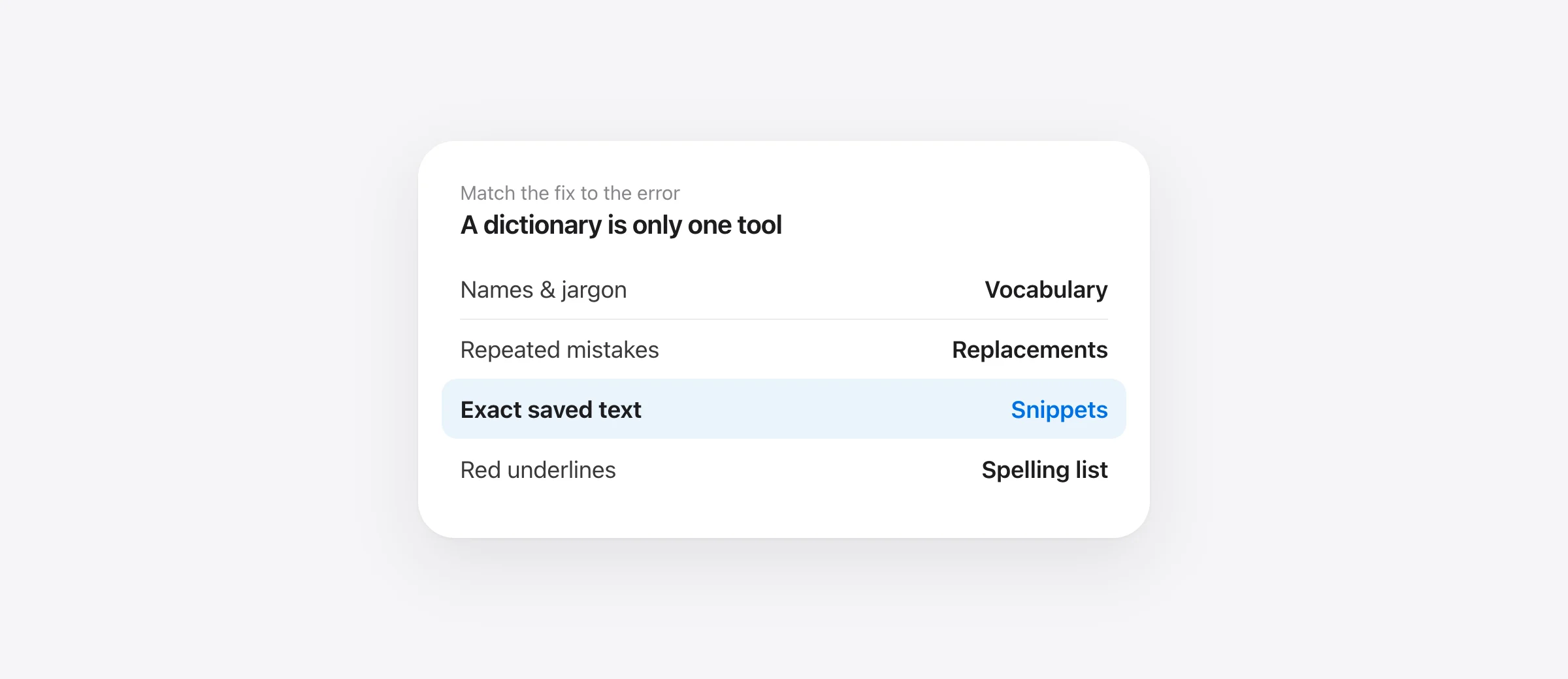
Choose the fix by what goes wrong
- A name is misheard: try the active dictation tool’s vocabulary settings.
- The same wrong phrase repeats: consider a narrowly defined text replacement.
- An address or paragraph must be exact: use a saved snippet with a distinctive trigger.
- Correct text is only underlined: use the destination app’s spelling dictionary.
Mac dictation custom vocabulary is most useful when it solves a repeated, identifiable mistake. If the recognizer keeps turning your project name into two ordinary words, correcting it once in a document may not change the next dictation.
There is no single dictionary setting that every speech app, text editor and writing assistant necessarily shares. Find the stage that changes the text first. Then add a small rule and check whether it improves your real sentences without damaging ordinary ones.
Spelling, vocabulary, replacements and snippets do different jobs
| Tool | Use it for | Example | Watch for |
|---|---|---|---|
| Spelling dictionary | Correct text treated as a misspelling | An unfamiliar surname has a red underline | It may not change spoken recognition |
| Dictation vocabulary | Names and specialized terms | A project named NorthstarKit | Support and behavior depend on the speech app |
| Text replacement | A consistent wrong phrase | “north star kit” → “NorthstarKit” | The phrase may also be valid ordinary language |
| Snippet | Exact reusable text | “insert demo address” → a saved email address | The trigger must be recognized correctly |
Apple’s spelling guide describes Learn Spelling as adding a word to the spelling dictionary. Treat that as a spelling fix. It does not establish that a different application’s speech model has learned how you pronounce the word.
For example, if “NorthstarKit” is already on the page but underlined, the text itself is right. If the app writes “north start it,” the failure happened earlier. If the correct name appears briefly and a cleanup step changes it, investigate that processing step instead of only adding more vocabulary.
Add custom words to Apple Voice Control
Apple documents a vocabulary list for Voice Control. On macOS 26, open System Settings → Accessibility → Voice Control → Vocabulary, add the intended word or phrase, and follow the pronunciation-recording prompts. If Vocabulary is dimmed, the selected language does not support it. Apple’s vocabulary instructions also cover importing terms, one per line, and keeping lists by language.
This setting belongs to Voice Control. It is not a universal vocabulary editor for every dictation service. Apple’s Dictation documentation explains that Voice Control replaces standard macOS Dictation while enabled.
If you already depend on Voice Control for navigation and editing, work within that existing setup. If you use a third-party hold-to-talk app, start with that app’s controls. Switching input systems solely to make a dictionary button appear can change much more of your workflow than you intended.
Begin with a few terms from the document you are writing today. A short relevant list makes it easier to tell which entry helped. Keep a plain-text copy of the spellings so you can compare output and move terms manually if you later choose another tool.
Build a vocabulary list from actual mistakes
Other apps implement these controls differently. For example, Superwhisper documents recognition hints and post-transcription replacements as separate tools, and cautions against oversized vocabulary lists. Use the documentation for your selected tool instead of assuming that a setting with the same name works identically everywhere.
For one work session, record the intended term, what appeared, and the sentence around it. Do not start by importing every acronym in your industry. First collect the errors that repeatedly cost you editing time.
Choose up to five initial entries: a person, a product, a project, a technical term and a phrase with unusual capitalization. Use the spelling you want in finished writing. A dictionary entry should not contain an explanation unless the application explicitly supports explanatory instructions in that field.
Keep pronunciation notes separately. For example, your reference list can say that you pronounce an acronym letter by letter, while the desired output remains its exact written form. This helps distinguish a pronunciation problem from a capitalization problem.
Then test each term in a sentence. Speaking the name alone is useful, but insufficient: neighboring words can change how an utterance is interpreted. Use one sentence where the term is the subject and another where it appears after ordinary words.
“NorthstarKit owns the onboarding screens.”
“Please send the NorthstarKit review to Mina before Thursday.”
These are original test sentences. Replace the invented project and person with your own. Keep a copy of the first output before changing settings; otherwise, you have no baseline for deciding whether the customization helped.
Use Murmur’s Dictionary for names and terminology
In Murmur, open Dictionary, enter the preferred spelling under Words, and choose Add. Dictate a new sentence containing the term, then inspect the inserted result.
Murmur’s current implementation applies a correction stage after speech recognition. It compares recognized words with your vocabulary using sound and spelling similarity. That is different from retraining the speech model on your voice, and it is not a promise that every name will be recovered from every recording.

The Replacements section has a “When I say…” field and a “Write…” field. Use it for a repeatable mapping, such as an observed spaced version of a product name to its intended spelling. Retest the phrase inside a sentence, with nearby punctuation.
There is also a teaching action in History. In the current implementation, teaching a correction can add the intended word to the dictionary and remember an explicit replacement for the selected mishearing. Review the resulting rule, especially when the wrong text was an ordinary word that you still need elsewhere.
That last point matters more than the number of entries you can store. Replacing “notion” with “Notion” may suit a product discussion but be wrong in “I disagree with that notion.” A broader rule can make one demo look better while creating errors in unrelated writing.
Make replacements narrow enough to be safe
A replacement is strongest when its input phrase is distinctive and its intended output is stable. It is weaker when the input is a common word with several legitimate meanings.
Suppose “bear” sometimes refers to the writing app and sometimes to the animal. A permanent global replacement cannot infer which meaning you intend unless the application provides and correctly applies relevant context. Use a more specific spoken phrase, a distinctive snippet trigger, or a manual correction for the ambiguous case.
For an acronym, compare two input styles: saying it as a word and spelling its letters. Keep whichever works better in ordinary sentences. Do not assume that an app handles periods, spaces or letter casing the same way in every mode.
Also look for interacting rules. If one replacement produces text that another rule replaces again, the final output may surprise you. Keep mappings simple, avoid chains where possible, and change one rule at a time. For Murmur, replacements are applied in sequence, making this a practical reason to inspect the list.
Use snippets for addresses, links and fixed paragraphs
An email address is a poor candidate for repeated improvisation. Its punctuation and spelling need to be exact, and there is little value in generating a fresh version each time.
Save the full text as a snippet and give it a trigger unlikely to occur in normal prose, such as “insert demo address.” Test the trigger on its own and inside a sentence. A successful snippet should insert the saved value without requiring you to dictate every symbol.
In Murmur, snippets can match a whole utterance or expand within it. The dictation pipeline skips AI polish when a snippet is inserted, helping preserve the stored content. Still verify the final destination: the trigger must be recognized, and insertion can introduce issues unrelated to the saved value.
For a sign-off, include the intended line breaks in the stored text and test them in the receiving app. A paragraph in Word and a chat field may treat multiline input differently. Use a draft field before relying on a new snippet in a conversation.
A ten-minute vocabulary test that catches new errors too
A useful test measures both corrected mistakes and newly introduced ones. You need examples that should change and examples that must stay unchanged.
- Choose five recurring terms. Save their exact spellings and one observed error for each.
- Dictate a baseline. Use two sentences per term with your normal microphone and writing mode.
- Add one type of customization. Start with vocabulary; use replacements only for remaining consistent errors.
- Repeat the sentences and add controls. Include ordinary words that sound similar to your custom terms.
- Keep only useful rules. Record exact matches, wrong substitutions and the editing still required.
| Test type | Example | Desired result |
|---|---|---|
| Custom term | “Open NorthstarKit.” | Keep the preferred project spelling |
| Same term in context | “Send the NorthstarKit review tomorrow.” | Keep the name and surrounding instruction |
| Ordinary-word control | “The north star is visible tonight.” | Leave ordinary language unchanged |
| Exact snippet | Your distinctive address trigger | Insert the saved address exactly |
| Meaning control | “Do not send the review yet.” | Preserve the negation |
Download the vocabulary worksheet to record your terms and results. It is a test worksheet, not an import file; copy only the intended terms into a vocabulary importer.
Count each target occurrence as correct only if the required spelling and casing are right. Track false substitutions separately. Ten correct project names do not compensate for changing an unrelated word into that name somewhere else.
Repeat the most important cases in your real destination after the scratch test. For technical prompts, our developer dictation guide adds identifiers and constraints to the evaluation. For documents, see dictation in Word on Mac.
What to check when a custom word still fails
If output changes from one attempt to another, capture those variants before adding a replacement. A rule for one exact mishearing will not necessarily fix a different one. A vocabulary entry may be more appropriate, or the recording itself may need attention.
If the correct text appears before cleanup and changes afterward, test a mode with less rewriting. Compare the result at each available stage. Do not call a rewritten technical term a microphone problem when the original recognition was correct.
If the term works alone but not in context, test a short phrase that resembles your actual writing. If it fails only in one destination, check that app’s autocorrection separately. The goal is to find the first place where correct text becomes incorrect.
Keep your list maintained. Remove outdated project aliases and rules that create more corrections than they save. Recheck the small test set after changing the speech model or writing mode. A useful personal dictionary is a set of verified fixes, not a collection of every word you might someday say.
Frequently asked questions
How do I add words to Mac dictation?
Choose the vocabulary controls for the speech tool you use. Apple documents custom vocabulary under Accessibility → Voice Control, while third-party apps may keep their own dictionary. A spell-check dictionary is a separate setting.
Does Learn Spelling teach dictation a new word?
Learn Spelling adds the word to a spelling dictionary. That is useful when correctly entered text is flagged as misspelled, but it is not evidence that your speech recognizer has learned the pronunciation. Test spoken recognition separately.
Why is Voice Control’s Vocabulary button disabled?
Apple says a dimmed Vocabulary option means the selected Voice Control language does not support custom vocabulary. Check the language before troubleshooting the microphone or importing a list.
Should I use a dictionary entry or a replacement?
Use a vocabulary entry for a name or term the app should recognize. Use a replacement when the same wrong text repeatedly needs the same correction. Avoid replacing an ordinary word globally when it is also valid in other sentences.
Does adding vocabulary retrain Murmur’s speech model?
No. Murmur’s current implementation applies dictionary-based correction after recognition, using sound and spelling similarity. Explicit replacements and snippets are additional controls. Adding an entry does not guarantee every future occurrence will be correct.
Sources

Telman Gadimov builds Murmur, a dictation app for Mac that runs entirely on-device. We make Murmur. Apple settings were checked against official documentation on October 13, 2026. Murmur behavior was checked against its implementation. The examples and worksheet are proposed tests, not measured recognition results or accuracy guarantees.


