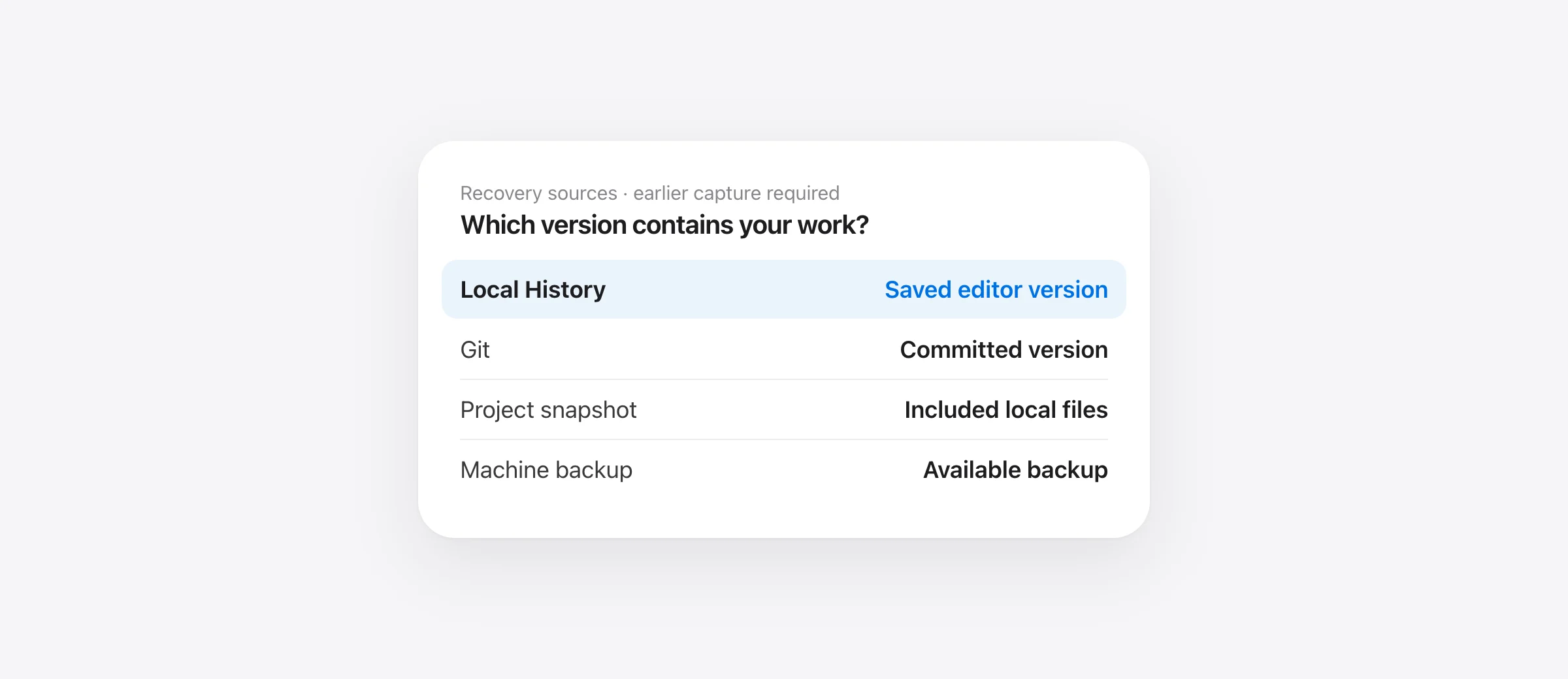
Start with VS Code's existing history
- Preserve any surviving text in a separate scratch file.
- Press Shift + Command + P and run Local History: Find Entry to Restore.
- Choose the original path and inspect an entry from before the loss.
- Use Restore Contents only after checking the version; otherwise inspect Git or an existing backup.
If you deleted a file in VS Code on Mac, its built-in Local History is one place to look for a saved copy. It is separate from Git commits, so an uncommitted file may still have a recoverable editor version. The condition is important: a usable entry must already exist.
First stop actions that replace more project files. Keep any surviving code, open-buffer text or partial reconstruction under a new filename outside the affected path. A recovery attempt should not consume the only copy of useful text you still have.
Find an entry even when the file is gone
Open the Command Palette with Shift + Command + P. Search for Local History: Find Entry to Restore. Select the original file by its full path, then choose a plausible earlier entry. The picker finds recorded history; it does not need you to create an empty replacement file first.
Inspect the entry's contents before choosing Restore Contents. The current VS Code implementation separates finding an entry from restoring it. Restoration replaces the target contents and warns about unsaved changes. Preserve text from an open buffer before accepting that replacement.
For example, suppose src/billing.ts existed at 10:10, received a useful tax-rule edit at 10:20 and disappeared at 10:30. A 10:10 entry can recover the file but still omit the edit you actually need. Search for the tax-rule logic inside the candidate rather than accepting the first entry with the right filename.
Use Timeline when the file still exists
For an overwritten or partly damaged file, open it and expand Timeline in Explorer. Check the provider filter so local file saves are visible. Inspect an event and compare it with the current file before restoring.
The official Timeline guide distinguishes file-history events from repository history. A Git commit event and a local save can describe different content. Choose the version that contains the work you want, rather than treating all entries as interchangeable restore points.
If you only need a function from the earlier version, copying that function into a new scratch file may be safer than replacing the whole current file. Merge the recovered portion deliberately and run the project's relevant checks. File recovery does not establish that the combined implementation is correct.
Why Local History may have no usable copy
Local History is a bounded collection of eligible saved versions. It should not be treated as continuous recording of everything a terminal, script or agent writes to disk. Check your actual entries before relying on it for a particular workflow.
| Setting | Current default | Recovery implication |
|---|---|---|
| workbench.localHistory.enabled | true | Check effective user and workspace settings |
| workbench.localHistory.maxFileSize | 256 KB | Larger files may have no entry |
| workbench.localHistory.maxFileEntries | 50 per file | Older entries can be discarded |
| workbench.localHistory.exclude | Configurable patterns | A matching path can be excluded |
| workbench.localHistory.mergeWindow | 10 seconds | Nearby saves from the same source can replace the latest entry |
These defaults were checked in the current settings source. Your effective settings can differ. Raising a limit now affects future capture; it does not manufacture an older missing version. Avoid deleting history or reinstalling tools while trying to preserve existing evidence.
Also confirm the environment. The Local History documentation distinguishes local user-data storage from remote storage. A file edited through SSH or a remote development environment may not have its history in the Mac's local session. Return to the environment where you edited that path.
Choose a recovery source by what it recorded
| Source | May contain | Does not establish |
|---|---|---|
| VS Code Local History | An eligible saved editor version | Every external write was captured |
| Git commit | The committed version of a tracked path | Later uncommitted edits survived |
| Existing project snapshot | Included local files at capture time | Anything from before tracking began |
| Time Machine or another backup | A version from an available backup | The newest working state was backed up |
Use the candidate's content to decide. A timestamp near the incident helps narrow the search, but a recognizable function, paragraph or configuration value is stronger evidence that you found the desired revision.
Inspect a committed version before changing the working tree
If the path was committed, inspect Git's stored content. From the repository root, these read-only commands identify and show a candidate:
git status --short
git log --all --oneline -- src/billing.ts
git show HEAD:src/billing.ts
The last command prints the version at HEAD. Substitute a known commit ID before the colon to inspect an earlier revision. Git's show documentation describes inspecting stored objects. A renamed path or file absent from that revision needs further investigation; an error is not proof that no other revision contains it.
Once you identify the correct source, follow our single-file Git restore guide for the narrow restore command. Do not reset the whole repository merely to recover one file. If the missing part was never committed, the uncommitted-change recovery guide explains the remaining sources and their limits.
Recover from an earlier snapshot or machine backup
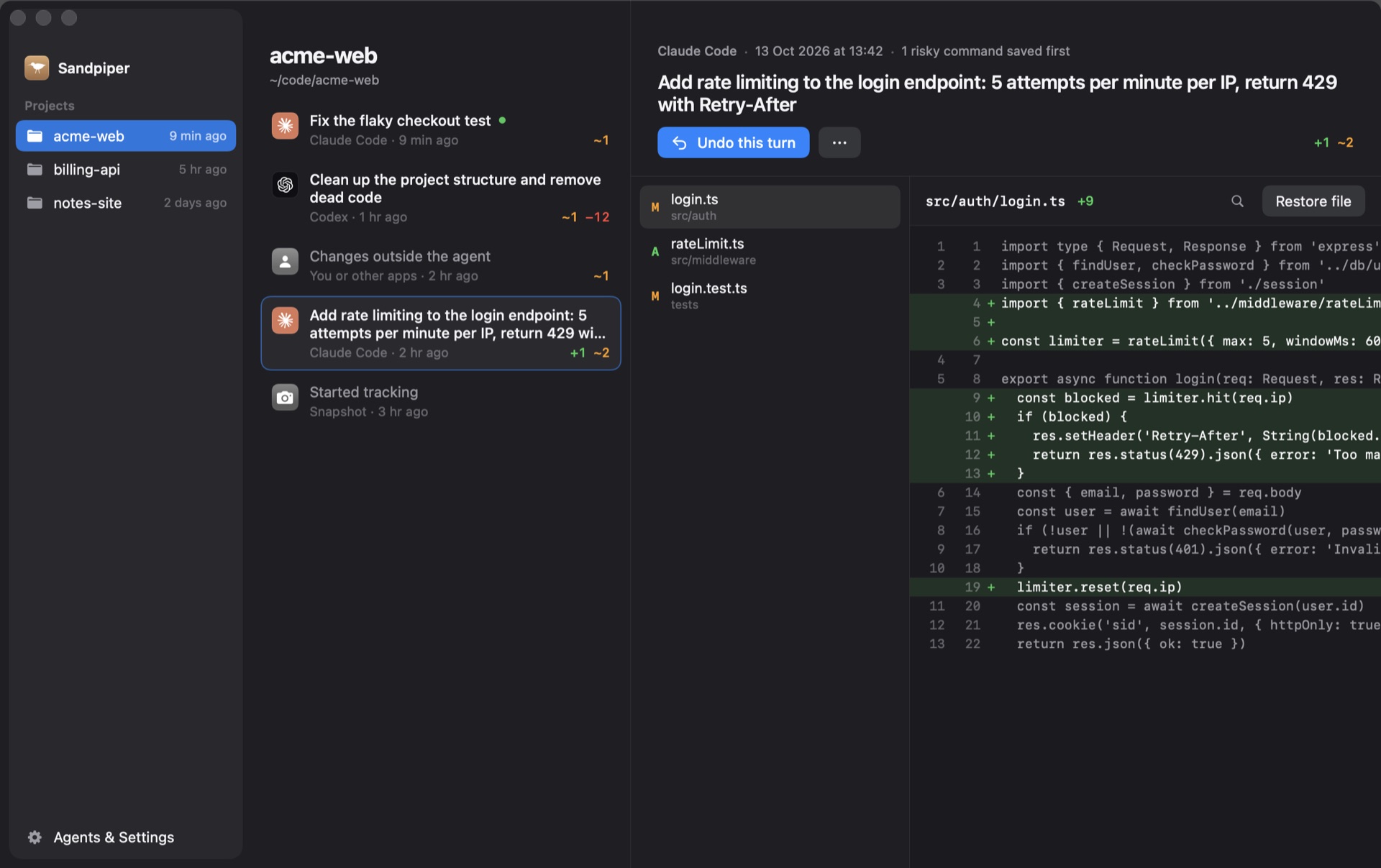
If Sandpiper was already tracking the project, open its history, select a snapshot from before the deletion and inspect the specific path. Confirm that the file content was kept, rather than just a filename in a manifest. Restore the required path after preserving any current edits.
For Time Machine, use Apple's restore-files instructions to inspect an available backup. Check the restored content and the destination before continuing work. A backup older than your last edit may still provide a useful starting point without containing the entire lost revision.
Verify future capture before the next incident
For future agent work, Sandpiper adds local project snapshots on supported agent events. It is currently free on Apple silicon with macOS 26 or later. Track the project and verify a harmless file is readable from an earlier snapshot before relying on the integration.
Excluded directories and files above the default 256 MB capture limit have different coverage. A local snapshot also shares the Mac's disk-loss risk. Keep commits for milestones, verified snapshots for included local work between milestones, and a separate machine backup. Our agent backup guide walks through that division.
Frequently asked questions
How do I recover a deleted file in VS Code on Mac?
Press Shift + Command + P, run Local History: Find Entry to Restore, and look for the original file path. Open a suitable history entry, inspect its contents, and use Restore Contents if it is the version you need. Recovery requires an existing entry; the command cannot recreate content that was never saved there.
Can VS Code recover a file that was never committed?
Possibly. Local History is separate from Git and can contain saved editor versions without a commit. If no suitable local history entry or other backup exists, Git history cannot supply a file that was never recorded in Git.
Does Local History require an extension?
VS Code includes built-in Local History. Check its settings and Timeline provider before installing a similarly named extension. A new extension cannot retroactively create versions from before it was installed.
Why is my deleted file missing from Local History?
Possible causes include no eligible editor save, Local History being disabled, excluded paths, file-size limits, retention limits or checking a different local or remote environment. Enabling history after the incident helps future saves, not missing past versions.
Will installing Sandpiper recover a file I already lost?
No. Sandpiper needs an earlier captured copy. For future work on Apple silicon with macOS 26+, track the project, verify a snapshot contains the file, and test a narrow restore. Keep a separate machine backup for disk loss.
Sources

Telman Gadimov builds Sandpiper, a free local undo app for AI coding agents, and Murmur. We make Sandpiper. VS Code steps and limits are based on official documentation and source checked October 18, 2026; this article does not claim a hands-on test of every VS Code version or remote environment. Sandpiper can recover only content captured before the loss.


