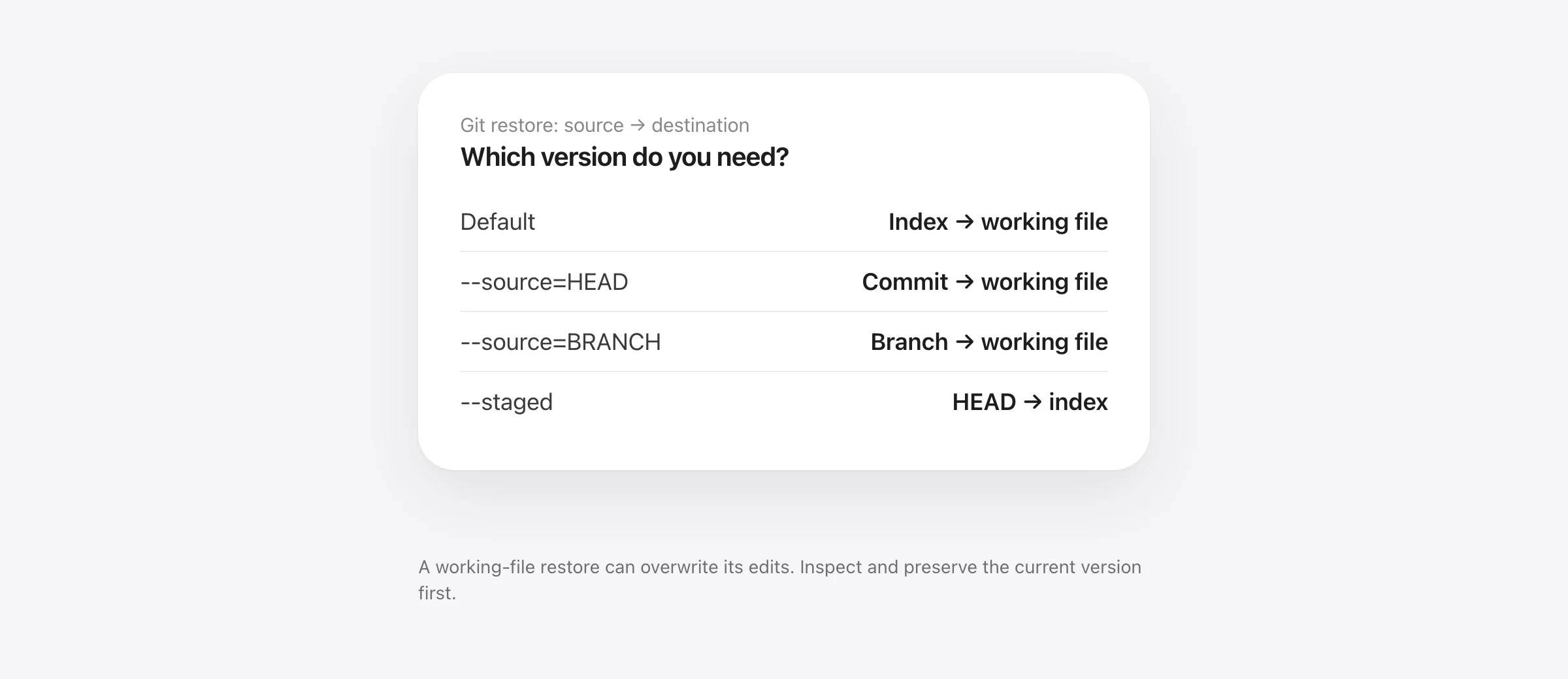
Restore one path, after checking its source
git restore --source=HEAD -- path/to/file replaces that working-tree file with its committed HEAD version. It can overwrite edits in that file. Preserve those edits and inspect the source before running it; do not replace the filename with ..
To restore a single file in Git, choose the version and destination deliberately. “Undo this file” could mean recovering the staged version, the last commit, an earlier commit, or a prior copy an agent changed. Those are different requests.
If the lost version was never saved in Git, a restore command cannot infer it. Use the uncommitted-work recovery guide for that case. This guide is for a version you can identify and inspect, with a narrow path you want to replace.
Inspect the current state before writing anything
Stop the agent or editor process that is still modifying the file. Preserve a current copy outside the repository if its edits might matter. A diff is helpful, but an ordinary diff alone does not preserve untracked or ignored files.
git status --short
git diff -- path/to/file
git diff --cached -- path/to/file
git log --oneline -- path/to/file
The first diff compares the working file with the index; the cached diff compares the index with HEAD. The Git diff reference defines those views. Inspect both when a file has staged and unstaged changes, because one view can look clean while the other still contains work.
For a missing path, git ls-files -- path/to/file helps determine whether it is tracked. A never-added file needs another recovery source. If the selected command would affect a file you have not preserved, pause and save that copy first.
Choose the source and destination
| Goal | Command | Destination |
|---|---|---|
| Use the staged version | git restore -- path/to/file | Working tree from index |
| Use the current commit | git restore --source=HEAD -- path/to/file | Working tree from HEAD |
| Use an older commit | git restore --source=COMMIT -- path/to/file | Working tree from that commit |
| Use another branch's version | git restore --source=BRANCH -- path/to/file | Working tree from that branch |
| Unstage the file | git restore --staged -- path/to/file | Index from HEAD; working file stays |
COMMIT, BRANCH and path/to/file are placeholders. Substitute an inspected source and an actual repository-relative path. The restore reference also notes that a tracked path absent from the selected source can be removed to match it. Confirm that the desired version really contains the file.
A three-version example explains the common surprise
We reproduced this in a disposable repository using Git 2.33.0. The file config.txt had committed content A. We replaced it with B and staged B, then changed the working file again to C without staging. A second file had an unrelated edit.
| Operation | Working config.txt | Index | Other file |
|---|---|---|---|
| Before restore | C | B | Edited |
| Default restore of config.txt | B | B | Unchanged by restore |
| Restore config.txt from HEAD | A | B | Unchanged by restore |
| Staged-only restore, with C on disk | C | A | Unchanged by restore |
This is a command-behavior check, not a recovery benchmark. The important result is that “restore the file” did not always produce A. The index still held B until we explicitly changed it. Neither Git source recreated C after it was overwritten; the experiment retained its own known fixture text for comparison.
In a real project, C may be the most valuable version: your last edits after staging. Preserve it before a working-tree restore even if you think the index is a complete backup.
Preview a committed version without replacing the file
Use git show to inspect the candidate. For example:
git show HEAD:src/config.txt
git show HEAD~1:src/config.txt
Here src/config.txt is a repository-relative example path. The show documentation and revision syntax reference describe selecting stored content by revision and path. For a binary or very large file, extract a review copy to a new temporary location instead of dumping it into the terminal.
Do not redirect a preview over the original filename. Keeping inspection separate from replacement gives you a chance to verify the version, content and path before changing the project.
Restore from an earlier commit or another branch
After inspection, a previous-commit example is git restore --source=HEAD~1 -- src/config.txt. A branch example is git restore --source=saved-state -- src/config.txt. In the disposable check, restoring the earlier file left HEAD at its existing commit and preserved the unrelated file edit.
The branch name must exist locally and point to the version you intend. A remote-tracking reference reflects your local information about a remote; it is not a promise that you have fetched the latest changes. Choose a specific inspected commit when reproducibility matters.
The double dash separates options from the path. For a filename with pathspec-special characters, quoting alone does not disable Git's matching rules. Use a literal-pathspec form such as git --literal-pathspecs restore --source=HEAD -- "src/file[1].txt" when you mean that exact name.
Check the result before staging or continuing the agent
Run the two diffs again. Look at the restored path and at the repository-wide status. An explicit working-tree restore from HEAD can leave a different version in the index, as the A/B/C example shows. Decide which version should be staged before making a commit.
Run the smallest relevant application check for the file's job. A restored configuration can parse yet reference an old service. A source file can match a commit yet no longer fit newer callers. Git verifies stored bytes, not compatibility with the rest of your current project.
A whole-project reset is a different operation. If that already happened, use the hard-reset recovery guide. If you need to shelve ongoing work before another task, use the stash coverage guide and inspect what it includes.
When the version lives in a local snapshot instead
Sandpiper keeps supported project snapshots before agent prompts and risky shell commands. If it captured the needed version, inspect the timeline and restore that file rather than reverting unrelated work. A snapshot from before the change is required.
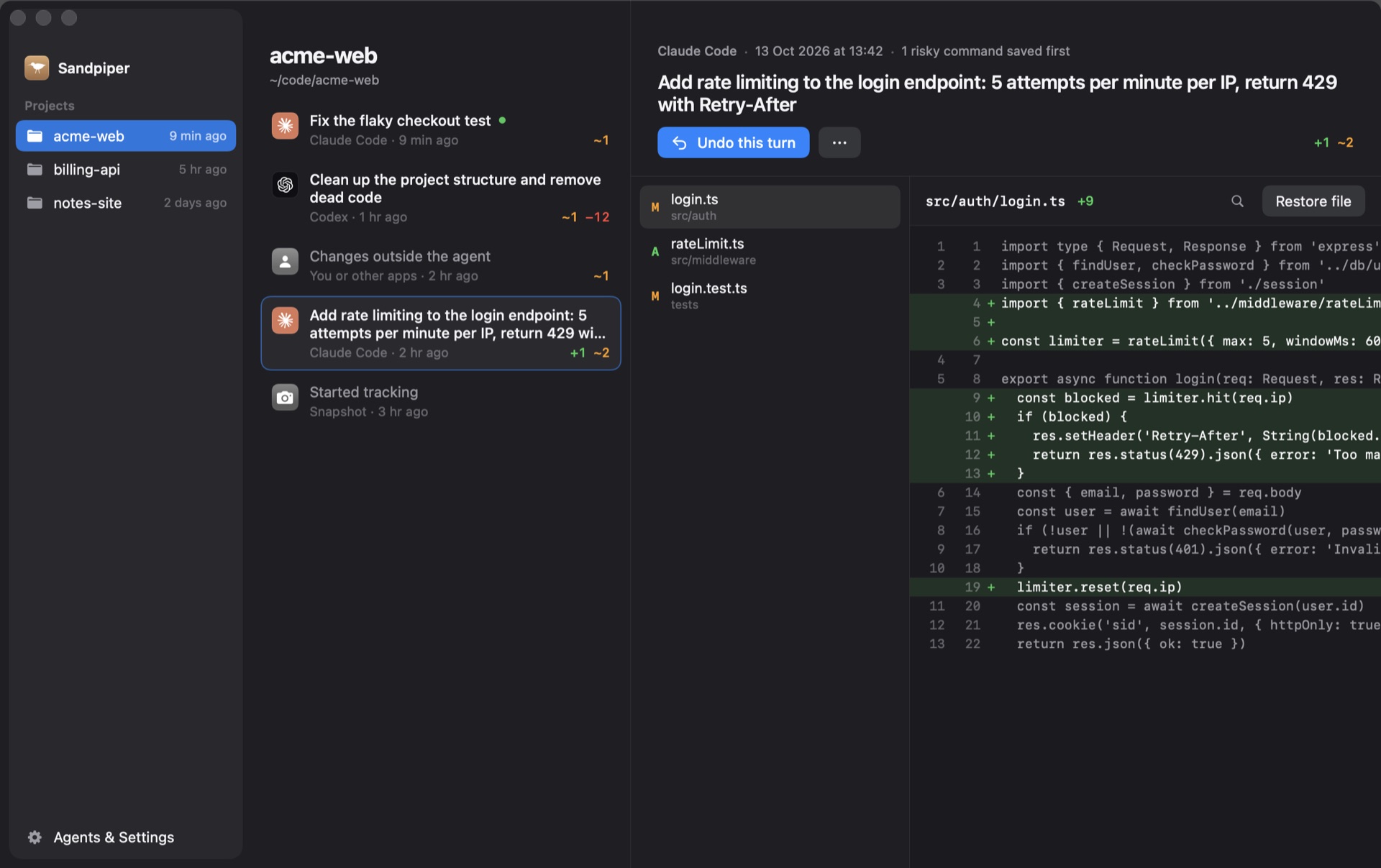
A file restore and a turn undo also have different scopes. In particular, if your later edits touched the same file, inspect the resulting file-level replacement before accepting it. A scoped undo is not a promise to merge every later line automatically.
Sandpiper is free for Apple silicon Macs on macOS 26 or later. Its history is local, with exclusions and a per-file size limit; it does not restore remote databases or a version never captured. Keep Git milestones and a separate machine backup as well. The agent backup guide explains those complementary roles.
Frequently asked questions
How do I restore just one file in Git?
Inspect the current file and the version you need first. To replace only that working-tree path with its committed HEAD version, use git restore --source=HEAD -- path/to/file. Preserve current edits to that file before running it.
Does git restore use HEAD by default?
For a normal working-tree restore, its default source is the index. When --staged is used, the default source is HEAD. Specify --source explicitly when you need a particular committed version.
Can I restore a file from another branch without switching?
Yes. After inspecting that branch's version, use git restore --source=branch-name -- path/to/file. This writes the selected working-tree path without switching branches or moving HEAD.
Does --staged delete my working changes?
By itself, git restore --staged changes the index rather than the working-tree file. It is commonly used to unstage a path. Adding --worktree changes the scope, so do not treat those commands as interchangeable.
Can Git restore an uncommitted version an agent overwrote?
Only if that version was stored somewhere Git can still read, such as the index or an object. A prior Sandpiper snapshot, editor history or backup may contain work Git never stored. Installing a snapshot app afterward cannot create the missing historical copy.
Sources

Telman Gadimov builds Sandpiper, a free local undo app for AI coding agents, and Murmur. We make Sandpiper. Git command behavior was checked against official documentation and reproduced in disposable repositories with Git 2.33.0 on October 18, 2026. Examples use invented files; no user project was restored during verification.


