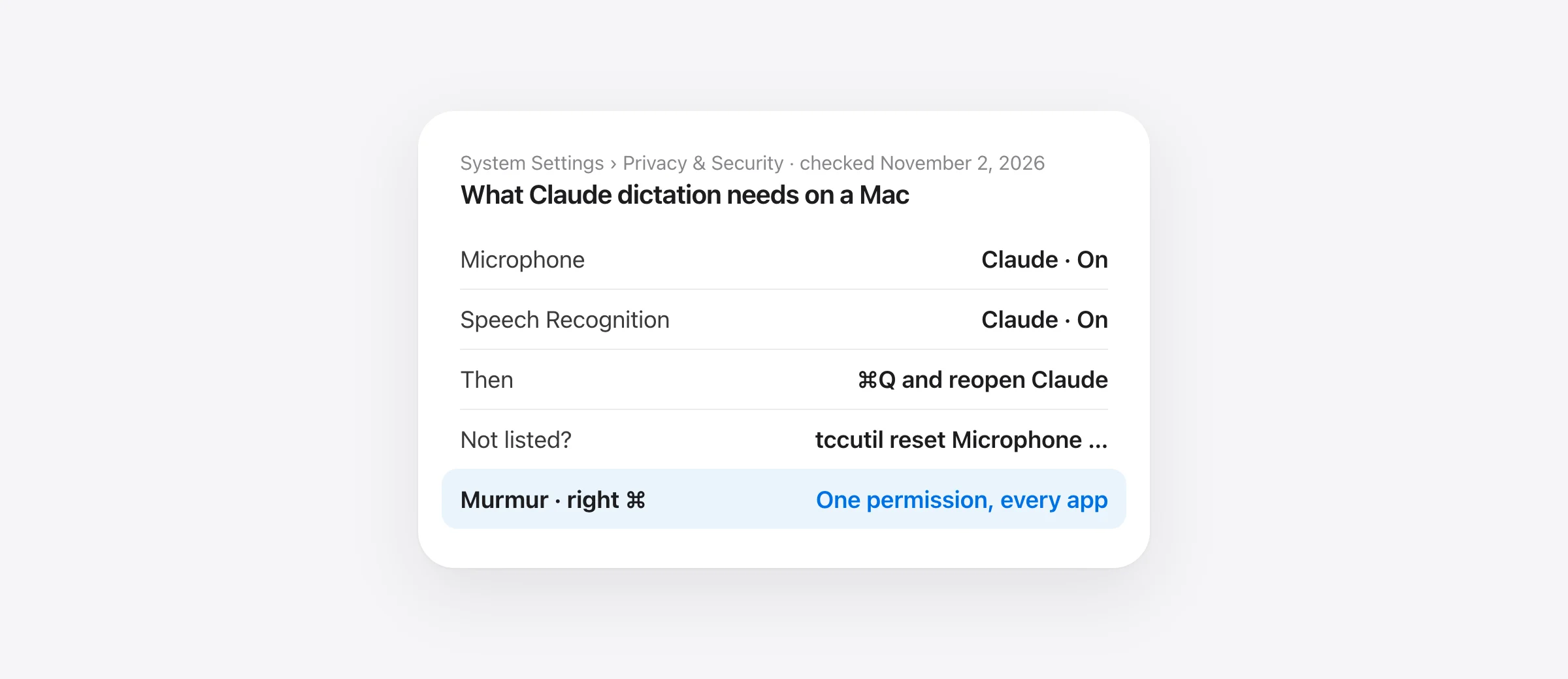
The 30-second fix
- Open the Apple menu › System Settings › Privacy & Security › Microphone.
- Turn on the switch next to Claude.
- Back in Privacy & Security, open Speech Recognition and turn Claude on there too if it is listed.
- Quit Claude completely (⌘Q) and open it again. Click the mic.
Claude not in the list? Run tccutil reset Microphone com.anthropic.claudefordesktop in Terminal, reopen Claude and click the mic so macOS asks again.
You clicked the microphone in Claude’s desktop app and got this instead of a transcript: “To use dictation, open Settings, go to Privacy and Security, select Microphone, and allow Claude.” The wording is Anthropic’s, but the decision behind it is Apple’s. macOS keeps a per-app list of who may use the microphone, and Claude is either off that list or switched off on it. This page walks through the switch, the second permission most guides skip, and the reset for when Claude never appears in System Settings. For the rest of Claude’s voice features, shortcuts and bugs, see our full guide to Claude dictation on Mac.
1. Turn Claude on under Microphone
- Click the Apple menu in the top-left corner and choose System Settings.
- Scroll the sidebar to Privacy & Security.
- Under the Privacy heading, click Microphone.
- Find Claude and turn its switch on. macOS may ask for your password or Touch ID.
Apple’s own instructions for this panel are in Control access to the microphone on Mac. On macOS 12 and earlier the same list lives in System Preferences › Security & Privacy › Privacy › Microphone, behind a padlock you unlock first.
2. Check Speech Recognition too
Microphone access lets Claude hear you. Anthropic also lists the Speech Recognition permission as a requirement for desktop dictation. It is a separate list in the same place: Privacy & Security › Speech Recognition. If Claude appears there, turn it on. If it doesn’t, that is fine for now; the app will ask when it needs it.
3. Quit and reopen Claude
Closing the window isn’t enough. Press ⌘Q with Claude in front, or right-click its Dock icon and choose Quit, then open it again. Many Mac apps read their permissions once at launch, so a permission you granted a minute ago may not take effect until the restart. Click the mic in the chat box. If a transcript appears, you are done.
4. If Claude is not in the Microphone list
Apps only show up in the Privacy lists after they ask for access once. If Claude isn’t there, macOS never recorded a request, or an earlier Claude build was denied and the new version is stuck behind that decision. Reset it so macOS asks fresh:
- Open Terminal (Applications › Utilities).
- Paste this and press Return:
tccutil reset Microphone com.anthropic.claudefordesktop - Reopen Claude and click the mic. A system dialog asks whether Claude may use the microphone. Choose Allow.
tccutil is Apple’s built-in tool for clearing privacy decisions; the command needs no sudo. If you also want to clear the speech permission, run tccutil reset SpeechRecognition com.anthropic.claudefordesktop. If the command reports that the bundle ID is unknown, you are probably running a different Claude build. Find its identifier with osascript -e 'id of app "Claude"' and use that instead.
5. If the switch is greyed out or flips back
A dimmed switch, or one that turns itself off again, means a policy is in charge rather than a bug:
- Work or school Mac: open System Settings › General › Device Management. A configuration profile can block microphone access for specific apps. Only your IT team can change it.
- Screen Time: open System Settings › Screen Time › Content & Privacy and check whether changes to microphone settings are restricted.
If the restriction extends to Siri and Dictation as a whole, you will see a different message in Keyboard settings; this guide explains that one.
6. Using Claude in a browser instead?
At claude.ai, two permissions have to agree. macOS must allow your browser (Safari, Chrome, Arc) under Privacy & Security › Microphone, and the browser must allow claude.ai in its own site settings. In Chrome, click the icon to the left of the address bar and set Microphone to Allow; in Safari, use Safari › Settings for claude.ai. Reload the page afterwards.
7. Claude Code in the terminal
If you see a microphone complaint while using /voice in Claude Code, the app that needs permission is the one that owns the window: Terminal, iTerm2, Warp, VS Code or Cursor. Allow that app, not Claude. Our Claude Code voice dictation guide covers the rest.
Still no text after allowing everything?
Then the permission is no longer your problem. Since September 2026 some users have reported Claude for Mac builds where the mic opens but no transcript comes back. Update Claude, and test claude.ai in a browser on the same Mac: if the browser works, the desktop build is at fault. The full Claude dictation guide has the remaining fixes in order. Also check that the right input device is selected under System Settings › Sound › Input, especially with AirPods connected.
One permission for every app
Each app that takes dictation keeps its own microphone permission and its own quirks: Claude asks for two switches, ChatGPT asks for one, Slack asks again in the browser. A Mac-wide dictation app replaces all of that with one grant. Murmur sits in the menu bar; hold right ⌘ in Claude, Slack, your terminal or Mail, talk, and let go. Transcription runs on your Mac with Parakeet, Whisper or Apple’s speech engine, works in Airplane Mode, and nothing reaches Anthropic until you press send. If the point of allowing Claude was to talk to it, this is the faster way to do that everywhere.
Frequently asked questions
Where is “allow Claude” for the microphone on a Mac?
Open the Apple menu › System Settings › Privacy & Security › Microphone and turn on the switch next to Claude. Then quit Claude with ⌘Q and open it again. The message comes from macOS, so the setting is in System Settings, not inside Claude.
Claude isn’t in the Microphone list. How do I add it?
Apps only appear after they ask for the microphone once. Click the mic in Claude so macOS shows its prompt. If no prompt appears, reset Claude’s permission in Terminal with tccutil reset Microphone com.anthropic.claudefordesktop, reopen Claude and click the mic again.
I allowed the microphone and Claude still shows the message. Why?
Check Privacy & Security › Speech Recognition as well, which Anthropic lists as required for desktop dictation, then fully quit and reopen Claude. If the switch is greyed out, a device-management profile from your employer or school is blocking microphone access and only IT can change it.
Does this message mean Claude is recording me?
No. It means Claude asked for the microphone and macOS said no. Nothing is recorded until you allow access and click the mic. Anthropic’s documentation says dictation audio is streamed to its speech-to-text provider for transcription and not kept afterwards.
Does the same fix apply to Claude Code’s /voice in the terminal?
The permission belongs to the app that owns the window. For Claude Code, that is Terminal, iTerm2, Warp or your editor, so allow that app under Privacy & Security › Microphone, not Claude.
Sources

Telman Gadimov builds Murmur, a dictation app for Mac that runs entirely on-device. We make Murmur, a Mac dictation app mentioned at the end. The Claude steps were checked against Anthropic’s help center and Apple’s documentation on November 2, 2026. We have not reproduced the no-transcript bug ourselves; it comes from public user reports.


