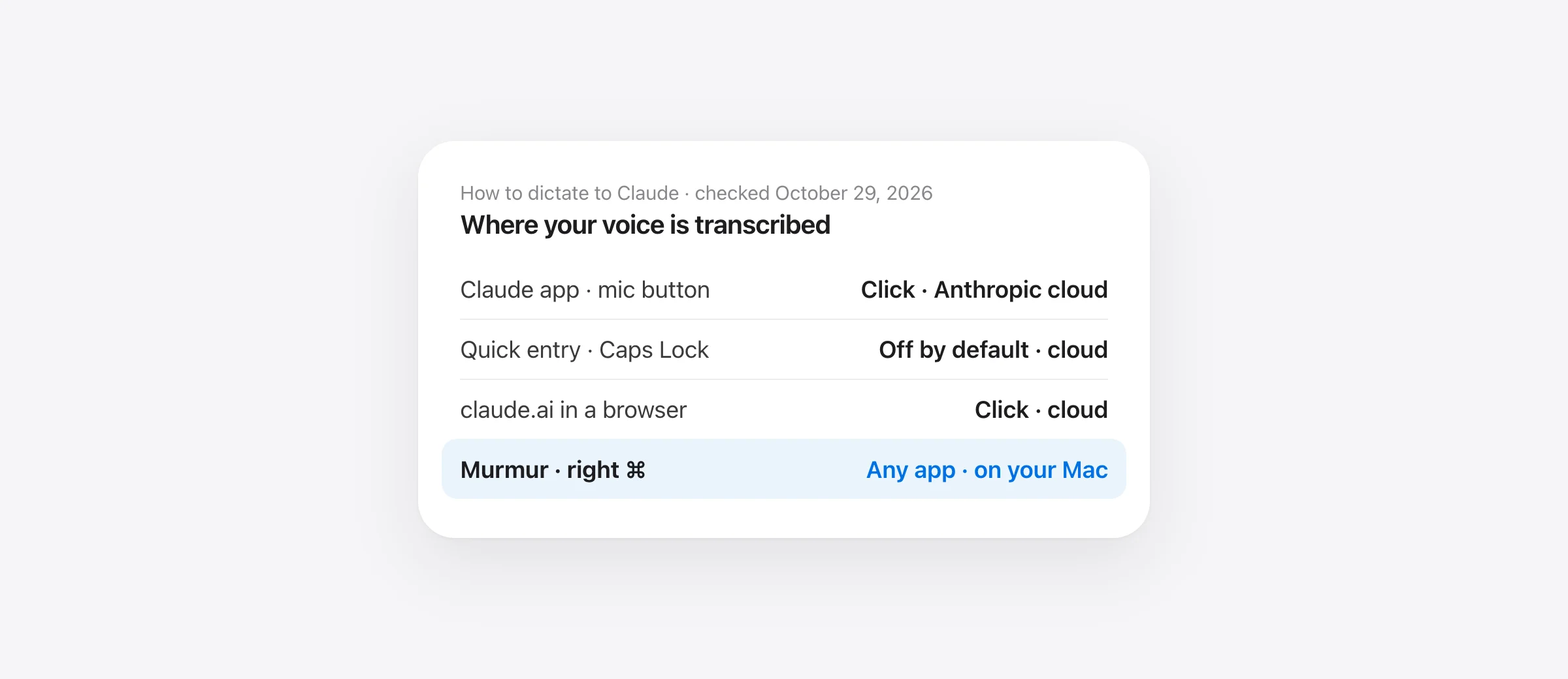
The short answer
In the Claude desktop app, click the microphone in the chat box. For a shortcut, turn on quick entry’s voice shortcut (Caps Lock) in Settings › General. If Claude asks you to “allow Claude” in Privacy & Security › Microphone, turn Claude on there and in Speech Recognition, then restart the app. Claude’s dictation is cloud-based and lives inside Claude. If it stops returning text, or you want one shortcut that works in Claude, your terminal, Slack and email, a Mac-wide dictation app like Murmur does it on your Mac, offline. Checked against Anthropic’s help center on October 29, 2026.
“Claude dictation” covers three different features: the mic button in Claude’s chat box, the Caps Lock voice shortcut in quick entry, and voice mode, where Claude talks back. They start differently, fail differently and send your audio to the same place. This guide covers all three in the desktop app, at claude.ai and briefly on the phone. If you’re dictating into Claude Code in the terminal, that’s a separate feature, /voice, covered in Claude Code voice dictation on Mac.
Where you can dictate to Claude
| Where | How to start | Shortcut | Notes |
|---|---|---|---|
| Claude desktop app, chat box | Click the mic icon | None documented | Speak, review, click send |
| Claude desktop app, quick entry | Press the voice shortcut | Caps Lock, or a custom one | Off by default; macOS 14 or later |
| claude.ai in a browser | Click the mic icon | None documented | The browser needs microphone access |
| Claude for iPhone and Android | Tap the mic on the right of the chat box | — | English plus 11 languages in beta |
| Cowork and Code in the app | Mic icon | — | Dictation yes, voice mode no |
| Murmur (any Mac app, including Claude) | Hold right ⌘ | Right ⌘, double-tap for hands-free | On your Mac, offline, 99 languages |
Anthropic’s Academy puts it simply: dictation “is available on the web, mobile, and desktop app.” Dictation turns speech into a written prompt you can check before sending. Voice mode is a spoken back-and-forth.
How to turn on Claude dictation on Mac
In the chat window
- Open the Claude app and click into the message box.
- Click the microphone icon in the chat input.
- The first time, macOS asks whether Claude may use the microphone. Click Allow.
- Speak. Your words appear as text. Click the mic again to stop, edit if needed, then send.
With the quick entry shortcut (Caps Lock)
Quick entry is Claude’s floating prompt box. According to Anthropic’s quick entry guide:
- The voice shortcut is off by default “because it takes over your Caps Lock key.” When the voice dictation prompt appears, check Turn on shortcut.
- Press Caps Lock once to start dictating. Words are transcribed live.
- Press Caps Lock again when you’re done.
- Click the arrow to send.
Later, manage it in Claude’s Settings › General (under Desktop app). The Voice shortcut dropdown lets you use Caps Lock, set a custom shortcut or turn it off. Voice dictation needs macOS 14 or later, and Anthropic lists Speech Recognition as a required permission.
The Claude dictation shortcut, and what it doesn’t do
The voice shortcut opens quick entry, a separate box that starts a new conversation. It doesn’t dictate into the chat you already have open. In the main window, Anthropic documents only the mic icon. One user’s feature request describes exactly this gap: they tried keybinding files, AppleScript and scripted clicks, and none of them could start dictation in the open chat.
If you want a key you hold to talk into whatever Claude chat is open, or into a follow-up halfway through a conversation, use a Mac-wide dictation app. With Murmur you click into Claude’s message box, hold right ⌘, talk and let go. The text is typed where the cursor is, and you press Enter when you’re ready. The same key works in Claude Code in the terminal, Cursor, Slack and Mail.
Claude dictation not working: fixes in order
Start at the top. Each step rules out one cause.
1. “To use dictation, open Settings, go to Privacy and Security, select Microphone, and allow Claude”
Claude can’t reach the microphone. This is a macOS permission, not a Claude setting (step-by-step fix and the reset command):
- Open Apple menu › System Settings › Privacy & Security › Microphone (Apple’s guide).
- Turn on Claude.
- Go back to Privacy & Security, open Speech Recognition and turn Claude on there too, if it’s listed. Anthropic lists it as required for desktop voice dictation.
- Quit Claude completely (⌘Q) and open it again. Apps often pick up a new permission only after a restart.
Claude isn’t in the list, or the switch is on and it still fails? Reset the permission so macOS asks again. In Terminal, run tccutil reset Microphone com.anthropic.claudefordesktop, reopen Claude, click the mic and choose Allow. On a work Mac, a management profile can block the microphone for some apps. If the switch is greyed out, ask IT.
2. claude.ai in a browser won’t use the mic
Two permissions have to agree. In macOS, the browser (Safari, Chrome, Arc) needs to be on in Privacy & Security › Microphone. In the browser, claude.ai needs microphone access in its site settings (in Chrome, click the icon left of the address and allow Microphone). Reload the page afterwards.
3. The mic is on, but no text ever appears
This is the most-reported Claude-for-Mac dictation bug of fall 2026. In one user report for Claude for Mac 1.52386.0, the mic opens and audio is captured, but no transcript comes back and no error appears. Dictation stops after about 20 seconds. The reporter traced it back to builds around 1.49585 (early September). Restarting, rebooting, resetting the mic permission and switching microphones didn’t help. claude.ai in Safari and macOS Dictation worked fine on the same Mac.
What to do:
- Update Claude to the latest version and try again.
- Test claude.ai in a browser. If it works there, your Mac and microphone are fine and the desktop build is the problem.
- Until a fix ships, dictate with a tool that doesn’t depend on Claude’s transcription. Murmur types into the Claude app like a keyboard, so a broken Claude dictation build doesn’t affect it.
4. The text is garbled, or the mic button disappears
Users have also reported unrelated, repeated words in place of their speech, and a mic button that vanishes after one dictation until the input box is cleared. Neither has an official fix. Clearing the box and checking the input device (below) are the only steps that apply.
5. Wrong microphone
If AirPods or a display mic switched in, Claude may be listening to a different device. Set the one you want in System Settings › Sound › Input, then restart Claude. Speak a test sentence in Notes with macOS Dictation. If that fails too, the problem is the Mac, not Claude, and our Mac dictation troubleshooting guide covers the rest.
6. The wrong language comes out
On the phone, choose the language under your initials › Speech Input Language. Anthropic lists English, French, German, Hindi, Italian, Japanese, Korean, Portuguese, Russian, Spanish, Turkish and Ukrainian, with non-English languages in beta. For voice mode, the language is under Settings › Capabilities › Voice › Spoken language. Anthropic doesn’t publish a language list for desktop dictation.
Claude dictation vs voice mode
Anthropic’s definitions: “Dictation converts your speech to text so you can type prompts by speaking.” Voice mode “is a full two-way conversation”: you speak, and Claude speaks back. Voice mode is in beta on all plans, on mobile, desktop and the web. You start it with the sound-wave icon, and it has a push-to-talk option for noisy rooms. Voice conversations count toward your usage limits, and their transcripts are saved in your chat history. Voice mode isn’t available in Cowork or Code; dictation is.
Use dictation when the exact wording matters: a long prompt, a spec, code instructions. You see the text before Claude does. Use voice mode for thinking out loud on a walk.
Where your voice goes when you use Claude dictation
Anthropic’s documentation for Claude in Microsoft 365 says its dictation uses “the same infrastructure that powers dictation in the Claude apps,” and it’s specific: “Nothing is transcribed on your device. Audio is streamed to Anthropic,” which uses a contracted speech-to-text subprocessor, and the audio isn’t kept after transcription. The mobile help page adds that Anthropic deletes the recording after converting it to text and doesn’t use it to train its models.
That’s a reasonable policy. But it means Claude dictation needs a connection, and your raw voice leaves the Mac before you’ve decided what to send. On a plane or patchy Wi-Fi, it won’t work. Saying a half-formed thought you then delete doesn’t un-upload the audio.
When Claude’s built-in dictation isn’t enough: Murmur
Claude’s mic is fine for a quick question. If you talk to Claude for hours a day, and to everything else on your Mac too, you’ll want something that is always one key away. We built Murmur for that. Here’s what it does that Claude’s dictation doesn’t:
- One key, every app. Hold right ⌘ in Claude’s chat box, a claude.ai tab, Claude Code in iTerm, Cursor, Slack or Gmail. Let go and polished text is typed at the cursor. Double-tap for hands-free, Esc to cancel. No separate quick entry window, no new conversation.
- On your Mac, and offline. Speech recognition runs on the Mac. Audio never leaves it, and Murmur works in Airplane Mode. Claude only sees the text you choose to send.
- Prompts that read like you typed them. Murmur drops the “um”s. On macOS 26 with Apple Intelligence, its AI polish also cleans up punctuation and phrasing and keeps your meaning, still on the Mac. Pick a style per app: Technical for Claude and your editor, Casual for Slack, Formal for Mail.
- It gets “Claude” right. Add words to the custom dictionary and Murmur fixes sound-alikes, like “clot” to Claude, or your library and function names. Add snippets for prompts you repeat.
- Edit by voice. Select a paragraph in your prompt, hold right ⌥ and say “make this shorter” or “turn this into a numbered list.”
- 99 languages, detected. Choose Whisper large-v3 turbo for 99 languages or Parakeet for English plus 24 European languages. Pick the ones you speak and Murmur detects which one you’re using. No switching by hand, and no beta language list.
- Doesn’t break when Claude updates. Murmur types like a keyboard, so a Claude build where dictation returns nothing doesn’t touch it.
- $19 once. No subscription. Your first 2,000 words are free with no account. The license covers three Macs, updates are free and there’s a 7-day refund.
What it doesn’t do: Murmur won’t talk back like voice mode, and it doesn’t press send for you. It needs an Apple silicon Mac with macOS 14 or later; AI polish and voice editing need macOS 26 with Apple Intelligence. Developers who live in the terminal will also like our roundup of dictation apps for developers.
Claude dictation vs Wispr Flow vs Murmur
| Claude dictation | Wispr Flow | Murmur | |
|---|---|---|---|
| Works in | Claude only | Any app | Any app |
| Shortcut in the open chat | Mic click (Caps Lock opens quick entry) | Yes | Hold right ⌘ |
| Speech processed | Anthropic’s cloud | Wispr’s cloud | On your Mac |
| Offline | No | No | Yes |
| Price | Included with Claude | Free 2,000 words/week; Pro $15/month or $144/year | $19 once; first 2,000 words free |
Claude’s dictation is free and good enough inside Claude. Wispr Flow adds every app but sends audio to its cloud on a subscription. The details are in our Wispr Flow privacy review. Murmur gives you every app, on-device, for one payment. If you also use ChatGPT, the same trade-offs apply there: see ChatGPT voice vs Mac dictation.
A two-minute test before you decide
- Write one real prompt you’d send Claude today: three or four sentences, with a product or library name in it.
- Dictate it with Claude’s mic. Count the words you have to fix.
- Dictate it again with Murmur into the same box (the first 2,000 words are free). Count again.
- Turn off Wi-Fi and repeat both.
The one you trust with Wi-Fi off, and with the names you actually use, is the one to keep.
Frequently asked questions
How do I use dictation in the Claude desktop app on Mac?
Click the microphone icon in the chat box, speak, then click send. For dictation from anywhere, turn on quick entry’s voice shortcut: press Caps Lock to start, Caps Lock again to stop, then click the arrow to send. Anthropic says the voice shortcut is off by default and needs macOS 14 or later.
How do I fix “To use dictation, open Settings, go to Privacy and Security, select Microphone, and allow Claude”?
Open Apple menu › System Settings › Privacy & Security › Microphone and turn Claude on. Also check Privacy & Security › Speech Recognition, which Anthropic lists as required for desktop dictation. Quit and reopen Claude. If Claude isn’t in the list, reset its permission in Terminal with tccutil reset Microphone com.anthropic.claudefordesktop and try again so macOS asks fresh.
Why does Claude dictation record but never type any text?
Since early September 2026, users have reported Claude for Mac builds where the mic opens but no transcript comes back, even after resetting permissions and rebooting. Update the app and test claude.ai in a browser on the same Mac. If the browser works, the problem is the desktop build, and a Mac-wide dictation app is the reliable workaround until it’s fixed.
Is there a keyboard shortcut for Claude dictation?
Only for quick entry. You can set Caps Lock or a custom shortcut under Settings › General in the desktop app. Dictation in the main chat window starts by clicking the mic icon; Anthropic doesn’t document a shortcut for it. Murmur gives you one: hold right Command in the Claude chat box, or in any other app.
Does Claude dictation work offline or on-device?
No. Anthropic’s documentation says audio is streamed to Anthropic, transcribed by a contracted speech-to-text provider and not kept afterwards. That means it needs internet. Murmur transcribes on your Mac and works in Airplane Mode; the text only reaches Claude when you press send.
Sources
- Claude Help Center: Use quick entry with Claude Desktop on Mac
- Claude Help Center: Use voice mode
- Claude Help Center: Use dictation on Claude Mobile
- Claude docs: Use dictation in Claude for M365 (how dictation audio is processed)
- Anthropic Academy: How to choose between voice mode and dictation
- Apple: Control access to the microphone on Mac
- User report: dictation captures audio but returns no transcript (Claude for Mac 1.52386.0)
- User report: no keyboard shortcut for the mic in the main chat window

Telman Gadimov builds Murmur, a dictation app for Mac that runs entirely on-device. We make Murmur, a Mac dictation app covered in this guide. Claude features were checked on Anthropic’s help center and documentation on October 29, 2026. Bugs marked as user reports come from public issue threads, not from Anthropic.


