The short answer
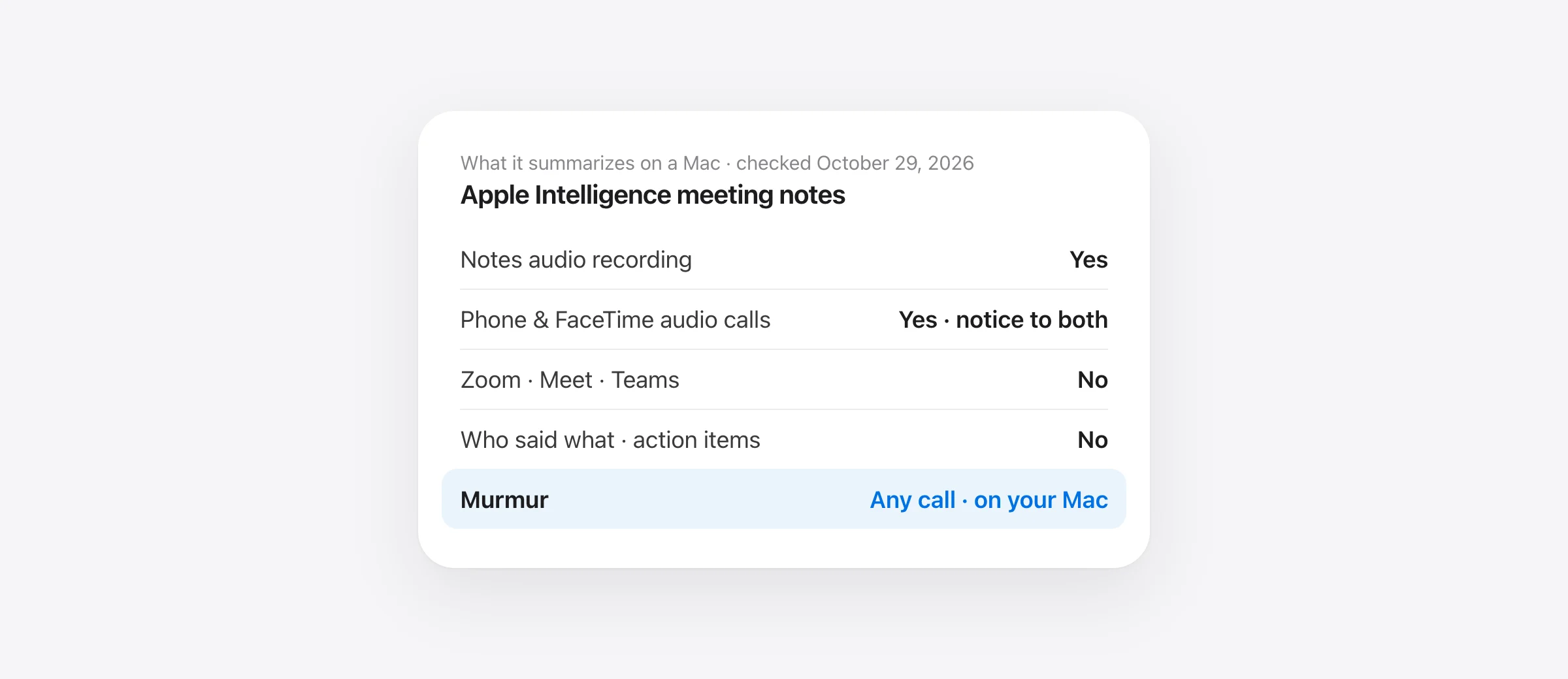
Yes, for recordings. No, for most meetings. On a Mac, Apple Intelligence summarizes audio you record in Notes, phone calls you record in the Phone app, and FaceTime audio calls with one other person. It doesn’t join or record Zoom, Google Meet or Microsoft Teams calls, and the summary is a paragraph, not action items. To get Apple Intelligence notes on every call, you need an app that captures the call and then asks Apple Intelligence for the notes. That is what Murmur does, entirely on your Mac. Checked against Apple’s macOS 26 Tahoe guides on October 29, 2026.
Apple Intelligence is already on most Apple silicon Macs, and it writes good summaries. So it’s a fair question whether you still need a meeting note taker at all. The answer depends on where your meetings happen. If they are phone calls or one-to-one FaceTime audio calls, Apple has you covered. If they happen in Zoom, Meet, Teams or Slack, which is where most work calls happen, Apple has no feature that records them.
This guide covers each Apple tool step by step, what it needs, where it stops, and how to get the same on-device summaries on every call.
What Apple Intelligence can and can’t do for meetings
| Task | Apple, built in | Where |
|---|---|---|
| Record audio in a note and get a live transcript | Yes | Notes, M1 or later |
| Summarize that recording | Yes | Notes › recording › Summary |
| Record and summarize a phone call | Yes, both people hear a notice | Phone app on Mac, via your iPhone |
| Record and summarize a FaceTime audio call | Yes, with one other person | FaceTime › More › Call Recording |
| Transcribe and summarize a voice memo | Yes, through Writing Tools | Voice Memos › Show Transcript |
| Record a Zoom, Google Meet, Teams or Slack call | No | Not documented in Notes or any Apple app |
| Label who said what | No | Not documented |
| Pull out action items and decisions | Not on its own | Ask Writing Tools by hand |
| Start when a call starts | No | You press record yourself |
Based on Apple’s Mac guides for Notes, Phone, FaceTime and Apple Intelligence, checked October 29, 2026. “Not documented” means Apple’s guides don’t describe the feature.
What you need for Apple Intelligence summaries
- A Mac with M1 or later. Intel Macs don’t get Apple Intelligence. Notes transcription has the same M1 requirement.
- Apple Intelligence turned on: System Settings › Apple Intelligence & Siri. Apple’s requirements page says the models use up to 8 GB of storage, or up to 14 GB on M3 and later Macs with 12 GB or more of memory.
- The same supported language for your Mac and for Siri. Apple’s Notes guide lists English, Danish, Dutch, French, German, Italian, Norwegian, Portuguese, Spanish, Swedish, Turkish, Chinese (Simplified and Traditional), Japanese, Korean and Vietnamese, and calls the feature beta.
- A supported region. Call recording in particular “isn’t available in all countries and regions.” Check Apple’s feature availability page for yours.
Apple also says to use the latest macOS. The steps below match macOS 26 Tahoe.
How to use Apple Intelligence to take meeting notes in Notes
This is the closest Apple gets to a meeting note taker: a recorder with a live transcript, plus a summary when you’re done. It works best for in-person meetings, lectures and interviews where the Mac sits on the table.
- Open Notes and create a note for the meeting.
- Click the attachment button in the toolbar and choose Record Audio.
- Click Record. Click the Transcription button if you want to watch the words appear.
- Use Pause and Resume for breaks. When the meeting ends, click Pause, then Done.
- Double-click the recording and click Summary. Apple Intelligence writes it from the transcript.
- To paste it elsewhere, click the More button at the top of the summary and choose Copy Summary or Share Summary.
If there’s no Transcription button, Apple says your Mac “doesn’t meet the minimum requirements or detect a supported language.” Our Apple Notes voice to text guide covers that fix, and the difference between recording audio and dictating into a note.
The catch for online meetings: Apple’s guide only describes recording through the note’s Record Audio button and never says it captures other apps’ sound. Treat it as a microphone recording. On speakers, the other people may be picked up faintly through your mic; on headphones, expect to get only yourself. Run a 30-second test call before you trust it with a real one.
Apple Intelligence for phone calls and FaceTime audio calls
For calls Apple controls, recording is built in, and the recordings land in Notes ready for a summary.
Phone calls on your Mac
- Set up calls from your Mac: same Wi-Fi network and same Apple Account on Mac and iPhone, and FaceTime signed in with your phone number turned on, on both.
- During a call in the Phone app, open the call controls and click Call Recording. Both people hear an audio notice that the call is being recorded.
- Click stop or hang up. The recording and its transcript are saved to the Call Recordings folder in Notes.
- In Notes, open Call Recordings, double-click the recording and click Summary.
FaceTime audio calls
- During a FaceTime audio call with one other person, open the More menu and choose Call Recording. Both of you hear a notice.
- Choose Stop in the same menu when you’re done.
- Find it in Notes › Call Recordings, with its transcript, and ask for a summary there.
Apple’s guide covers one-to-one audio calls only. It doesn’t describe recording group calls or FaceTime video calls. Usage limits may apply to Apple Intelligence, and call recording depends on your country.
Apple Intelligence for voice memos and audio files
Voice Memos on the Mac shows a transcript for a recording. Select it, click Show Transcript, then select the text and use Writing Tools to summarize it or turn it into a list. That makes Voice Memos a decent fallback when someone sends you a recording: the summary step is the same Apple Intelligence model, you just drive it by hand.
Apple doesn’t document a one-click “summarize this audio file” for arbitrary files on the Mac. If you have hours of recordings to transcribe, a dedicated transcription app is faster.
Where Apple’s meeting notes stop
Put together, Apple Intelligence is a good summarizer with no way into the calls most people spend their day in. The gaps are specific:
- No Zoom, Meet, Teams, Slack or Webex. None of Apple’s guides describe recording another app’s call.
- No “who said what.” A transcript without speakers makes it hard to know who agreed to what.
- No action items or decisions on their own. The Summary button gives you a summary. Anything more structured is a Writing Tools prompt you type each time.
- Nothing starts by itself. You have to remember to press record before the important part, not after it.
The usual answer to these gaps is a cloud note taker: a bot that joins the call, or an app that uploads the audio. Both work, and both send your meeting to someone else’s servers. Our guide to AI note takers without a bot sorts the options by where your audio actually goes.
Apple Intelligence notes on every call: Murmur
We built Murmur to close exactly this gap. It is a Mac dictation app with meeting notes built in, and its notes are written by the same Apple Intelligence model on your Mac. The difference is everything around the summary: Murmur gets the call audio, works out who said what, and asks for structured notes, so you don’t have to.
How it works on a call
- A call starts, Murmur asks. When Zoom, Microsoft Teams, FaceTime, Slack, Webex, Discord, WhatsApp, Telegram or a browser call such as Google Meet starts using your microphone, a small prompt at the top of the screen asks “Take notes?” One click and it’s recording. Or press ⌃⌥M to start and stop by hand.
- Both sides are recorded, on the Mac. Your microphone and the call’s audio are captured as separate tracks, so the other people come through clearly even when you wear headphones. macOS asks once for System Audio Recording permission. No bot joins the call, so nobody sees an extra participant.
- Mark the moments that matter. Press ⌃⌥B during the call to bookmark a moment you want to find later.
- Notes, written on your Mac. When the call ends, Murmur transcribes it with the speech model you already use for dictation, labels the voices, and Apple Intelligence on your Mac writes a summary with action items, decisions and topics. A notification says “Notes ready” with the meeting title and the number of action items.
- Use them anywhere. Notes are searchable in Murmur and copy as Markdown, so they paste cleanly into Notion, Obsidian, a ticket or an email.
Why it’s different from a cloud note taker
- Nothing leaves your Mac. Speech recognition, speaker labels and the summary all run locally. No account, no uploads, and it works with Wi-Fi off.
- Recordings clean themselves up. Audio is deleted after 7 days by default; the notes stay.
- Languages beyond Apple’s list for the transcript. Murmur transcribes with Parakeet (25 European languages) or Whisper (99 languages). If Apple Intelligence doesn’t write a meeting’s language yet, you still get the full transcript.
- One price, dictation included. $19 once, on up to 3 Macs, with Mac-wide dictation: hold right ⌘, talk, and polished text appears in any app. No subscription. Your first 2,000 words are free, no account needed.
What you need: an Apple silicon Mac. Recording the call’s audio needs macOS 14.2 or later; the Apple Intelligence summary needs macOS 26 or later with Apple Intelligence turned on, the same as Apple’s own summaries. If you take notes on a call, tell the other people. Murmur can remind you each time, and recording laws differ by place.
Apple’s built-in tools vs Murmur for meeting notes
| Notes recording | Phone / FaceTime audio | Murmur | |
|---|---|---|---|
| Zoom, Meet, Teams, Slack | Not documented | No | Yes |
| Other side on headphones | Not documented | Yes | Yes, separate track |
| Starts when a call starts | No | No, you click record | Asks automatically |
| Who said what | No | Not documented | Yes |
| Summary by Apple Intelligence | Yes | Yes | Yes, on your Mac |
| Action items and decisions | By hand | By hand | Yes |
| Group calls | Room audio only | One other person | Yes |
| Cost | Free | Free | $19 once, dictation included |
Apple columns from Apple’s macOS 26 guides; “not documented” means Apple’s guides don’t mention it. Checked October 29, 2026.
If your meetings are mostly phone calls or in-person conversations, Apple’s free tools do the job; use the steps above. If they happen in Zoom, Meet or Teams, or you want action items without typing a prompt every time, Murmur gives you the same Apple Intelligence summaries on every call while keeping everything on your Mac. Comparing it with Granola or other note takers first? See our Granola alternatives roundup.
Check your setup before an important meeting
Whatever you choose, five minutes of testing saves an empty transcript later:
- Confirm Apple Intelligence is on in System Settings › Apple Intelligence & Siri, and that your Mac and Siri languages match.
- Record 30 seconds of a real call with headphones on. Check that the other person’s words are in the transcript, not just yours.
- Ask for the summary and check one name, one number and one date against what was said. Apple notes that output “may vary”; check important facts.
- Find where it saved: the note, Notes › Call Recordings, or Murmur’s meeting list.
- Agree on recording. Tell people up front. Apple’s Phone and FaceTime recording announce it; with any other tool, that’s your job.
If you also want to write by voice between meetings, our Mac dictation guide covers Apple’s built-in option and when a dedicated app is worth it.
Frequently asked questions
Can Apple Intelligence take meeting notes?
Partly. On a Mac it can summarize an audio recording you make in Notes, and a Phone or FaceTime audio call you record, from the transcript. It doesn’t join or record Zoom, Google Meet or Microsoft Teams calls, and it doesn’t pull out action items on its own. For those calls you need an app that records the call and then hands the transcript to Apple Intelligence, such as Murmur.
Does Apple Notes record Zoom or Teams calls?
Apple doesn’t say it does. Its Notes guide describes recording through the Record Audio button in a note and doesn’t mention capturing other apps’ sound. Treat it as a microphone recording: with headphones on, the other people may not be in it. Test a short call before you rely on it.
How do I get Apple Intelligence to summarize a recording?
In Notes, open the note with the recording, double-click the recording and click Summary. To copy it, click the More button at the top of the summary and choose Copy Summary. In Voice Memos, select a recording, click Show Transcript, then use Writing Tools to summarize the transcript.
Which Macs and languages support Apple Intelligence summaries?
A Mac with M1 or later, Apple Intelligence turned on in System Settings, and your device and Siri languages set to the same supported language. Apple’s Notes guide lists English, Danish, Dutch, French, German, Italian, Norwegian, Portuguese, Spanish, Swedish, Turkish, Chinese, Japanese, Korean and Vietnamese, checked October 29, 2026.
Is there an Apple Intelligence meeting note taker for any call app?
Not from Apple. Murmur fills that gap: when Zoom, Teams, FaceTime, Slack or a browser call starts using your microphone, it asks to take notes, records your side and the call audio on the Mac, labels who said what, and Apple Intelligence on your Mac writes the summary, action items and decisions. No bot joins and nothing is uploaded. It costs $19 once.
Sources
- Apple: Use Apple Intelligence in Notes on Mac (macOS 26)
- Apple: Record and transcribe audio in Notes on Mac
- Apple: Use Apple Intelligence in Phone on Mac (macOS 26)
- Apple: While on a call in the Phone app on Mac
- Apple: Use FaceTime audio call features on Mac
- Apple: How to get Apple Intelligence
- Apple: macOS feature availability

Telman Gadimov builds Murmur, a dictation app for Mac that runs entirely on-device. We make Murmur, which this article recommends for calls in Zoom, Google Meet, Teams and other apps. Apple features were checked against Apple’s macOS 26 Tahoe support guides on October 29, 2026. Murmur details come from the current app.


