The short answer
- Bot-free and on your Mac: Murmur ($19 once), or free and open source: Anarlog and Meetily.
- Bot-free, cloud, most polished: Granola (free plan, Business $14 per user per month).
- Already pay for something: Wispr Flow Notetaker is included with Flow; Notion AI Meeting Notes comes with Notion Business.
- Remember: no bot does not mean no upload. Check where the audio goes before you record a client call.
An AI note taker without a bot records the meeting from your own computer instead of sending a “Notetaker” participant into the call. It doesn’t, by itself, keep the conversation private. Most bot-free apps still upload the audio to a transcription service. This guide sorts the options by that question first, then by price and platform.
What does bot-free mean?
A meeting bot is a separate participant that joins Zoom, Meet or Teams through the meeting link, records what it hears and sends notes afterward. Everyone sees it in the participant list.
A bot-free note taker is an app on your computer. It records two sources at the same time:
- Your microphone, for what you say.
- The call’s audio output, for everyone else. On a Mac this needs the “Screen & System Audio Recording” permission (System Settings › Privacy & Security).
The app then transcribes both streams, labels the speakers and writes a summary. Because it listens to audio rather than joining through a link, it works in any app that makes sound, and in person through the mic.
What changes when you drop the bot
- No tile in the call, and it works where bots can’t join, such as Slack huddles.
- No video. Most bot-free tools capture audio only. Fathom has bot-free video in a limited beta.
- Weaker speaker names. A bot sees who is talking from the meeting platform. A bot-free app hears one mixed stream from the other side and has to tell voices apart itself, so you often get “Speaker 1” and “Speaker 2” until you rename them.
- Your laptop must be in the call. If you join from your phone, the desktop app can’t capture the call audio.
- You still have to tell people. No bot means no automatic notice. Say you’re taking notes at the start; recording-consent laws differ by place.
Bot-free is not the same as private
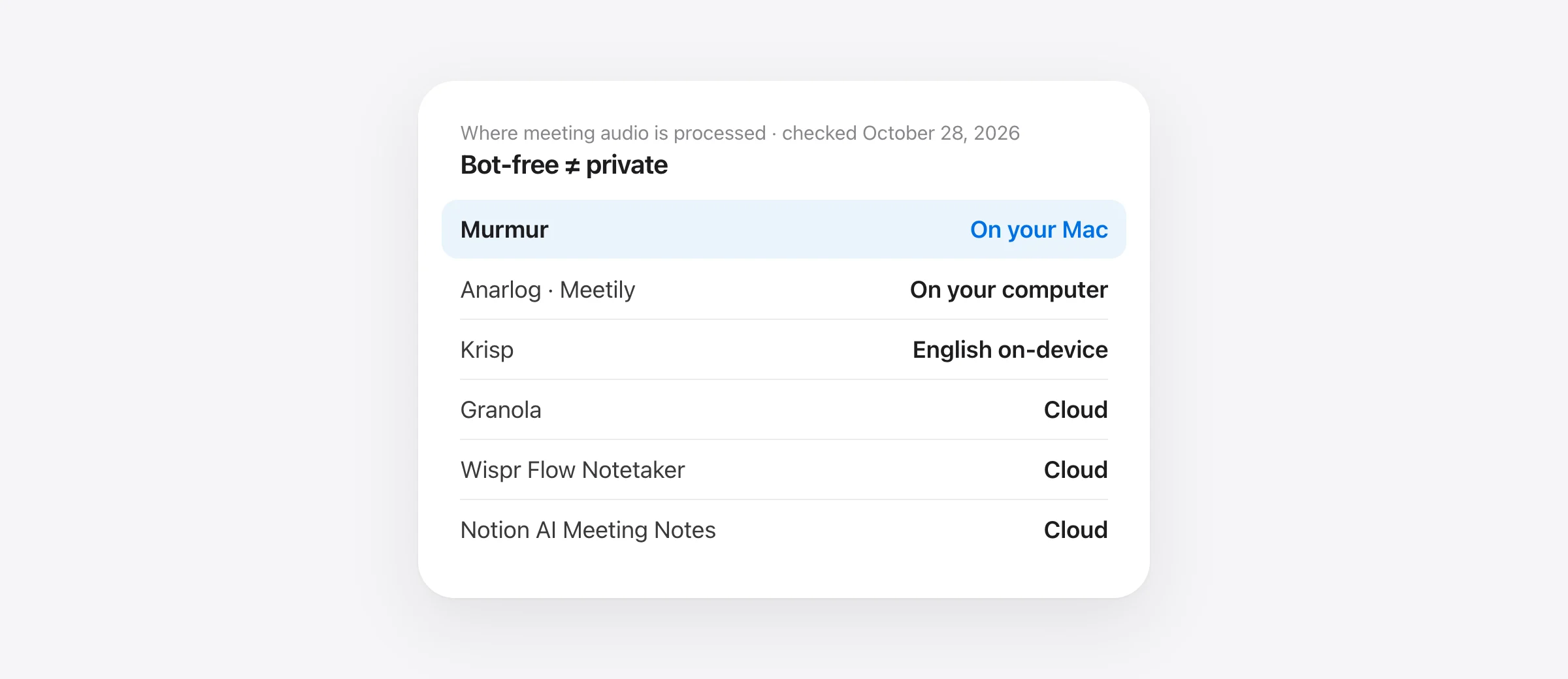
Most “best bot-free note taker” lists skip this, partly because vendors whose apps upload audio write many of them. Bot-free describes capture. Privacy depends on processing: where the audio is transcribed, where the summary is written, and where the transcript is stored.
There are three patterns:
- Captured locally, processed in the cloud. The app records on your computer, then streams or uploads the audio to a speech service. Granola, Wispr Flow Notetaker, Jamie and Notion work this way. That may be acceptable for your work; it isn’t on-device.
- Mixed. Some parts run locally and others don’t. Krisp transcribes English on the device but sends 15 other languages to its servers, and stores transcripts and recordings in Krisp Cloud.
- Processed on your computer. Transcription, speaker labelling and summaries all run locally, and the files stay on your disk. Murmur, Anarlog, Meetily and MacWhisper (with local models) work this way. The trade-off is fewer integrations and no team sharing.
For a longer look at one cloud service’s data flow, see our Wispr Flow privacy review.
Bot-free AI note takers compared
| App | Bot joins? | Where audio is processed | Platforms | Price (checked Oct 28, 2026) | Best for |
|---|---|---|---|---|---|
| Murmur | Never | On your Mac | Mac (Apple silicon) | $19 once, dictation included | Private calls on one Mac |
| Anarlog | Never | On your computer, or your own API keys | Mac; Windows and Linux beta | Free, open source | Open source, local files |
| Meetily | Never | On your computer; summaries local or via a provider you pick | Mac, Windows; Linux from source | Free community edition; paid Pro | Self-hosters |
| MacWhisper | Never | Local models on your Mac; AI via local or your keys | Mac | Free tier; Pro €64 once | Meetings plus file transcription |
| Krisp | Optional (Zoom) | English on-device; other languages on servers; stored in Krisp Cloud | Mac, Windows, iOS, Android | Core $8/mo yearly, $16 monthly | Noise cancellation plus notes |
| Granola | Never | Cloud transcription and AI | Mac, Windows, iOS, Android | Free (30-day history); $14/user/mo | Typing your own notes, AI fills gaps |
| Wispr Flow Notetaker | Never | Cloud | Mac, Windows | Free (weekly cap); Pro $12/mo yearly, $15 monthly | Existing Wispr Flow users |
| Jamie | Never | Cloud, in the EEA, Switzerland and UK | Mac, Windows, iOS, web | Free (10 notes/mo); Pro €39/mo billed yearly | EU data residency |
| Notion AI Meeting Notes | Never | Cloud | Notion desktop (Mac, Windows), web, mobile | Notion Business, $20/member/mo | Teams already in Notion |
“Where audio is processed” is what each vendor documents; we didn’t inspect network traffic. Prices are per user in the currency the vendor lists. Notion doesn’t label whether $20 is the yearly or monthly rate.
The 9 best AI note takers without a bot
Ordered by where the audio goes: on-device first, then mixed, then cloud.
1. Murmur: on-device notes on a Mac, no subscription
Price: $19 once for up to 3 Macs, meeting notes included. Needs: Apple silicon, macOS 14 or later (call audio needs 14.2+; summaries need macOS 26 with Apple Intelligence).
We make Murmur, so weigh this section accordingly. It started as a dictation app and now takes meeting notes the same way: on the Mac, with nothing uploaded. When Zoom, Google Meet in a browser, Teams, FaceTime, Slack, Telegram, WhatsApp or another browser call starts using the mic, the notch asks “Take notes on this Mac?”. You can also start or stop with ⌃⌥M, which covers in-person meetings.
It records your mic and the call audio as two separate tracks. Your mic is labelled “You”; other voices are told apart on the Mac as Speaker 1, Speaker 2 and so on, and renaming one updates the transcript and summary. After the call, Apple Intelligence writes a title, a short overview, action items with owners and dates when they were said, decisions and topics. Recordings delete themselves after 7 days by default (you can choose not to keep them at all, or keep them longer).
What you give up: it’s Mac only, with no iPhone, Windows or web app. No calendar integration, no team sharing or sync, and it can’t import audio files. On macOS 14 and 15 you get transcripts without AI summaries.
2. Anarlog (formerly Hyprnote, then Char): free and open source
Price: free, MIT license. Platforms: macOS, with Windows and Linux beta builds since August 2026.
If you’ve seen Hyprnote recommended on Reddit, this is the same app under its current name. The open-source note taker was renamed Char and then Anarlog in May 2026; the Char name now belongs to a different product. It captures system audio with no bot and no calendar permission, runs with on-device models or your own API keys (including Ollama and LM Studio locally), and keeps meeting data on your device with Markdown export.
What you give up: polish and support. You choose the models and keys yourself, and with a cloud API key your transcript goes to that provider.
3. Meetily: self-hosted and scriptable
Price: free community edition (MIT); a paid Pro edition exists with no price on the README. Platforms: macOS and Windows; Linux builds from source.
Meetily records the mic and system audio together and transcribes on the device with Whisper or Parakeet. Summaries can run locally through Ollama, or through Claude, Groq, OpenRouter or any OpenAI-compatible endpoint you configure.
What you give up: setup time. Picking a cloud summary provider sends the transcript there, so choose Ollama if the point is keeping it local.
4. MacWhisper: meetings plus every other recording
Price: free tier; Pro €64 once. Platform: Mac.
MacWhisper is mainly a file-transcription app, and it also records meetings in Zoom, Teams, Webex, Skype, Chime, Discord and others with automatic start and end detection, no bot. Transcription uses local models, it labels speakers, and summaries can use a local model (Ollama, LM Studio) or your own key for OpenAI, Anthropic and others. Its site doesn’t clearly show which tier meeting recording is in, so check before you rely on the free version. Our MacWhisper vs Superwhisper comparison covers its file features.
What you give up: a focused notes workflow. It’s a transcription workbench with meetings added, not a meeting app.
5. Krisp: noise cancellation with notes attached
Price: 7-day free trial; Core $8 per user per month billed yearly or $16 monthly; Advanced $15 or $30. Platforms: Mac, Windows, iOS, Android, browser extension.
Krisp works at the audio level, so no bot joins by default (an optional Zoom bot exists). It says English transcription runs on the device, while 15 other languages are transcribed on its servers. Its security page says the meeting assistant stores transcripts and recordings in Krisp Cloud, and on-device storage of transcripts and recordings is listed as an Enterprise feature.
What you give up: a fully local pipeline. English capture is local, but your notes live in Krisp’s cloud on standard plans.
6. Granola: the best-known bot-free note taker
Price: Basic free with 30 days of meeting history; Business $14 per user per month; Enterprise $35. Platforms: macOS, Windows, iOS, Android. Leaving it? See our Granola alternatives.
You type rough notes during the call and it fills them out from the transcript afterward. Its security page names Deepgram and AssemblyAI as transcription providers and OpenAI and Anthropic for summaries. Granola says it doesn’t store meeting audio, and keeps transcripts and notes in a US-hosted AWS environment.
What you give up: on-device processing. Audio leaves your computer for transcription, and the free plan hides notes older than 30 days.
7. Wispr Flow Notetaker: if you already use Flow
Price: included with Wispr Flow. Free has a weekly meeting limit; Pro is $15 a month or $12 a month billed yearly. Platforms: Mac and Windows; mobile is on the roadmap. More detail in our Wispr Flow Notetaker review.
Notetaker records on your computer so nothing joins the call, and works in Zoom, Meet, Teams, Slack huddles, Discord, browser calls and in person. Wispr’s privacy overview says it “uses cloud processing for meeting transcripts and summaries”, deletes uploaded audio 7 days after upload, and keeps transcripts and summaries after the audio is gone. Wispr says Notetaker is rolling out gradually, so check your account. Our Wispr Flow pricing guide covers the plans.
What you give up: local processing, and it doesn’t accept recordings made elsewhere.
8. Jamie: bot-free with European hosting
Price: free plan with 10 AI notes a month and a 30-minute meeting limit; Pro €39 a month billed yearly; Team €33 per seat. Platforms: macOS, Windows, iOS, web.
Jamie runs on your device with no bot, and says storage and processing stay within the EEA, Switzerland and the UK, with audio “streamed, never stored”.
What you give up: on-device transcription. The audio is streamed to Jamie’s servers, and the free plan is tight.
9. Notion AI Meeting Notes: for teams already in Notion
Price: Notion Business at $20 per member per month; Free and Plus get a limited trial. Platforms: Notion desktop for Mac (macOS 13+) and Windows, browser, mobile.
No bot joins. The desktop app “captures all sides of the conversation using your system audio and mic”; in a browser it hears only your mic. Notion says audio goes to subprocessors including OpenAI, Anthropic and AssemblyAI for real-time transcription, and the local copy is deleted after processing or within 24 hours.
What you give up: local processing, and you need the desktop app to capture the other side.
What about Otter, Fathom and Fireflies?
If Otter’s bot or its 30-minute free cap is the problem, here are eight Otter.ai alternatives, starting with the ones that stay on your Mac.
These three are bot-first tools that now have bot-free desktop modes. Otter’s desktop app for Mac and Windows records “without a bot in the meeting”, while its Pro plan still advertises joining Zoom, Teams and Meet. Fathom’s bot-free capture is live on Mac only (Windows is “coming soon”), with bot-free video in limited beta and a transcript-only mode. Fireflies’ desktop app on Mac and Windows records system audio without a bot, doesn’t save an audio file in that mode, and labels speakers generically. None of the three documents on-device transcription, and your notes live in their web apps. Use them if your team already does; don’t pick them for privacy.
Test a bot-free note taker in 10 minutes
Run this with a colleague, or a second device on a test call, before you rely on any app for a real meeting.
- Is the other side captured? Start a two-person call, let the other person talk for a minute, and check their words appear. If only yours do, the system-audio permission is missing.
- Headphones and AirPods. Repeat with headphones on and check the other person’s words still appear. Don’t assume an app that works through speakers also works through AirPods.
- Speaker labels. Have two people on the far side speak. Does the app separate them, and can you rename “Speaker 1” once for the whole meeting?
- Switch apps. Try a browser call (Google Meet) and a native app (Zoom or Teams). Detection often works in one and not the other.
- Where do the files live? Look for an on-disk location or a “Show in Finder” option. If the only place is a web dashboard, the transcript is in the cloud.
- Offline check. If the app claims local processing, turn Wi-Fi off after model downloads and record a short in-person note. It should still produce a transcript.
- Delete controls. Delete the test meeting. Check whether audio and transcript are both removed, and what the default audio retention is.
We use the same offline check for dictation in our offline dictation buying guide.
How to choose
Already have Apple Intelligence? Check what it does and doesn’t do for meetings before you add another note taker.
- Client, legal, health or unreleased work on a Mac: pick an on-device app. Murmur if you want it set up in minutes and want dictation too; Anarlog or Meetily if you want open source and don’t mind configuring models.
- Your team shares notes in one workspace: Granola, or Notion if you already pay for Business. Accept that audio is processed in the cloud, and check the vendor’s retention settings.
- You need EU hosting: Jamie.
- You transcribe files as much as meetings: MacWhisper.
- No more subscriptions: Murmur is a one-time purchase; Anarlog and Meetily are free. See our no-subscription guide for more.
Frequently asked questions
What does bot-free mean for an AI note taker?
It means no extra participant joins your Zoom, Meet or Teams call. Instead, an app on your computer records your microphone and the call audio coming out of your speakers, then transcribes it. Other people see no “Notetaker” tile. Bot-free describes how audio is captured, not where it is processed: most bot-free tools still send the audio to a cloud service.
Is a bot-free note taker more private than a meeting bot?
Not automatically. Granola, Wispr Flow Notetaker, Jamie and Notion are bot-free but transcribe in the cloud, so your audio still leaves the computer. A bot-free tool is only private in the stronger sense if transcription, speaker labels and summaries run on your device, as with Murmur, Anarlog, Meetily or MacWhisper with local models.
Is there a free AI note taker without a bot?
Yes. Anarlog and Meetily are free and open source, and both can run fully on your computer. Granola’s Basic plan, Wispr Flow’s free plan and Jamie’s free plan are bot-free and free, with limits (30 days of history, a weekly meeting cap and 10 notes a month respectively), and they process audio in the cloud.
Do I have to tell people if I use a note taker without a bot?
Yes. With no bot in the call, nobody is notified automatically, so the responsibility is yours. Say at the start that you are taking notes or recording. Consent laws differ by country and state, and some require everyone’s permission.
Which AI note taker works without internet?
Apps that transcribe on the device can work offline once their models are downloaded: Murmur, Meetily, Anarlog with local models, and MacWhisper with local models. Krisp transcribes English on the device but stores notes in its cloud. Granola, Wispr Flow Notetaker, Jamie and Notion need a connection to transcribe.
Sources
- Granola: pricing and plan limits
- Granola: security (transcription and AI providers, storage)
- Granola: platforms
- Wispr Flow: Notetaker
- Wispr Flow: pricing
- Wispr Flow: Notetaker privacy and security overview
- Jamie: product and data location
- Jamie: pricing
- Krisp: AI Meeting Assistant
- Krisp: pricing
- Krisp: security
- Notion: AI Meeting Notes help
- Notion: pricing
- MacWhisper
- Anarlog: Char is now Anarlog
- Meetily on GitHub
- Otter: desktop app
- Otter: pricing
- Fathom: what’s new (bot-free capture)
- Fathom: pricing
- Fireflies: record meetings without a bot on the desktop app
Telman Gadimov builds Murmur, a dictation app for Mac that runs entirely on-device. We make Murmur, one of the apps in this guide. Every other app’s facts were checked on its official pages on October 28, 2026. We describe where each vendor says audio is processed; we did not audit their network traffic.


