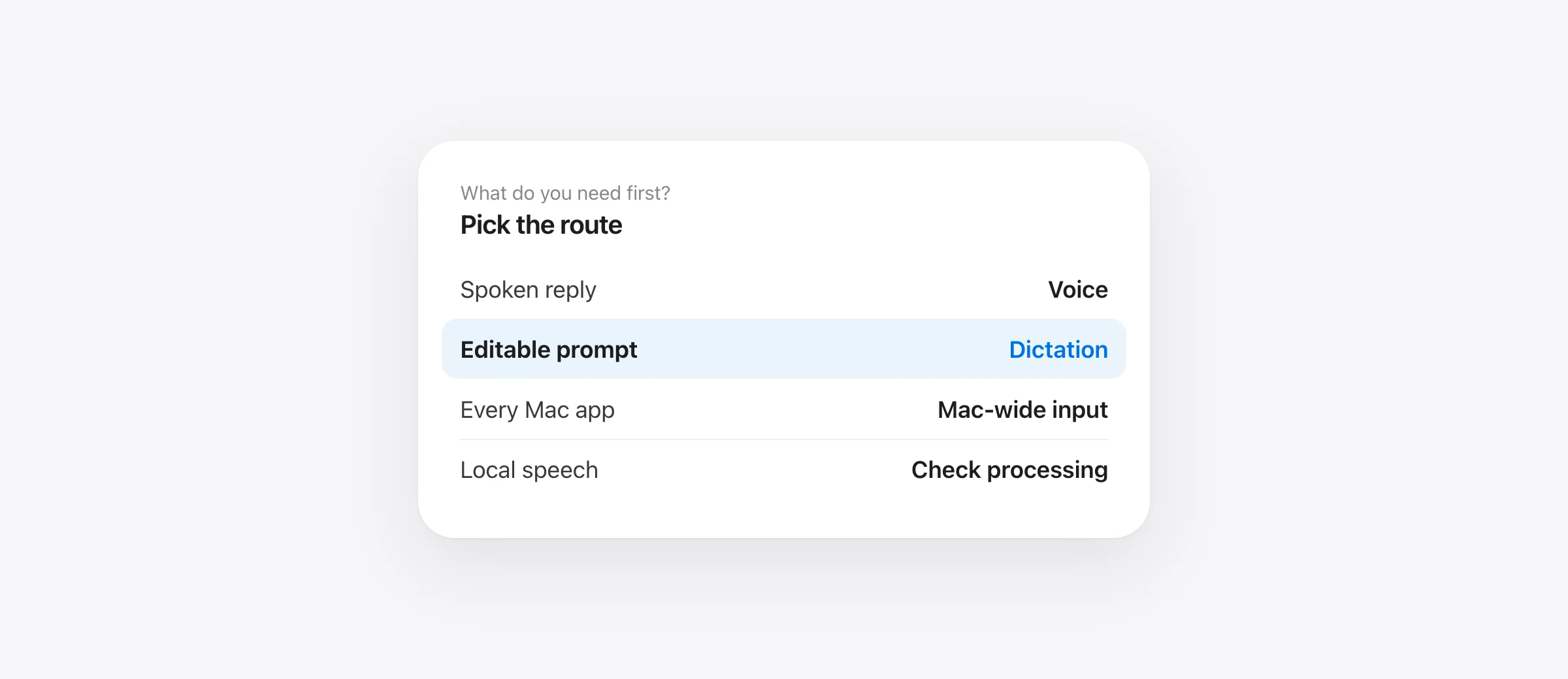
Match the route to the task
- Talk through an idea and hear replies: use ChatGPT Voice.
- Record one prompt, edit its transcript, then send: use ChatGPT Dictation.
- Insert spoken text into ChatGPT and other apps: use Mac-wide Dictation.
- Keep speech recognition local: verify macOS processing settings or use a local app such as Murmur.
ChatGPT Voice vs Dictation on Mac is mainly a question of the output you need. Official ChatGPT Voice documentation describes a live conversation, while ChatGPT's prompting guide describes Dictation as speech turned into editable composer text before you send it. Both involve speech, but they place the review step at different points. Voice availability depends on plan, rollout and workspace settings; check the current feature notice in your own app.
There is a third route: dictate into ChatGPT's text field using macOS or another Mac-wide app. We make Murmur, which does that with local speech processing. You do not need it to use ChatGPT Voice or ChatGPT Dictation. It matters when you want the same text-entry behavior in ChatGPT, email, notes and coding tools.
The four routes at a glance
| Route | What you get first | Review before sending? | Audio processing |
|---|---|---|---|
| ChatGPT Voice | A spoken conversation and reply | Not a draft-first workflow | ChatGPT service |
| ChatGPT microphone Dictation | Editable transcription in ChatGPT | Yes | OpenAI models |
| macOS Dictation | Text in the active field | Yes, before you submit | Check your Mac's Dictation settings |
| Murmur | Text in the active field across apps | Yes, before you submit | On the Mac |
OpenAI says ChatGPT Dictation's recorded audio is sent to its models for transcription. It also says the transcript can be edited before it is sent as a user message. ChatGPT Voice transcripts are not guaranteed to be verbatim, according to the Voice guide; use an editable prompt when exact wording is important. Apple's Dictation documentation says speech can enter text anywhere you can type, and tells you where to check whether a specific Mac setup processes general Dictation on device.
Use Voice for a conversation, not a draft
Choose ChatGPT Voice when your task improves through back-and-forth: brainstorming a structure, practicing a conversation or asking follow-up questions while your hands are occupied. You can interrupt, redirect and listen to responses. The live exchange is the product. OpenAI says the transcript added afterward may differ from the precise words spoken, especially with overlapping speech or background noise.
That makes Voice a weak place to create a prompt whose exact text is part of the work: a support escalation, a requirement with three exceptions, or an instruction involving a destructive action. In those cases, use a text draft. This is a workflow recommendation, not a claim that Voice cannot understand complex requests.
For example, compare “talk me through ways to simplify this explanation” with “rewrite the paragraph below but preserve every date, quantity and quoted phrase.” The first benefits from conversation. The second benefits from a transcript you can inspect, correct and paste beside source material.
Use ChatGPT Dictation for one editable message
When you use ChatGPT's microphone Dictation, speak one message, wait for the transcription and edit it before sending. OpenAI documents this as distinct from Voice. For a long prompt, split it into a purpose, source context, constraints and desired output. Read the transcript for names, negatives, dates and numbers before you press Send.
Try a small test before a real task: “Summarize this note. Keep the deadline at Thursday, not Tuesday.” If the transcription loses “not,” correct it. A smooth sounding sentence is not a reliable sign that a constraint survived. For recurring names or jargon, a Mac-wide app with a tested custom dictionary may be more useful; our custom vocabulary guide includes a simple acceptance test.
OpenAI's Dictation FAQ also describes audio-retention and data-control settings. Read those account-specific controls if audio handling is the reason you are choosing a route. Do not infer that a text-only prompt has the same handling as an audio recording.
Use Mac-wide dictation for the work around ChatGPT
A Mac-wide dictation app inserts text into the field that has focus. That can be ChatGPT's prompt, a browser form, Apple Notes, Slack or a document. You keep the same speech shortcut when you move between them. With Murmur, hold right Command, talk, release, and review the inserted text. It can remove fillers and apply an app-specific writing style; its dictionary and snippets help with repeated terms. The first 2,000 words are available without an account on a compatible Mac.
Mac-wide text insertion does not invoke ChatGPT Voice. It does not make ChatGPT speak back, and it does not send a message unless you submit it in ChatGPT. That separation is useful for a deliberate review step. Test where the cursor is before a long recording; a shortcut that works in Notes but fails in a browser may be a focus, permission or field issue. Our Mac Dictation troubleshooting guide walks through that split.
For an offline workflow, separate transcription from destination. Murmur's speech recognition and cleanup run on the Mac. macOS Dictation may or may not, depending on the settings Apple identifies. Once you press Send in ChatGPT, the prompt goes to ChatGPT. The local speech stage does not change the destination's processing. See our offline dictation comparison for how to test this boundary.
A practical test for choosing your route
Use the same real task in a scratch chat or draft and compare the finished result, not just the first transcript. A useful sample contains one unusual name, one correction, one negation and one requested format:
Draft a reply to Mira about the Quartz project. The review is Friday—sorry, make that Thursday. Do not promise a launch date. Give me three short bullet points and one open question.
- With Voice, see whether the conversation helps you think, and note if you need a precise written record afterward.
- With ChatGPT Dictation, edit the returned text before sending; check “Thursday” and “do not.”
- With Mac-wide dictation, test the ChatGPT field and one other app you use daily.
- For every route, count correction work and verify what is sent to the service.
Choose the route that delivers the finished task with the least correction. If you mainly talk through ideas, Voice is the natural starting point. If you need a single exact prompt, Dictation is better suited. If you work across apps or require local speech processing, test Mac-wide input. For a direct comparison with Apple's built-in input, read our Apple Dictation comparison and trial method.
Frequently asked questions
Is ChatGPT Voice the same as dictation?
No. ChatGPT Voice is a spoken back-and-forth conversation. ChatGPT Dictation records a message, returns editable transcribed text and lets you review it before sending.
Does ChatGPT Dictation process audio on my Mac?
OpenAI says audio recorded with ChatGPT's microphone Dictation is sent to its models for transcription. A separate local dictation app can process audio on the Mac, but the text goes to ChatGPT when you send it.
Can I use macOS Dictation in the ChatGPT prompt?
Mac Dictation enters text in an active editable field. Test the ChatGPT field you use, because shortcuts, focus and app versions can change the behavior.
Can I edit a ChatGPT Voice transcript before the spoken reply?
Voice is designed as a live conversation. If you need a written prompt to inspect before sending, use ChatGPT Dictation or Mac-wide text dictation instead.
Is Murmur required to speak to ChatGPT?
No. ChatGPT has its own Voice and Dictation, and macOS provides Dictation. Murmur is an option when you want local processing and the same shortcut across ChatGPT and other Mac apps.
Sources

Telman Gadimov builds Murmur, a dictation app for Mac that runs entirely on-device. We make Murmur. ChatGPT and Apple behavior is based on their official help pages checked October 13, 2026. Feature availability can vary by app version, plan and region; this is a workflow comparison, not a transcription benchmark.


