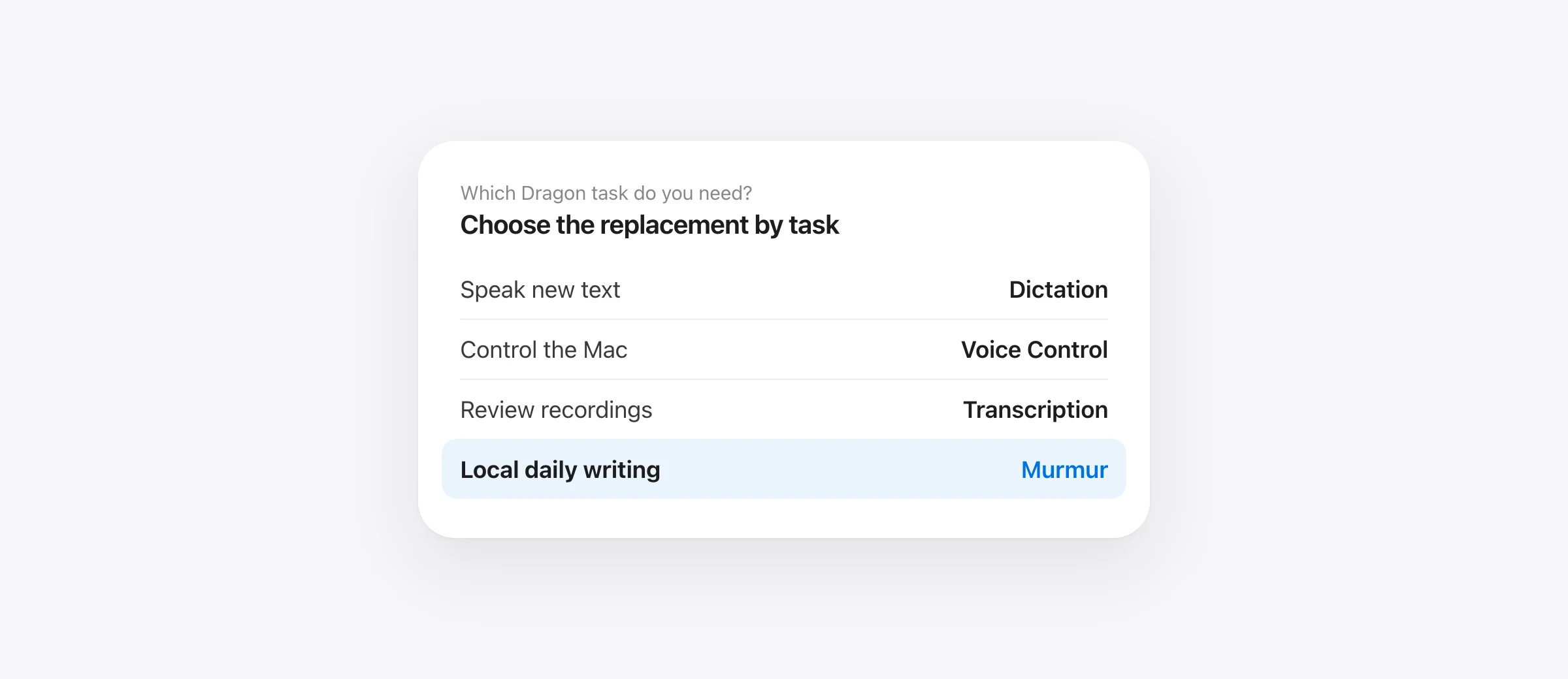
Choose by the part of Dragon you need to replace
- Occasional text entry: start with Apple Dictation.
- Hands-free navigation and precise voice editing: evaluate Apple Voice Control.
- Local everyday writing on a recent Mac: try Murmur.
- Configurable models or a free local plan: consider VoiceInk or Superwhisper.
Dragon for Mac was discontinued, and the right alternative depends on how you used it. If you dictated emails and documents, several current Mac apps are reasonable candidates. If you relied on spoken commands to navigate applications, correct individual words or operate a specialist system, evaluate those tasks separately.
You may remember the app as Dragon Dictate or be looking for Dragon NaturallySpeaking on Mac. This guide separates the legacy Mac product from current options and explains how to migrate without losing your working setup. We make Murmur; we have not conducted a controlled accuracy comparison of these alternatives.
What happened to Dragon for Mac?
Nuance’s discontinuation notice says Dragon Professional Individual for Mac stopped being available for purchase on October 22, 2018. Updates ended on that date. Existing version 6 customers retained their perpetual licenses, but that is different from continued development or compatibility with later macOS versions.
The Dragon Professional 16 installation guide lists Windows 10, Windows 11 and Windows Server editions. It does not list macOS. Buying the Windows product is therefore a different decision from installing a native Mac dictation app.
Do not infer support for a virtual machine from a successful Windows installation alone. Ask the vendor about your exact Mac processor, Windows environment, microphone and application integration. This article does not establish that Dragon is supported through Parallels or another virtualization tool.
First separate dictation, editing and computer control
A speech app can produce a clean paragraph while leaving an essential part of your old workflow uncovered. Divide a normal task into three actions: getting words onto the screen, correcting the words, and moving through the application.
For example, drafting a customer email may require speaking a paragraph and correcting one name with the keyboard. Completing a form without a keyboard requires more: moving between fields, choosing a menu item, recovering from an error and checking the result. A writing assistant that understands “make this shorter” has not thereby demonstrated those navigation abilities.
Use your most demanding necessary action to choose the shortlist. If you can use a keyboard comfortably, a text-focused app may be enough. If you depend on voice access, the correction and recovery steps are part of the requirement, not optional conveniences.
Five Dragon dictation alternatives for Mac
| Option | Evaluate for | Price or free route | Compatibility check |
|---|---|---|---|
| Apple Dictation | Basic spoken text entry | Included with macOS | Language, processing settings and destination field |
| Apple Voice Control | Navigation and voice editing | Included with macOS | Commands available in your apps and language |
| Murmur | Local writing and selected-text edits | $19 once for up to three Macs; 2,000 free words | Apple silicon, macOS 26+; Apple Intelligence for AI features |
| VoiceInk | Configurable dictation workflows | $25 / $39 / $49 once for 1 / 2 / 3 Macs | Docs say macOS 15+; homepage differs. Confirm current installer and models |
| Superwhisper | Free local dictation or broader Pro tools | Free; Pro $8.49/month, $84.99/year or $249.99 lifetime | macOS 14+; selected model and mode |
Published US-dollar prices checked October 17, 2026, before tax or promotions. Sources: Murmur, VoiceInk and Superwhisper. These options cover different jobs; this table is not a feature-parity or accuracy ranking.
1. Apple Dictation for basic text entry
Start here if the main thing you miss is speaking instead of typing. On macOS 26, open System Settings → Keyboard → Dictation, turn it on and check its shortcut. Apple’s Dictation guide explains language selection and where to see whether general text dictation is processed on-device or requires internet.
Try one ordinary paragraph in your real destination. Check that the cursor stays in the intended field and that you can correct a mistake comfortably. This is a useful free baseline before buying anything. Our Mac Dictation setup guide covers the practical steps.
2. Apple Voice Control for navigation and precise changes
Apple Voice Control is the built-in candidate when you need to operate the Mac by voice. It supports navigation, text editing, numbered overlays and a screen grid. Its Dictation, Spelling and Command modes distinguish ordinary words, individual characters and actions. Standard macOS Dictation becomes unavailable while Voice Control is on.
Evaluate it against your actual access needs. Complete a small task from opening the application through correcting and saving a document. Include an error: a useful system must let you recover, not just proceed when everything works.
For specialist names, Apple documents custom vocabulary in supported languages, including pronunciation recording and imports from a text file with one term per line. That does not establish compatibility with an entire Dragon profile.
3. Murmur for local everyday writing
Murmur fits a narrower requirement: dictate messages, email, notes and prompts into the active application. Hold right Command, speak and release. Speech recognition and writing cleanup run on your Mac. Per-app styles let you change how dictation is treated in different destinations.
Its dictionary, replacements and snippets can cover recurring work vocabulary and saved passages. These are different mechanisms. A dictionary entry gives Murmur a preferred term to use in correction; a snippet expands a spoken trigger into saved text. Neither should be described as importing Dragon’s acoustic training or command scripts.
Murmur currently applies dictionary correction after recognition, using sound and spelling similarity. It does not retrain the recognizer on your voice. Test a new name in several sentences before relying on it. The custom vocabulary guide explains how to separate recognition mistakes from spelling and replacement problems.
Selected-text voice editing lets you select a passage and hold right Option to request a change. That can help with shortening or rewriting. It is not the same capability as navigating the entire desktop or issuing a precise sequence of application commands.
Murmur requires Apple silicon and macOS 26 or later. AI cleanup and voice editing need Apple Intelligence enabled and ready. The first 2,000 words are free without an account. A regular $19 license covers up to three Macs and version 1 updates; future major versions may be paid upgrades.
Choose it if writing is the job you need to replace. If an Intel Mac, an older operating system or full voice navigation is essential, use a candidate that satisfies that requirement.
4. VoiceInk for configurable Mac workflows
VoiceInk offers one-time Mac licenses and configurable models. Its installation guide specifies macOS 15+, while the homepage says Apple silicon and macOS 14.4+. Confirm the current installer before buying. The guide recommends cloud transcription on Intel Macs because local models do not work reliably there; local Refine requires Apple silicon and at least 16 GB RAM.
Read its processing documentation before describing a configuration as local. Transcription, enhancement and Dictionary Auto Learn have separate settings. Local speech recognition does not prevent a selected cloud enhancement or review provider from receiving text.
For migration, configure one mode first. Recreate a small set of vocabulary and replacements, then compare the finished result in your destination application. More configuration is useful only when it produces a behavior you need. Do not treat its use of “commands” as evidence that your Dragon scripts will transfer.
5. Superwhisper for a free local starting point
Superwhisper’s Free plan includes unlimited local Whisper dictation, custom vocabulary, replacements and up to two modes without AI processing. Pro adds capabilities including AI modes and file transcription. Its Mac quickstart specifies macOS 14 or later.
This is a useful shortlist option if you want to try local transcription before choosing a paid workflow. Check the selected voice model as well as the app: models differ in languages, download size and processing location. A mode may pair transcription with an additional language model.
If your old workflow involved recorded audio, compare the paid file-transcription capability separately from live dictation. A successful live paragraph is not a test of a long recording, timestamps, speakers or the format you need to deliver.
Keep specialist requirements separate
If you used Dragon in a clinical, legal or organization-managed workflow, create a requirements list before installing a general writing app. Include the actual destination system, required terminology, fixed document structure, retention rules and administrative controls. An alternative recognizing a few technical words does not establish suitability for the complete workflow.
Use fictional details during evaluation. Have the responsible administrator confirm the permitted configuration before using real restricted information. Local processing is one characteristic, not a substitute for checking the destination app, access controls, backups and organizational requirements.
If a current supported Dragon environment already handles an essential integration, preserving that workflow can be the right decision while you move ordinary Mac writing elsewhere. You do not need one product to replace every task at once.
A 20-minute test with your own work
Allow about 20 minutes after installation and model downloads. Use the same microphone and room for each candidate. The following original samples are proposed tests, not benchmark results.
- Dictate a short message. Try: “Please send Lale the revised estimate of 740 dollars. We can review it on Friday, but do not approve the purchase yet.” Check the name, amount and negation.
- Test a longer passage. Speak about 150 words from your normal work, including one heading and a list. Check whether the structure and qualifications survive.
- Make a precise correction. Change Friday to Monday in the first sample. Use the method you will actually depend on, whether that is keyboard editing or a supported voice command.
- Test your essential dependency. Choose one difficult requirement: a repeated technical term, form navigation, a saved passage or an offline task. Record what the candidate actually does.
- Compare usable output. Count meaning-changing errors and time the corrections. Include effort spent reaching the right field and recovering from mistakes.
Do not reward a rewrite for sounding smoother if it changes “do not approve” into approval. Choose the smallest correction burden that still preserves your intended meaning and required controls.
For offline work, prepare assets while connected and repeat the whole task in a local document while disconnected. Working offline is a functionality result; it does not prove what an app sends when connected. Our offline Mac dictation guide explains how to check the full processing path.
Move from Dragon without losing your setup
- Preserve the existing environment. Back up your Mac and retain Dragon profiles, license details and your available installer. Do not delete the old profile to make room for a trial.
- Inventory what matters. List your recurring vocabulary, spoken forms, saved passages and essential commands. Export where your Dragon version supports it; keep the original exports unchanged.
- Recreate a small working set. Start with five terms and one saved passage. Read the destination’s import requirements; do not assume it accepts Dragon’s profile format.
- Check difficult cases. Repeat your work samples with the recreated entries. Add an ordinary sentence containing a similar word to catch replacements that are too broad.
- Complete a normal workday. Keep the old setup available while testing real destinations. Change the default only after corrections, navigation and saving work reliably for your needs.
A word list is not a trained voice profile. A stored paragraph is not an automation script. Keeping those distinctions explicit makes migration smaller and lets you see which parts need manual rebuilding.
If purchase cost is the remaining decision, compare the number of Macs, included features and upgrade terms. The no-subscription Mac dictation comparison covers those ownership differences.
Frequently asked questions
Is Dragon Dictate still available for Mac?
Nuance discontinued Dragon Professional Individual for Mac on October 22, 2018 and stopped updates. Its notice allows existing version 6 license holders to continue using that software; it does not promise compatibility with newer Macs or macOS releases.
Can I use Dragon NaturallySpeaking on a Mac?
Dragon Professional 16 documents Windows operating systems, not macOS. Running a Windows environment on a Mac is a separate compatibility question. Confirm support for your exact processor, Windows environment, microphone and destination application before buying; do not assume virtualization is supported.
What is the best free Dragon alternative for Mac?
Start with Apple Dictation for basic text entry, Apple Voice Control for navigation and voice editing, or Superwhisper Free for local Whisper dictation. Choose by the task you need to complete, rather than treating all three as equivalent replacements.
Can I move my Dragon vocabulary into another Mac app?
Preserve the original profile and export vocabulary where your Dragon version supports it. Check the destination’s import format. A plain list of words does not transfer acoustic training, spoken-form rules or command scripts. Recreate a few important entries first and test them in sentences.
Is Murmur a full Dragon replacement?
Murmur is an option for everyday text dictation and selected-text voice editing on Apple silicon Macs with macOS 26 or later. It is not a general computer-navigation system or a promise of Dragon command, profile or specialist integration compatibility. AI features need Apple Intelligence.
Sources
- Nuance: Dragon Professional for Mac discontinuation notice
- Nuance: Dragon Professional 16 installation guide and supported systems
- Apple: Dictation on macOS 26
- Apple: Voice Control commands on macOS 26
- Apple: Voice Control custom vocabulary
- VoiceInk: Mac prices
- VoiceInk: current installation requirements
- VoiceInk: separate processing and data settings
- Superwhisper: free and Pro plans
- Superwhisper: Mac installation requirements
- Superwhisper: local and cloud voice models
- Murmur: license and upgrade terms
- Murmur: processing and privacy

Telman Gadimov builds Murmur, a dictation app for Mac that runs entirely on-device. We make Murmur, one of the options here. Official documentation was checked October 17, 2026, and Murmur details were checked against our implementation and license terms. The work samples are proposed evaluation tasks, not measured benchmarks or claims of feature parity with Dragon.


