Dictate an email in Gmail on Mac
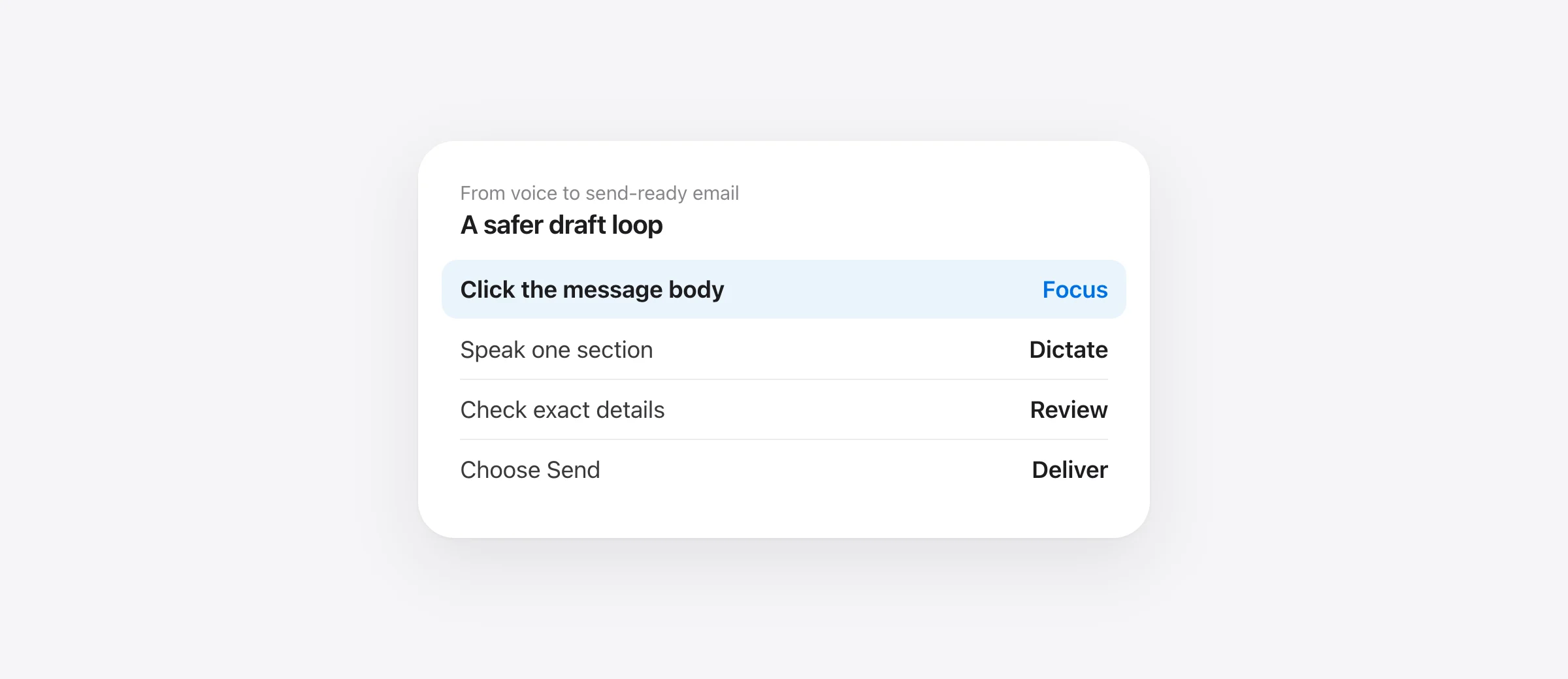
- Open Gmail, choose Compose or Reply, and click in the message body.
- Start macOS Dictation with your configured shortcut or Microphone key.
- Speak a short test sentence. Stop Dictation and check where the text appeared.
- Finish the draft, then verify recipients, subject, names, dates, links and attachments before Send.
Gmail voice typing on Mac is easiest to understand as Mac text entry inside Gmail’s compose window. Google documents a Voice typing tool for Google Docs and speaker notes in Slides. Gmail’s desktop compose steps are different: choose Compose, enter recipients and a subject, write the body, then send. If you are searching Gmail for the same Tools → Voice typing menu you saw in Docs, you are looking for the wrong product’s control.
That does not prevent you from speaking an email. macOS Dictation can enter text where a cursor is active, and a Mac-wide dictation app can do the same job with its own shortcut. The key is to test the correct field, then treat the transcript as a draft that deserves the same review as typed email.
Gmail, Google Docs and Gemini do different jobs
| Route | Where you speak or type | What reaches Gmail | Use it for |
|---|---|---|---|
| Mac Dictation | Gmail compose or reply field | Your dictated text at the cursor | Direct voice draft in Gmail |
| Mac-wide dictation app | Gmail compose or reply field | Text inserted by that app | One speech routine across apps |
| Google Docs Voice typing | A Google Doc | Text you later copy or preview as an email draft | Longer or collaborative drafting |
| Gmail Help me write | Gmail’s AI prompt and draft controls | Generated or refined email text | AI-assisted composition where eligible |
Google’s Voice typing help explicitly describes Docs and Slides, not a Gmail compose button. Google also documents an email draft building block in Docs: write an email in a document, then preview it in Gmail. That route is useful if you need a shared drafting space; it is extra work for a two-sentence reply. Gmail’s Help me write is a generation and revision feature with eligibility limits, not the same thing as a microphone transcribing your own words into the body.
Set up Mac Dictation for a Gmail draft
On your Mac, open System Settings → Keyboard → Dictation. Turn Dictation on and inspect the shortcut shown there. Apple says the shortcut can be customized; a Microphone key may also be available on your keyboard. Do not assume that every Mac uses the same Fn or Globe-key gesture.
- Open a safe draft. In Gmail, click Compose. Leave recipients empty for the first insertion test so there is no chance of sending it accidentally.
- Click the body. Make sure the insertion cursor is in the large message area, not the To field, subject, search bar, or another browser tab.
- Start Dictation. Use the shortcut configured on your Mac. Speak one sentence, stop Dictation, and verify its location.
- Draft in sections. Dictate the purpose, key details and next action as separate short passages. Review each one before adding more.
- Complete the email manually. Enter or verify the recipient, subject, exact address or link, and any attachment. Click Send only after the complete draft is right.
Apple’s Dictation guide says it enters text at the insertion point. It also documents spoken “new line” and “new paragraph” commands and, in supported languages, automatic punctuation. Treat those as Mac Dictation behavior; a separate dictation app may recognize commands differently.
Use a Mac-wide app if Gmail is one of many destinations
If you dictate across Gmail, Slack, Notes and documents, repeating a single Mac-wide shortcut may be more convenient than moving text between products. Murmur uses hold-to-talk with right Command and inserts the result into the focused field. Its speech recognition runs on a compatible Mac; it requires Apple silicon and macOS 26 or later. Try it in an unsent Gmail draft to verify that your browser and compose field receive the text correctly.
For an email, a polished paragraph can help, but it can also hide an error if you read only for style. Compare the final draft with what you meant to say. In particular, inspect negations, dates, amounts, customer names and promises. A clean-looking transcript that changes “we can review Friday” into “we will deliver Friday” is a substantive error, not a punctuation issue.
When a name is repeatedly misheard, use a narrow vocabulary entry or replacement and test it in a full sentence. Our Mac dictation custom vocabulary guide includes a test for unintended substitutions in ordinary words.
A review checklist for spoken email
Email has more destinations and commitments than a note to yourself. Use a fixed final pass after dictation. This example is original evaluation material, not measured output from any app.
| Check | Example spoken line | What must survive |
|---|---|---|
| Commitment | “I can review the draft Friday; I cannot approve it yet.” | The distinction between review and approval |
| Date and time | “Let’s meet Thursday at three Baku time.” | The day, time and time zone |
| Name | “Please copy Mina on the export update.” | The correct person and actual recipient field |
| Attachment | “I attached the revised estimate.” | The file is truly attached before Send |
| Link | “The approval page is in the release folder.” | A verified, clickable destination if one is needed |
Do not dictate a recipient’s email address character by character unless you intend to check every character. Select the intended contact from Gmail or paste an exact address. Read the To, Cc and Bcc fields separately. Google’s Gmail compose guide treats those as explicit fields; speech in the body does not populate them for you.
Gmail offers Undo Send for a short configurable cancellation period after sending. Set that as a backup, not as a replacement for reviewing the draft. It cannot catch an error you notice after the chosen window has passed.
When Google Docs is the better drafting surface
A long email that needs collaborative review may fit a Google Doc better than a small Gmail compose window. Google documents a Docs email-draft building block and a Preview in Gmail handoff. Within the Doc, Google’s Voice typing tool has its own browser-controlled speech processing. That route is useful when your team wants to comment on the draft before it is sent.
Do not confuse the two microphones. Docs’ Tools → Voice typing applies while you are in a Doc; the Gmail message body needs a system-wide text-entry route or text brought in from elsewhere. Our Google Docs voice typing on Mac guide covers supported browsers and the Docs-specific setup.
Also keep processing boundaries clear. Apple says you can inspect whether general Mac Dictation is processed on device or sent to Siri servers under Keyboard → Dictation. For Docs Voice typing, Google says the browser controls speech-to-text processing. A local dictation app can keep its own audio processing on the Mac, while the resulting email is still sent and stored through Gmail when you use Gmail.
Fix Gmail dictation by locating the failing stage
No microphone control in Gmail: do not look for the Docs Voice typing button in the Gmail toolbar. Use your Mac Dictation shortcut in a compose field. If you want Docs Voice typing, open a Doc and draft there.
Nothing happens in any app: check Keyboard → Dictation, the configured shortcut, the selected microphone and the system permission prompts. The Mac Dictation not working guide covers system-level diagnosis.
It works in Notes but not Gmail: click directly in Gmail’s message body, not the subject or search field. Try a fresh compose window, reload the Gmail tab after saving any draft, and test another browser. If the problem follows one browser, inspect extensions or browser-specific input settings before changing the Mac-wide speech setup.
Words appear in the wrong field: focus was wrong at the moment of insertion. Clear the unintended text, select the body again, and test with a short sentence. This is especially easy to miss when you alternate between the To field, subject and body.
The email looks fine but says the wrong thing: compare the draft with the original intent. For a repeated name, use vocabulary; for a changed promise or negation, reduce rewriting and review that sentence manually. No punctuation setting can repair a meaning change by itself.
Run a five-minute email test before a real send
- Create an unsent Gmail draft with no recipient. Dictate one sentence into the body and confirm focus.
- Dictate a harder paragraph with a name, date, correction and negation.
- Check the result against your intended words and count edits before it is send-ready.
- Try a reply and subject line separately; verify each field accepts the text you expect.
- Review delivery details in a real draft: recipient, Cc/Bcc, subject, link, attachment and claims.
Keep the route that gives you a reliable send-ready email with the fewest corrections. Direct Gmail dictation is shortest for ordinary replies. Docs Voice typing plus the email-draft block is better when the draft itself needs a document workflow. Either way, the final Send decision remains yours.
Frequently asked questions
Can I use voice typing in Gmail on a Mac?
Yes. Place the cursor in Gmail’s compose or reply body and use macOS Dictation or a Mac dictation app that inserts text in the active field. Review the draft before sending.
Where is the Google Docs Voice typing button in Gmail?
Google documents Tools → Voice typing for Docs and a speaker-notes route for Slides. Gmail’s desktop compose workflow is separate; use Mac-wide Dictation to speak directly into its message body.
Why is Mac Dictation not working in Gmail?
First test Dictation in another editable app. If it fails everywhere, check System Settings → Keyboard → Dictation and the microphone. If it works elsewhere, refocus the Gmail body, test another browser tab or browser, and inspect extensions or a shortcut conflict.
Can I dictate a Gmail subject line or reply?
Yes, when a text field accepts cursor insertion. Click the subject or reply body specifically, dictate one short phrase, and verify it arrived in the intended field before continuing.
Will dictating an email send it automatically?
Mac Dictation enters text at the cursor; it does not send the email. Review recipients, subject, details, attachments, and the finished body, then click Gmail’s Send button. Gmail also offers an Undo Send cancellation window after sending.
Sources

Telman Gadimov builds Murmur, a dictation app for Mac that runs entirely on-device. We make Murmur, one Mac-wide dictation option in this guide. Google and Apple behavior was checked against the linked official documentation on October 13, 2026. Browser and workspace settings can differ; the example email is an illustration, not a benchmark.


