Export a shareable HTML document
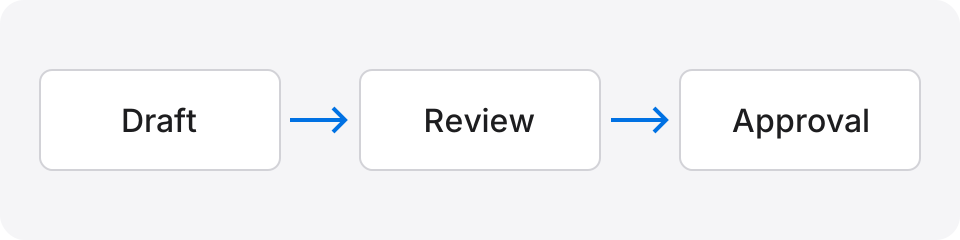
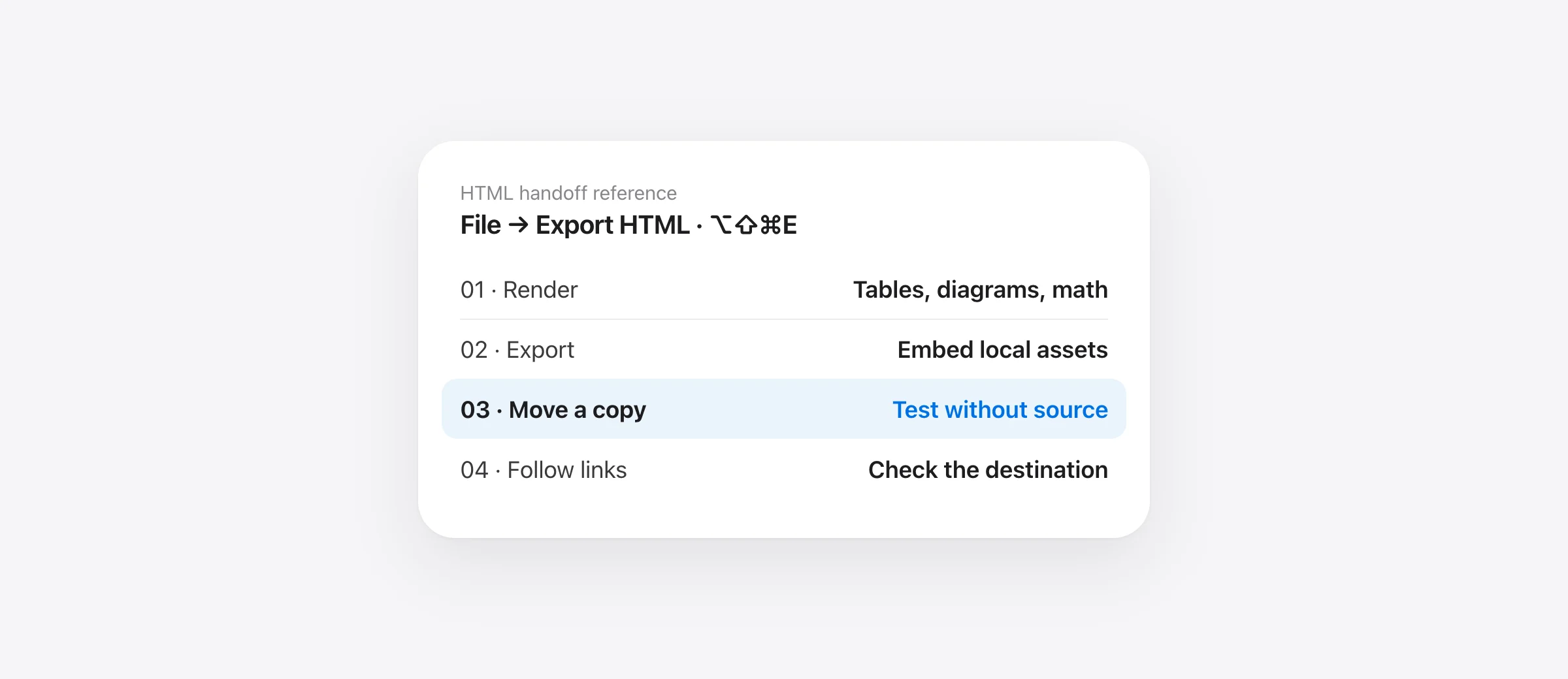
- Open the Markdown file in Wren and let diagrams finish rendering.
- Choose File → Export HTML, or Option + Shift + Command + E.
- Open the saved HTML in a browser and inspect images, links and formatting.
- Move a copy outside the project and test it offline before sharing.
To convert Markdown to HTML on Mac, render the source and export a complete HTML document. Changing the filename from .md to .html does not convert headings, tables or diagrams. Copying a preview's markup can also leave styles and images pointing back to files on your Mac.
HTML suits a review note that should resize to a browser window: an implementation plan, a release decision, a short specification. The practical question is whether the recipient receives the whole document. A beautiful page that depends on your private assets folder is an incomplete handoff.
Choose HTML, PDF or the source folder
| Recipient needs | Send | Check first |
|---|---|---|
| Readable text that adapts to a window | A checked HTML export | Assets, links and attachment acceptance |
| Stable page boundaries | Page breaks and smallest diagram labels | |
| Continued Markdown editing | The source plus required assets | Relative paths and renderer support |
| Navigation across many documents | A published documentation site | Link routes and deployment process |
An exported HTML file is a snapshot. Editing the Markdown afterward does not update the copy in someone's inbox. Put a revision date in the document and use a filename that identifies the handoff. If the agreement depends on fixed pages, use our Markdown-to-PDF guide instead.
Export HTML locally with Wren
Wren is a native reader for Apple silicon Macs running macOS 26 or later. It currently includes export for free without an account. Open an existing file, review it in reading mode, and choose File → Export HTML. The shortcut is Option + Shift + Command + E; the similar shortcut without Option exports PDF.
Save the output under a new name such as release-review-2026-10-18.html. Open that output in Safari or your recipient's browser. Check the document title, opening paragraph, table and final decision. Review the exported artifact even when the reading window already looks correct.
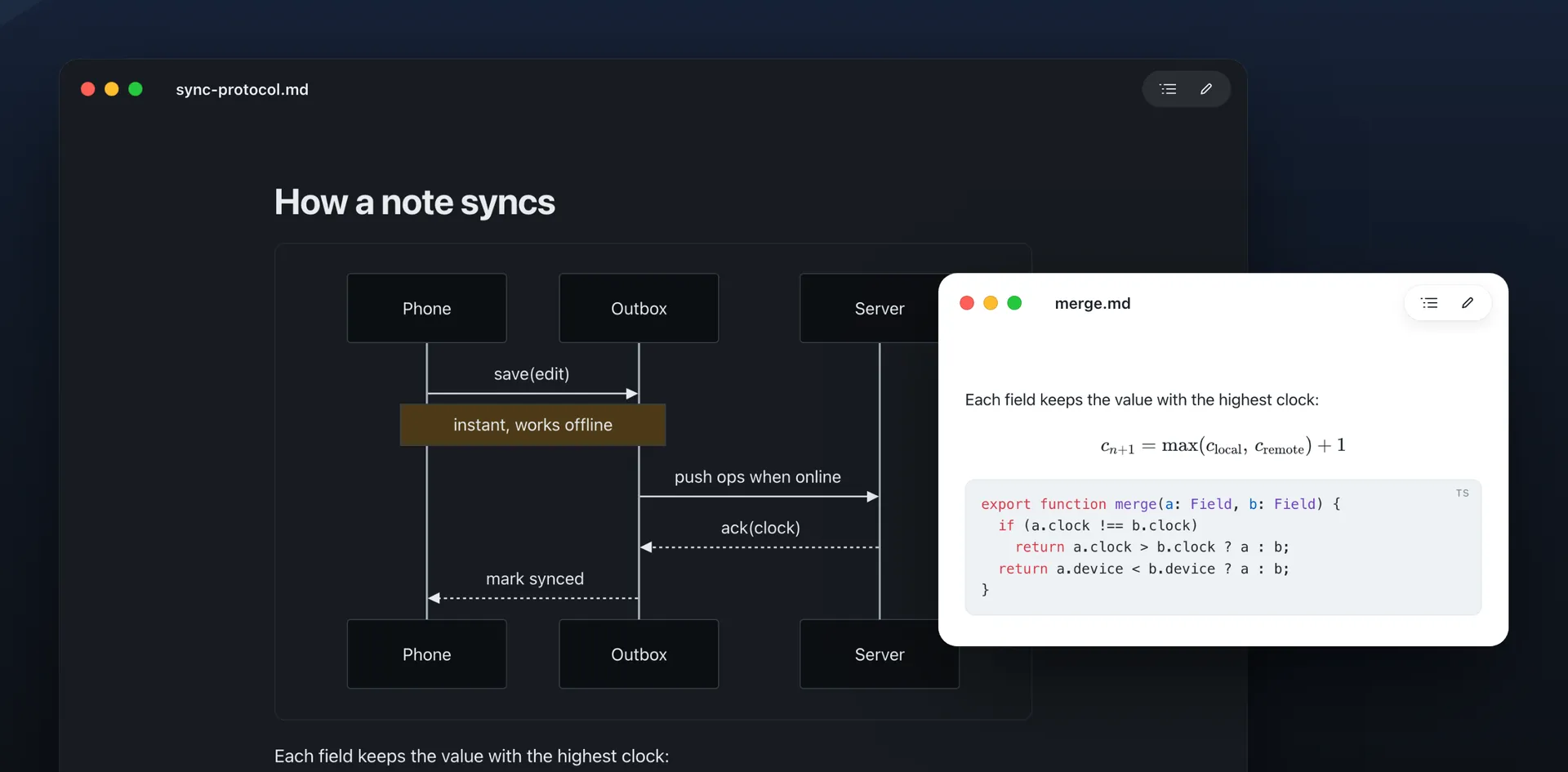
Wren's export assembles the rendered content with its styles, embeds math fonts when needed, and inlines supported local image data. Mermaid is prepared as rendered diagram content. This reduces the number of accompanying files for an ordinary local document. A reference to an external resource still needs inspection; the export label alone is not proof that every dependency is embedded.
Use a small document to expose broken handoffs
Download our original HTML export fixture and its local diagram asset. Put both in one folder before opening the Markdown. The fixture contains a table, a Mermaid graph, a formula, a local image and two kinds of link.
The local image is deliberately separate from the source. After export, move the HTML copy somewhere else without the Markdown or SVG. If the image still appears with the network disconnected, that specific asset survived the handoff. The Mermaid graph and formula should also remain readable. This test does not establish that every possible embedded resource will work.
One link points to a heading in the same document. Another points to appendix.md, which the fixture deliberately does not supply. The second link demonstrates an important boundary: a single-file export does not automatically become a complete multi-page documentation site. Decide whether to remove it, replace it with a shared URL, or provide the appendix separately.
Review what can still point outside the file
| Item | Possible dependency | Handoff check |
|---|---|---|
| Local image | A file beside the source | Move the HTML without that file |
| Remote image | An external image server | Disconnect and reopen the document |
| Custom styling | Imported CSS or remote fonts | Inspect your actual export with custom CSS enabled |
| Relative document link | Another Markdown or HTML page | Follow the link from the moved copy |
| Diagram | Renderer-specific behavior | Check labels and branches in the saved output |
A linked website still needs the internet even if the document around the link is self-contained. Similarly, embedding an image makes it part of the file you send. Check the image for private information before exporting; removing the original afterward does not remove it from an exported attachment.
Use Pandoc when conversion belongs in a build
For repeated generation, Pandoc provides a command-line route. Its getting-started guide distinguishes a standalone HTML document from a fragment. Once Pandoc is installed, run this from the folder containing your source:
pandoc review.md -f markdown -t html5 --standalone -o review.htmlFor embedded resources, add the option documented in the Pandoc manual:
pandoc review.md -f markdown -t html5 --standalone --embed-resources -o review.htmlThese commands write review.html, so choose a fresh output path when keeping an older handoff matters. Standalone output supplies the document structure; embedding resources addresses supported linked assets. Dynamically loaded JavaScript resources have documented limitations. A Mermaid code fence also needs a rendering step in the chosen pipeline; do not assume ordinary Markdown conversion turns it into a diagram.
Use Wren for a local reading-and-export workflow. Use a configured build when you need templates, repeatable batches or publishing automation. If the source diagram does not render correctly yet, solve that first with the Mermaid rendering checks.
Send the version you actually reviewed
Before attaching the file, confirm that its revision date matches the decision you intend to communicate. In the fixture, approval covers the interface review and excludes migration. Both clauses must remain readable. Formatting quality cannot compensate for a missing qualification.
Open the moved copy at a narrow browser width and increase text size once. Check that the main text remains readable and that wide tables can be inspected. Finally, follow the links you expect the recipient to use. If their mail system refuses HTML attachments, use an agreed sharing location or a checked PDF; repeatedly changing the attachment's extension only makes the handoff harder to understand.
Frequently asked questions
How do I convert Markdown to HTML on Mac?
Open the .md file in Wren, check the rendered content, and choose File → Export HTML, or Option + Shift + Command + E. Save an .html file and open that saved copy in a browser. Pandoc is another route when you need a scripted build.
Does self-contained HTML work offline?
It can when everything needed for presentation is embedded. Wren inlines its export styles, math fonts and supported local images, and exports rendered diagrams. Remote images, custom external assets and linked documents still need review. Move a copy and test it without a connection.
Can I send HTML instead of a PDF?
Yes, when the recipient accepts HTML attachments and wants a document that adapts to the browser window. PDF is usually better when fixed pages matter. Attachment policies vary, so agree on the format before sending sensitive or important work.
Will a Markdown link to another .md file be included?
Do not assume so. Embedding a picture is different from publishing a linked document. Check links such as ./appendix.md in the exported file. For a collection of connected pages, use a documentation publishing workflow or provide the source folder.
Is Wren's HTML export free?
Wren is currently free, with no account or paid tier, and includes HTML and PDF export. It requires Apple silicon and macOS 26 or later. Its product page has current requirements and the download.
Sources

Telman Gadimov builds Wren, a free Markdown reader, and Murmur, an on-device dictation app for Mac. We make Wren. Export controls and asset handling were checked against its source on October 18, 2026. The sample was checked with Wren's bundled renderer and HTML exporter in an isolated test, not a native Save-panel session. Pandoc instructions follow its official documentation; no cross-app performance benchmark is claimed.