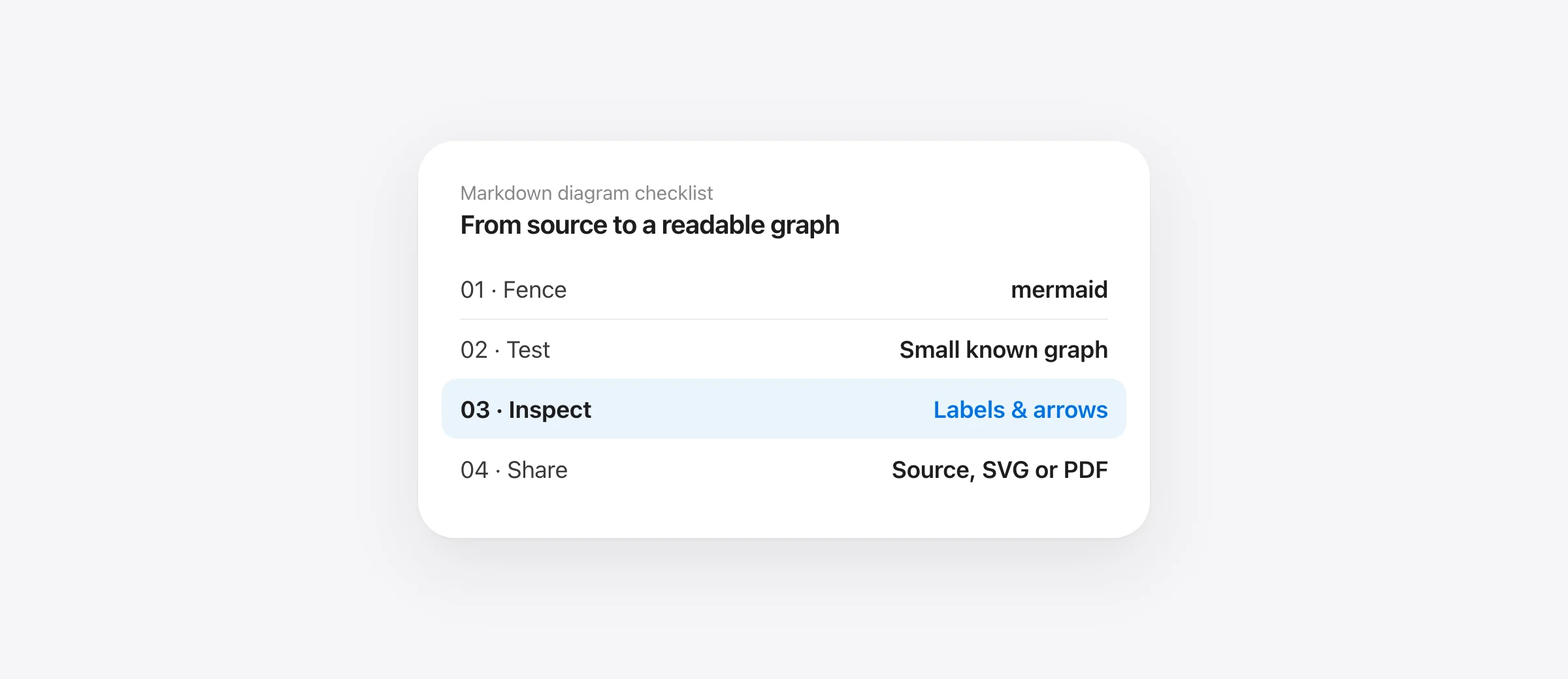
Get a diagram on screen
- Open a local
.mdfile in a Mermaid-capable reader. - Use a fenced block labeled
mermaid. - Try the small example below before debugging a large diagram.
- Review the diagram's labels and branches after it renders.
A Markdown Mermaid viewer for Mac needs to do two jobs: parse the document and render the diagram source inside it. Markdown support alone does not guarantee that the second job exists. If you can read the headings but still see flowchart TD and arrows as text, start with the viewer and code fence before changing the graph.
For local reading, Wren includes a bundled Mermaid renderer. If you already work in VS Code, its current built-in Markdown preview is another route. Choose the environment you actually use to review the document, then test its output with a small file.
Use a small Mermaid example first
Download the original Mermaid review sample, or save this as part of a Markdown file. Include the opening and closing fences:
```mermaid
flowchart TD
  draft[Draft change] --> review{Review passed?}
  review -->|Yes| release[Release]
  review -->|No| revise[Revise draft]
  revise --> review
```
The expected result is a top-to-bottom flowchart. Draft change leads to a decision. Yes leads to Release. No leads to Revise draft, which loops back to the decision. That gives you a known structure to compare with the rendered output.
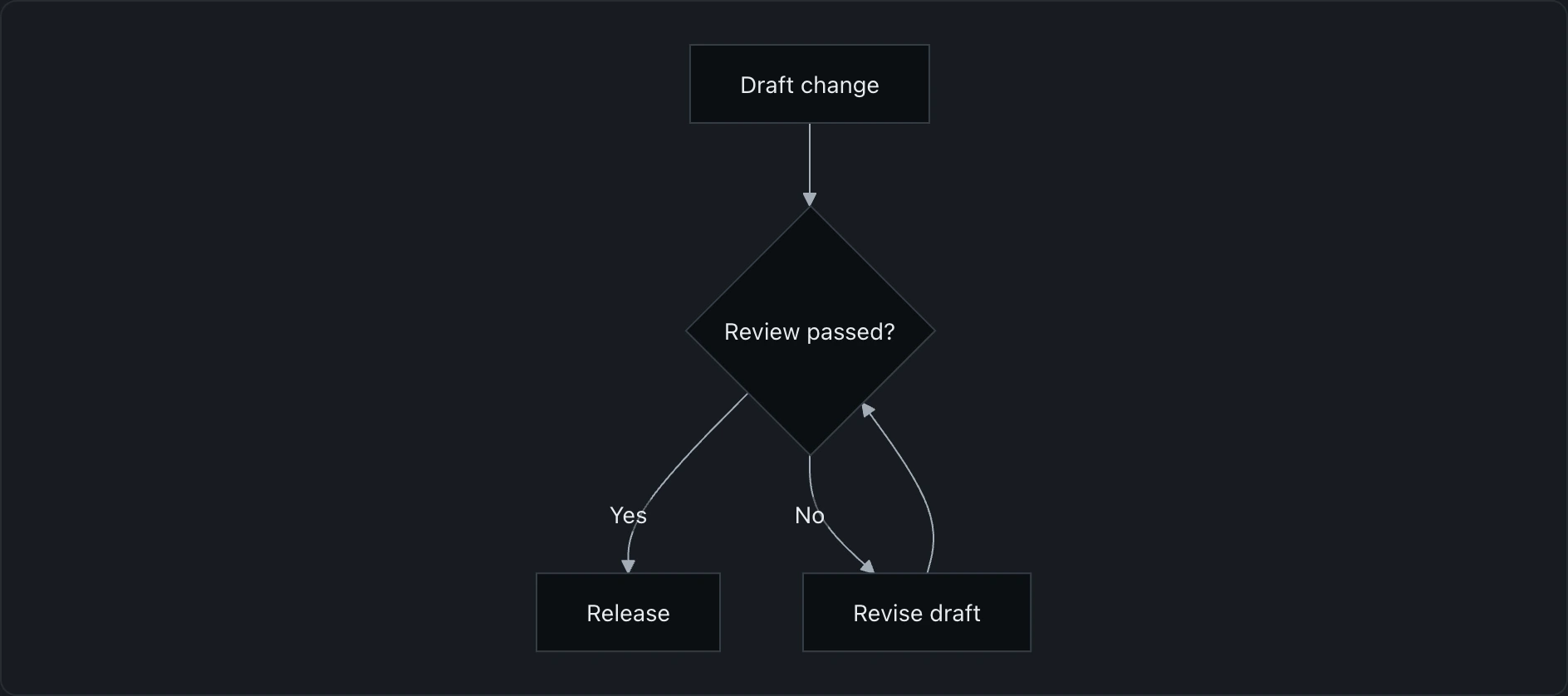
GitHub's diagram documentation uses the mermaid fence identifier and explains how to inspect its supported Mermaid version. A block labeled only text or an unlabeled fence is not the same request to a renderer.
Open and inspect the diagram in Wren
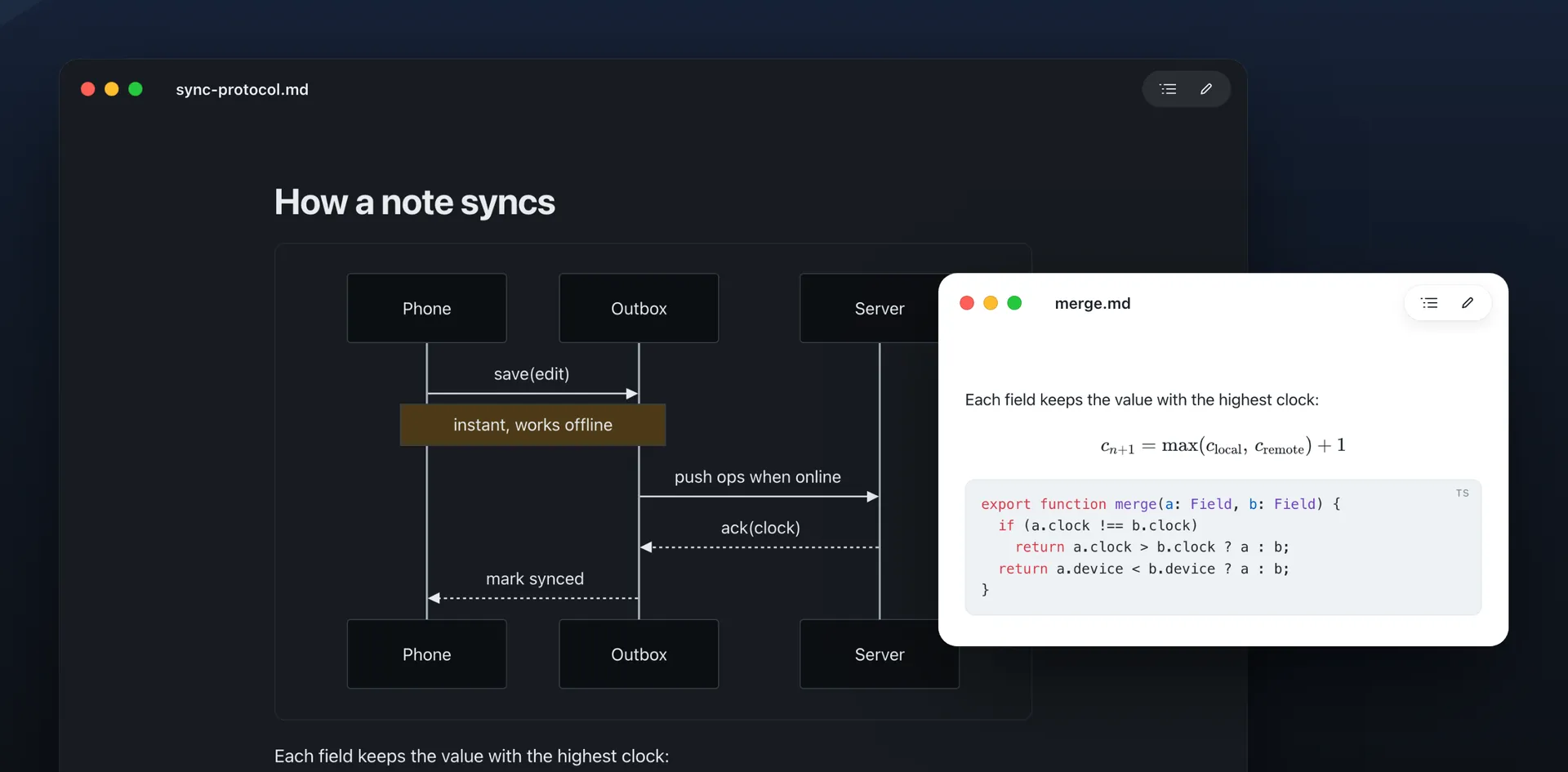
Open the sample in Wren with Command + O. The diagram should appear inside the document, followed by a second example using a sequence diagram. Wren requires Apple silicon and macOS 26 or later and is currently free, with no account or paid tier.
Click a rendered diagram, or use its Expand control, to open the diagram viewer. Use zoom and pan to inspect labels that are too small in the document column. The viewer offers fit-to-window and Escape to close, plus image-copy and SVG-save actions.
When you or an agent edit the Markdown, save it before expecting the reader to update. Wren follows changes on disk. Unsaved text in another editor is not a saved revision. If you also have unsaved Wren edits, resolve the reload prompt rather than treating either copy as automatically authoritative.
For the broader review workflow, see live Markdown preview on Mac. If the file itself will not open in the intended app, start with opening Markdown files on Mac.
Use VS Code when the diagram belongs beside source code
The current VS Code Markdown guide documents Mermaid in the built-in preview, including navigation controls for large diagrams. Open the Markdown preview rather than looking only at the code editor. Verify your installed version if an older setup behaves differently.
That is often enough when the diagram is one part of an engineering document you are already editing. A separate reader is useful when you want to keep the plan visible while using another editor or agent. Neither route guarantees that every Mermaid feature another renderer supports will be available.
A plugin recommendation should solve a specific gap. Before installing one, check whether the built-in preview already handles your example. Additional rendering layers can make it harder to identify which component produced the error.
Separate three different rendering failures
| Symptom | What it suggests | First test |
|---|---|---|
| The entire document is raw text | You are not in a rendered view | Open the reader or Markdown preview |
| Headings work; diagram remains code | Fence or Mermaid support | Use the known mermaid-fenced sample |
| A diagram error appears | The renderer ran but rejected the graph | Reduce the graph and inspect syntax |
| One app works; another fails | Version or configuration difference | Compare the exact feature and target version |
| The graph renders but is unreadable | Layout or document complexity | Expand it, simplify labels or split the diagram |
Change one thing per test. If you alter the fence, syntax and application together, a successful result will not tell you which change mattered. Preserve the failing source in a small separate file so the next test is reproducible.
Reduce a failing diagram without losing the question
Start with two nodes and one arrow. Add one decision, then its labels, then the remaining branch. If the first failure appears after a particular label or directive, you have a useful diagnostic example. A screenshot of a large error message is less useful than a short source block another person can render.
Use simple stable node identifiers such as draft and review, with readable text inside brackets. Keep punctuation-heavy prose in quoted labels where the relevant diagram syntax supports it. Check the official flowchart reference for the form you are using instead of adding random escapes until the parser accepts something.
The sample deliberately uses common flowchart features. If it works but your document does not, the app can render at least that subset. Investigate the feature added by your graph: a newer diagram type, an unsupported directive, a label, or an unexpected fence nesting.
Rendering success is not diagram correctness
A parser verifies a language, not the system being described. An AI-generated chart can be valid and still reverse a condition, omit a retry, or suggest an approval that no person has given. Read the arrows as statements about the process.
- Check the starting point. What event creates the first item?
- Read each branch aloud. Does Yes lead to the right state? Does No have an outcome?
- Trace the loop. Can work return for another review, or does it get stuck?
- Check ownership. Is a person, tool or service responsible for each action?
- Compare the prose. Does the written requirement describe the same process?
For the sample, a No result must return for revision. If someone changes that edge to Release, the diagram can still render perfectly. The error is in the workflow, not the drawing software.
Share the source, a diagram image or the complete document
Keep Mermaid source when the recipient needs to revise the graph. Use SVG when you need a separate diagram artifact and the destination accepts it; inspect the result in the destination app. Use an image when the recipient needs a simple visual and editing the graph is not part of the handoff.
For a complete document, export the document rather than copying only the diagram. Check how the diagram fits beside its explanation, and inspect the actual saved output. A graph that looks good in a wide viewer can become too small on a PDF page.
Our Markdown-to-PDF guide for Mac includes a test document with a diagram, table, code and math. Use it before exporting a longer specification. For a quick Finder preview, the separate Quick Look guide covers extension setup.
Frequently asked questions
Which Mac Markdown viewer supports Mermaid?
Wren bundles Mermaid rendering for local Markdown and includes a diagram viewer with zoom, pan and SVG export. It is free for Apple silicon Macs on macOS 26+. Current VS Code also renders Mermaid in its built-in Markdown preview.
Why does my Mermaid diagram show as code?
Check that the fenced block uses the mermaid language identifier and that you are in a rendered Markdown view. A plain-text editor or renderer without Mermaid support will show the source instead of a diagram.
Does Wren render Mermaid offline?
Its Mermaid library is bundled, so ordinary diagram rendering does not need an online conversion service. Remote images, fonts or other linked resources may still depend on the network. Test the diagram and its assets separately.
Why does a diagram work in one app but fail in another?
Renderers can bundle different Mermaid versions or use different settings. Reduce the graph to a small example, note the syntax that triggers the failure, and compare the target renderer's version and support.
Can I export a Mermaid diagram from Wren?
Wren's diagram controls include Save SVG and Copy image. Keep the Mermaid source if you need to edit the diagram later. For a complete document handoff, also test the saved PDF or HTML rather than checking only the reading window.
Sources

Telman Gadimov builds Wren, a free Markdown reader, and Murmur, an on-device dictation app for Mac. We make Wren. Mermaid, GitHub and VS Code documentation was checked October 18, 2026. Wren behavior was checked against its app source and the bundled renderer. The downloadable diagram examples are original and do not describe a real production system.


