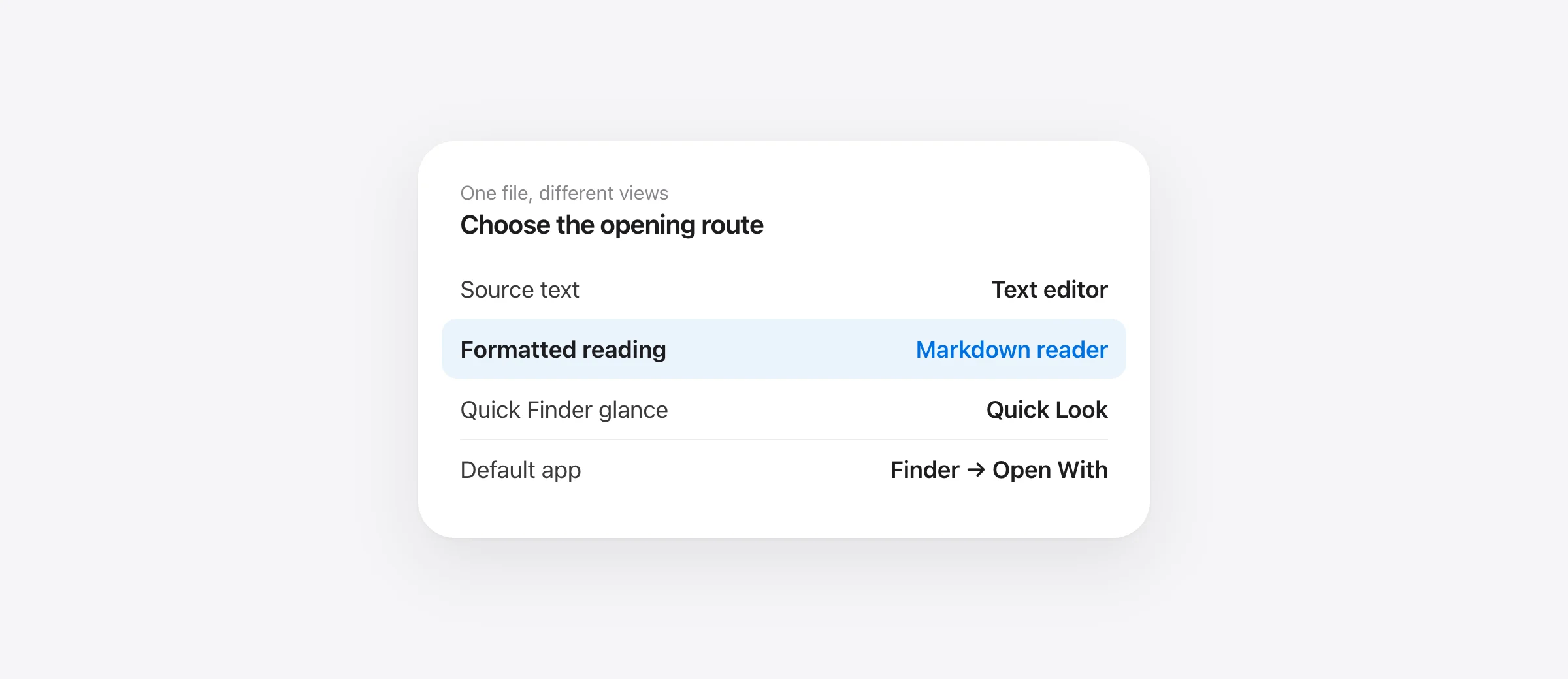
Open a .md file as a document
- Install a Markdown reader that supports your Mac, or use an editor with Markdown preview.
- In Finder, Control-click the file and choose Open With.
- Open it in the reader and check the headings, table and links.
- Set the default app only after that test works.
To open Markdown files on Mac, choose whether you want to read the source or the formatted document. Both views use the same .md file. A text editor exposes the punctuation that describes the structure; a renderer turns that structure into headings, lists, tables and other supported elements.
If double-clicking a README opens Xcode or shows a screen full of # and **, the file is not necessarily broken. The Mac has chosen an app or view that exposes the source. Fix the opening route before converting or rewriting the document.
Choose a reading route before changing the file
| You want to | Use | Check |
|---|---|---|
| Inspect exact source | A plain-text editor | Keep the document as plain text |
| Read a formatted document | A Markdown reader such as Wren | Tables, links and any diagrams |
| Work beside code | VS Code's Markdown preview | Open the preview rather than only the editor |
| Glance in Finder | Quick Look with a Markdown extension | Which extension handles the preview |
A dedicated reader is useful when you are reviewing rather than programming: a project brief, an agent's plan, a research note or a README someone sent you. An editor preview is sensible when you already need the source beside the rest of a repository. There is no need to install a second app if the view you already use does the job.
For choosing among products, use our Mac Markdown viewer comparison. This guide concentrates on getting one file open correctly, then making that behavior predictable.
Open the file in Wren
Wren is a free native Mac reader for Apple silicon and macOS 26 or later. Download the app, move it to Applications and open the file through Wren's Open command, a drag onto the app, or Finder's Open With menu.
- Test a known document. Download our Markdown reading sample.
- Open the file. In Wren, press Command + O and select the downloaded
wren-reading-sample.md. - Inspect structure. Look for a heading, a checklist, a three-column table and a note callout.
- Try your own document. Compare a section you understand with its source if any formatting seems surprising.
The sample's Item, Owner and State columns should remain distinct. Check the labels and rows, rather than relying only on whether the page looks attractive. A renderer can show a polished page while a wide table still needs a closer look.
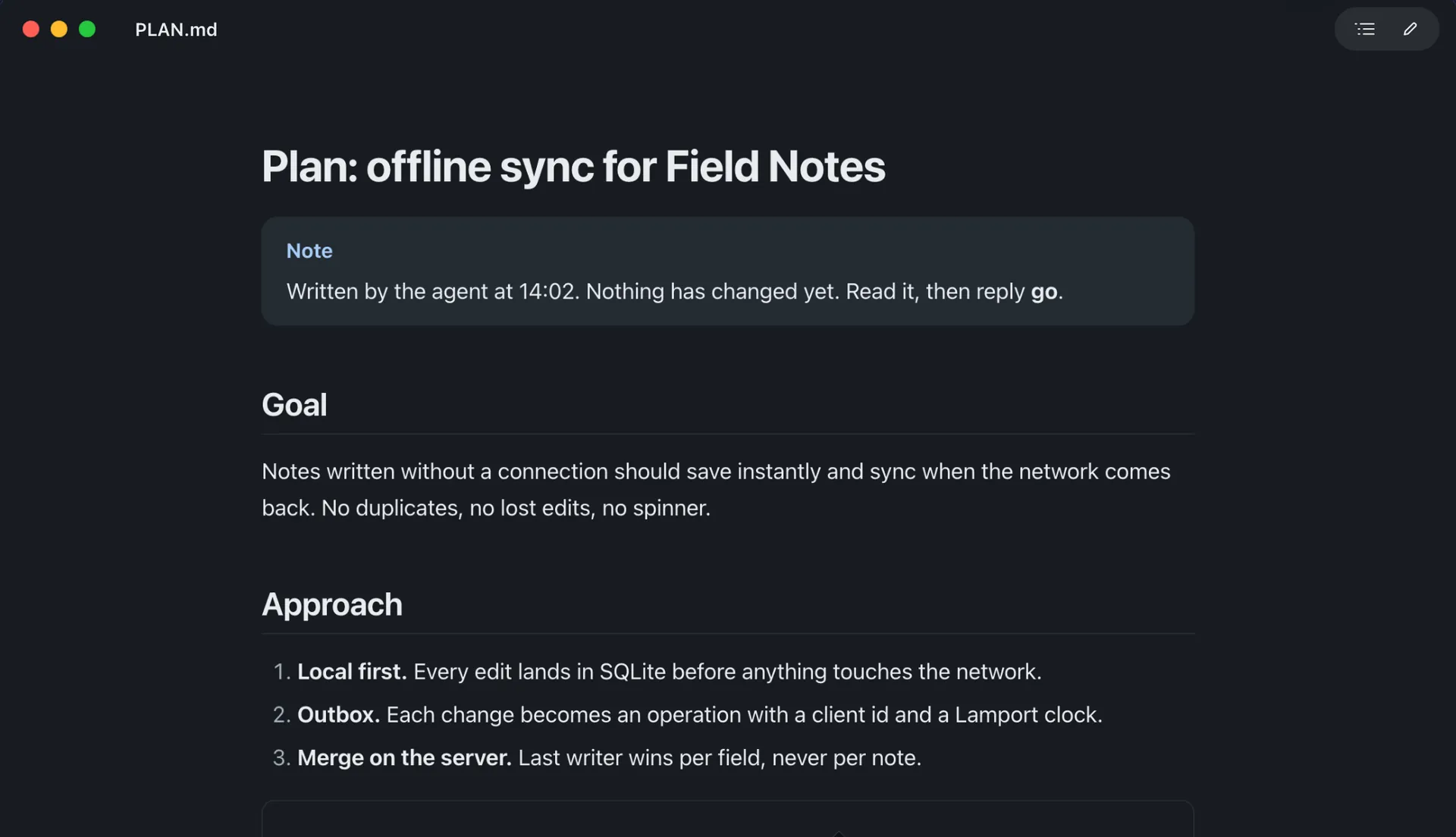
Wren opens in reading mode. Command + E switches to its split editor and preview. A checkbox is interactive: ticking it writes a task-list change to the file. Leave the sample unchecked if you are only testing how a document renders.
Make Markdown open in the right app by default
First use Open With on one file. Once the result is right, set the default for Markdown files. Apple's instructions use Finder's Get Info window: expand Open with, choose the app, and click Change All. Confirm the change when macOS asks.
Wren also provides Wren → Make Wren the Default for .md Files. After changing the association, close the test document and double-click it from Finder. That confirms the behavior you will use the next time someone sends a file.
The default app and Quick Look extension solve different jobs. Open With chooses the app used to open a document. Pressing Space in Finder invokes Quick Look. If one works and the other still shows source, use the separate Markdown Quick Look setup guide rather than changing the file repeatedly.
Use VS Code if the file belongs beside your code
Open the Markdown file in VS Code and use its Markdown preview command. Its official documentation covers preview-to-the-side and locking a preview to a particular document. The current built-in preview also renders Mermaid; older advice that a diagram always requires an extension can be out of date.
Make sure you know which tab the preview belongs to. If you switch between several source files, an unlocked preview can follow the active editor. That is convenient during writing but confusing if you thought you were comparing two fixed documents.
A reader window and an editor are also a useful pair. Keep the code in the editor and the plan in Wren. If an agent saves a revised Markdown file, Wren can reload it and mark changed blocks. The live-preview guide explains the unsaved-edit prompt and why changed-block highlighting does not replace a full deletion check.
Fix raw formatting and wrong-app problems
| Symptom | Likely distinction | Next action |
|---|---|---|
| Hashtags and stars everywhere | Source view versus rendered view | Open a reader or the editor's preview |
| A diagram stays as code | Basic Markdown versus Mermaid support | Check the fence label and the renderer |
| An image is missing | Document text versus linked asset | Check its relative path and the file beside it |
| Double-click opens another app | File association | Test Open With, then update the default |
| The file is named .md.txt | Filename extension | Inspect the full name and confirm it is plain text |
A Markdown document can refer to another file without containing it. A link such as assets/diagram.png needs that image at the expected relative location. If someone sent you only the .md file, ask for the companion assets or a self-contained export. Renaming the document will not recreate a missing image.
Likewise, a local file may contain a remote image URL. The renderer can work offline while that image remains unavailable without a connection. Test local examples first so a network problem is not mistaken for a broken Markdown app.
Open Markdown from Terminal without guessing the path
To open an existing file in the installed app, use a quoted path:
open -a Wren "$HOME/Downloads/wren-reading-sample.md"Wren's own command can be installed from Wren → Install Command Line Tool…. Once its install directory is on your PATH, use wren "path/to/file.md" for a file or wren "path/to/folder" for a folder of Markdown documents.
Check the path before opening it. The Wren command can create a missing file, so a typo can look like an unexpectedly empty document. For an existing file, a quick ls -l "path/to/file.md" confirms the name before you launch the reader. Quote paths that contain spaces.
Keep the Markdown source; export only for the recipient's needs
You do not need to convert a file just to read it. Keep the source and its nearby assets together if the document will continue changing. Export a snapshot when the recipient needs a fixed handoff rather than a working file.
Use our Mermaid viewer guide if diagrams are the remaining problem. For a document you want to send as pages, the Markdown-to-PDF guide gives an export fixture and a final review checklist.
Once the project has several documents, use the Markdown folder-search guide to distinguish filename lookup from finding a sentence across files.
Frequently asked questions
What app opens .md files on Mac?
A plain-text editor can open the source, while a Markdown renderer displays formatting. Wren is a free native reader for Apple silicon Macs on macOS 26+. VS Code has a built-in Markdown preview if you already work in an editor.
Why does my Markdown file show hashtags and asterisks?
You are probably viewing Markdown source rather than rendered output. Open the same file in a reader or preview. If only one feature stays raw, such as a Mermaid block, check that the renderer supports that feature.
How do I make .md files open in Wren?
Use Wren → Make Wren the Default for .md Files, or select a Markdown file in Finder, open Get Info, choose Wren under Open with and use Change All. Test one file with Open With before changing the default.
Can I open Markdown without uploading it?
Yes. A local reader or editor can render files on your Mac. Wren bundles its Markdown, diagram and math renderer. Remote images and other linked content may still need a network connection; local rendering does not make every linked resource local.
Does opening a Markdown file change it?
Reading the file normally does not rewrite it. Editing, saving or toggling a task checkbox can change the source. In Wren, review your changes before saving, especially when another editor or an agent also has the file open.
Sources

Telman Gadimov builds Wren, a free Markdown reader, and Murmur, an on-device dictation app for Mac. We make Wren. Apple and VS Code instructions were checked October 18, 2026; Wren details were checked against its app source. The downloadable example is original. The product image shows Wren with example documents, not a measured comparison.


