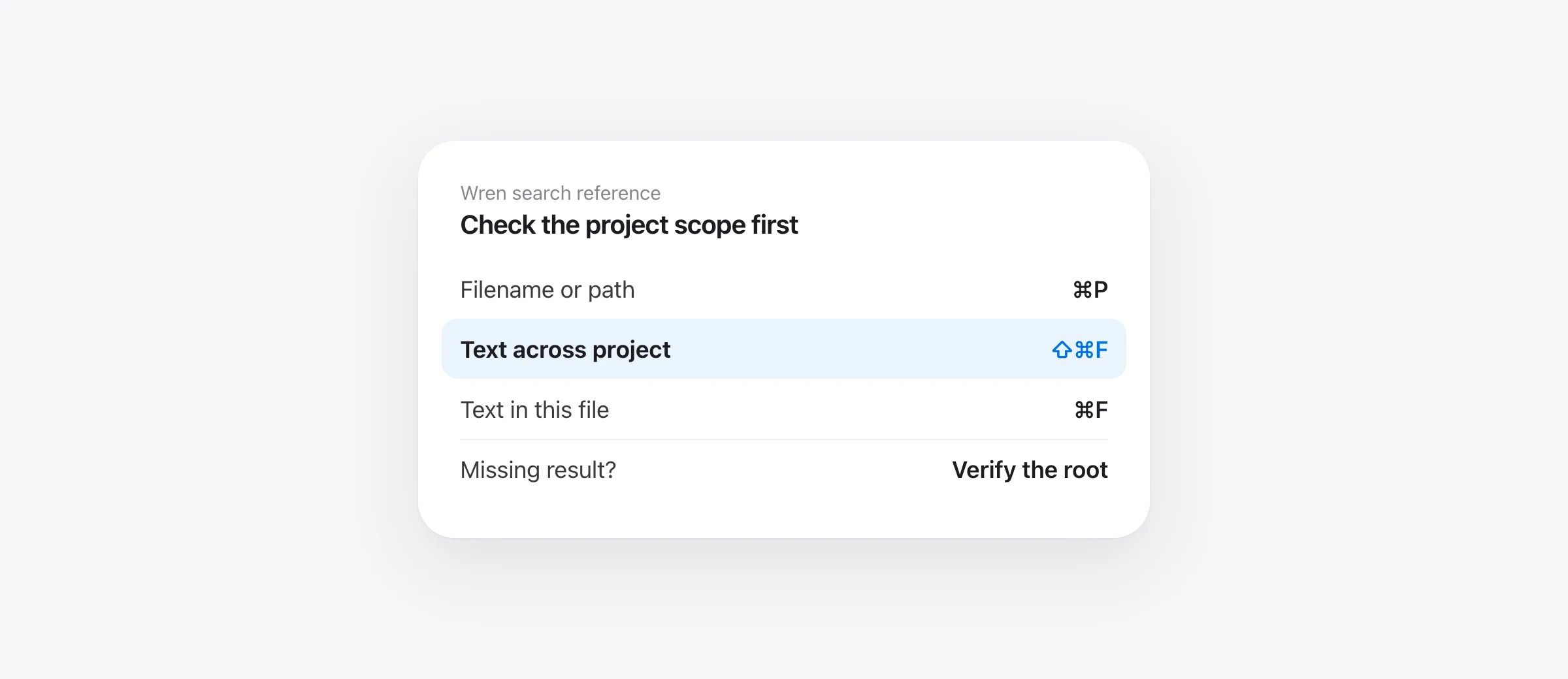
Choose the search that matches what you remember
- Document name or path: use Wren's Command + P.
- Words somewhere in the project: use Shift + Command + F.
- Words in the open document: use Command + F.
- No expected result: check the search scope before changing the query.
A folder of AI-generated plans quickly becomes hard to navigate. You remember a sentence about a launch gate, but not whether it appeared in README.md, the release note or a hidden agent plan. Opening files one by one works until there are enough plausible candidates to make that slow.
To search Markdown files on Mac reliably, separate finding a filename from finding text inside a document. Then check which folder the tool is searching. A zero-result search in the wrong project tells you nothing about whether the sentence exists elsewhere.
Use three searches for three different jobs
| You remember | Use in Wren | What it searches |
|---|---|---|
| A filename such as release.md | Command + P | Project filenames and relative paths |
| A phrase such as launch gate | Shift + Command + F | Text in the scanned project documents |
| A word in the document on screen | Command + F | The current document |
Wren is currently free and requires Apple silicon with macOS 26 or later. Its search is useful when your next action is reading the matching Markdown in a formatted view. If you have not opened a Markdown file before, start with the Mac file-opening guide.
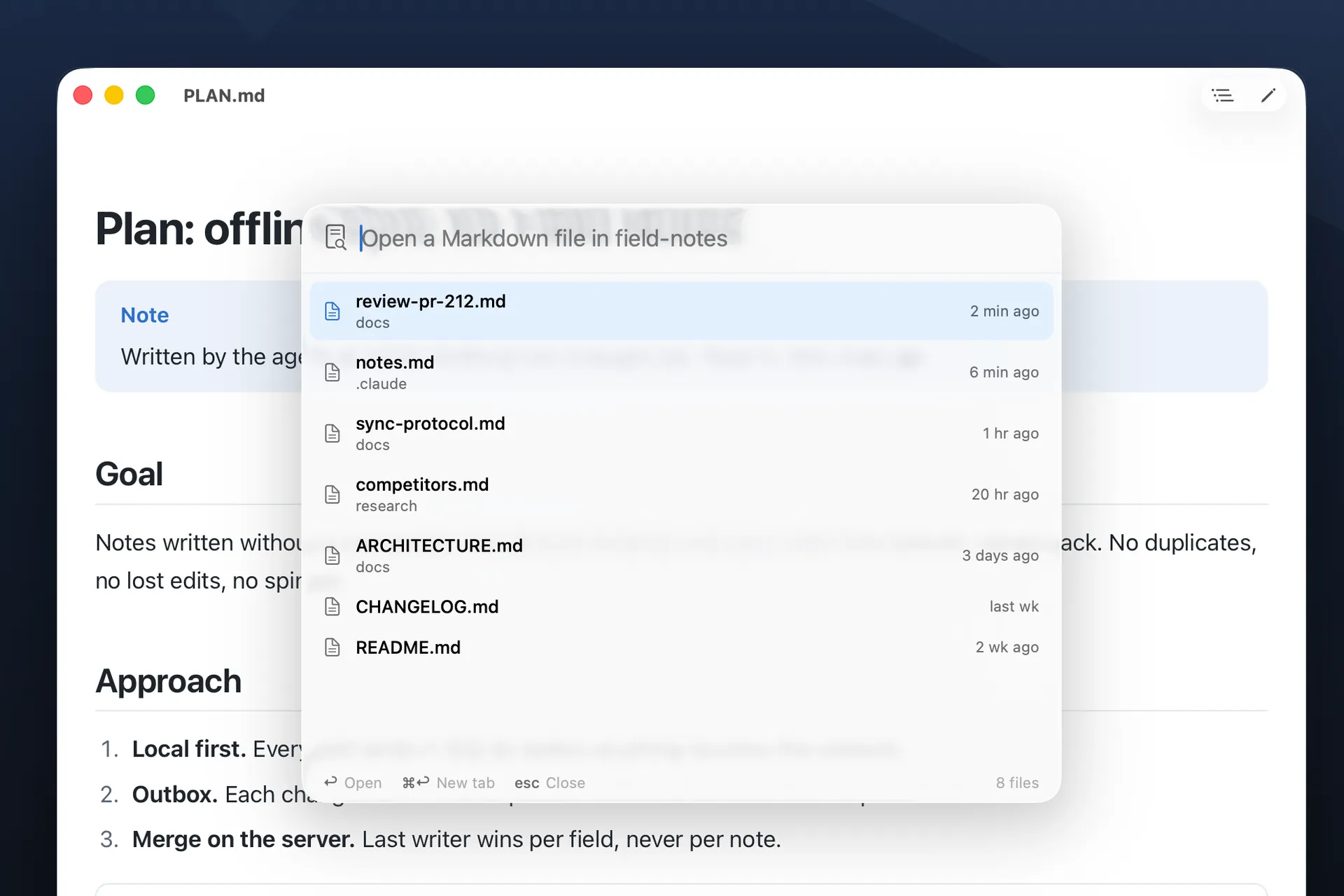
Find a document by name with Command + P
Open a document in the project, press Command + P, and type a recognizable part of its name or path. Wren uses fuzzy matching, so you do not need to remember the complete spelling. Read the relative path when several folders contain plan.md.
Press Return to open the selection in place, or Command + Return for a new tab. A new tab helps when comparing the release plan with an implementation note. A name match only identifies a candidate: open it and check its heading, date and status before acting on what it says.
Find a sentence with Shift + Command + F
For content, press Shift + Command + F and enter at least two characters. Start with a distinctive phrase such as launch gate. Wren's current project search is literal and case-insensitive, so LAUNCH GATE can match the same query. Typing launch.*gate does not turn on regex.
Results include source-line context. Select a result and press Return to open that document at the matching line; Command + Return opens a new tab. Read the surrounding section. A hit can be a quoted proposal, a rejected option or an archived decision rather than the instruction you need.
For an original source-level check, we created a disposable project with the phrase in README.md, docs/release.md and .claude/plan.md. A fourth matching file lived under node_modules. Wren's actual scanner and search implementation returned the three project-document lines, including the hidden plan, and skipped the dependency example.
Check the project root before trusting missing results
Find in Project currently derives its root from the open file. It looks for a nearby enclosing Git project; without one, it falls back to that file's folder. The search field names the selected root. This is narrower than “search everything in Downloads” or “search all my documentation projects.”
Opening a folder gives Wren a browsing tree, but do not assume every search shares an arbitrary folder selection: verify the root shown by Find in Project. In a non-Git collection, opening a deeply nested file can produce a narrower scope than you intended. Open a document at the collection's root, or use a folder-search tool with an explicit root.
This is particularly useful to check when two worktrees have identical filenames. A sentence in the main project's plan may not exist in the agent's worktree. The path is part of the answer, not incidental metadata. Our live-preview workflow covers reading the document an agent is currently changing.
Why a matching file may be missing
| Possible cause | What to check |
|---|---|
| Wrong project | Current file path and root shown in the search field |
| Excluded folder | Whether the file is under node_modules, build, vendor or another skipped directory |
| Unsupported input | File extension, UTF-8 encoding and size |
| Broad query | Try a longer phrase instead of interpreting a short result list as exhaustive |
| Text exists only elsewhere | Saved source versus an unsaved editor buffer, screenshot or exported PDF |
Current implementation limits include files smaller than 2,000,000 bytes, eight matching lines per file, a scan cap of 5,000 files and a directory-depth limit. These are reasons to choose a more explicit search workflow for a large archive. The displayed matches are navigation help, not an audit proving the absence of a term.
Use VS Code for explicit folder filters or regex
If the task is searching a chosen folder with include patterns, VS Code offers a useful alternative. Open the intended folder, press Shift + Command + F and enter your phrase. Put **/*.md in Files to include to narrow the file type. Check the exclude and ignore settings if expected files do not appear.
Its official search guide covers include patterns and regular expressions. Use an editor when you need bulk replacement, but inspect the proposed changes carefully: an old decision quoted in a document should not always receive the same replacement as an active instruction.
Use ripgrep for a repeatable terminal query
With ripgrep installed, run this from the project root for a literal phrase in Markdown source:
rg -n -i -F -g '*.md' 'launch gate' .The output gives paths and line numbers. Hidden folders are normally skipped; for a deliberate search that includes an agent folder, use:
rg -n -i -F --hidden -g '*.md' -g '!.git/**' 'launch gate' .Ignore rules still matter. Consult the official ripgrep guide before broadening them, and keep the command rooted in the folder you intend to inspect. These examples read files; they do not replace any text.
Once you have found the relevant source, read the whole decision in context. Check its status, the document it supersedes and the exceptions attached to it. A good search gets you to the right passage; deciding whether that passage is current remains part of the review.
Frequently asked questions
How do I search text across Markdown files on Mac?
In Wren, open a file in the intended project and press Shift + Command + F for Find in Project. Enter at least two characters and open a result to read its context. VS Code's folder search and ripgrep are alternatives when you need different scope or query controls.
Why does Command + P miss a sentence inside a file?
Wren's Command + P searches filenames and paths. It does not search document contents. Use Shift + Command + F for text across the project, or Command + F to find text in the document you are already reading.
Does Wren search every Markdown file on my Mac?
No. Find in Project derives a root from the current file: the nearest detected enclosing Git project, or the file's own folder when no project is found. Check the project name in the search field. It is not a whole-Mac or arbitrary multi-folder index.
Can Wren find Markdown inside .claude folders?
Its project scan includes hidden folders such as .claude, while excluding common dependency and build folders. The folder must be inside the search scope. File size, encoding, scan depth and result limits can also affect what appears.
Can I use regular expressions or replace across files in Wren?
Find in Project currently uses plain-text, case-insensitive search. It is not a regex or bulk-replacement interface. Use a suitable editor or command-line tool for those operations, and inspect changes before saving a broad replacement.
Sources

Telman Gadimov builds Wren, a free Markdown reader, and Murmur, an on-device dictation app for Mac. We make Wren. Search behavior was checked against its current source and exercised with a disposable fixture on October 18, 2026. VS Code and ripgrep descriptions use their official documentation. This is a navigation guide, not a whole-disk indexing or search-speed benchmark.


