Set up a trustworthy live review
- Ask the agent to save a reviewable
.mdfile at a known local path. - Open that file in a preview that follows saves; keep the viewer visible.
- After each revision, inspect new and edited sections against your requirements.
- Use a source diff for deletions and resolve simultaneous edits before approving work.
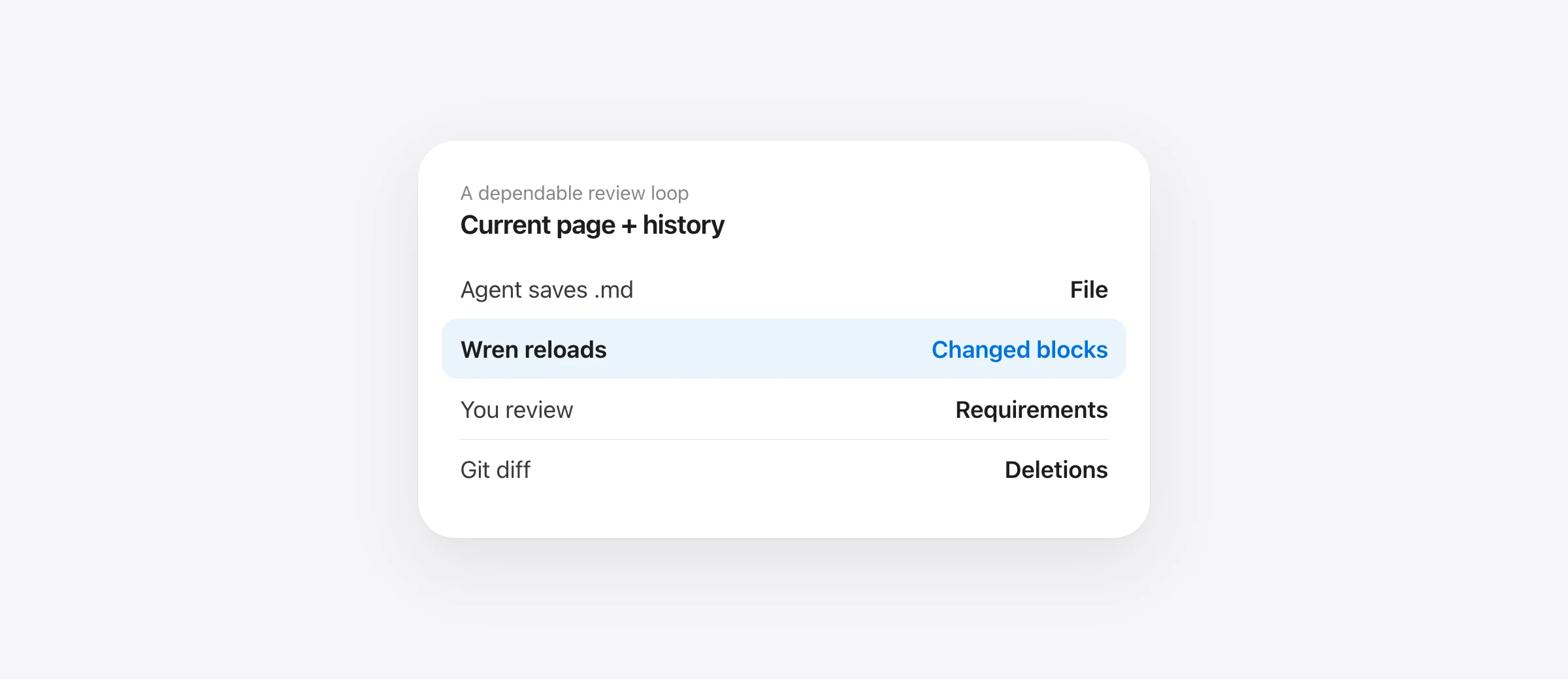
A live Markdown preview on Mac is useful when an AI coding agent keeps rewriting a plan, specification or handoff document. The file is the shared artifact: the agent saves it, you read it, and your next instruction refers to what is actually on disk. A preview that refreshes on save reduces the friction of reopening the same document after every turn.
We make Wren, a free Mac reader with live reload and changed-block highlights. You can also use VS Code's built-in Markdown preview if it already fits your workspace. The important distinction is between seeing the current rendered file and knowing exactly what changed. The first is a viewer job; the second may require a Git diff.
Start with the file, not the chat transcript
A viewer cannot follow text that exists only in an agent's conversation. Ask for a saved review copy with a path you can repeat. For example:
Write the proposed approach to docs/review-plan.md before changing source code. Include the files you expect to touch, assumptions, a failure case, the test plan and open questions. Tell me the path when it is saved.
That filename is a convention for this example, not a default imposed by any agent. Check that the file exists and contains the expected heading before starting review. A remote-only agent or cloud workspace must make the file accessible on your Mac before a local reader can show it. The preview follows a file path; it does not mirror a remote conversation by itself.
Keep the plan's structure compact. For a risky edit, require: objective, affected files, behavior before and after, migration or rollback path, verification, and unresolved decisions. A beautiful preview cannot repair a plan that leaves the most important assumption unwritten.
Choose a persistent view
| Workflow | Good starting tool | Why |
|---|---|---|
| Already editing in VS Code | Preview to the Side | Rendered file stays near source; preview locking pins it to one document |
| Terminal and browser take most of the screen | Wren reading window | Separate file view, live reload and navigation to changed blocks |
| Only need to identify one file | Finder Quick Look | Fast glance without a persistent review window |
In VS Code, open a Markdown file and use its documented Preview to the Side command. Its guide explains preview locking when you do not want the preview to follow the active editor tab. In Wren, open the saved file and leave its reading window beside the terminal or IDE. Wren refreshes on disk saves and marks new or edited rendered blocks; its changes control jumps among them. The tool does not need to know whether Claude Code, Codex, Cursor, Gemini CLI or a human editor made the save.
Wren also offers a folder sidebar and quick file search for multiple Markdown documents, including files in hidden project folders. That helps when the agent writes a plan, a test checklist and a release note in the same directory. Our Claude Code plan guide shows a concrete single-agent example; this page covers the general file-review method.
Review a save in three passes
First pass: locate. Find the blocks Wren marks as new or edited, or compare the sections you asked the agent to revise. Ask whether the change addresses the requested point. A green highlight is a location aid, not a quality score.
Second pass: read around it. A changed step can contradict an earlier assumption or a later test. Read the neighboring paragraph and the document's conclusion. In a Mermaid diagram, follow one failure path as well as the happy path. GitHub's Mermaid syntax guide describes the fenced blocks many agent plans use; Wren renders them locally when they are valid.
Third pass: inspect removals. A deleted requirement is invisible in the current rendered file. Use git diff -- docs/review-plan.md if the file is under Git, or the available history tool for that document. Git's diff reference explains how working-tree comparisons are represented. Do not interpret “no highlighted blocks” as “nothing important changed.”
Handle two writers without losing one version
Suppose you are correcting a sentence in a split editor while the agent saves a new version of the same file. This is not a purely visual issue. One writer can overwrite the other's work. Wren's product behavior is to ask how to handle an external change when it has unsaved local edits. Pause and compare the two versions. If both contain useful changes, save a copy or merge them explicitly before asking the agent to continue. Do not dismiss the warning just to make the preview current.
The simplest policy is one writer at a time. Let the agent save, inspect, then send a specific correction. If you edit the document, save it and tell the agent the path and section to reread. For example: “I changed the acceptance criteria in docs/review-plan.md. Read the file again before editing code; keep the revised error case.” That instruction closes the loop the viewer cannot close on its own.
Some tools write a temporary file and rename it over the original. Wren's file watcher is designed to reattach after replacement saves, but still confirm that the displayed timestamp and content match the current file if you suspect a stale view. If a viewer fails to refresh, reopen the file and compare a distinctive new sentence. A plan with stale content should not be approved.
Set a clear approval boundary
Reading a plan in Wren, scrolling to changes or checking a Markdown task box does not approve an agent action. A task checkbox can even write [x] back to the file, so use it only when you intend that edit. Approve or reject the actual implementation through the coding agent's own controls. After implementation, inspect the code diff and run the relevant checks; the plan is a guide, not proof that the code followed it.
For a fast glance at a folder of files, see Markdown Quick Look in Finder. For a tool comparison, see the Mac Markdown viewer guide. If the agent might rewrite or delete files you need to recover, set up an independent backup for agent work; a viewer does not keep historical copies of every save.
Frequently asked questions
Can Markdown preview update when an AI agent saves a file?
Yes, if the viewer is watching that local file. Wren reloads its open document and marks new or edited blocks. VS Code's Markdown preview also updates with edits and can be locked to a chosen file.
Does a live preview show deleted text?
A current rendered document cannot display text that was removed. Wren marks new and edited blocks for navigation; use a Git diff or version history to inspect deletions precisely.
Does Wren integrate with Claude Code, Codex or Cursor?
Wren reads local Markdown files those tools save. It does not need an agent-specific plugin, but it also does not approve agent actions or read a conversation that was never saved to a file.
What if I edit a file while the agent edits it too?
Avoid simultaneous unsaved edits. Wren asks how to handle an external change when local edits are unsaved; choose deliberately and save a copy if both versions matter.
Is VS Code Markdown preview enough?
Often yes, especially if you already work there. VS Code supports preview to the side and preview locking. A separate reader is useful when you want the document visible outside the editor workspace.
Sources

Telman Gadimov builds Wren, a free Markdown reader, and Murmur, an on-device dictation app for Mac. We make Wren. Wren features were checked against its product page and local implementation notes. VS Code's built-in preview and locking behavior was checked against official documentation October 13, 2026. The workflow is editorial guidance, not a measured timing test.


