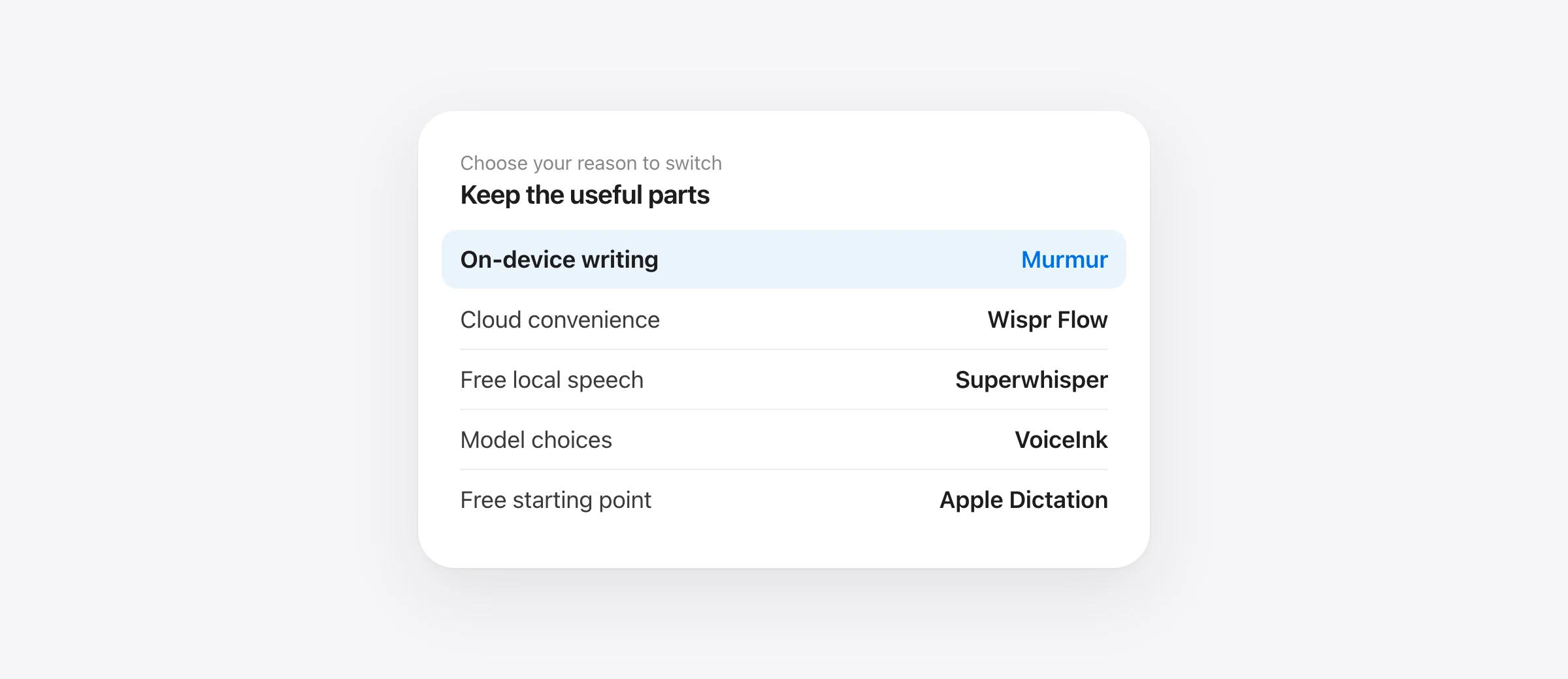
The right Typeless alternative for Mac depends on why you are switching. Try Murmur for local everyday writing without a subscription, Wispr Flow for another cross-device cloud workflow, Superwhisper for free local transcription, VoiceInk for configurable processing, or Apple Dictation for basic text entry already built into your Mac.
Pick the problem you need to solve
- Keep speech and cleanup on your Mac: start with Murmur if your hardware supports it.
- Keep using phones and Windows: compare Wispr Flow before choosing a Mac-only app.
- Get ongoing free local transcription: evaluate Superwhisper Free.
- Choose your models and providers: consider VoiceInk.
- Dictate occasional paragraphs: try Apple Dictation first.
We make Murmur. This is a shortlist by use case, not a claim that our app wins every comparison. The product facts were checked against official pages on October 17, 2026; the suggested tests are for you to run, rather than reported benchmark results.
Compare these five Typeless alternatives
| App | Price or free route | Local workflow | Start here when |
|---|---|---|---|
| Murmur | $19 once, up to 3 Macs; 2,000 trial words | Speech and writing cleanup on-device | You want straightforward local writing; macOS 26+ and Apple silicon |
| Wispr Flow | Free cap; Pro $15/month or $144/year | No; cloud transcription | You want a similar cloud workflow across supported computers and phones |
| Superwhisper | Free local tier; Pro $8.49/month, $84.99/year or $249.99 lifetime | Local speech; cleanup depends on mode and model | You want free transcription or more configurable paid modes |
| VoiceInk | $25 for 1 Mac, $39 for 2, $49 for 3; one-time | Depends on transcription, enhancement and Auto Learn settings | You want provider choice; verify the current installer’s requirements |
| Apple Dictation | Included with macOS | Check the processing note for your language and setup | You need basic text entry without installing another app |
USD list prices, checked October 17, 2026. Sources: Wispr Flow, Superwhisper, VoiceInk and Murmur’s terms. Compare your actual checkout, device count and required features.
1. Murmur: local writing with a one-time Mac license
Murmur is for speaking into your Mac’s text fields without routing the dictation through a hosted speech service. Hold right Command, speak, and release. Speech recognition and optional writing polish run on the Mac. The AI features use Apple Intelligence, so enable it and let the required assets finish downloading before testing.
The main constraint is compatibility: Apple silicon and macOS 26 or later. If your work Mac is Intel or cannot update to that release, choose another candidate. Murmur also does not replace a phone keyboard or Linux installation. That narrower scope is useful only when your writing happens on a compatible Mac.
For repeated terminology, Murmur’s dictionary corrects recognized text after transcription; it does not retrain Apple’s speech model. Replacements map recognized phrases to exact spellings. Snippets use spoken triggers to insert saved text. Test names in complete sentences so you can see whether correction helps without changing unrelated words.
The first 2,000 words require no account. After the trial, the regular price is $19 once for up to three Macs. Version 1 updates are included; future major versions may be offered as paid upgrades. Choose it if its local workflow solves your problem, not solely because the initial purchase is smaller.
2. Wispr Flow: another cross-device cloud workflow
Wispr Flow is worth comparing when you like AI-cleaned dictation but want a different subscription or surrounding feature set. Its requirements page lists Mac, Windows, iPhone and Android, including Intel Macs on macOS 12 or later. It explicitly excludes Linux and some remote or virtual environments, so check your whole setup.
It also includes a desktop meeting notetaker, subject to plan limits. That is useful if you need both jobs. Its permanent Free allowance is 2,000 words a week on desktop and 1,000 on mobile. When evaluating a replacement, separate how much you dictate from whether you need the paid extras.
Flow is not an offline alternative: its data controls specify remote recognition. If cloud processing is why you are leaving Typeless, this changes the vendor rather than meeting your local-processing requirement. If you are deciding only between those two products, use the Typeless vs Wispr Flow comparison for the detailed tradeoffs.
3. Superwhisper: free local speech, with paid modes if needed
Superwhisper’s ongoing Free plan includes unlimited local Whisper dictation, custom vocabulary, replacements and up to two modes without AI processing. That makes it a useful candidate when your first requirement is free local transcription, rather than an automatic rewrite of every paragraph.
Its paid options add AI modes and other capabilities. Before paying, identify one specific task that the free configuration cannot do. For example, do you need a clean email draft from a rambling note, or only punctuation you can adjust yourself? Comparing equivalent tasks avoids treating a simpler free mode as a failed substitute for a more elaborate paid workflow.
Local speech does not guarantee every paid mode is local. The language-model documentation says S1-mini handles English cleanup in Message and Mail modes on-device. It does not support Custom, Super, Note or Meeting modes. Check the model used for your intended output rather than generalizing from the app’s ability to run offline.
4. VoiceInk: one-time licensing with configurable processing
VoiceInk offers one-time Mac licenses with different device counts. Its official pages disagree on compatibility: the homepage lists Apple silicon and macOS 14.4+, while the installation guide says macOS 15+ and recommends cloud transcription on Intel because local models are unreliable there. Verify the installer you plan to use before buying, especially on an older Mac.
Its configurability is the main reason to compare it. VoiceInk’s privacy documentation separates speech transcription, text enhancement and Dictionary Auto Learn. Selecting a local speech model does not stop the other two features from using a remote provider. Inspect all three if keeping a workflow on the Mac is your requirement.
VoiceInk Refine provides a fixed local cleanup task, requires at least 16 GB of RAM, and needs its own model download. It does not take custom prompts or selected-text, clipboard or screen context. A Typeless user who relies on selected-text rewriting should test a suitable VoiceInk provider for that task instead of assuming Refine covers it.
Provider configuration can introduce additional service charges. Compare the Mac license plus the services you actually enable. Our VoiceInk vs Superwhisper guide goes deeper into those configuration choices.
5. Apple Dictation: start with the tool already on your Mac
For occasional text entry, enable Dictation in System Settings → Keyboard → Dictation, click a text field and use the configured shortcut. The Apple guide explains language selection, microphone choice and the note that tells you whether your setup processes general dictation locally or requires internet.
This is the sensible first test when you need a few paragraphs, can correct the result yourself and want no separate purchase. Use it in your actual browser document or email composer. A success in a blank note does not tell you how spacing or focus will behave in a different application.
Basic dictation is also a different requirement from Typeless’s voice assistant and translation tools. If you frequently ask an app to transform selected text, include that extra work in the comparison. The Mac Dictation setup guide covers the built-in workflow.
Before switching, identify what Typeless already does well
A replacement should preserve your useful routine. Typeless documents voice translation and desktop assistance with selected text and web queries. Those are additional jobs beyond writing down speech. If you use them every day, include them in your shortlist criteria.
Also verify the reason for leaving. Typeless’s current controls distinguish remote processing from optional history sync. Switching sync off does not move recognition onto the device. For a cost decision, compare your current renewal with the candidate’s total cost and the upgrade terms of one-time Mac dictation apps.
If the real problem is one misheard colleague’s name, try a dictionary entry before changing apps. Typeless’s Dictionary documentation supports manual entries and CSV import. It does not establish a universal export format, so avoid planning a move around an assumed automatic transfer.
A switching checklist with a clear pass or fail
Give one candidate 15 minutes after installation. Keep your current app available during evaluation. These are original suggested test materials, not a published performance score.
- Name one requirement. Write “works offline,” “no recurring bill” or the particular editing task you need. Pick one first.
- Recreate ten useful entries. Add your most frequent names, acronyms or replacements. Confirm what each setting actually changes.
- Dictate the same two samples. Use an ordinary message and the structured note below in the same destination app.
- Test the requirement directly. For offline work, finish model downloads, disconnect, and test both recognition and the cleanup mode in a local document.
- Review after a normal workday. Keep the candidate if the requirement passes and the extra corrections are acceptable. Review renewal terms before changing your subscription.
“Project Cedar needs three checks before release: confirm the backup, review the invoice with Leyla, and update the installation notes. Do not publish today. Send the draft on Monday, the nineteenth, at 09:15.”
Check the three tasks, the name, the prohibition and the date. If the month matters in your test, say it explicitly. An app should not have to invent it. Record corrections to meaning separately from cosmetic changes, then compare how long it takes to produce text you would use.
An offline test confirms functionality, not every network behavior while connected. And text inserted into a shared document can sync through that destination app. Choose based on the complete workflow you need, including where the finished text goes.
Frequently asked questions
What is a good Typeless alternative for Mac?
Murmur fits local everyday writing on an Apple silicon Mac running macOS 26 or later. Wispr Flow fits a cloud workflow spanning several devices. Superwhisper offers ongoing free local transcription. VoiceInk offers configurable processing with a one-time Mac license. Apple Dictation is the built-in starting point for basic text entry.
Is there a free alternative to Typeless?
Yes. Apple Dictation comes with macOS, and Superwhisper documents unlimited local Whisper dictation on its ongoing Free plan. Wispr Flow has a weekly free allowance. Murmur’s 2,000 free words are a trial allowance, not a recurring free plan.
Which Typeless alternatives work offline?
Murmur processes recognition and writing cleanup locally once required Apple assets are ready. Superwhisper and VoiceInk support local configurations, but you must check the speech model, text processing and other enabled services. Apple’s Dictation settings explain whether your selected setup needs internet. Wispr Flow transcribes in the cloud.
Which alternatives avoid a subscription?
Murmur sells a one-time license for up to three Macs, with version 1 updates. VoiceInk sells one-time Mac licenses by device count. Superwhisper has a lifetime Pro purchase as well as an ongoing free tier. Apple Dictation requires no separate app purchase. Compare upgrade terms and optional service costs.
Can I move my Typeless dictionary into another app?
Do not assume a universal transfer format. Typeless documents CSV import, which does not establish export or compatibility with another tool. Start by recreating your ten most important terms or replacements in the candidate app, then test them in real sentences.
Sources
- Typeless: pricing
- Typeless: billing and cancellation
- Typeless: data controls
- Typeless: Translate
- Typeless: Ask anything
- Typeless: History and Dictionary
- Wispr Flow: pricing
- Wispr Flow: meeting notetaker
- Wispr Flow: devices and requirements
- Wispr Flow: cloud processing and data controls
- Superwhisper: plans and prices
- Superwhisper: local and cloud language models
- VoiceInk: prices and Mac requirements
- VoiceInk: installation requirements
- VoiceInk: processing and privacy
- VoiceInk: local Refine requirements
- Apple: Dictation on Mac
- Murmur: purchase, trial and upgrade terms
- Murmur: on-device processing

Telman Gadimov builds Murmur, a dictation app for Mac that runs entirely on-device. We make Murmur, one of the alternatives listed. Recommendations are based on official documentation checked October 17, 2026 and our own implementation. We have not conducted a controlled five-app accuracy or speed benchmark. The ranking groups different needs; it does not claim Murmur is best for everyone.


