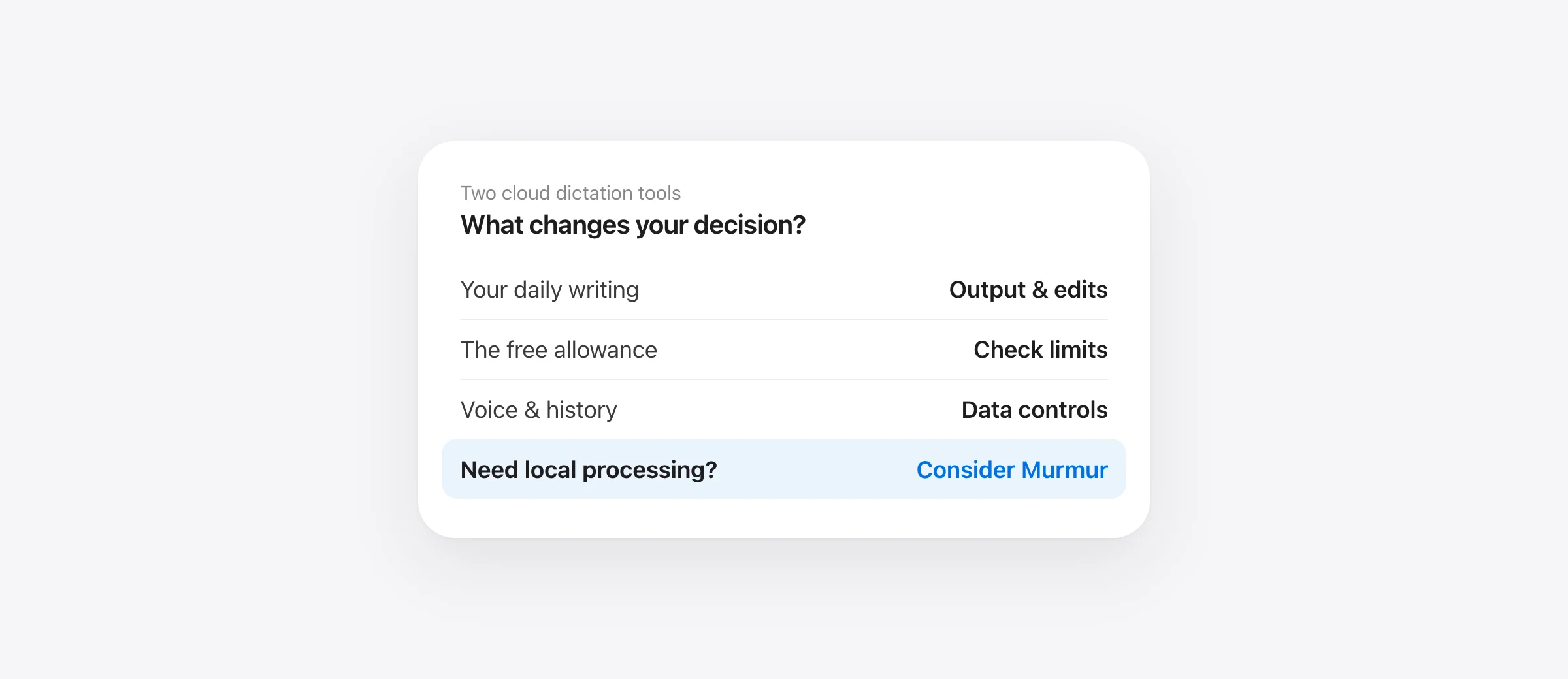
Typeless vs Wispr Flow: start with Wispr Flow if you want month-to-month Pro at a lower price or a meeting notetaker alongside dictation. Start with Typeless if dedicated voice translation, its desktop assistant or Linux support solves a specific need. Both process speech in the cloud; neither is the right shortlist for someone who requires offline recognition.
The decision in a minute
- Monthly Pro: Typeless is $30; Wispr Flow is $15.
- Annual Pro: both list $144 per person, equivalent to $12 a month.
- Free use: Flow publishes word caps; Typeless’s current live pages leave the weekly quantity unspecified.
- Different extras: Typeless has a dedicated Translate workflow; Flow includes a Mac and Windows notetaker.
- Local writing: if audio must stay on your Mac, evaluate an on-device alternative instead.
We make Murmur, so our interest in this category is direct. Facts below come from official pages checked October 17, 2026. Recommendations are our interpretation of those documented capabilities, not results from a hidden accuracy test.
Typeless vs Wispr Flow at a glance
| Decision | Typeless | Wispr Flow |
|---|---|---|
| Pro, billed monthly | $30/person/month | $15/person/month |
| Pro, billed annually | $144/person/year | $144/person/year |
| Ongoing Free plan | Limited weekly words; check your account for quantity | 2,000 words/week desktop; 1,000/week mobile |
| Desktop downloads | Mac, Windows, Linux | Mac, Windows; Linux unsupported |
| Phone apps | iOS and Android | iPhone and Android |
| Mac processors | Apple silicon and Intel listed | Apple silicon and Intel; macOS 12+ |
| Speech processing | Cloud | Cloud |
| Additional writing tools | Translate; Ask anything on desktop | Command Mode on desktop; paid access or trial |
| Meeting workflow | Not presented as a bundled notetaker in this comparison | Notetaker on Mac and Windows; plan limits apply |
Sources: Typeless pricing, downloads, Flow pricing and Flow requirements. Availability on a platform does not mean every feature is identical there.
Price: same annual bill, different monthly commitment
The practical difference is flexibility. Three months on monthly Pro would cost $90 for Typeless or $45 for Flow at the listed rates. Those are arithmetic examples, not special offers. If you only need dictation during a short writing project, compare the actual months you will use it before choosing annual billing.
At equal annual cost, choose by finished work rather than the headline discount. A tool that needs fewer corrections on your messages can justify its price. A larger bundle has little value if you never use the extra tools. See our Wispr Flow pricing guide for the broader billing questions.
There is also a distinction in how the vendors describe tiers. Typeless labels its paid recognition as an upgrade over Free. Flow’s plan documentation describes the same transcription accuracy across tiers. Evaluate the tier you intend to keep; a paid-mode result does not establish how a free configuration will behave.
Free plans: verify the allowance before planning around it
The current Typeless billing guide confirms an ongoing Free tier, but does not give a weekly number in the text we checked. Older indexed descriptions mention 8,000 words. We would not turn that older number into a purchase recommendation without checking the account’s current allowance.
Flow publishes its caps in the comparison table above. To decide whether a cap matters, count your own work for one representative week. Ten short messages a day and several long project briefs are very different workloads. A busy demonstration session can also use more words than a normal day.
Separate three questions: does the free tier continue indefinitely, which features remain, and how much dictation can you do? A trial that temporarily unlocks premium features answers a different question. Check the app’s current plan before attributing a result to the permanent Free tier.
Everyday writing: compare the complete edit
Typeless’s Dictate guide describes speaking into the destination field and pressing its shortcut again to finish. Its Mac default is Fn. The goal is readable writing from natural speech, including a thought you revise while talking. Flow similarly turns speech into cleaned text in the active field.
The useful question is what happens after insertion. Does a sentence keep your uncertainty? Does a spoken correction replace the earlier detail? Are paragraphs useful in your email app? Does a casual message still sound like something you would send? Count edits to a usable draft, including changes you make to restore meaning.
For example, “we may ship Friday if review passes” must not become a confident Friday commitment. A tidy sentence that changes the promise is worse for that task than an untidy sentence you can quickly fix. Test dates, qualifications and negations alongside punctuation.
Both products offer vocabulary help. Typeless’s Dictionary guide describes manual entries, automatically collected corrections and CSV import. Flow also learns names and jargon. Give each tool your real project spellings before deciding repeated proper-name errors are unavoidable. Our Mac custom vocabulary guide explains the different correction mechanisms.
Translate and Ask anything vs Command Mode and Notetaker
Typeless has a dedicated Translate workflow: set target languages and speak text to insert in the chosen language. That is a concrete reason to try it if you regularly draft across languages. A product listing many recognition languages does not automatically establish the same translation workflow.
On desktop, Ask anything can work on selected text or provide web answers and actions. If you rely on this, include a real selection-based rewrite in your comparison. Check that names and constraints survive a request to shorten the draft.
Flow’s Command Mode can edit text, draft replies and search by voice. It is a desktop feature enabled through Experimental settings with qualifying paid or trial access. Its documentation says the instruction travels with the selected text and current textbox contents.
Flow also bundles a meeting notetaker on Mac and Windows, with access and retention varying by plan. That can reduce the number of tools you buy. It should not decide the comparison if your actual task is speaking a few sentences into an editor. Judge dictation and meeting capture as separate jobs.
Privacy: cloud processing and cloud history are separate
Typeless’s data controls say transcription runs remotely. They describe discarding ordinary audio and context after processing, with optional history synchronization and exceptions around submitted feedback. Its privacy policy also explains third-party processing. Local history does not mean local recognition.
Flow’s data-controls page likewise specifies cloud transcription. Its privacy page separates permission to improve models from persistent dictation storage. Review both controls; changing one is not a substitute for checking the other.
Context deserves its own decision. Flow’s Context Awareness documentation says it is enabled by default and may send relevant active-window text. Turning it off on desktop still permits app and website identification, while nearby text is used locally for spacing and casing. Command Mode sends the text it needs to edit.
If your requirement is simply “do not send my dictated audio to a server,” these cloud controls do not meet that requirement. Start with local dictation options for Mac. Also remember that the app receiving your finished text may sync it independently.
A 12-minute comparison you can run on your Mac
After installation and sign-in, allow 12 minutes. These are proposed tests, not our benchmark results. Keep the microphone, room, destination app and intended output language the same. Write down which plan and features you enabled.
- Two minutes: establish the setup. Confirm microphone input and insert one sentence into your main writing app with each tool.
- Three minutes: test a revision. Read the first sample below naturally. Correct each result and record the editing needed.
- Three minutes: test your specialist task. Use translation, selected-text editing or repeated vocabulary, whichever actually matters to your work.
- Two minutes: switch destinations. Repeat a short message in your second most-used app. Check spacing, paragraph breaks and accidental insertion into the wrong field.
- Two minutes: choose from finished output. Compare meaning-changing errors and time to a usable draft. Keep a tie as a tie.
“Move the review to Wednesday, actually Thursday at 10:30. Nigar should review the invoice, but do not charge the card until she approves. The amount is 1,250 dollars, excluding delivery.”
The important details are Thursday, 10:30, the name, the amount and the approval condition. Replace the name and amount with non-sensitive examples from your own work. For a second task, select a paragraph and ask: “Make this two sentences. Keep the date and the condition exactly as written.” Check those requirements before judging style.
When a local Mac alternative fits better
Murmur is our option for a narrower need: speak into your Mac’s apps with local recognition and local writing cleanup. It requires Apple silicon and macOS 26 or later; AI polish and voice editing also require Apple Intelligence. It does not replace Flow’s meeting bundle or Typeless’s Linux and mobile coverage.
The first 2,000 words are free without an account. The regular license is $19 once for up to three Macs, with version 1 updates included; future major upgrades may be paid, as our terms explain. If those constraints fit, try the same revision sample locally. If they do not, the Typeless alternatives guide covers other routes.
Frequently asked questions
Is Typeless better than Wispr Flow?
Choose by workflow. Typeless documents dedicated translation, desktop voice assistance and Linux downloads. Wispr Flow has a lower monthly Pro price and includes a desktop meeting notetaker. Their individual annual Pro list prices are equal. Neither is an offline transcription app, and this guide does not establish an accuracy winner.
How much do Typeless and Wispr Flow cost?
At the October 17, 2026 check, Typeless Pro lists $30 per month or $144 per year. Wispr Flow Pro lists $15 per month or $144 per year. These are USD list prices; check your actual checkout and billing period.
Does Typeless still give 8,000 free words each week?
We could not confirm that number on the current live pricing and billing pages. Both describe a limited weekly Free plan without specifying a number in the page text we checked. Older indexed descriptions still mention 8,000. Use the allowance displayed in your Typeless account when deciding.
Can Typeless or Wispr Flow transcribe offline?
Their current data-controls pages say transcription happens in the cloud. Local history, disabled cloud sync and a promise not to retain audio do not make speech recognition run on your computer. Consider a local app if dictation without internet is essential.
Do they work on Intel Macs?
Typeless lists Apple silicon and Intel in its FAQ. Wispr Flow explicitly supports both, on macOS 12 or later. We did not find an equally explicit minimum macOS version on Typeless’s setup and downloads pages, so check the current installer for an older Mac.
Sources
- Typeless: current pricing
- Typeless: billing and cancellation
- Typeless: downloads
- Typeless: supported platforms FAQ
- Typeless: Dictate
- Typeless: Translate
- Typeless: Ask anything
- Typeless: Personalization
- Typeless: History and Dictionary
- Typeless: data controls, updated October 13, 2026
- Typeless: privacy policy, updated October 13, 2026
- Wispr Flow: pricing
- Wispr Flow: meeting notetaker
- Wispr Flow: plans and features
- Wispr Flow: supported devices and system requirements
- Wispr Flow: Command Mode
- Wispr Flow: Context Awareness
- Wispr Flow: data controls
- Wispr Flow: privacy
- Murmur: license, free allowance and upgrades
- Murmur: local processing

Telman Gadimov builds Murmur, a dictation app for Mac that runs entirely on-device. We make Murmur, a competing Mac dictation app. This comparison uses official product documentation checked October 17, 2026. We have not run a controlled Typeless-versus-Wispr accuracy or latency benchmark. The test scripts below are original materials for your own evaluation.


