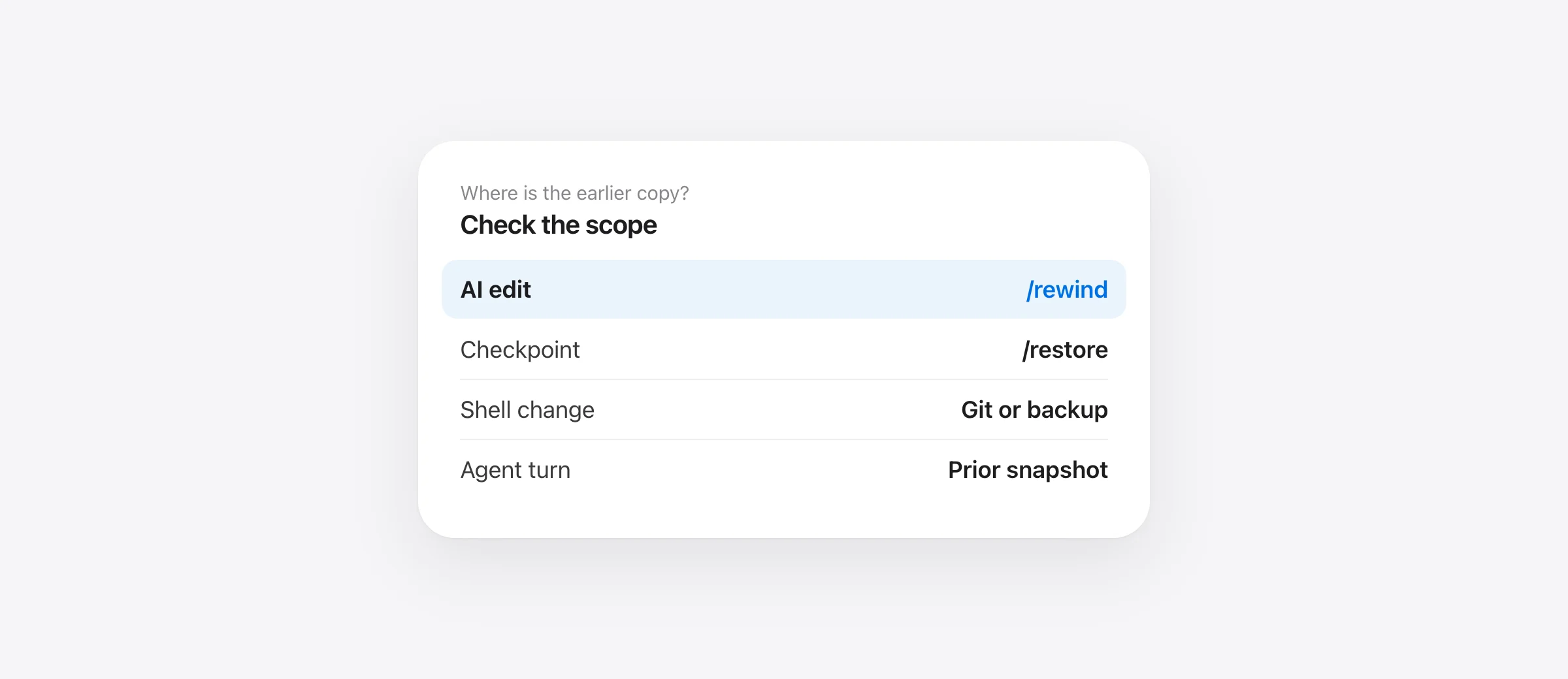
Recover in the right order
- Pause the agent and inspect the current files; save any new work you must keep.
- Use /rewind for an eligible Gemini interaction and choose chat, code or both.
- Use /restore only if checkpointing was enabled before the edit and the right checkpoint exists.
- For shell or manual changes, look to Git, editor history or a separate earlier backup.
To undo Gemini CLI changes, start by identifying which tool made the change. Google's rewind guide documents rollback of AI edit-tool changes and a choice about conversation history. Its checkpointing guide documents a separate /restore route, but checkpointing is disabled by default. Neither command should be treated as a magic copy of every byte that ever existed in a project.
We make Sandpiper, a free Mac app that saves local project states through Gemini CLI hooks and other supported agents. It is useful only when it captured a state before the mistake. This guide puts Google's own recovery tools first, then shows where an independent snapshot helps. If a shell command was git clean -fdx, use our command-specific recovery guide to find out what Git can and cannot hold.
Pause and classify the damage
Stop new agent turns until you understand the current state. A restore can overwrite good work made after the point you choose. If the project is under Git, git status --short gives a compact inventory of changed, deleted and untracked paths. Copy irreplaceable current edits to a safe location before trying a broad rollback. Do not run a reset or clean command just to make the status look tidy.
| What happened | First recovery check | Main limit |
|---|---|---|
| AI edit tool changed a file in the current session | /rewind | Select the right interaction and rollback scope |
| A file-modifying tool ran with checkpointing enabled | /restore | An earlier checkpoint must exist |
| Shell command or manual action changed files | Git or earlier backup | Gemini rewind documents no coverage for those changes |
| Only the conversation went wrong | Rewind chat only | Files stay as they are |
This table is a starting point. A real incident can combine edits from several sources. For example, the agent may use an edit tool on one file and then run a shell script that rewrites another. Inspect both paths separately instead of assuming one button has the same scope for every file.
Use /rewind for an interaction you can identify
Inside Gemini CLI, run /rewind or press Escape twice. Google's documentation says the interface lists earlier interactions and previews the prompt and changed-file count. After choosing a point, you can rewind conversation and code, only the conversation, or only code changes when those choices apply.
If you need to keep your discussion but remove an AI edit, choose the code-only path. If the files are correct but the conversation drifted, choose chat-only. If both are wrong, review the combined option. Check the exact point before confirming: going too far back may affect additional agent edits. Afterward, inspect the affected files and the Git status again. A good recovery is an observed file state, not merely a success message.
Google specifically says rewind does not undo manual edits or changes triggered by the shell tool. It also warns that rewinding the conversation removes the agent's memory of discarded interactions. If you revert files but keep the chat, tell Gemini what the files now contain before asking it to continue. For a missing uncommitted file, our Git file-state guide helps determine whether Git ever stored the content.
Use /restore only if checkpoints already existed
Gemini's checkpointing feature saves a shadow Git snapshot, conversation state and the pending tool call before eligible file-modifying tools such as write_file or replace. Its official guide says the feature is disabled by default. It is enabled in settings.json through general.checkpointing.enabled; an old --checkpointing flag was removed. Turning the setting on today will protect future eligible operations, not create a snapshot of yesterday's file.
If it was enabled at the time, run /restore to list checkpoints, choose the one immediately before the unwanted tool call, and review what will be restored. Google says a restore reverts project files to the checkpoint, restores conversation history and re-proposes the original tool call. Do not approve the repeated call by reflex. Check whether that call is exactly what caused the problem.
Gemini's command reference says /restore is available only when checkpointing is configured. Its documentation names eligible modifying tools as the checkpoint trigger; do not assume arbitrary shell side effects were independently captured. If the file was created and deleted entirely between eligible checkpoints, investigate the available snapshot contents before promising recovery.
Recover shell changes from an earlier source
A shell command can delete an ignored configuration file, overwrite generated assets or invoke Git. Google's rewind scope excludes shell-triggered changes. Start with a non-destructive inventory: inspect git status, your editor's local history and any backup that existed before the command. For committed content, Git may have a copy; for an untracked file, it may never have had one. Our hard-reset recovery guide and deleted .env guide cover two common special cases.
Sandpiper's Gemini integration uses a prompt hook and a before-tool hook for risky shell commands, saving local project state before the agent proceeds when the hooks run. It also shows recent turns and offers scoped restore of a file, folder or turn. Read the timeline and inspect the candidate snapshot before undoing: a snapshot from after the deletion cannot contain the earlier bytes. Sandpiper is a local backup layer, not a guarantee that all processes or files were captured. A full backup such as Time Machine remains useful for other failures.
Test the recovery path before you need it
For a new setup, use a disposable project with a harmless text file. Enable Gemini checkpointing if you want its native /restore option. Make an agent edit, list the checkpoint, and check the restored file. In Sandpiper, confirm that Gemini CLI hooks are installed, run one benign turn, then inspect the timeline and restore a test file. Do not practice on an irreplaceable project or a live .env.
Keep Git commits for intentional milestones, Gemini's session controls for eligible agent edits, Sandpiper snapshots for local turn recovery, and a separate Mac backup for broader loss. Each source answers a different question. Our layered agent backup guide lays out a repeatable drill across them. If Gemini writes a long Markdown plan before editing, review it with live Markdown preview so you can catch a mistaken assumption before a rollback is needed.
Frequently asked questions
How do I undo Gemini CLI file edits?
Use /rewind to inspect an earlier interaction and choose whether to revert code, chat or both. If checkpointing was enabled before the change, /restore can list and restore saved tool checkpoints.
Is Gemini CLI checkpointing on by default?
Google's checkpointing guide says it is disabled by default and must be enabled under general.checkpointing.enabled in settings.json. Turning it on after an incident cannot create a missing earlier checkpoint.
Does Gemini CLI /rewind undo shell-command changes?
Google says rewind covers AI edit-tool changes and does not undo manual edits or changes triggered by the shell tool. Inspect Git and an earlier backup for those files.
What is the difference between /rewind and /restore?
/rewind navigates interactions and offers chat, code or combined rollback. /restore uses checkpoints that were captured before eligible file-modifying tools, and is only available if checkpointing was configured.
Can Sandpiper recover a file deleted before it was installed?
No. Sandpiper can restore only content in an earlier snapshot it actually captured. Check Git, editor history or a pre-existing backup for an older loss.
Sources

Telman Gadimov builds Sandpiper, a free local undo app for AI coding agents, and Murmur. We make Sandpiper, an independent Mac backup app for coding agents. Gemini CLI behavior comes from Google's official documentation checked October 13, 2026; Sandpiper claims were checked against the local app implementation. No recovery route is guaranteed to reconstruct data that was never saved.


