The short answer
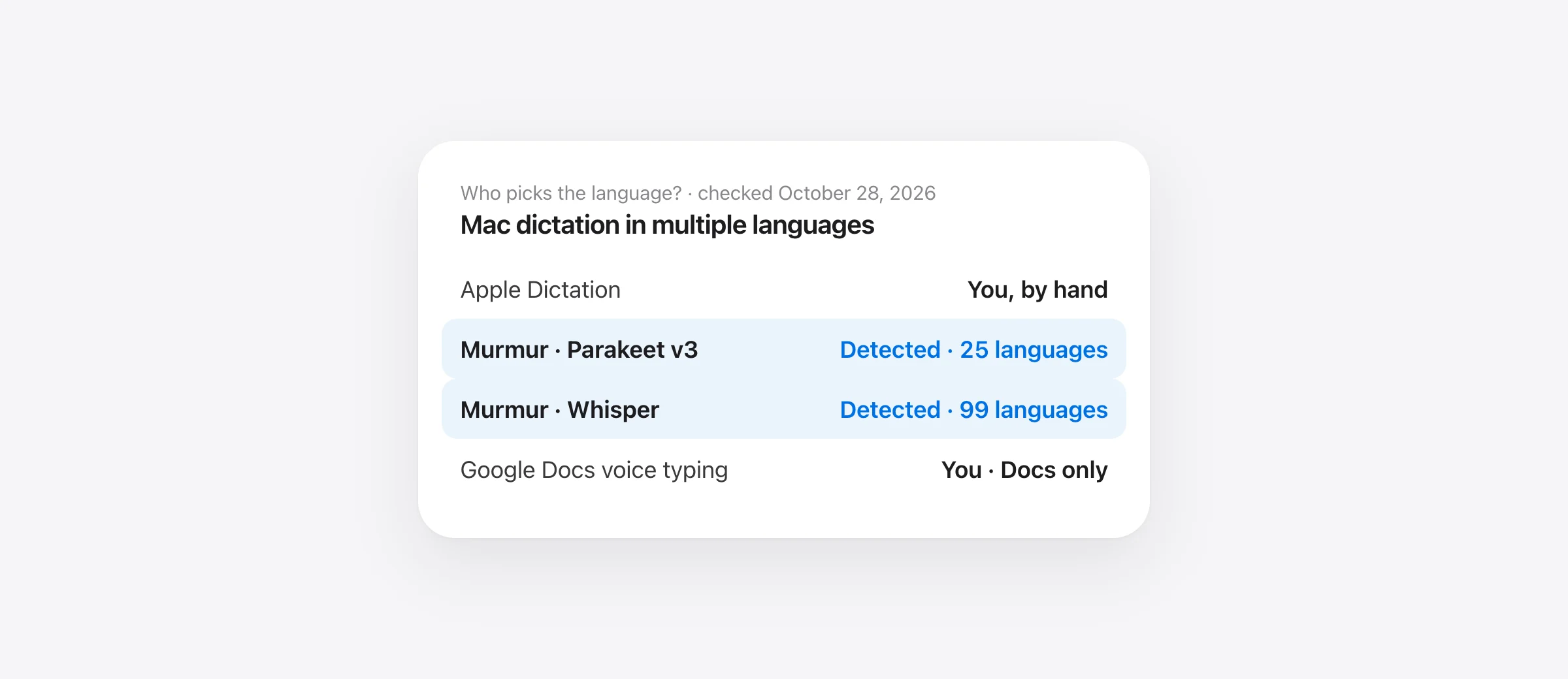
Add languages in System Settings › Keyboard › Dictation › Languages › Edit. Switch while dictating by clicking the language next to the cursor or pressing the Globe key. Apple Dictation listens in one language at a time and doesn’t detect which one you’re speaking. If you switch languages all day, or speak one Apple doesn’t support (Azerbaijani, Bulgarian, Persian, Serbian), use a dictation app that detects the language for you. Checked against Apple’s macOS 26 Tahoe and macOS 27 guides on October 28, 2026.
Mac dictation works in multiple languages, but it is built for people who speak one language per passage. You add each language once, then tell the Mac which one you are about to use. That’s fine for writing an email in French after a report in English. It gets tiring when you answer a Spanish message, then an English one, then a Spanish one again.
This guide covers the setup, the switching, what happens when you mix languages in one sentence, and the options for languages Apple leaves out. New to dictation in general? Start with how to use dictation on Mac.
How to add a dictation language on Mac
- Open Apple menu › System Settings › Keyboard.
- Scroll to Dictation and turn it on if it’s off.
- Click Edit next to Languages.
- Select each language and region you speak, for example English (United States) and Spanish (Mexico). Deselect one to remove it.
- On Apple silicon, macOS downloads a speech model for each language that runs on the device. Give it a few minutes on a slow connection.
These steps match Apple’s Dictation guide for macOS 26 Tahoe, and the macOS 27 guide uses the same path. Older articles that say “Customize” describe earlier macOS versions.
The region matters. English (United Kingdom) and English (United States) are separate entries with different spellings, and Spanish has five regions on the list. Pick the one closest to how you speak and how you want words spelled.
How to switch dictation language on Mac while you talk
With two or more languages added, the dictation indicator next to the cursor shows the current language. You have two ways to change it:
- Click the language shown next to the cursor and pick another one.
- Press the Globe key (🌐, bottom-left on recent Mac keyboards) and choose a language.
Apple’s guide words it as “you can switch languages as you dictate by clicking the language next to the cursor.” In practice, switch at a pause, before you start the passage in the other language. Glance at the indicator when you start, so you know which language it’s listening for.
If the language list or the indicator doesn’t appear, or dictation stops after you add a language, the speech model may still be downloading. Our Mac dictation troubleshooting guide walks through that and the other common causes.
Does Mac dictation detect the language automatically?
No. Apple’s Mac guide describes adding languages and switching between them by hand. It says nothing about detecting the spoken language, and Apple’s feature-availability page lists no multilingual or language-detection feature for Dictation. If you speak Spanish while the indicator says English, you get English words that sound roughly like your Spanish.
That is the main thing to know before you build a bilingual workflow on Apple Dictation: every switch is your job. If you forget, the result is not slightly wrong, it’s nonsense, and you have to delete it and dictate again.
Dictation in two languages: what happens when you mix them in one sentence
Many bilingual people don’t switch at sentence boundaries. They say “Can you send me the presupuesto before Friday?” or drop an English product name into a Russian sentence. Here is what to expect:
- Apple Dictation transcribes the whole utterance with the selected language. A single well-known loanword may survive; a phrase in the other language usually becomes sound-alike words.
- Whisper and Parakeet v3 apps detect the language, but they pick one language for a dictation. A short phrase in the other language can come back misspelled, transliterated into the other alphabet, or occasionally translated.
- Superwhisper is unusually candid about this. Its troubleshooting page says that with the language set to Automatic, “non-English dictation sometimes comes out as English text,” and recommends a fixed language per mode, keeping Automatic “only when you mix languages inside a single dictation.”
No tool we know of handles heavy mid-sentence switching perfectly. The practical fix is the same everywhere: keep each dictation in one language, and add the names and terms you borrow from the other language to the app’s dictionary.
Mac dictation languages: what’s supported, and what goes to Apple’s servers
Apple’s feature-availability page, checked October 28, 2026, lists 63 language-and-region entries for Dictation, covering 34 languages: Arabic, Cantonese, Catalan, Croatian, Czech, Danish, Dutch, English, Finnish, French, German, Greek, Hebrew, Hindi, Hungarian, Indonesian, Italian, Japanese, Korean, Malay, Mandarin, Norwegian, Polish, Portuguese, Romanian, Russian, Shanghainese, Slovak, Spanish, Swedish, Thai, Turkish, Ukrainian and Vietnamese.
A shorter list, “On-Device and Modeless Dictation,” covers the languages processed on your Mac after a speech-model download. Several languages are on the first list but not the second, including Polish, Czech, Ukrainian, Greek, Hindi, Hungarian, Romanian, Slovak, Catalan, Croatian and Portuguese (Portugal). Dictating in those sends your audio to Apple and needs an internet connection. Apple’s guide also notes that dictating into a search box isn’t covered by the on-device check. If offline or private dictation matters for your second language, check both lists.
And some widely spoken languages aren’t on either list: Azerbaijani, Bulgarian, Estonian, Latvian, Lithuanian, Slovenian, Serbian, Persian, Bengali, Tamil, Georgian, Kazakh, Uzbek and Swahili among them. For those, Apple Dictation is not an option at all.
Azerbaijani speech to text, and other languages Apple doesn’t cover
Azerbaijani is a good example. Apple supports Turkish (Türkiye), which is close, but dictating Azerbaijani with the Turkish model gives you Turkish spellings and missed words, and you would be correcting every line. You need a model trained on Azerbaijani. On a Mac, that leaves two kinds of tools.
Whisper-based apps (on your Mac)
OpenAI’s Whisper is a multilingual speech model whose language list includes Azerbaijani, along with Kazakh, Uzbek, Georgian, Armenian, Persian and most of the languages above. Several Mac apps run it locally:
- Murmur (ours) ships Whisper large-v3 turbo as a 630 MB download and detects which of your languages you’re speaking. More in the next section.
- Superwhisper lists multilingual Whisper models, including Large v3 and Large v3 Turbo, that “run entirely on your device,” according to its voice models page. Its Free plan includes unlimited dictation with local Whisper models; Pro is $8.49/month, $84.99/year or $249.99 once (checked October 28, 2026). You set the language per mode.
- MacWhisper transcribes “locally on your Mac using Whisper, Parakeet and other AI models,” supports over 100 languages and lists system-wide dictation. Pro is €64 once. Its site doesn’t say which Whisper sizes each tier includes, so check before buying. For how the last two compare, see MacWhisper vs Superwhisper.
Be realistic about accuracy. Whisper’s own README says its “performance varies widely depending on the language.” Expect more corrections in Azerbaijani than in English or Spanish, especially for names and numbers. The larger models do better than the small ones; our Apple Speech vs Whisper benchmark shows the speed cost of that choice.
Google Docs voice typing (free, in the browser)
Google’s voice typing help lists Azerbaijani among its supported languages, and it works in the latest Chrome, Edge and Safari. Choose Tools › Voice typing, pick the language in the microphone box, then click the microphone and speak. It costs nothing, which makes it the best answer to “speech to text Azerbaijani free.”
The limits: it only types into Google Docs (and Slides speaker notes), you pick the language by hand, Google doesn’t present it as an offline feature, and voice commands such as “new paragraph” work only in English. Our Google Docs voice typing guide covers setup and the microphone permissions.
Bilingual speech to text without switching: Murmur
We make Murmur, a Mac dictation app: hold right ⌘, talk, let go, and the text appears in whatever app you’re in. For multilingual people, the setting that matters is Languages you speak. You pick the languages you use, and Murmur hears which one you’re speaking in each dictation, choosing only among those. You don’t flip a setting between an English email and a Russian message.
Limiting detection to your picks is deliberate. A model that may choose from 99 languages can guess wrong on a short phrase; one that chooses between, say, Azerbaijani and English has far fewer ways to go wrong. The app’s own hint is “fewer is more accurate.”
Which languages you get depends on the speech model you choose in Settings › Speech model. Each one downloads once, then runs on your Mac with nothing uploaded:
| Model | Size | Languages | Language detection |
|---|---|---|---|
| Apple (SpeechAnalyzer) | Built in | 9: English, German, Spanish, French, Italian, Japanese, Korean, Portuguese, Chinese | One at a time; needs macOS 26 |
| Parakeet v3 (25 languages) | 490 MB | English plus 24 European languages, including Russian and Ukrainian | Detected among your picks |
| Whisper large-v3 turbo | 630 MB | 99, including Azerbaijani, Turkish, Russian and Japanese | Detected among your picks; a little slower |
Parakeet v3’s 25 languages, per NVIDIA’s model card, include Bulgarian, Estonian, Latvian, Lithuanian, Slovenian and Maltese, none of which Apple Dictation offers. For Azerbaijani, Persian, Georgian, Kazakh or Uzbek, choose Whisper.
What you give up: Murmur is Mac only and needs Apple silicon with macOS 14 or later. AI polish (removing fillers, applying self-corrections, formatting lists) needs macOS 26 with Apple Intelligence, and it only works in languages Apple Intelligence supports, which don’t include Azerbaijani. In other languages Murmur uses its rule-based cleanup: fillers, voice commands, snippets and dictionary replacements. Like everything else here, it picks one language per dictation, so mixed sentences still need testing. Meeting summaries follow the same language rule; outside Apple Intelligence languages you get the transcript only. If you take notes on calls, tell the other people you’re doing so; recording laws differ by place. It costs $19 once after 2,000 free words, with no account.
We tested both models in six languages, including Turkish, in Parakeet vs Whisper on a Mac.
Apple Dictation vs Murmur vs Google Docs for multiple languages
| Apple Dictation | Murmur (Parakeet v3) | Murmur (Whisper) | Google Docs voice typing | |
|---|---|---|---|---|
| Languages | 34 (63 regional entries) | 25 European | 99 | Long list, incl. Azerbaijani |
| Azerbaijani | No | No | Yes | Yes |
| Auto-detects language | No, switch by hand | Yes, among your picks | Yes, among your picks | No, pick by hand |
| Offline | On Apple silicon, for on-device languages | Yes, after download | Yes, after download | Not documented as offline |
| Where you can type | Any app | Any app | Any app | Google Docs and Slides notes |
| Cost | Free | $19 once | $19 once | Free |
Murmur needs Apple silicon and macOS 14 or later. Apple Dictation’s offline coverage follows Apple’s “On-Device and Modeless Dictation” list. Checked October 28, 2026.
If you speak two languages that are both on Apple’s on-device list and you switch a few times a day, Apple Dictation is enough. If you switch often, or one of your languages is missing or server-only, a detection-based app saves the switching and keeps audio on your Mac. If you only write in Google Docs and need Azerbaijani for free, use Google’s voice typing. For a wider look at local options, see the best offline dictation apps for Mac.
Test your bilingual setup in five minutes
Whatever you choose, run this once before you trust it with real work. Open a blank note and dictate each line, one dictation per line:
- The same sentence in each language. For example: “Please move the meeting to Thursday at half past two and send the report to Leyla.” Then say it in your second language. Both should come out in the right alphabet and spelling.
- Back-to-back switch. Dictate a line in language A, then immediately one in language B, without touching any settings. This is the step Apple Dictation fails unless you switch by hand.
- A mixed sentence. Say the sentence you actually say at work, with the borrowed term in it. Note whether the term survives, gets transliterated or gets “corrected.”
- Names. Say three names from your contacts or clients, including one from each language. Add any that fail to the dictionary.
- Numbers and dates. Say a phone number, a price and a date in each language. Check digits, decimal commas and the date order.
- Offline. Turn off Wi-Fi and repeat line 1. If it stops working, your language is processed on a server.
- Short phrases. Dictate a two-word reply in each language (“Sounds good,” “Çox sağ ol”). Detection has the least to go on in short phrases, so this is where wrong guesses show up.
Keep the note. If you change apps or models later, run the same lines again and compare. That is a fairer test than any accuracy figure on a vendor’s homepage, including ours.
Frequently asked questions
Can Mac dictation detect the language automatically?
Apple doesn’t document automatic language detection for Dictation on the Mac. With several languages added, it listens in the one shown next to the cursor until you switch, by clicking that language or pressing the Globe key. Apps built on Whisper or Parakeet v3 can detect the spoken language for you.
How do I change the dictation language on my Mac?
Open System Settings › Keyboard, go to Dictation, click Edit next to Languages and select each language and region you speak. While dictating, click the language next to the cursor, or press the Globe key, and choose another one.
Can I dictate in two languages at once on a Mac?
Not in one sentence with Apple Dictation: it transcribes with the selected language, so words from the other one come out as sound-alikes. Add both languages and switch between passages. Detection-based apps pick one language per dictation, so they also do best when each dictation stays in one language.
Does Mac dictation support Azerbaijani?
No. Azerbaijani is not on Apple’s macOS Dictation language list as of October 28, 2026. Turkish (Türkiye) is, but it is a different language. For Azerbaijani speech to text on a Mac, use a Whisper-based app such as Murmur, Superwhisper or MacWhisper, or Google Docs voice typing in a browser.
Is there free Azerbaijani speech to text?
Yes. Google Docs voice typing lists Azerbaijani and is free in Docs, online. Superwhisper’s Free plan includes unlimited dictation with local Whisper models, which cover Azerbaijani. Murmur’s first 2,000 words are free with no account, then it costs $19 once.
Sources
- Apple: Use Dictation on your Mac (macOS 26)
- Apple: macOS feature availability (Dictation and On-Device Dictation languages)
- Google Docs Editors Help: Type and edit with your voice
- Superwhisper: voice models
- Superwhisper: transcribed in English instead of my language
- Superwhisper: plans
- MacWhisper
- OpenAI Whisper on GitHub (README and language list)
- NVIDIA Parakeet TDT 0.6B v3 model card
Telman Gadimov builds Murmur, a dictation app for Mac that runs entirely on-device. We make Murmur, one of the options covered here. Apple, Google, Superwhisper, MacWhisper, Whisper and Parakeet facts were checked on their official pages on October 28, 2026. The bilingual test checklist is ours; this is not a new accuracy benchmark.


