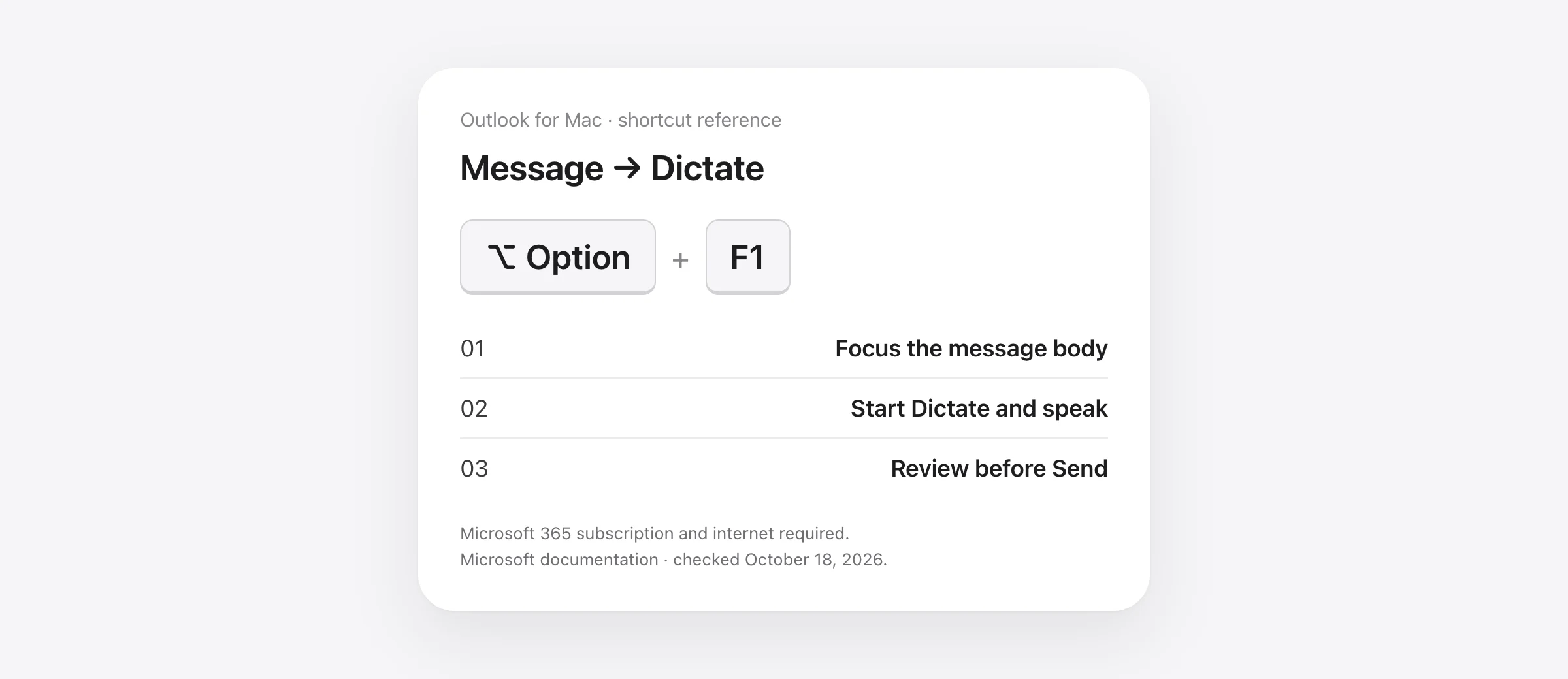
Start with one unsent test message
- Open a new email or reply in Outlook for Mac and click the body.
- Choose Message → Dictate or press Option + F1.
- Wait for listening, speak one sentence, and stop recording.
- If Dictate is unavailable, try your configured macOS Dictation shortcut in the same field.
- Review the finished email before sending it.
Outlook voice typing on Mac has two entry points: Microsoft's Dictate control inside Outlook and dictation that works across Mac apps. Start with the first if it is available in your account. Use the second when you want the same speech shortcut in email, chat and documents, or when Outlook's control does not fit your setup.
Keep the first test small. Leave the recipient empty, click the message body and speak a single sentence. You should be able to tell whether recording started, whether text appeared, and whether it reached the correct field before dictating a complete reply.
Use Outlook's Dictate button or Mac shortcut
Microsoft's Outlook instructions list Message → Dictate and Option + F1 for Mac. They describe a Microsoft 365 subscriber feature that needs a microphone and internet. Use the Mac section of the instructions; Windows shortcuts are different.
Open the compose window before looking for the command. A message you are reading is a different surface from an editable reply. If a shortcut produces no visible result, try the menu control so you can distinguish an unavailable feature from a keyboard conflict.
Once the first sentence appears, stop and check it. A successful microphone indicator alone does not tell you that the result landed where you intended. Begin a new paragraph only after you can see the cursor in the body.
Choose between three dictation routes
| Route | Where to start | Best reason to try it | Check first |
|---|---|---|---|
| Outlook Dictate | Outlook's Message tab | A built-in route in an eligible account | Availability, microphone and connection |
| macOS Dictation | The shortcut in Mac Keyboard settings | Basic speech entry across editable apps | Language, selected input and cursor position |
| Murmur | Hold right Command in the focused field | Local speech and AI writing across Mac apps | Apple silicon, macOS 26+ and Apple Intelligence for AI |
Try a route you already have before adding another purchase. A separate app earns its place when it improves a repeated task: less manual cleanup, a consistent shortcut, a useful saved phrase, or local processing you require.
If Outlook's Dictate button is missing
First check which Microsoft account Outlook is using and whether the required feature is available to that account. A work address, a personal account and a separate subscription can coexist on the same Mac. “I pay for Microsoft 365” is not enough information unless the app is signed into the intended account.
Next distinguish a product limit from a microphone problem. A missing command is different from an available command that cannot hear you. Repeatedly changing the input device will not restore a feature unavailable to the account.
Microsoft identifies Dictate as a connected experience that analyzes content. Organization policies and privacy controls can affect availability. If this is a managed work Mac, ask the administrator which dictation routes are permitted before using another service for work content.
You can also test Mac-wide dictation in an allowed local app. That tells you whether the Mac's speech-entry route works independently of Outlook's own button. Our Mac Dictation setup guide covers that system feature in more detail.
Use macOS Dictation in an Outlook draft
Open System Settings → Keyboard → Dictation. Enable it, choose the language and inspect the displayed shortcut. Apple allows shortcut customization, so use what your Mac shows rather than assuming every keyboard uses the same Fn or Globe gesture.
- Focus the email body. Click the editable area of a new Outlook message or reply.
- Start the configured shortcut. Dictate one short sentence and finish the recording.
- Check the field. Confirm that the sentence is in the body rather than the subject or another window.
- Continue in sections. Dictate the purpose, details and requested action separately.
- Review the email. Check the full message and its addressing before Send.
Apple's macOS 26 Dictation guide describes text entry at the insertion point and spoken paragraph commands. When Voice Control is enabled, it handles dictation instead of standard Mac Dictation. If your controls look different, check which system feature is active.
Different speech tools interpret formatting differently. Start with a simple paragraph before trying a long list. Our Mac punctuation and formatting guide distinguishes spoken punctuation from editing the result afterward.
Use Murmur for a local writing workflow
In Murmur, hold right Command, speak and release. The finished text is inserted into the active editable field. In Outlook, start with an unsent message and verify the body receives one sentence. Speech recognition and AI writing run on the Mac.
For a longer reply, state the purpose first, then the facts, then the next action. A formal writing style can tidy the presentation, but it cannot verify a quoted price or decide which customer you meant. Read the result for meaning before you judge whether it sounds polished.
You can select a paragraph and use right Option to request a shorter or clearer version. Compare the revision with the original before accepting it, particularly when the email contains a condition or commitment. For recurring language, a saved snippet is useful when the exact text should stay fixed.
Murmur requires Apple silicon and macOS 26 or later. AI features need Apple Intelligence available and enabled. The first 2,000 words are free without an account; a license is $19 once for up to three Macs, including version 1 updates under the license terms. Complete the initial model downloads before testing offline dictation.
Fix recording, insertion and wording separately
Use the symptom to choose the next test. This sequence is a troubleshooting method, not evidence that we reproduced every issue in Outlook.
| What you see | Next test | What it helps separate |
|---|---|---|
| Recording never starts | Use the route's menu control or check its shortcut | A trigger conflict from speech recognition |
| Recording starts but hears nothing | Check the chosen microphone and input level | Audio capture from text delivery |
| A transcript exists but the body is empty | Focus the body again and test a plain local text field | Insertion and app focus from recognition |
| Text lands in the subject | Move the cursor to the body before recording again | Destination selection from model quality |
| Only names or terms are wrong | Check language and test a narrow vocabulary correction | A recurring recognition error from a wider setup failure |
Apple documents microphone permissions under System Settings → Privacy & Security → Microphone. Check the app that is actually recording: Outlook, the browser or the separate dictation app. Permission for one does not establish permission for the others.
Microsoft's Office microphone troubleshooting also recommends checking mute state, selected input and background noise. If the same microphone fails in another app, investigate the input before changing Outlook settings. If it works elsewhere, keep the diagnosis focused on the failing route.
For failures across several apps, use Mac dictation not working rather than repeating Outlook-specific steps. For a repeatedly misspelled client name, use the custom vocabulary guide and check that the correction does not change ordinary words.
Turn a spoken reply into a sendable email
Here is an original drafting exercise. It is proposed text, not an actual transcript or a claimed accuracy result:
Hi Mina, I reviewed the estimate. We can approve the design work for 450 dollars, but the migration is not included. Could you send a separate quote by Thursday? I have attached the revised brief.
Read the result in two passes. First check the substance: recipient, amount, scope, requested date and the attachment. Then check readability: greeting, paragraph breaks and tone. A polished sentence that drops “not included” is a failed draft even if the grammar is perfect.
Enter the recipient deliberately using the address or contact picker you intended. Attach the actual file. Dictating that a document is attached does not attach it, and a name written in the body does not choose a recipient.
If you also write in other apps, compare the dedicated Gmail voice typing guide and Word for Mac dictation guide. Their controls differ, but the same final standard applies: a draft is useful when it preserves your meaning and arrives where you can review it.
Local dictation does not make email delivery offline
A local speech tool can create the text without a cloud transcription step. Outlook's mailbox, draft syncing and message delivery remain separate services. Do the first offline test in a local document; then verify your email workflow when connected.
Likewise, keeping speech processing on-device does not change the destination's storage policy. Once the text is inserted into a mail draft, Outlook and the mail provider handle it under their own settings. Choose the speech route and the email destination as two separate parts of the workflow.
Frequently asked questions
How do I dictate an email in Outlook for Mac?
In a new message or reply, use Message → Dictate, or Option + F1, with an eligible Microsoft 365 sign-in. Focus the body before speaking. Stop recording and review the draft before sending.
Why is the Dictate button missing in Outlook for Mac?
Check the subscription and sign-in associated with Outlook, then review app availability and your organization's settings. Outlook's Mac documentation describes Dictate as a Microsoft 365 subscriber feature. Mac-wide dictation provides a separate text-entry route where permitted.
Can I dictate into Outlook without Microsoft Dictate?
Yes. Focus an editable message body and try macOS Dictation or a compatible Mac dictation app. Test one sentence in an unsent draft before relying on the workflow.
Does Outlook Dictate work offline?
Microsoft's service requires an internet connection. A local dictation app can create text without cloud speech processing, but email syncing and sending still depend on Outlook and your mail connection.
Can Murmur type into Outlook on Mac?
Murmur inserts text into the focused editable field, including email compose fields. Test your Outlook draft with its 2,000-word free trial. It needs Apple silicon and macOS 26+, with Apple Intelligence enabled for AI features. A license is $19 once for up to three Macs.
Sources
- Microsoft: Dictate your emails in Outlook, including Mac
- Microsoft: connected experiences in Microsoft 365
- Microsoft: Office dictation troubleshooting
- Apple: dictate messages and documents on macOS 26
- Apple: microphone permissions on Mac
- Murmur: features and requirements
- Murmur: privacy
- Murmur: license terms

Telman Gadimov builds Murmur, a dictation app for Mac that runs entirely on-device. We make Murmur, one of the dictation options below. Microsoft and Apple documentation was checked October 18, 2026. We did not test a signed-in Outlook installation for this guide; availability depends on your account and version. The example email and troubleshooting sequence are original guidance.


