Wispr Flow Notetaker in one paragraph
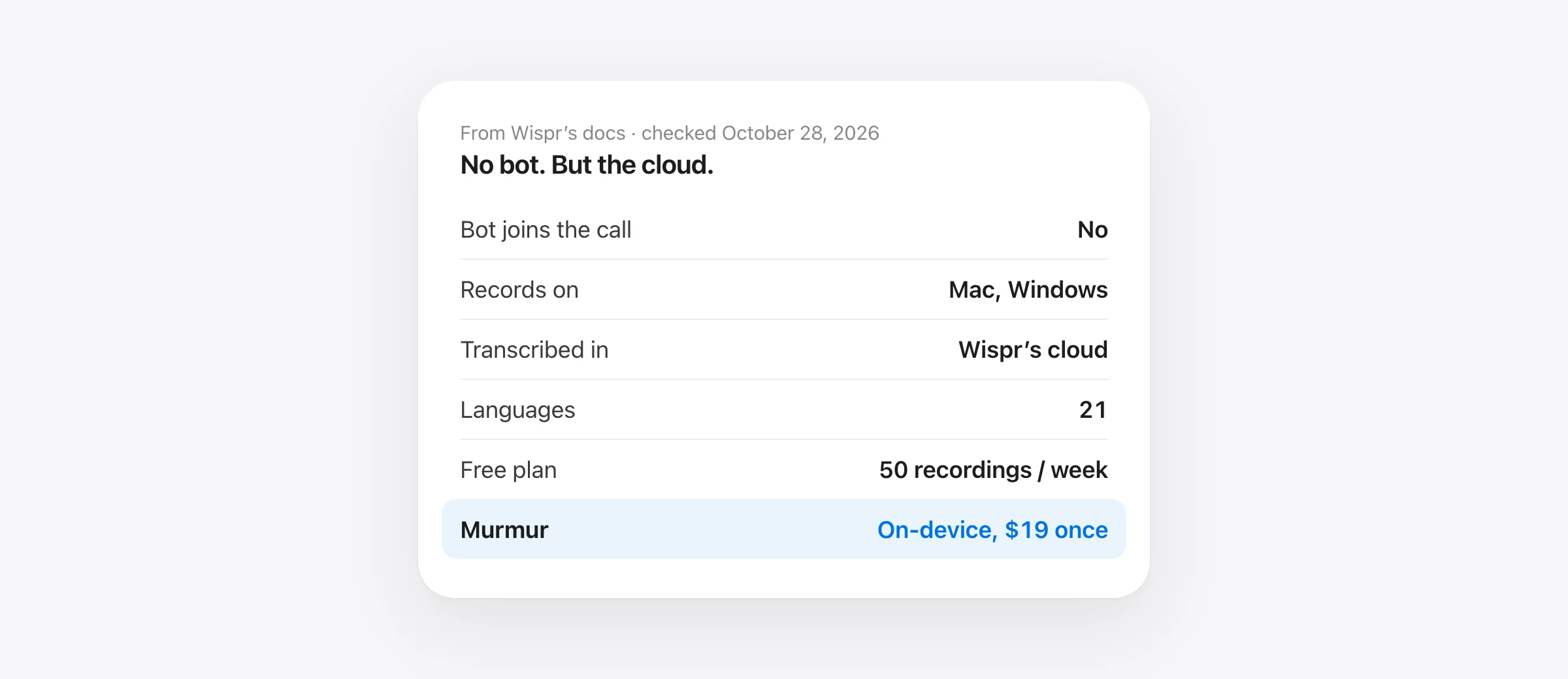
Wispr Flow Notetaker is the meeting recorder built into the Wispr Flow desktop app. It records your mic and the call’s audio on your computer, so no bot joins the call. The audio is then sent to Wispr’s cloud for the transcript and summary. It runs on Mac (macOS 13+) and Windows 10/11, not on iPhone or Android, and supports 21 languages. Free gives you 50 recordings a week by default. Pro ($15 a month or $144 a year) raises that limit. Checked October 28, 2026.
We wrote this from Wispr’s own pages and help center, checked on October 28, 2026. We haven’t tested Notetaker on real calls, so you won’t find accuracy scores here. You will find what the documentation says about setup, cost, data and speaker names, including the places where Wispr’s pages disagree with each other.
What is Wispr Flow Notetaker?
Wispr is best known for Flow, a cloud dictation app: you hold a key, talk, and clean text appears in any app. Notetaker is its first product that isn’t dictation. It shipped in the Mac app in early August 2026 (Computerworld covered it on August 7 and said Windows was “coming soon”). Wispr now lists Windows 10 and 11 as well.
What it does, according to Wispr:
- No bot. “Notetaker records on your computer, so nothing joins the call.” It captures your microphone and your computer’s audio output, so it works with Zoom, Google Meet, Teams, Slack huddles, Discord, browser calls, and also in-person meetings.
- Live transcript, then a summary. The summary (a “Flow Summary”) has a recap with a TL;DR, next steps grouped by owner, and decisions made.
- Speaker names. During the call, speakers can show as “You” and “Others”, or as numbered speakers. Flow reads names from participant tiles in Meet, Zoom, Teams and Slack huddles and matches them to calendar invitees. Wispr warns that “speaker names are not a guarantee of identity”, and Webex and Discord speakers stay numbered. You can rename speakers after the recording ends.
- 21 languages, detected automatically. Summaries are written in the language that was mostly spoken.
- Your meetings in other AI tools. Through MCP, Claude, ChatGPT, Gemini and Cursor can get read access to every meeting on your account. You can also import past notes from Granola or Otter. Comparing more options? Our Otter.ai alternatives guide sorts them by where the audio goes.
How to start a note in Wispr Flow Notetaker
These steps come from Wispr’s getting started and recording articles.
- Grant two permissions. On Mac, allow Microphone (to record you) and System Audio Recording (to record everyone else). On macOS 13 to 14.3 you have to restart Flow after allowing system audio; on 14.4 and later you don’t. On Windows, turn on microphone access for desktop apps and send your meeting app’s sound to the default output device. Wispr only captures that one.
- Optional: connect a calendar. Google Calendar, and Outlook Calendar where your account offers it. iCloud calendars can’t be connected.
- Start the note. Pick one:
- Open Flow, choose Notetaker in the sidebar, and click New note, or press ⌘N (Ctrl+N on Windows) on that tab.
- Press the global shortcut: Option+M on Mac, Win+Alt+M on Windows. You can also triple-tap your dictation key.
- For a calendar meeting, click Join and record in the upcoming list.
- Join a call and accept the prompt. “Automatically detect any call” is on by default and asks before recording.
- Take your own notes in “My thoughts”. They stay separate from the summary and are left out when you share.
- Stop with “Stop Notetaker”. By default, Flow also stops when the call ends. Then open the Summary and Transcript tabs.
Some limits are easy to miss. Only one meeting records at a time, and recordings stop at 2 hours by default (you can choose 30 minutes, 1 hour or 3 hours under Settings › Notetaker › Maximum recording length). If you lose your connection, you can choose “Record offline”: the audio stays on your device and is transcribed once you’re back online. That’s more than most cloud notetakers offer.
If you record calls, tell the other people first. Recording laws differ by country and state.
What does Wispr Flow Notetaker cost?
Notetaker comes with Wispr Flow. You don’t buy it as a separate app. What each plan gives you, checked October 28, 2026:
| Plan | Price | Notetaker |
|---|---|---|
| Free | $0 | “Limited Notetaker access”: 50 recordings a week by default, resets weekly |
| Pro | $15/month, or $144/year ($12/month) | “Higher limits” and “longer Notetaker history” |
| Growth, dictation only | $23/user/month or $216/user/year | “Notetaker is not included” |
| Growth with Notetaker | $33/user/month or $312/user/year | Unlimited Notetaker, plus questions about your meetings |
| Enterprise | Custom | Sold as dictation only; Notetaker is an add-on through sales |
Only meetings of at least 5 minutes count toward the weekly cap, imports don’t count, and discarding a meeting gives the slot back. Wispr’s pages don’t agree on Pro: the Notetaker page says upgrading gives “unlimited use”, while the pricing table says “Higher limits” and the help center says paid plans get “a higher cap”. Neither gives a number for Pro history either. If you record more than about ten meetings a workday, check the in-app counter before you rely on Pro.
If you only want meeting notes, you pay for dictation too. Pro is $144 a year whether you dictate or not. For the full plan breakdown, the student discount and three-year totals, see our Wispr Flow pricing guide.
Privacy: what leaves your computer
Recording happens on your device. Transcription and summaries don’t. Wispr’s privacy overview says “Notetaker uses cloud processing for meeting transcripts and summaries.” In practice:
- Audio goes to Wispr. Your mic and the call’s audio are uploaded. Wispr deletes uploaded audio 7 days after upload. Local copies are deleted within 7 days, or after 30 days if a meeting never finished processing.
- Transcripts and summaries stay in Wispr’s cloud. Wispr says they are stored “with no setting to opt out of that storage.” With cloud sync turned off, meetings stay on your device, but they aren’t processed until you turn sync back on.
- Training: the docs conflict. The getting started article says “Improve the model for everyone” is “on by default for Free and Pro”, with the choice shown during onboarding. The privacy overview says Wispr doesn’t train on your content unless you turn that setting on. It is always off on Growth, on Enterprise and with a signed HIPAA BAA. Check it yourself under Settings › Data and Privacy.
- Feedback is an exception. “Submitting transcript feedback sends that record’s text, audio and context, even when Improve the model for everyone is off.”
- Audits came before Notetaker. Wispr says Notetaker launched after its SOC 2 and ISO 27001 audit periods and “was not assessed in them.” A signed HIPAA BAA blocks Notetaker recording.
- No voiceprints, according to Wispr’s Notetaker page.
Before your first real meeting, check these five settings:
- Settings › Data and Privacy › Improve the model for everyone: turn it off unless you want your meetings used for training.
- Settings › Notetaker › Start Notetaker automatically: off by default. Leave it off if you don’t want to record calls by accident.
- Auto-share notes: off by default. If you turn it on, choose who receives notes: no one, all attendees, or only people at your domain.
- Default for Notetaker links: Private, Shared with team, or Anyone with the link. Copying a link for a note you haven’t set up uses “Anyone with the link” unless your default is narrower.
- Don’t show Notepad and Flow Bar in screen capture: off by default. Turn it on if you share your screen in meetings.
Our Is Wispr Flow safe? guide covers the dictation side: Context Awareness, cloud storage and the BAA.
Wispr Flow Notetaker vs Granola
Granola is the bot-free notetaker Wispr is clearly competing with. Wispr even imports Granola history. Both record on your computer and transcribe in the cloud. The differences are in platforms, languages, limits and integrations. We included Murmur as a third column because it takes the on-device approach. We make Murmur. If you’re leaving Granola for privacy or price, our Granola alternatives and bot-free note takers guides compare more options.
| Wispr Flow Notetaker | Granola | Murmur | |
|---|---|---|---|
| Bot joins the call | No | No | No |
| Record meetings on | Mac, Windows | Mac, Windows, iPhone, Android | Mac (Apple silicon) |
| Transcription | Cloud | Cloud | On the Mac |
| Audio kept | Uploaded audio deleted after 7 days | Not stored; deleted after transcription | On your Mac; 7 days by default, adjustable |
| Transcripts stored | Wispr’s cloud, no opt-out | Granola’s cloud (US AWS) | Only on your Mac |
| Offline | Records offline, transcribes later | Needs internet to transcribe | Works offline once models are downloaded |
| Speaker labels | You/Others or numbered; names from meeting tiles and invitees | Me/Them; names with speaker tags (Meet, Zoom, Teams) | You, then Speaker 1, 2…; rename by hand |
| Languages | 21 (Turkish yes, Azerbaijani no) | 31 desktop, 17 mobile (Turkish yes, Azerbaijani no) | Up to 99 with Whisper, incl. Azerbaijani and Turkish |
| Free plan | 50 recordings a week | Basic: 30 days of history | 2,000 dictated words; meetings included in the paid app |
| Paid | Pro $15/mo or $144/yr | Business $14/user/mo | $19 once |
| Model training | Setting in Data and Privacy (docs conflict on default) | Trains on anonymized data; opt out in Settings | No cloud, nothing to train on |
| Integrations | MCP (Claude, ChatGPT, Gemini, Cursor), calendar, Slack | Notion, HubSpot, Attio, Affinity, Zapier, MCP, API (Business) | Copy as Markdown; no calendar or integrations |
| Also dictates | Yes, Wispr Flow | No | Yes |
Wispr and Granola facts from their official pages, checked October 28, 2026. Murmur meeting summaries need macOS 26 with Apple Intelligence; without it you get the transcript only.
Pick Wispr Flow Notetaker if you already use Flow for dictation, you’re mostly on a Mac or Windows PC, and you want the option to record offline.
Pick Granola if you need to record on your phone, speak one of the languages Granola supports that Wispr doesn’t, or want your notes to flow into Notion or a CRM. Granola Business costs $14 per user a month, a dollar less than Wispr Pro billed monthly, but it doesn’t include dictation.
Limits and who it’s for
Wispr Flow Notetaker fits someone who spends the day in video calls, already likes Wispr’s dictation, and is fine with a cloud service. Its strengths are no bot, offline recording, and names taken from the meeting app.
It’s a poorer fit if:
- You record on a phone. There’s no iPhone or Android Notetaker yet.
- Meeting audio can’t leave your device. Client, legal, health or HR calls may fall here. Transcripts live in Wispr’s cloud with no opt-out, and a HIPAA BAA blocks Notetaker completely.
- You speak a language that isn’t on the list. You can’t pin the language. Wispr says other languages “may give mixed results”.
- Your meetings run long. The longest setting is 3 hours, which stops at about 2 hours 58 minutes.
- You need names you can trust. Names are inferred from meeting tiles and invitees, and Wispr says to check them.
Alternatives to Wispr Flow Notetaker
Granola is the closest match: also no bot, also cloud, with mobile apps and more integrations. See the comparison above.
Murmur is what we make, and it’s the option for calls that shouldn’t leave your Mac. When Zoom, Meet, Teams, FaceTime, Slack, Telegram, WhatsApp or a browser call starts using the mic, the notch asks “Take notes on this Mac?”. You can also press ⌃⌥M for any meeting. It records your mic and the call’s audio as two separate tracks and transcribes on the Mac. Your mic is labeled “You”, and other voices are told apart on the Mac as Speaker 1, 2 and so on. Rename one and the name updates everywhere, including the summary. On macOS 26 with Apple Intelligence, the summary (overview, action items, decisions) is also written on the Mac. Nothing from a meeting is uploaded. With the Whisper model, transcripts work in Azerbaijani, Turkish and many other languages Wispr doesn’t list. Summaries only cover languages Apple Intelligence supports.
What you give up with Murmur: it only runs on Apple silicon Macs with macOS 14 or later (summaries need macOS 26 with Apple Intelligence). There’s no Windows, iPhone or Android app, no calendar integration, no automatic names from meeting tiles, no team sharing or sync, and no import of audio files. It costs $19 once, with meeting notes included. The first 2,000 dictated words are free with no account.
If dictation is the main reason you use Wispr and the notetaker is a bonus, our Wispr Flow alternatives for Mac guide compares seven options, offline and one-time-purchase apps included. Our Superwhisper vs Wispr Flow comparison covers Wispr’s offline limits in more detail.
Frequently asked questions
Is Wispr Flow Notetaker free?
Yes, with limits. Wispr’s pricing page lists “Limited Notetaker access” on the Free plan, and its help center gives the default cap as 50 recordings a week for non-paying users. Only meetings of 5 minutes or longer count. Pro ($15 a month, or $144 a year) raises the limit and keeps meetings longer. Growth with Notetaker costs $33 per user a month, or $312 per user a year.
Does Wispr Flow Notetaker work on iPhone or Android?
No. As of October 28, 2026, Wispr says Notetaker runs on Mac and Windows, with “iPhone and Android on the roadmap.” Wispr Flow’s dictation keyboard works on iPhone and Android, but you can’t record a meeting with Notetaker on a phone.
Does Wispr Flow Notetaker work on Windows?
Yes. Wispr lists Windows 10 and 11. On Windows it records other people only from the default output device, so set your meeting app to use that device or their voices won’t be captured.
What languages does Wispr Flow Notetaker support?
Wispr says 21. Its help article lists Arabic, Bengali, Chinese, Czech, Danish, Dutch, English, French, German, Hindi, Hinglish, Italian, Japanese, Korean, Marathi, Polish, Portuguese, Russian, Spanish, Swedish, Turkish and Urdu. The language is detected automatically and you can’t set it yourself. Azerbaijani is not listed.
Is Wispr Flow Notetaker better than Granola?
It depends on what you need. Wispr makes more sense if you already pay for Wispr Flow dictation, or want to record offline and transcribe later. Granola makes more sense if you need to record on iPhone or Android, need more than Wispr’s 21 languages, or want Notion, HubSpot or Attio integrations. Both run in the cloud and neither puts a bot in your call.
Sources
- Wispr Flow: Notetaker overview and FAQ
- Wispr Flow: Notetaker on Windows
- Wispr Flow: pricing
- Wispr Flow: plans and what’s included
- Wispr Flow: getting started with Notetaker
- Wispr Flow: recording a meeting with Notetaker
- Wispr Flow: Notetaker settings, explained
- Wispr Flow: the live transcript in Notetaker
- Wispr Flow: use Notetaker with multiple languages
- Wispr Flow: Notetaker privacy and security overview
- Wispr Flow: meeting data retention and deletion
- Wispr Flow: offline meeting recording
- Wispr Flow: Flow Summaries
- Wispr Flow: sharing meeting notes
- Wispr Flow: calendar and meeting detection
- Wispr Flow: MCP and other notetakers
- Wispr Flow: data controls
- Computerworld: Wispr moves beyond AI dictation with note-taking assistant (August 7, 2026)
- Granola: pricing
- Granola: how transcription works
- Granola: speaker tags
- Granola: multi-language support
- Granola: where Granola runs
- Granola: security
Telman Gadimov builds Murmur, a dictation app for Mac that runs entirely on-device. We make Murmur, one of the alternatives mentioned. This review is based on Wispr’s and Granola’s official pages and help centers, checked October 28, 2026. We have not run Wispr Flow Notetaker hands-on, so there are no accuracy claims here.


